
Appearance
Configuration
Before the first project starts, an administrator sets up the Construction app once: what kind of construction company you are, the default standards, the accounts used for retention and advances, and the lists of codes that every other screen uses (cost codes, classifications, trades, disciplines...). This chapter explains every setting and every list under .
WHO DOES THIS
Only users with the Construction: Administrator role see the Construction block of the settings and can change the code lists. Other users can read most lists but not change them. See Giving a user construction rights.
Settings
All construction settings are on one page, grouped in blocks. Each block is explained below. A small building icon next to a setting means that the value is per company: if you work with several companies, switch to each company (top right corner) and set it again.
Open . The Construction section of the settings opens directly.
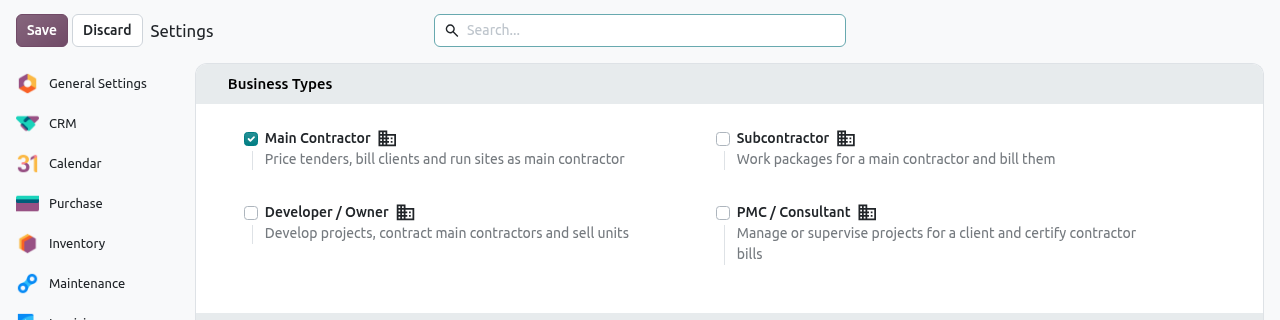
The construction settings start with the Business Types block. Save and Discard are at the top left. Change the settings you need (see the blocks below).
Click Save at the top left. Nothing is changed until you save. Click Discard to forget your changes.
Business Types
Tick what your company does in construction. You can tick more than one. The choice decides which menus and flows are shown, and which Our Role is proposed on new projects (see Our role).
| Setting | Tick it when your company... |
|---|---|
| Main Contractor | prices tenders, signs contracts with clients, bills them and runs the sites. This is ticked by default. |
| Subcontractor | carries out work packages for a main contractor and bills the main contractor. |
| Developer / Owner | develops its own projects, hires main contractors and sells units. |
| PMC / Consultant | manages or supervises projects for a client and certifies the contractors' bills (Project Management Consultant). |
TIP
The menus of a business type appear for everybody as soon as one company of the database has it ticked. Untick a type only when no company uses it any more.
Standards
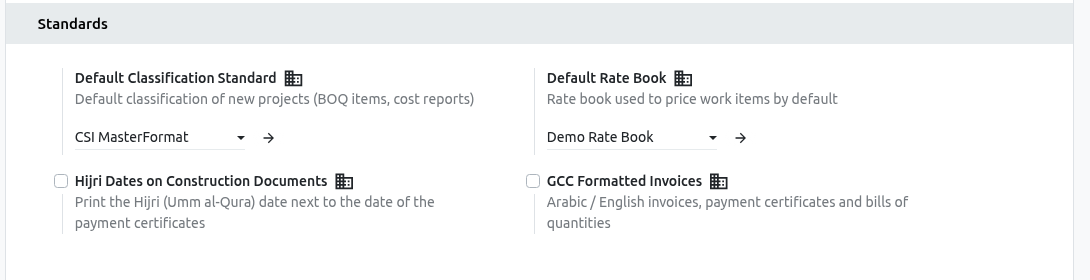
| Setting | What it does |
|---|---|
| Default Classification Standard | The classification used by default on new projects, to organise BOQ items and cost reports, for example CSI MasterFormat. You can change it on each project. See Classification Standards. |
| Default Rate Book | The rate book (price list of resources) used to price work items when nothing else is chosen. See Cost Database. |
| Hijri Dates on Construction Documents | Prints the Hijri (Umm al-Qura) date next to the normal date on payment certificates. Useful in Saudi Arabia. See GCC & UAE. |
| GCC Formatted Invoices | Prints invoices, payment certificates and bills of quantities in Arabic and English. |
Procurement
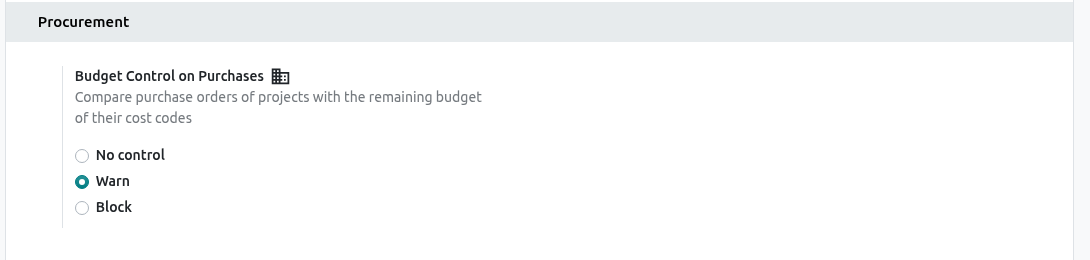
Budget Control on Purchases decides what happens when someone confirms a purchase order of a project and the order is bigger than what remains in the budget of its cost codes:
- No control: nothing is checked.
- Warn (default): the order is confirmed, a warning is written on it and the project manager is notified.
- Block: the order cannot be confirmed until the budget is increased.
See Materials & Procurement and Cost Control.
Contracts
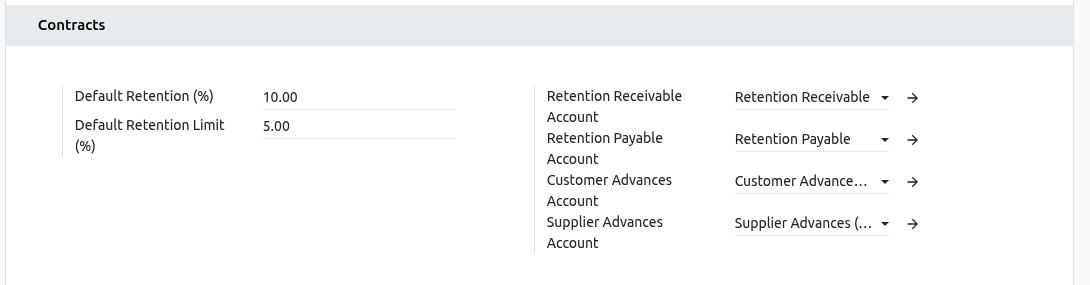
Retention is a part of each payment (often 5 or 10%) that the client keeps until the end of the job, as a guarantee. An advance is money paid at the start of a contract and recovered from the later payments.
| Setting | What to enter |
|---|---|
| Default Retention (%) | The retention proposed on new contracts, for example 10.00. You can change it on each contract. |
| Default Retention Limit (%) | Retention stops when it reaches this share of the contract value, for example 5.00. Enter 0 for no limit. |
| Retention Receivable Account | Accounting account for the retention that clients keep on our invoices. |
| Retention Payable Account | Accounting account for the retention we keep on contractor bills. |
| Customer Advances Account | Account for advance payments invoiced to clients. |
| Supplier Advances Account | Account for advance payments billed by contractors. |
WARNING
Ask your accountant before changing the four accounts once invoices exist: past invoices keep the old accounts, new ones use the new accounts.
Group Companies

When several companies of the same group work together (for example the main contractor and its MEP subsidiary), Odoo copies the documents of one company into the other. See Inter-company.
- Inter-Company User: the (technical) user who writes the copied contracts, certificates, variations and purchases into this company.
- Sales Orders from Group Purchases: when another company of the group sends a purchase order to this company, a sales order is created here automatically.
Property Sales (optional)
If the Property Sales apps are installed (for developers selling units), a Property Sales block appears with the Unit Sales Account, the Tax on Residential Units and Tax on Commercial Units, plus country settings (UAE: exempt tax after the zero-rated period and the land department fee; Saudi Arabia: RETT rate, first home cap and reservation fee cap). These apps are not installed in the demonstration database.
Codes
The menu holds the lists used everywhere else. Most come with ready-made values; you only add or rename what your company needs.
Cost Codes
A cost code is a category of cost, such as 20 Materials or 40.10 Steel fixing subcontract. Budgets, purchases, timesheets and bills are all booked on a project and a cost code, so you can compare the budget with the actual cost line by line (see Cost Control). Each cost code automatically gets an analytic account in the Cost Code analytic plan used by accounting.
Open . The list shows the codes, their cost type and their parent.
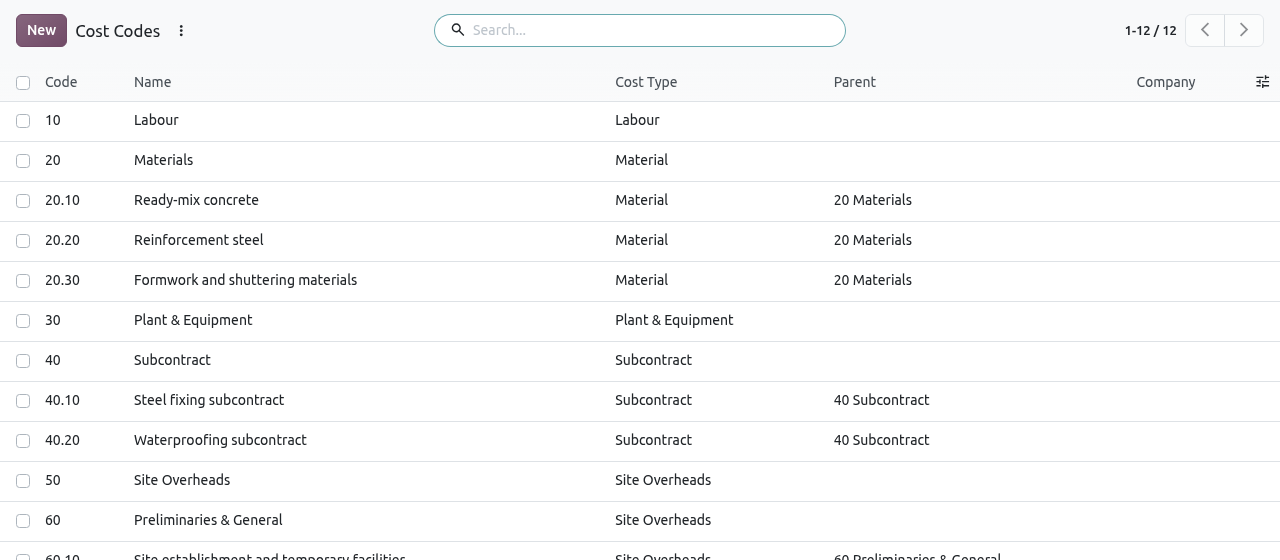
Top-level codes (10, 20, 30...) and sub-codes (20.10, 20.20...). Click New. A new line opens at the bottom of the list. Fill it in, then click Save. To change a code, click its line, edit it and save.
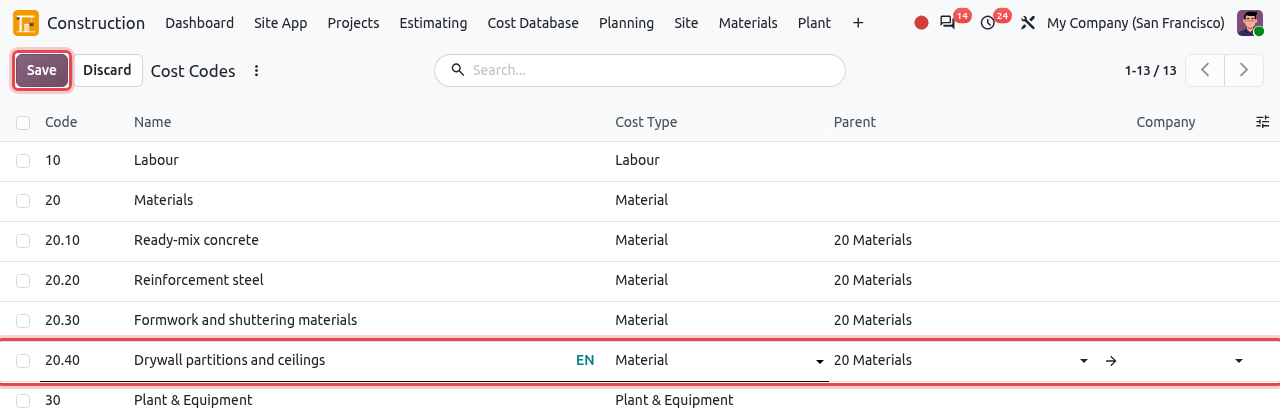
The code 20.40 Drywall partitions and ceilings being edited directly in the list.
| Field | What to enter |
|---|---|
| Code | A short code. Use dots for sub-codes so that the list sorts well, for example 20.40 under 20. |
| Name | A clear name, for example Drywall partitions and ceilings. |
| Cost Type | Labour, Material, Plant & Equipment, Subcontract, Site Overheads or Other. It is used to group costs on the dashboard and in reports, and to find a default code when a cost has none. |
| Parent | The top-level code it belongs to (optional). |
| Company | Leave empty to share the code with every company. |
COMMON MISTAKES
A code must be unique per company: Odoo refuses a second 20.40. A code used as a parent cannot be deleted; archive codes you no longer use instead of deleting them (select the line, then Actions → Archive).
Classification Standards
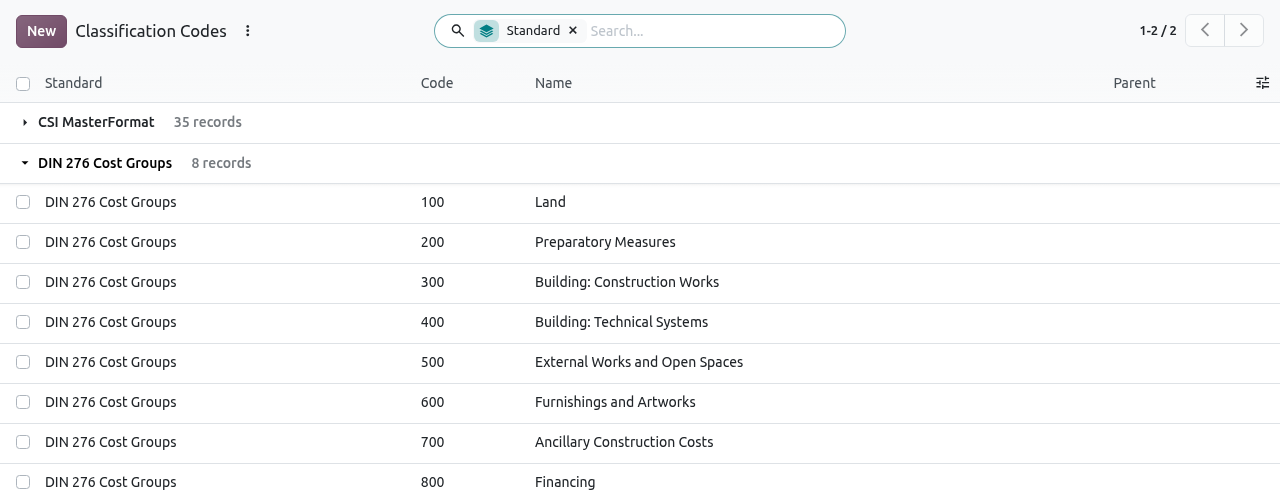
A classification standard is an official way of organising construction work into numbered sections, such as CSI MasterFormat (used in North America and the Gulf) or DIN 276 Cost Groups (Germany). Projects, estimates and BOQ items can be tagged with these codes so that reports follow the standard your client expects.

Open a standard to see its codes, its countries and a description. You normally do not need to create standards.
Classification Codes
lists the codes of every standard, grouped by standard. Click a group to open it. Click New to add a code: choose the Standard, enter the Code and the Name, and optionally a Parent code of the same standard. A code must be unique inside its standard.
Deduction Types
A deduction is an amount taken off a payment certificate by law or by contract, for example a withholding tax or an insurance contribution. The deduction types are used on contracts and payment certificates (see Payment Certificates).

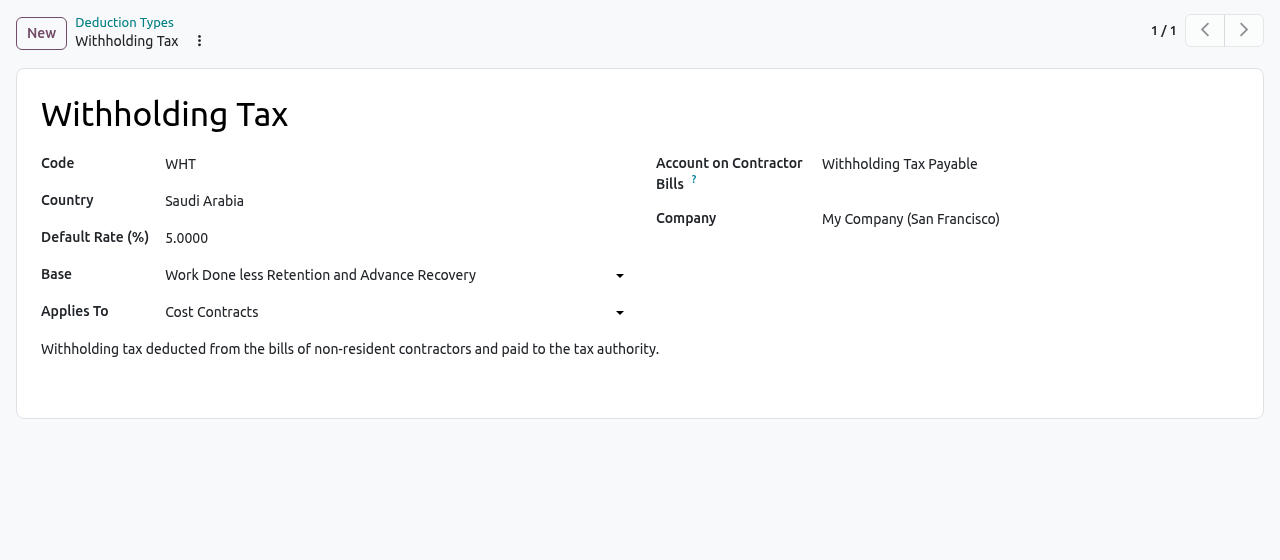
| Field | What to enter |
|---|---|
| Name / Code | For example Withholding Tax / WHT. |
| Country | The country whose law requires it (optional). |
| Default Rate (%) | The rate proposed on certificates, for example 5. |
| Base | Work Done (gross), or Work Done less Retention and Advance Recovery. |
| Applies To | Client Contracts, Cost Contracts or Both. |
| Account on Client Invoices / Account on Contractor Bills | The accounting accounts where the deducted amount goes. |
Trades
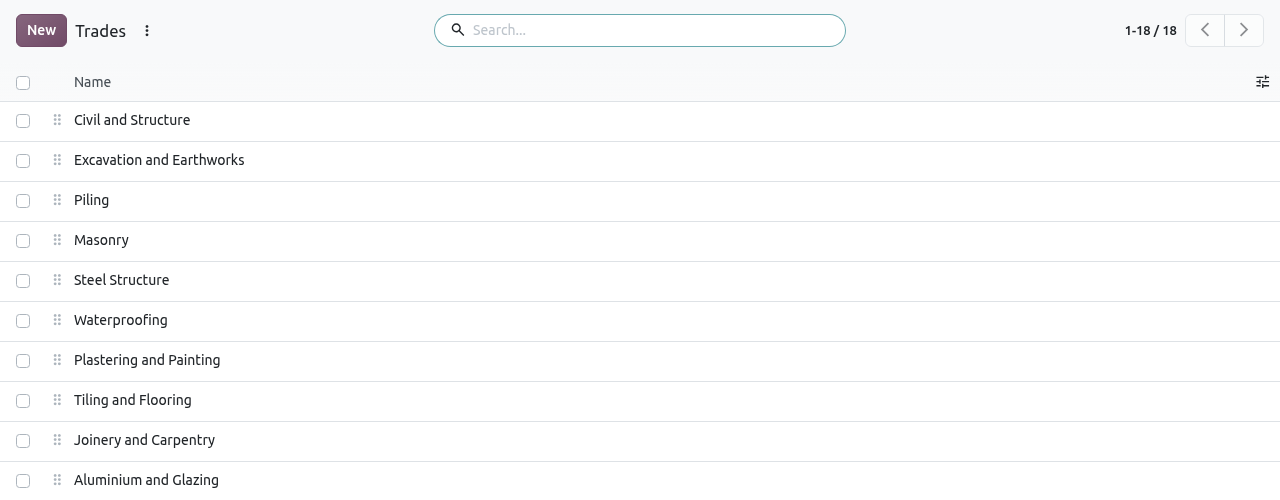
A trade is a type of work done by subcontractors, such as Steel fixing, Waterproofing or MEP. Trades are set on subcontractors and subcontract packages so that you can find who can do which work. The list is simple: a name and an order. See Subcontracting.
Disciplines
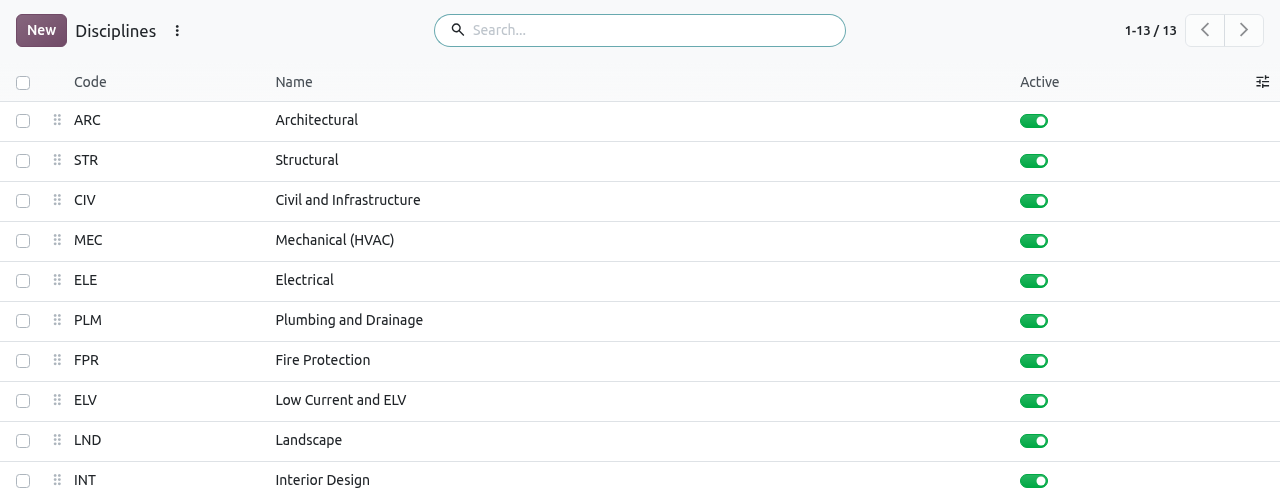
A discipline is a field of engineering, such as STR - Structural or ARC - Architectural. Its code is used in document numbers (drawings, RFIs) and on inspection checklists. See Documents.
Document Types
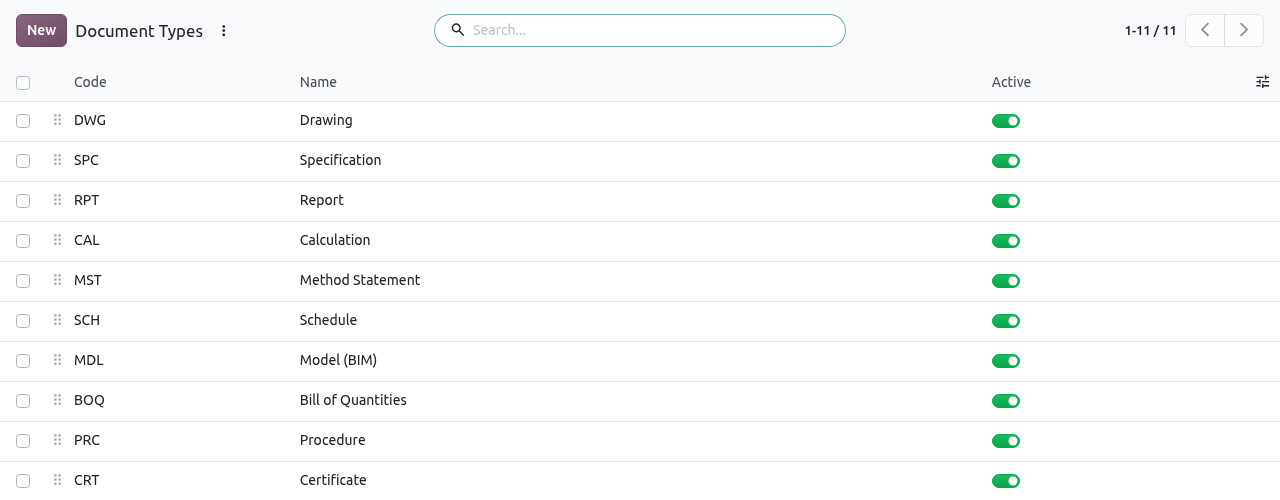
A document type says what a document is, such as DWG - Drawing or SPC - Specification. Its code is also used in document numbers. See Documents.
TIP
Disciplines and document types are edited directly in the list: click New, type the code and the name, and save. Choose short codes (3 letters) and do not change them once documents are numbered.
Inspection Checklists
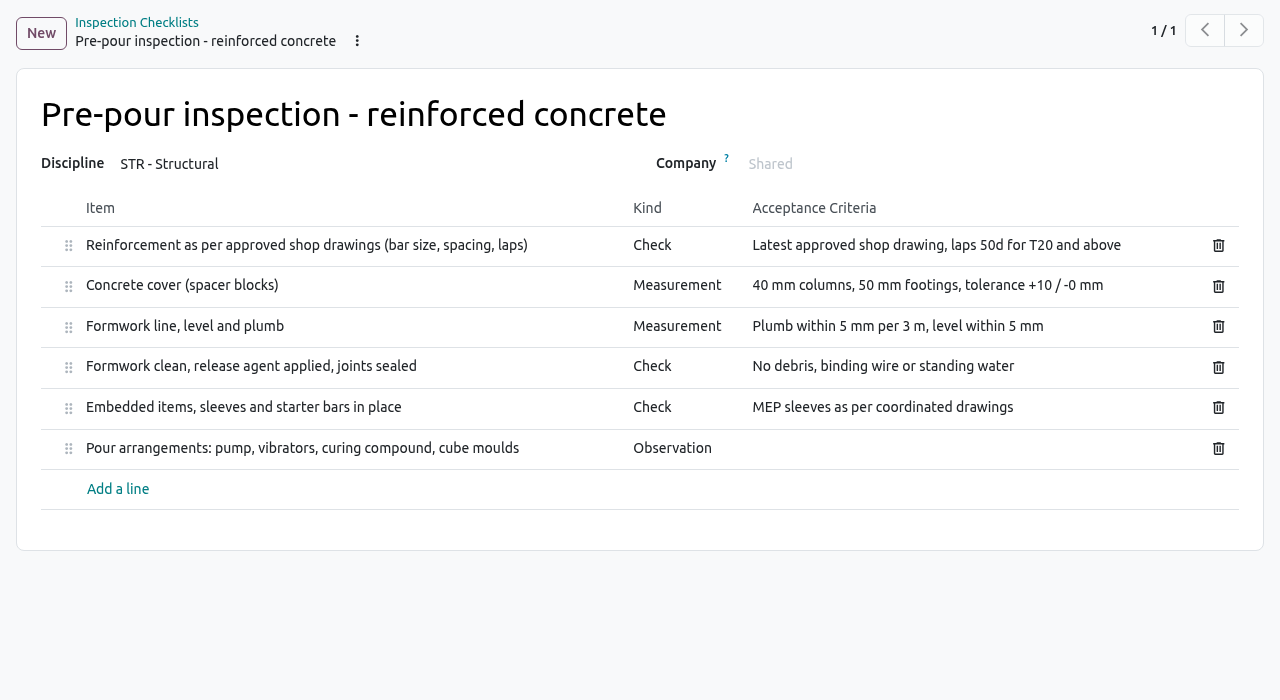
An inspection checklist is a list of points the inspector checks during a quality inspection, for example before pouring concrete. Each item has a Kind (Check, Measurement or Observation) and an Acceptance Criteria. Leave Company empty to share the checklist with all companies. Checklists are copied into inspection requests; see Quality.
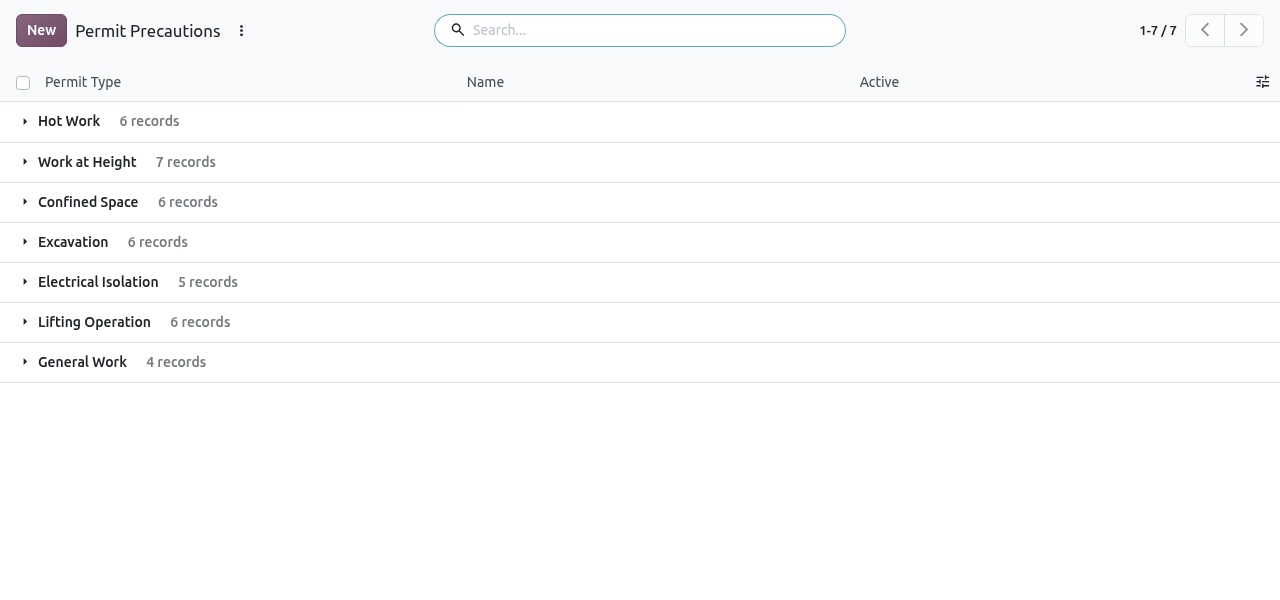
Permit Precautions
For each type of permit to work (hot work, work at height, confined space...), this list gives the safety precautions that must be checked before the permit is issued. They are copied into each new permit. See Health, Safety & Environment.
Other configuration menus
The other entries of the menu are explained in Teams, Roles & Approvals:
- , and ;
- .