
Appearance
Cost Control
Cost Control compares what a project should cost (the budget) with what it has cost, what is already ordered, and what it will cost at the end. Once a month it also compares the cost with the value certified by the client, to show the real margin of the job.
WORDS USED IN THIS CHAPTER
- Cost code: a code that says what a cost is for, for example 10 Labour or 20.10 Ready-mix concrete. Cost codes are defined in (see Configuration). The budget has one line per cost code.
- Actual cost: cost already booked on the project (vendor bills, timesheets, materials issued to site...), with its cost code.
- Committed: cost you have promised but not yet received an invoice for: confirmed purchase orders not yet billed, and the remaining value of running subcontracts.
- Forecast to Complete: what you still expect to spend. EAC (estimate at completion) = Actual + Committed + Forecast to Complete: the expected final cost.
- Variance: Budget − EAC. Negative (red) means the cost code is expected to overrun.
- CVR (cost-value reconciliation): the monthly comparison of the value certified by the client with the cost to date. The difference is the margin.
Where: . On a narrow screen, the menu is under the + button of the top bar. Who: quantity surveyors and commercial managers (role Quantity Surveyor or Commercial Manager) and project managers.
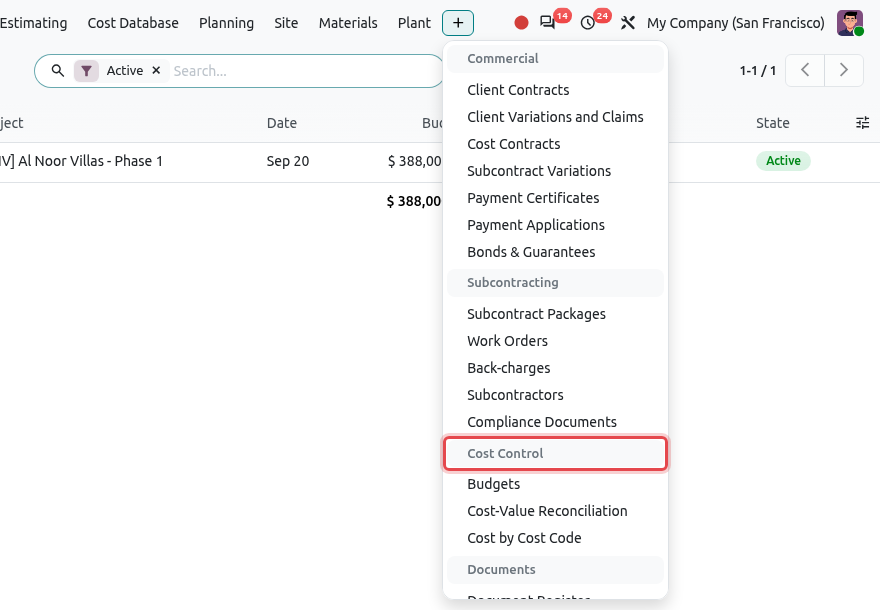
A budget goes through these stages:
Draft→Active→Revised
A project has only one active budget at a time. To change an active budget, you create a revision (R1, R2...); when the revision is activated, the previous budget becomes Revised and stays for history. A draft or active budget can also be Cancelled.
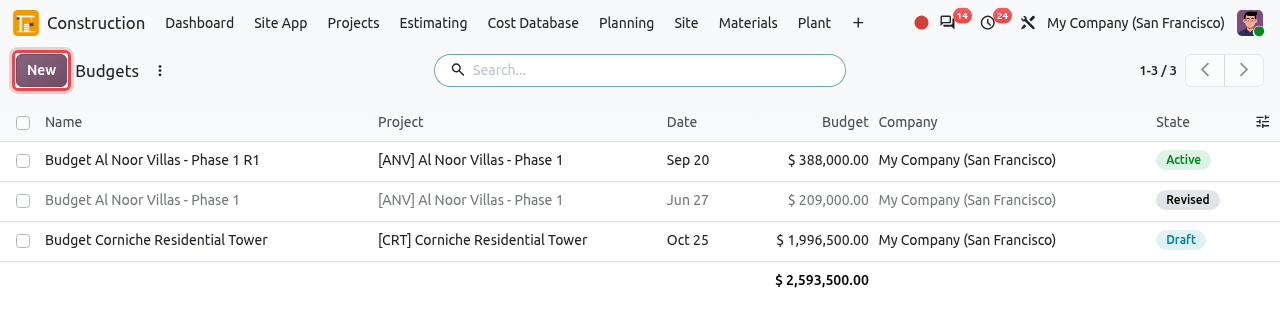
Budgets
opens the list of budgets with the Active filter on. Remove the filter (click the × on it) to see all budgets, including drafts and old revisions (greyed out).
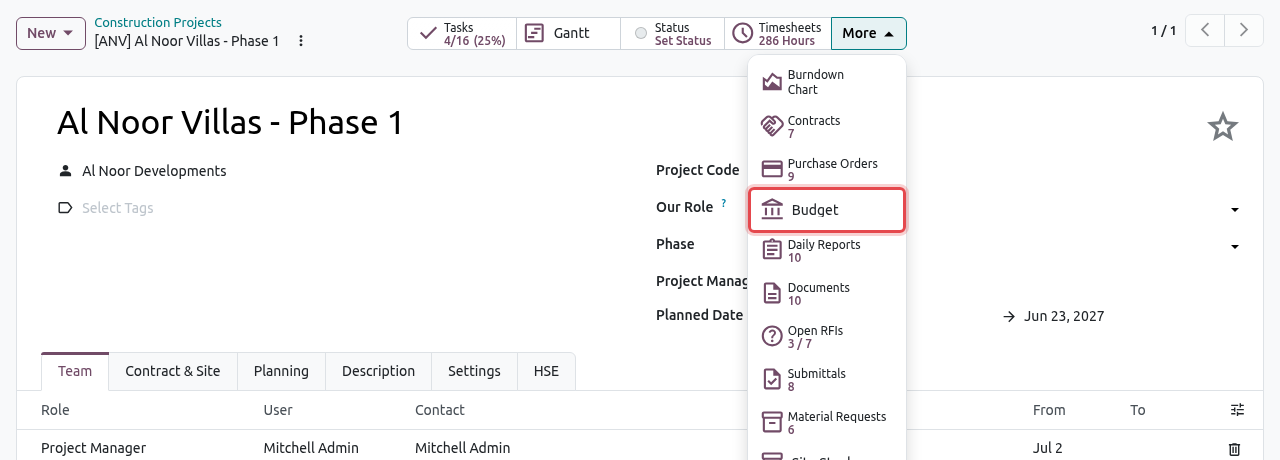
You can also open the budget of a project from the project form: click More in the smart buttons, then Budget. It opens the active budget (or the first budget, or a new one if the project has none).
Create a budget from the estimate (automatic)
You usually do not type a budget yourself. When an estimate is marked as Won, Odoo creates a Draft budget for its project, if the project has none yet. The budget gets one line per type of cost of the estimate (labour, materials, plant, subcontract, other), on the main cost code of that type, with the direct cost of the estimate (without markups). The Estimate field of the budget links back to it.
If the project already had a budget, open the won estimate and click Create Budget at the top (the button is shown only when the estimate is won and has no budget yet). The estimate must be linked to a project.
TIP
After the automatic creation, split the lines into more detailed cost codes if you want to follow costs more closely (for example split 20 Materials into 20.10 Ready-mix concrete, 20.20 Reinforcement steel...), before you activate the budget.
Create a budget by hand
In , click New.
Choose the Project. The name of the budget is filled automatically (Budget <project>).
In the Cost Codes tab, click Add a line, choose a cost code, type a description and the budget amount. Repeat for every cost code. The totals are at the bottom and in Budget at the top right.
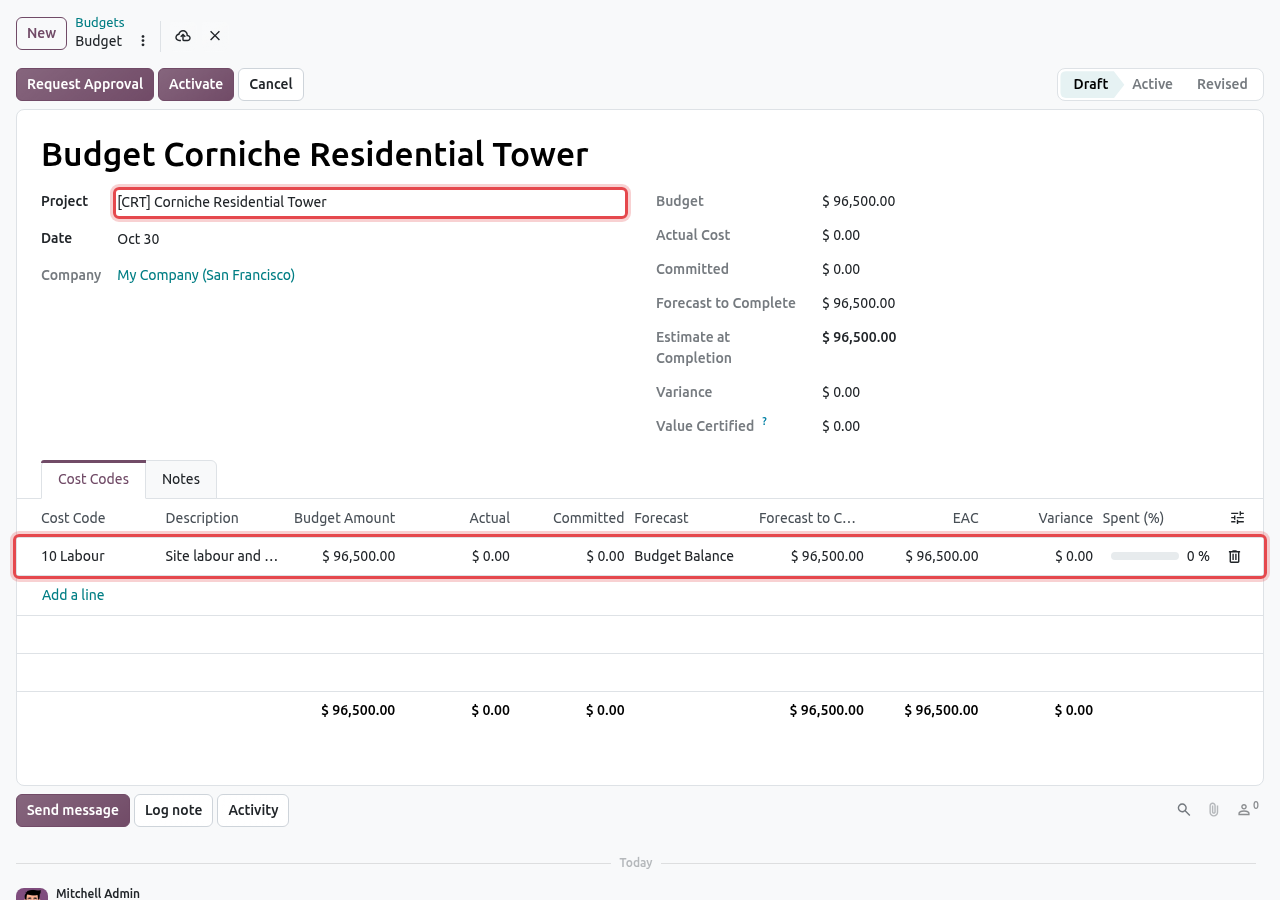
A new budget for the Corniche tower: the project and the first line (10 Labour, 96,500) are framed. Write assumptions, exclusions and risks in the Notes tab, then save (cloud icon).
| Field / column | What to enter |
|---|---|
| Project | The construction project. It cannot be changed once the budget is active. |
| Date | The date of the budget (today by default). |
| Cost Code | One line per cost code; the same cost code cannot appear twice in a budget. |
| Description | What the line covers, for example Ready-mix concrete C30 and C40, pumped. |
| Budget Amount | The budgeted cost of the line, in company currency. |
| Forecast | Budget Balance (default): Odoo assumes the rest of the budget will be spent. Manual: you type your own Manual Forecast to Complete (show the column with the settings icon at the end of the column titles). |
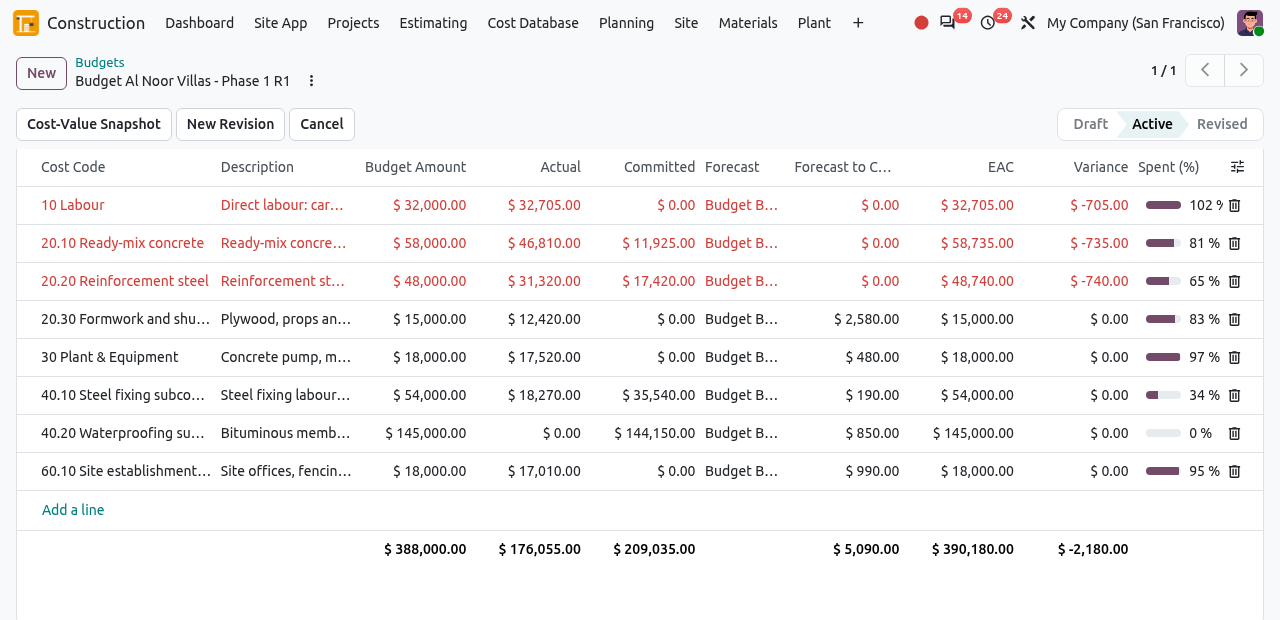
The other columns are calculated by Odoo: Actual, Committed, Forecast to Complete, EAC, Variance and Spent (%).
Approve and activate the budget
On the draft budget, click Request Approval. The budget goes to the approvers defined in (see Teams, Roles & Approvals). Until it is approved, the lines are locked.
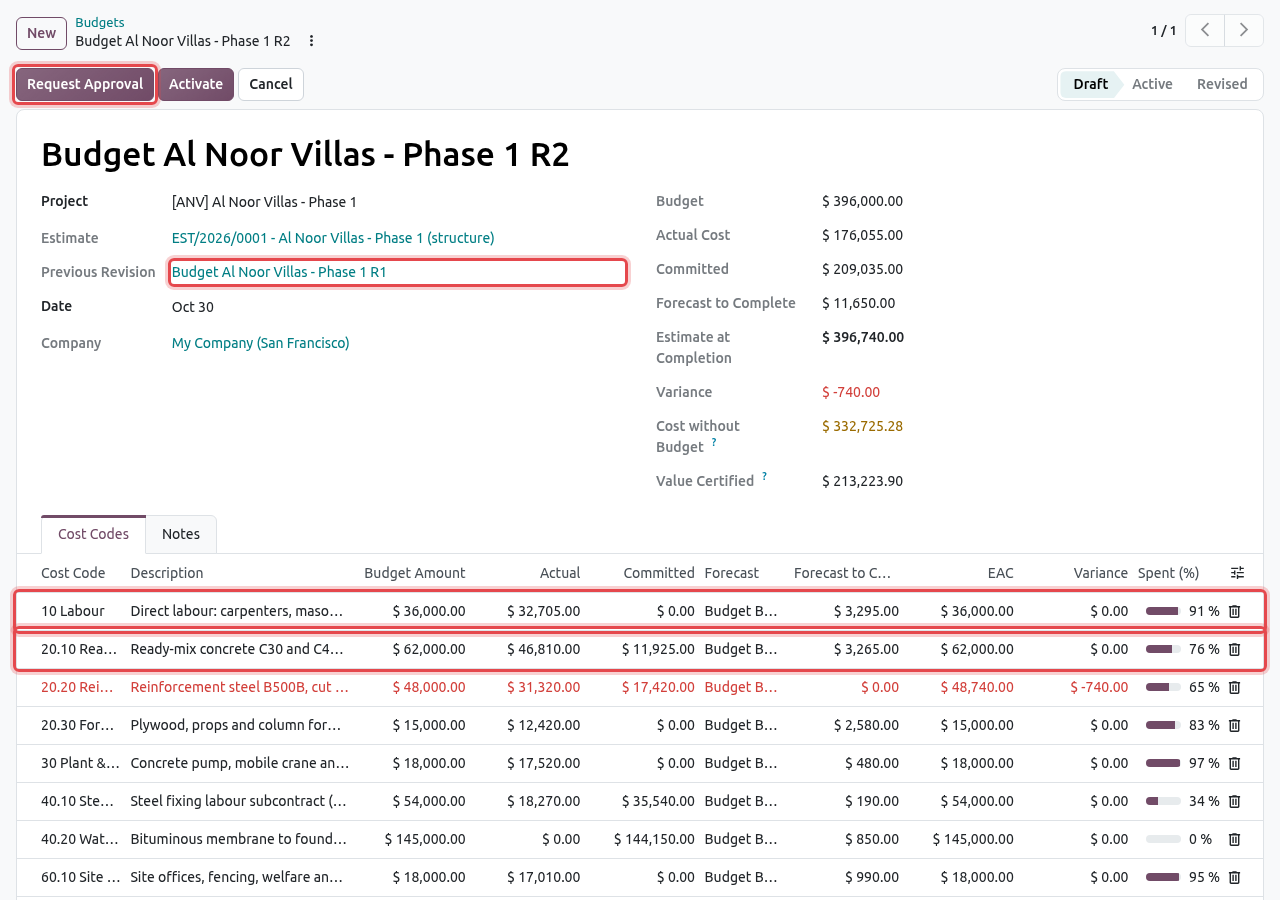
A draft budget (here the revision R2 of Al Noor Villas). Request Approval is framed. When it is approved, an Approvals smart button and the Approval State Approved appear. Click Activate.
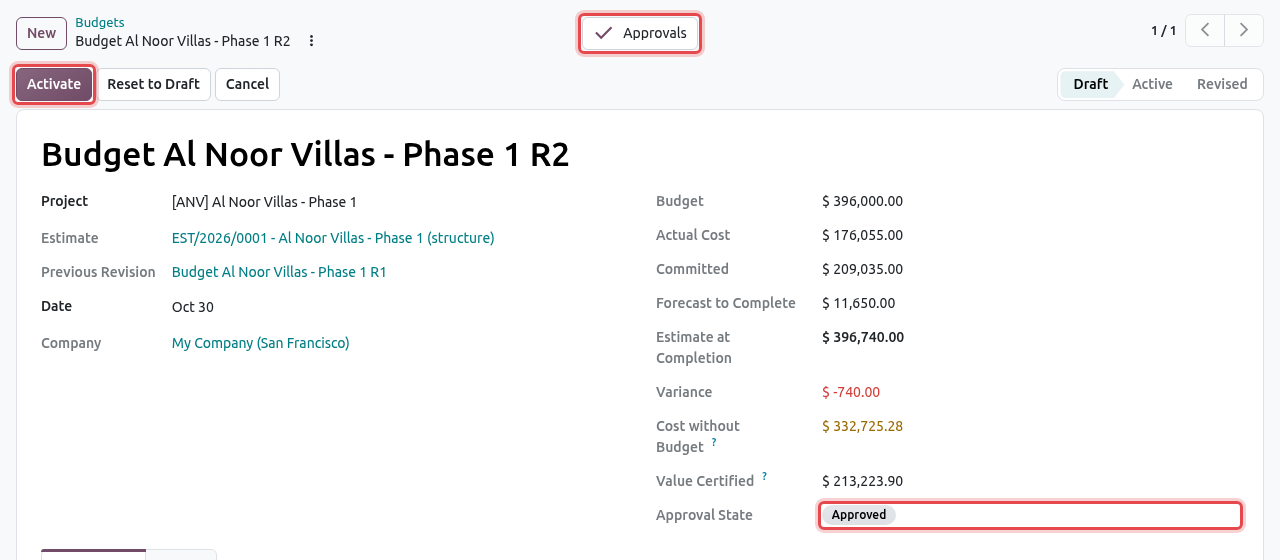
The approved budget: Activate, the Approvals smart button and the approval state are framed. The budget becomes Active. If the project had another active budget, that one becomes Revised. From now on, the active budget is used for cost control, purchase control and the earned value of the Planning.
NO APPROVAL RULE?
If no approval rule exists for budgets in your company, you can click Activate directly. Request Approval then approves at once, which keeps a trace of who asked. If a rule exists, Activate is refused until the budget is approved ("... must be approved first."). If the approval is rejected, change the budget and request approval again. Reset to Draft withdraws a pending or granted approval so that you can edit the lines again.
Read an active budget
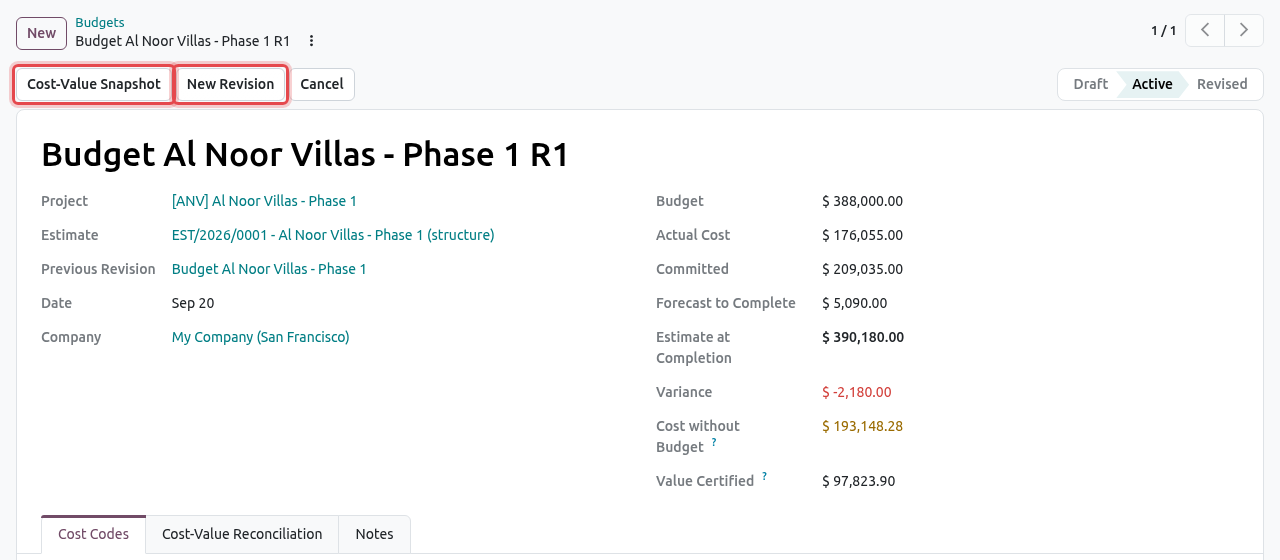
Open the active budget of the project. The top right shows the totals; the Cost Codes tab shows each line.
| Figure | Where it comes from |
|---|---|
| Actual Cost | Costs booked on the project's analytic account with a cost code: vendor bills, timesheets, materials issued to site, plant costs... (negative analytic amounts). |
| Committed | Confirmed purchase orders of the project, for the part not yet billed; plus the remaining value (total − invoiced certificates) of the running cost contracts. |
| Forecast to Complete | Budget − Actual − Committed (never below 0), or your manual forecast. |
| Estimate at Completion | Actual + Committed + Forecast to Complete. |
| Variance | Budget − EAC. Red when negative. |
| Cost without Budget | Actual cost and commitments of the project that match no budget line: cost without cost code, or on a cost code that has no line in the budget (nor a parent with a line). Shown only when it is not zero. |
| Value Certified | The work certified to date on the client contracts of the project (see Payment Certificates). |
HOW COSTS FIND THEIR BUDGET LINE
A cost on 20.10 Ready-mix concrete goes to the line 20.10; if there is no such line, it goes to the line of its parent 20 Materials. It never goes down: a cost booked on 40 Subcontract does not go to the lines 40.10 or 40.20, it ends in Cost without Budget. Keep an eye on that figure: book costs on detailed codes, or add a line for the parent code.
On an active budget only the forecast can still change: you can switch a line to Manual forecast and type your own forecast to complete. Amounts and cost codes are locked ("... can only change in draft, before approval. Create a revision instead.").
Revise a budget
Open the active budget and click New Revision. Odoo copies the budget into a new Draft with the next number (R1, R2...) and opens it. Its Previous Revision field points to the active budget.
Change the amounts or add lines. In the example, the concrete line goes from 58,000 to 62,000 and labour from 32,000 to 36,000 (see the screenshot in Approve and activate). Explain the reason in the Notes tab.
Request approval and activate it as above. The previous budget becomes Revised. If you change your mind, click Cancel on the draft revision: the active budget stays as it was.
ONE DRAFT REVISION AT A TIME
A project can have only one draft revision ("The project already has a draft budget revision.") and you can only revise the active budget ("Revise the active budget of the project."). Finish or cancel the pending revision first.
Budget control on purchases
Odoo can check every purchase order of a project against what remains of its budget when the order is confirmed. The setting is in , section Procurement, Budget Control on Purchases:
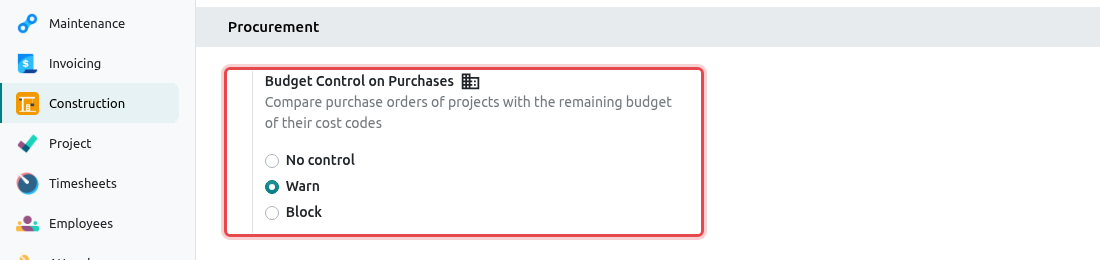
| Option | What happens when a purchase order goes over budget |
|---|---|
| No control | Nothing: the order is confirmed. |
| Warn | The order is confirmed, a warning is written in its chatter and an activity Purchase over budget is given to the project manager. |
| Block | The order is refused with a message "Budget exceeded on <project>: ...". Revise the budget or reduce the order first. |
"Over budget" means: the amount of the order on a cost code is more than Budget − Actual − Committed of that line in the active budget. Lines on a cost code without budget line are also reported. The check only applies to orders of a construction project with an active budget.
Example: a purchase order over budget
The site orders 12 m³ of extra concrete for Al Noor Villas. The request for quotation has the project in the Other Info tab (field Project) and the cost code 20.10 Ready-mix concrete on its line. Purchases are explained in Materials. Click Confirm Order.
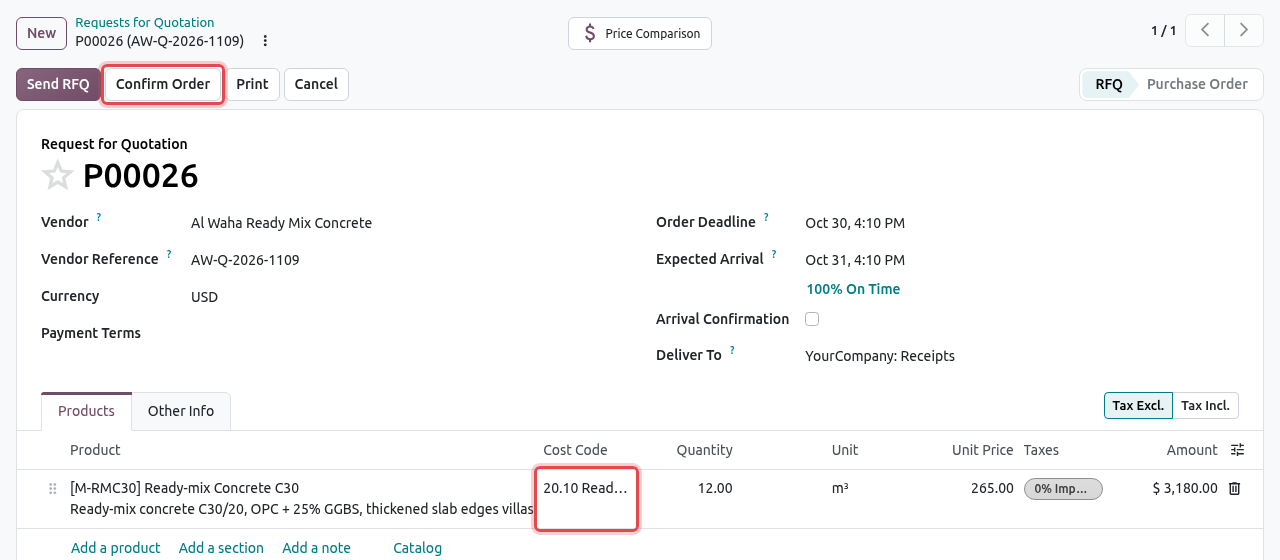
The request for quotation: Confirm Order and the Cost Code of the line are framed. With the Warn setting, the order is confirmed and the chatter shows the warning: the concrete line needs 3,180 but only −735 is left (it is already over budget). The project manager gets a to-do activity.
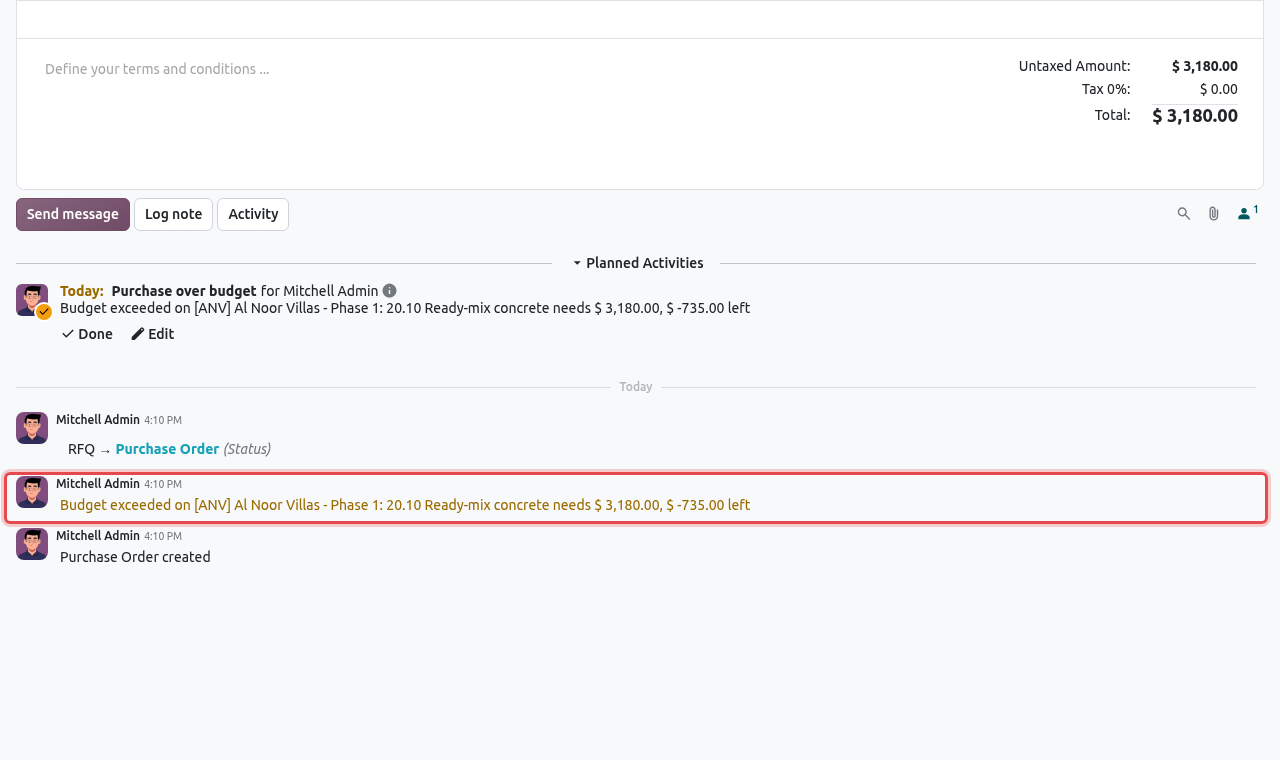
The warning (framed) and the Purchase over budget activity of the project manager. The order now counts in the Committed column of the budget line until it is billed; then it moves to Actual.
Cost-Value Reconciliation
A cost-value reconciliation is a photo of a budget at a date: value certified, cost to date, margin, commitments and EAC, with the detail by cost code. Odoo takes one automatically every month for every active budget. You can take one by hand at any time, for example before the monthly cost report.
Take a CVR snapshot
Open the active budget of the project () and click Cost-Value Snapshot (see the screenshot in Read an active budget).
A Cost-Value Reconciliation tab appears in the budget (if it was not there yet) with a new line dated today.
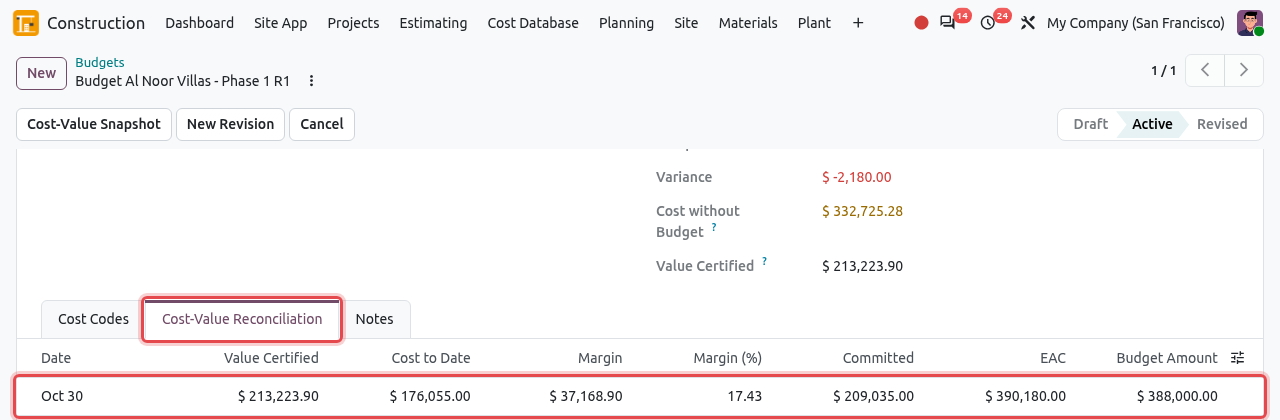
The new snapshot of Al Noor Villas: 213,223.90 certified, 176,055.00 cost to date, margin 37,168.90 (17.43%).
| Column | Meaning |
|---|---|
| Value Certified | Work certified to date on the client contracts. |
| Cost to Date | The actual cost at that date. |
| Margin, Margin (%) | Value Certified − Cost to Date, and the same as a percentage of the value. A negative margin means the work done has cost more than it earned so far. |
| Committed, EAC, Budget Amount | The budget figures at that date. |
The Cost-Value Reconciliation menu
lists the snapshots of all projects, newest first. Snapshots are created only from budgets or automatically (there is no New button).
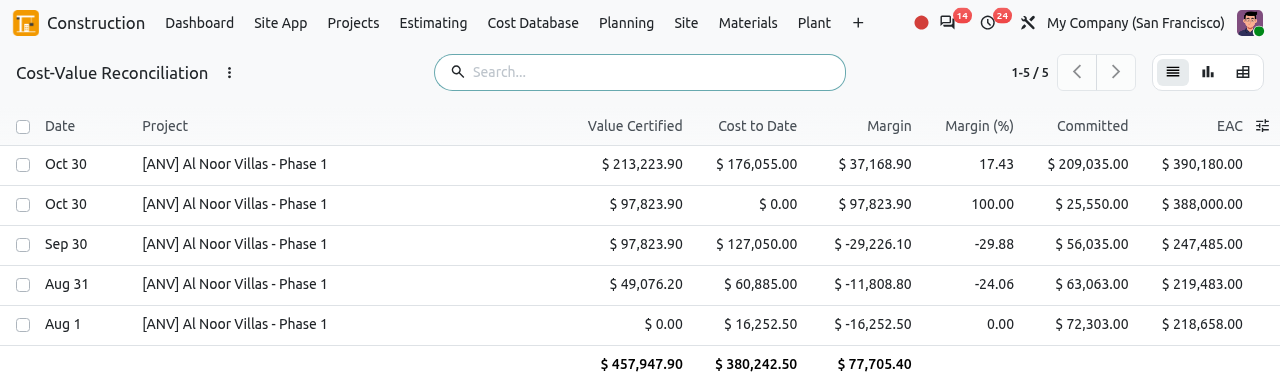
Use the view buttons at the top right:
- Graph: a line per month. Choose the measure with the purple button: Cost to Date (default) or Value Certified, Margin...
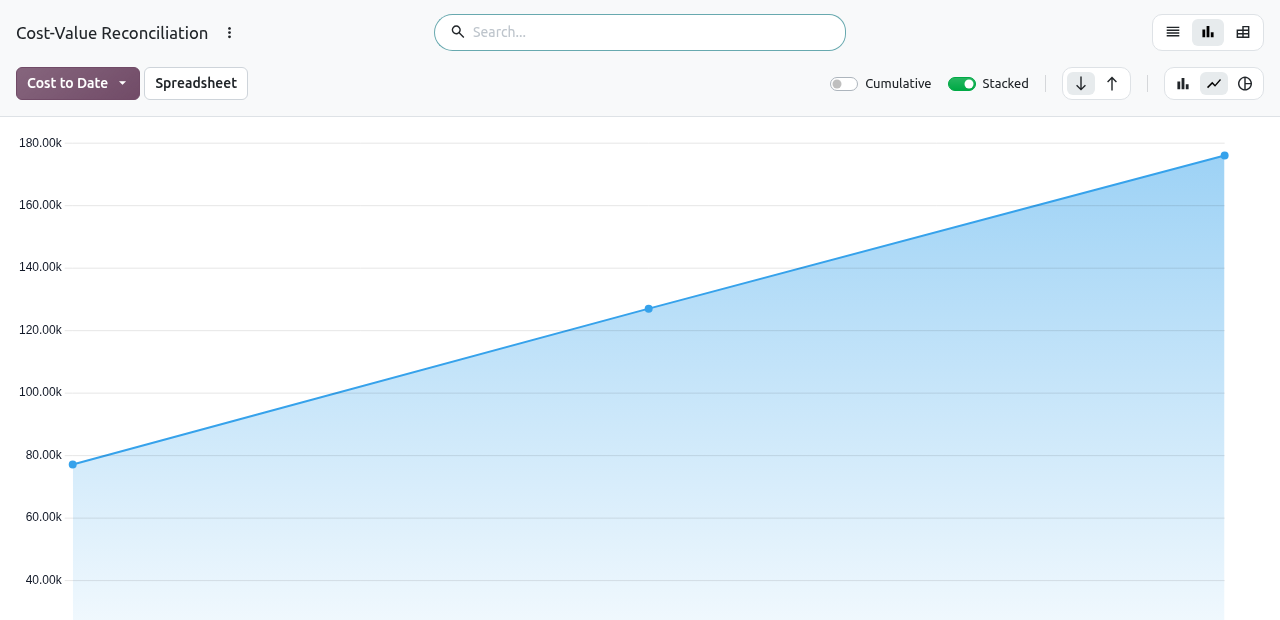
The cost to date month by month. - Pivot: projects in rows, months in columns, margin in the cells.
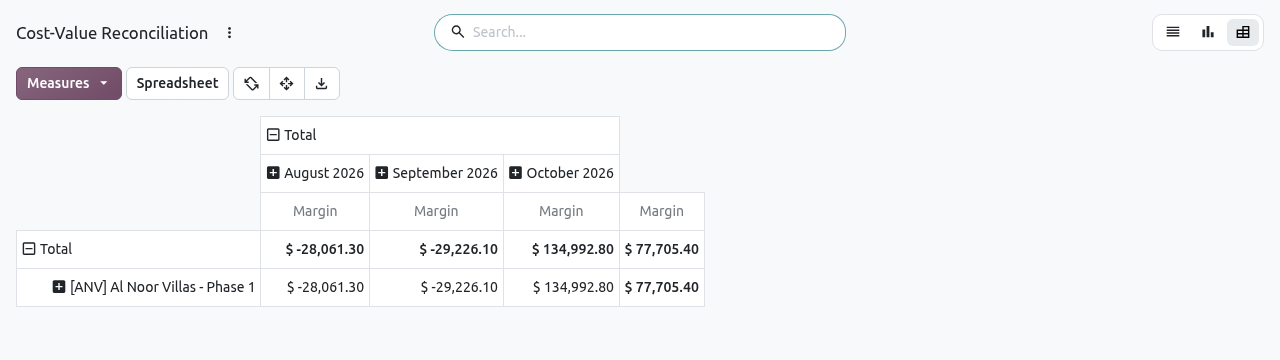
Margin by project and month.
Filters: Negative Margin; group by Project or Month.
READING THE TOTALS
Each snapshot already holds figures to date (cumulative). When a month has two snapshots, or in the Total column and line, the graph and the pivot add them up, which gives a meaningless figure. Read one snapshot (one line of the list) at a time, or filter on one date.
Cost by Cost Code
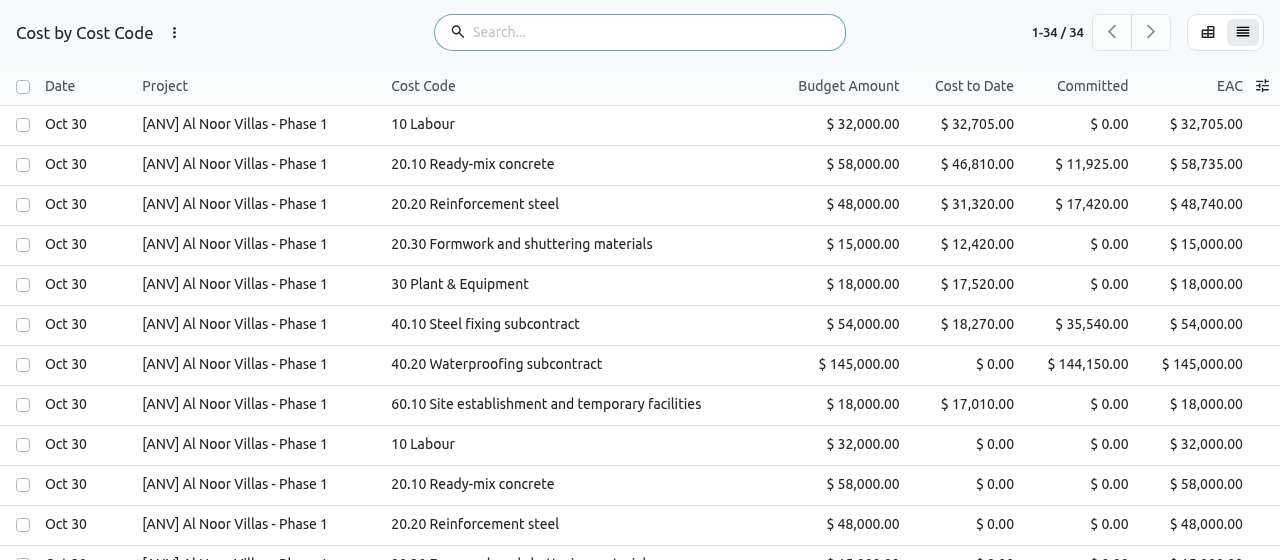
shows the detail lines of the snapshots: one line per cost code and snapshot. It opens as a pivot table with the cost codes in rows, the months in columns and the Cost to Date in the cells. Use Measures to add the Budget Amount, Committed or EAC, and the download button to export to a spreadsheet.
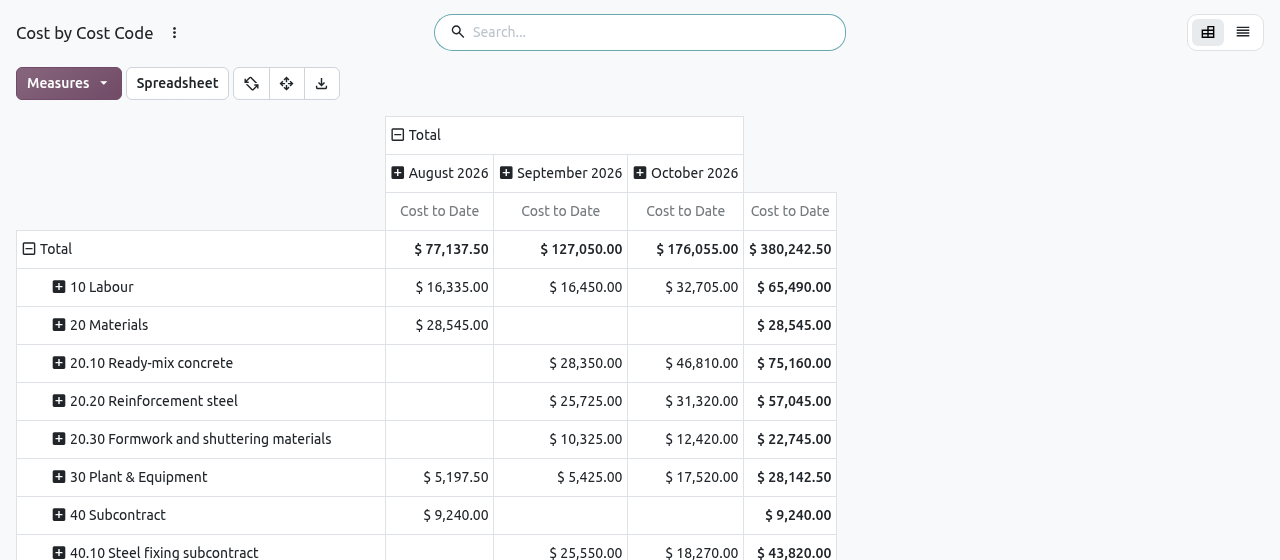
The list view (icon at the top right) shows the same lines with date, project, cost code, budget, cost to date, committed and EAC. Search for a project to see one project only.
TIP
The same warning as above applies: the figures are cumulative, so compare months side by side, but do not trust the Total column. To see the live figures of today, open the budget itself.
Tips and common mistakes
- "A project has only one active budget." Activate a revision instead of a second budget: the old active budget is then set to Revised automatically.
- "A cost code appears only once per budget." Put all the amount of a cost code on one line.
- Actual cost stays at 0. Costs must be booked on the project's analytic account and a cost code. Check that bills, timesheets and site issues have a cost code.
- Large "Cost without Budget". Costs are booked without cost code or on a code that has no budget line (see How costs find their budget line).
- CPI is 0 in the Planning tab. The project has no active budget, or no cost yet.
- On an active budget the lines list still shows Add a line and the delete icon, but saving is refused: create a revision to change amounts.