Appearance
Materials: Requests, Site Issues and Purchases
The Materials menu follows materials from the site's request to their use on site. The site asks for materials with a Material Request; the procurement team buys them (requests for quotation) or sends them from the central store; they arrive in the project's site store; and when they are used, a Site Issue takes them out of stock and charges their cost to the project and its cost codes.
WHERE AND WHO
Menu: , with four sub-menus: Material Requests, Site Issues, Site Stock and Requests for Quotation.
Users: the Site Supervisor and Site Engineer request materials; the Procurement Officer creates the purchases and transfers; the Storekeeper receives and issues materials. Site Issues and Site Stock need Inventory rights; Requests for Quotation needs Purchase rights.
The flow in one picture
Material Request→Approved→RFQ / Transfer→Site Store→Site Issue→Project cost
- Site store: a stock location for each project (for example Sites/ANV). Everything bought for the project is delivered there.
- Central store: the main warehouse stock (WH/Stock). Materials available there are sent to the site by an internal transfer instead of being bought.
- Cost code: the budget line the material is charged to (for example 20.10 Ready-mix concrete). See Cost Control.
Before you start: the project's site store
Each construction project needs a site store. Open the project (), tab Contract & Site. The Site Store field shows the location. If it is empty, click Create Site Store (procurement officers only); Odoo also creates it automatically the first time materials are bought for the project.
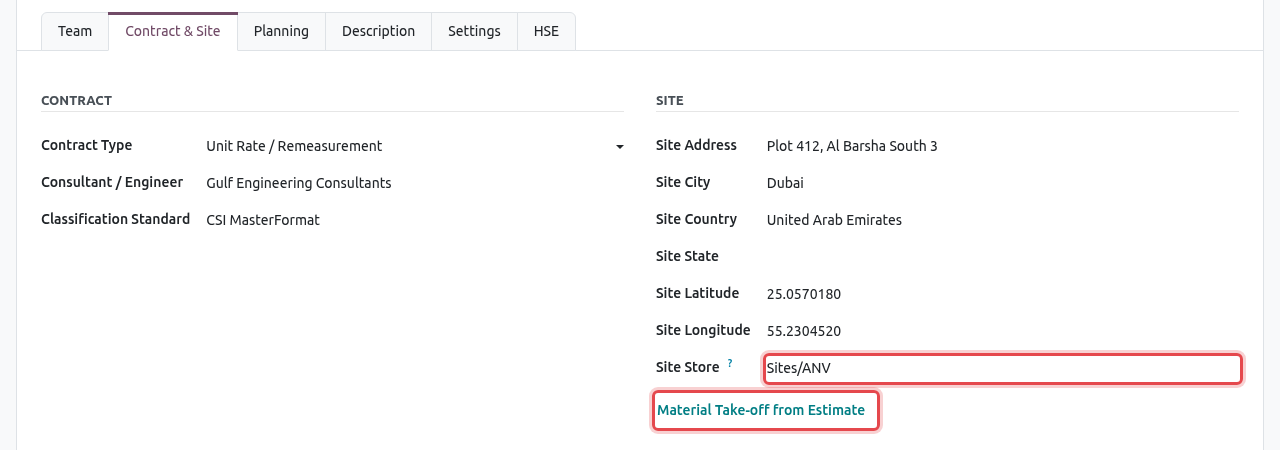
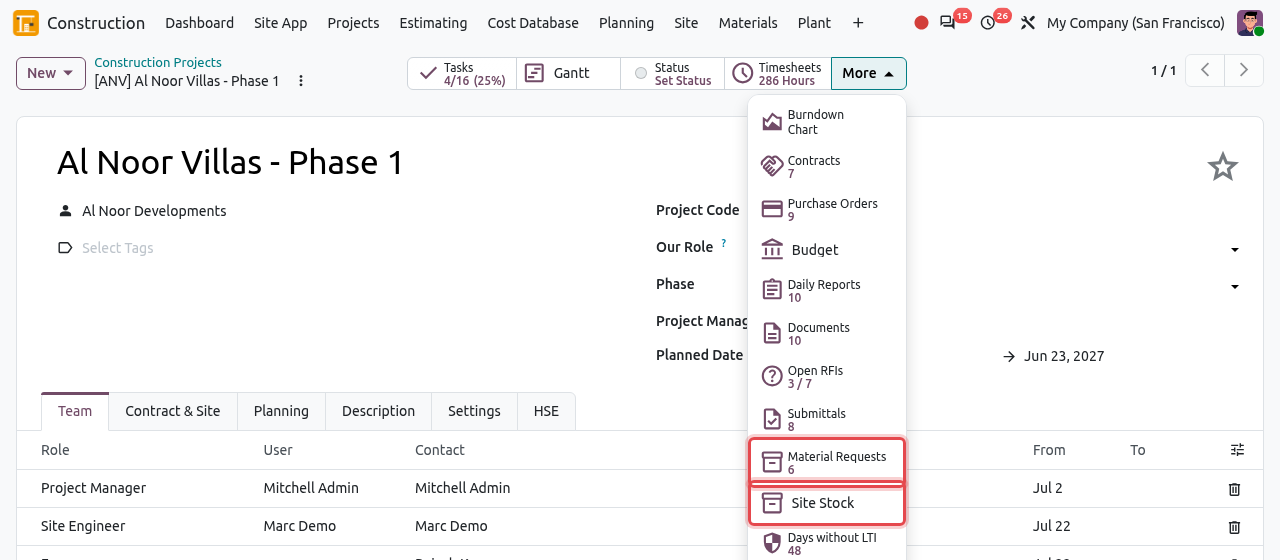
On the same tab, Material Take-off from Estimate creates in one click a draft material request with all the materials of the project's won estimate that have not been requested yet. The project's More smart-button menu gives quick access to its Material Requests and its Site Stock.
Material Requests
A material request lists the materials a site needs and when. It goes through these stages:
Draft→Approved→In Progress→Done
It can also be Cancelled. Requests can be written in the office (below) or from a phone in the Site App.
Create a material request
Go to . The list shows each request with its project, required date, estimated cost and stage. Click New.
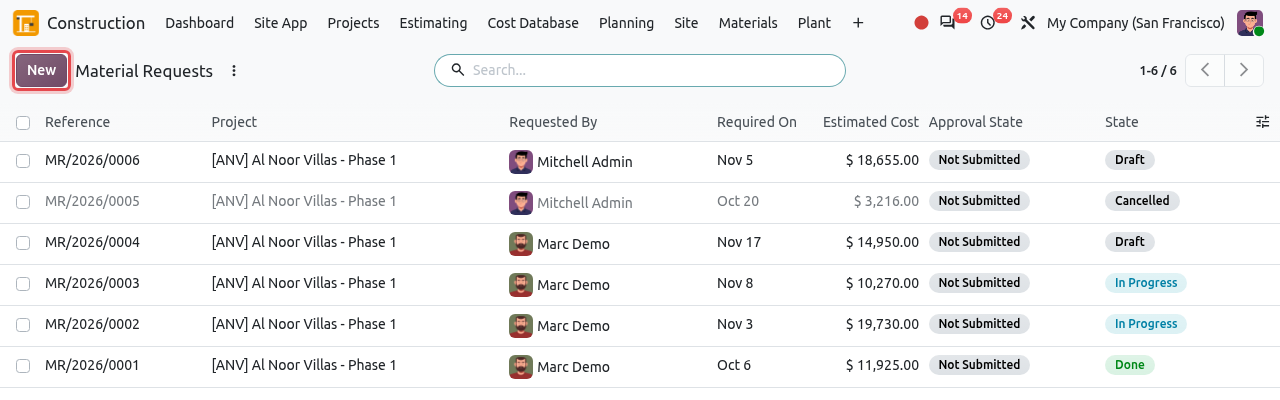
The list of material requests. Choose the Project and the Required On date. In Origin, say what the materials are for (for example First floor slabs, villas 19 to 24).
In the Materials tab, click Add a line, choose the Material and type the Quantity. Odoo fills in the rest for you:
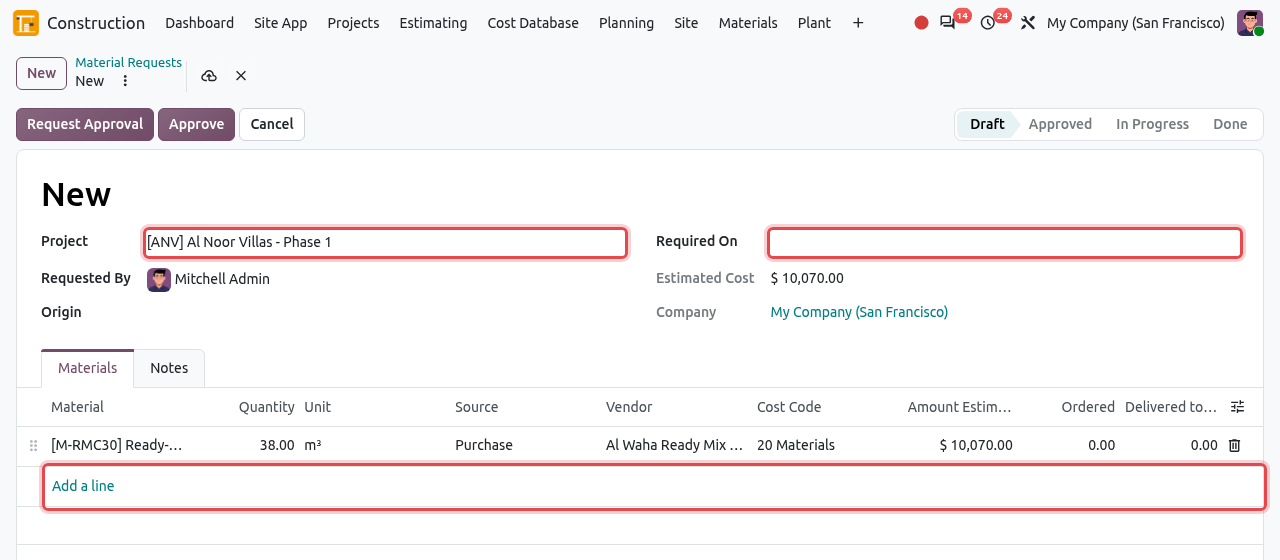
A new request: project, required date and the first line. Column What it means Unit The unit of the material (m³, t, kg, Units...). You can change it to another unit of the same kind. Source Central Store when the central store has enough stock, otherwise Purchase. You can change it. Vendor For purchased lines: the usual vendor of the material. Required before the lines can be bought. Cost Code The budget line to charge. Proposed from the material, or the general materials code; change it to the precise code. Amount Estimated Quantity × the vendor price (or the cost of the material). Ordered / Delivered to Site Filled in later, as the materials are ordered and delivered. A line fully delivered turns green. Add the other materials. Write delivery instructions in the Notes tab. Save.
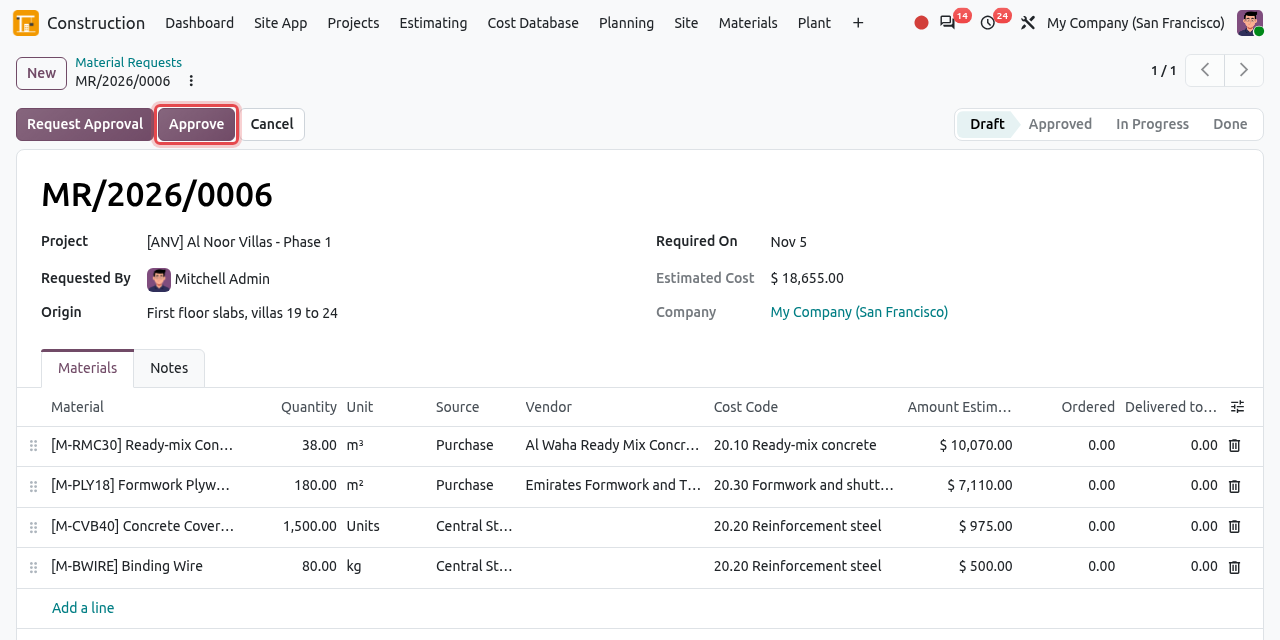
MR/2026/0006: two materials to buy from two vendors, two from the central store. The Approve button is framed.
Approve the request
Check the lines, especially the Vendor and the Cost Code: after approval they can no longer be changed. Then click Approve. The stage becomes Approved.
APPROVAL RULES
If your company has an approval rule for material requests (for example above a given estimated cost), click Request Approval instead. The approvers are notified (they can decide from the Site App); once they have approved, click Approve. While it waits, the request cannot be changed; click Reset to Draft to withdraw it and change it.
Create the purchases and transfers
The procurement officer opens the approved request and clicks Create RFQs / Transfers.
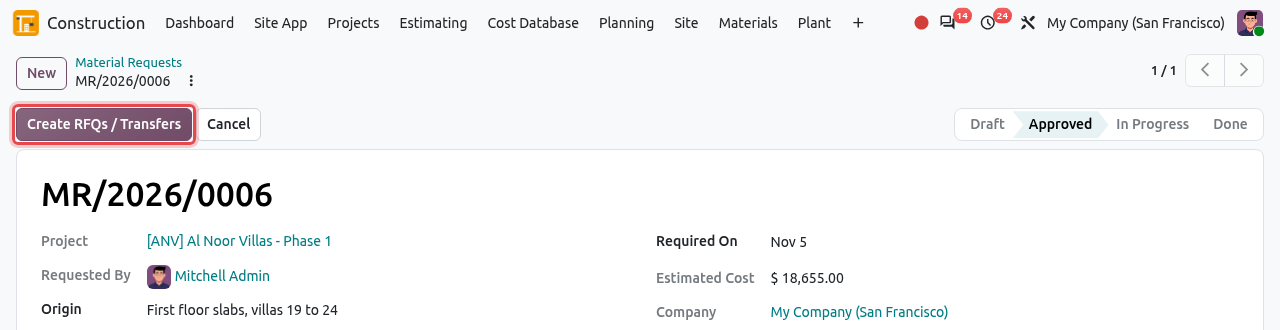
An approved request: Create RFQs / Transfers is framed. Odoo creates:
- one request for quotation (RFQ) per vendor for the Purchase lines, for the project, to be delivered to the site store;
- one internal transfer from the central store to the site store for the Central Store lines.
The stage becomes In Progress. The Ordered column is filled in, and the Purchases and Transfers smart buttons open the documents created.
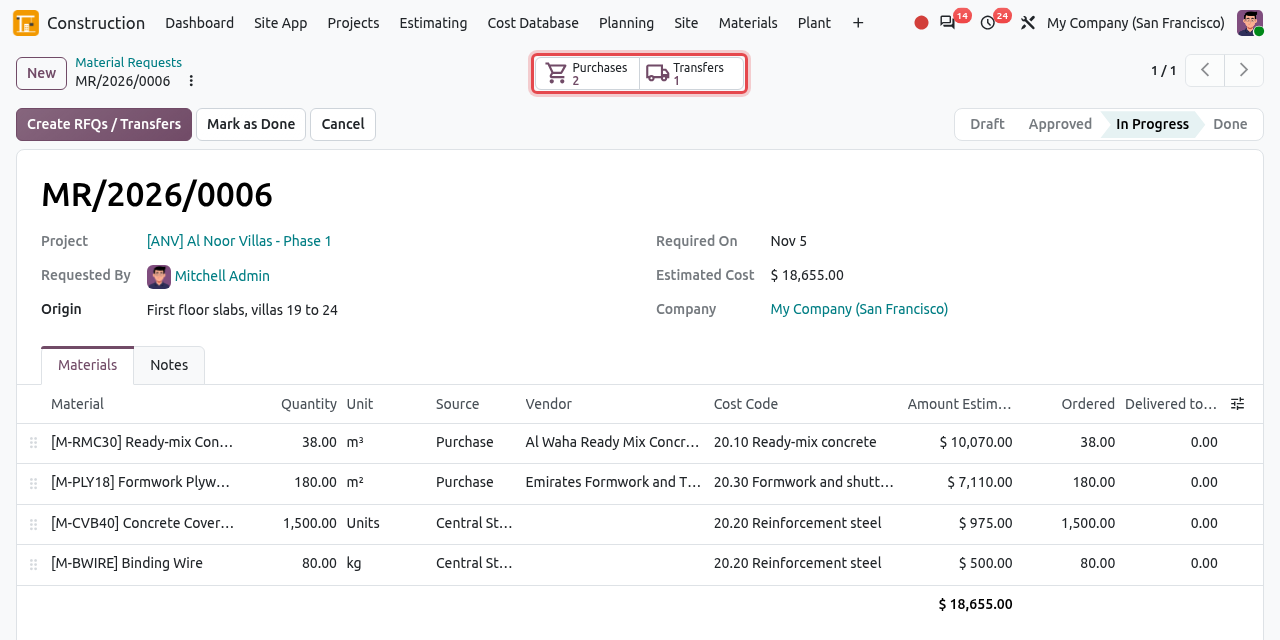
Two RFQs and one transfer were created (smart buttons framed). Open the transfer from the Transfers smart button. The storekeeper of the central store prepares the materials and clicks Validate when they leave for the site. The materials are now in the site store.
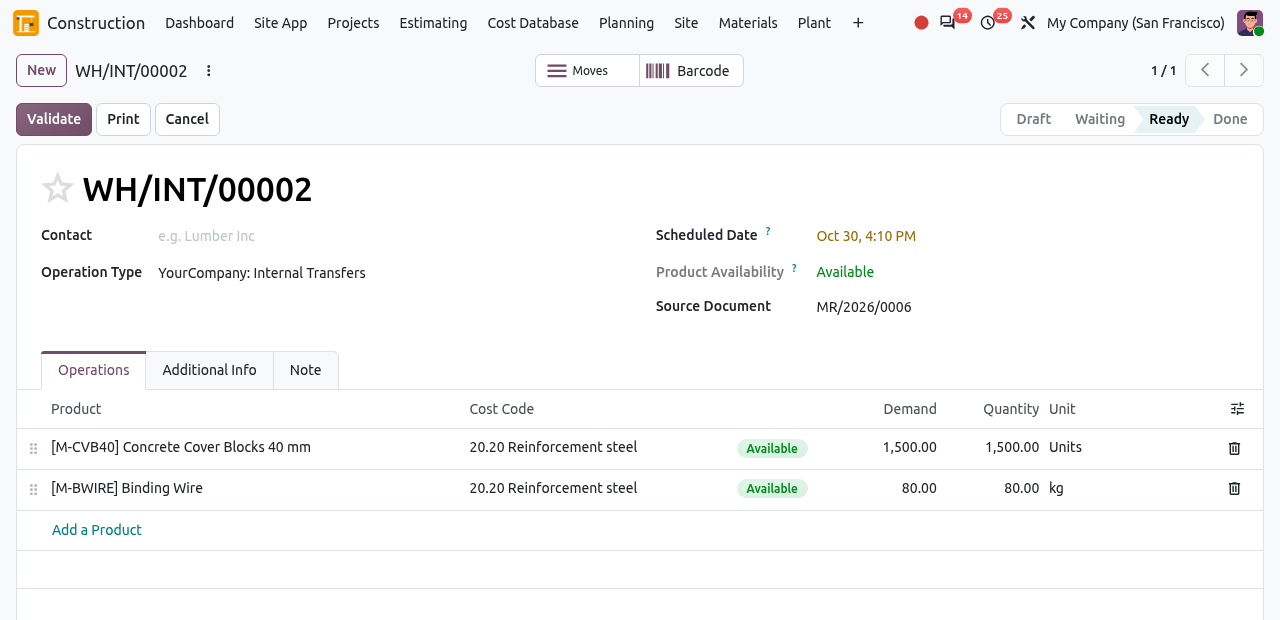
The transfer from the central store, with the cost code of each line. Follow the purchases in Requests for Quotation. When everything is delivered, click Mark as Done on the request.
COMMON MISTAKES
- "Set the vendor of ..., or take them from stock.": a Purchase line has no vendor. Because the lines are locked after approval, you must click Cancel, then Reset to Draft, set the vendor and approve again. Always check the vendors before approving.
- "Approve ... before processing it.": the request is still a draft.
- "Cancel the confirmed purchase orders of ... first.": a request whose purchase order is already confirmed cannot be cancelled. Draft RFQs and open transfers are cancelled with the request.
- If you add lines later, click Create RFQs / Transfers again: only the new lines are processed.
Requests for Quotation
opens the purchase orders of the Purchase app: the RFQs created from material requests, and any other purchase.
Open the menu. The list shows all RFQs and purchase orders, with their vendor, total and status. The tiles at the top count the new, late and unacknowledged orders.
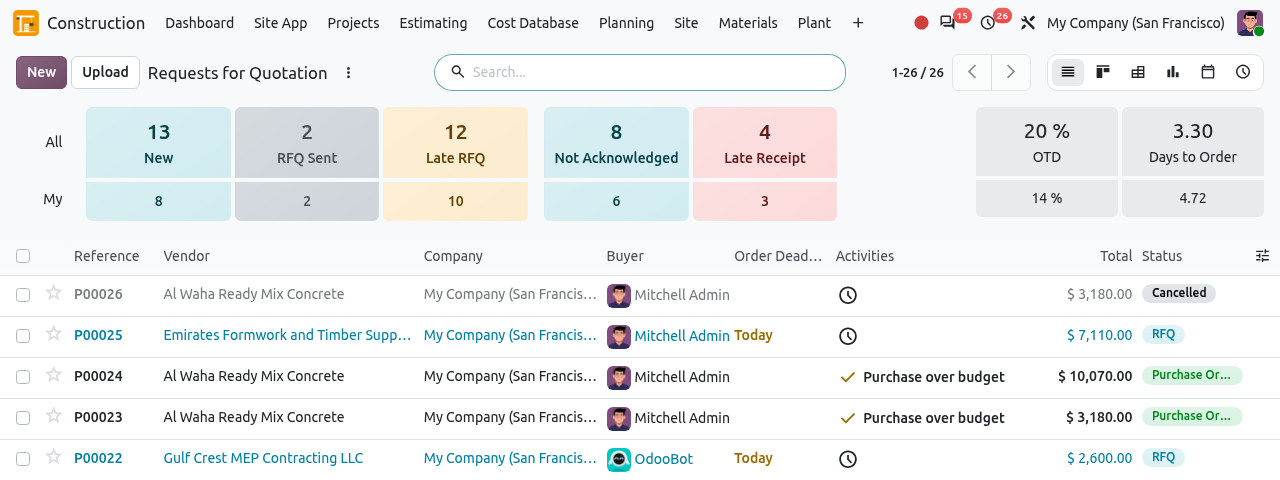
The list of requests for quotation and purchase orders. Open an RFQ created from a material request. Each line has a Cost Code column (shown when the order has a project). The Other Info tab shows the Source (the material request) and the Project. The cost of each line is charged to the project and to its cost code automatically.
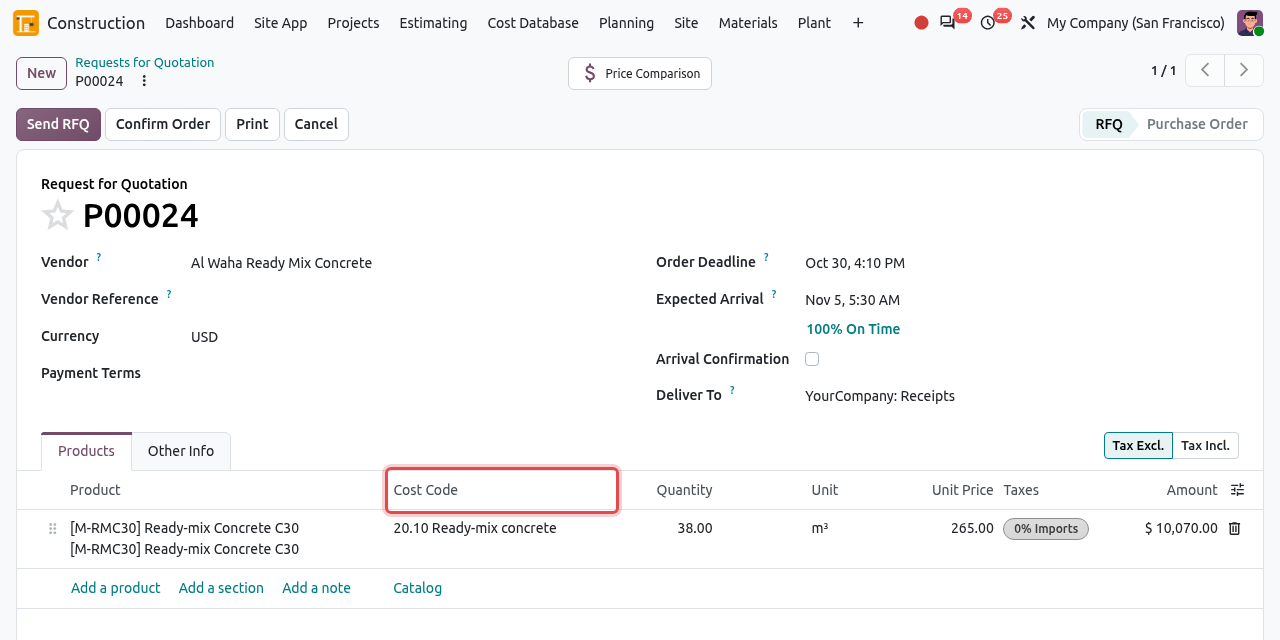
An RFQ for 38 m³ of concrete, with its cost code (framed). 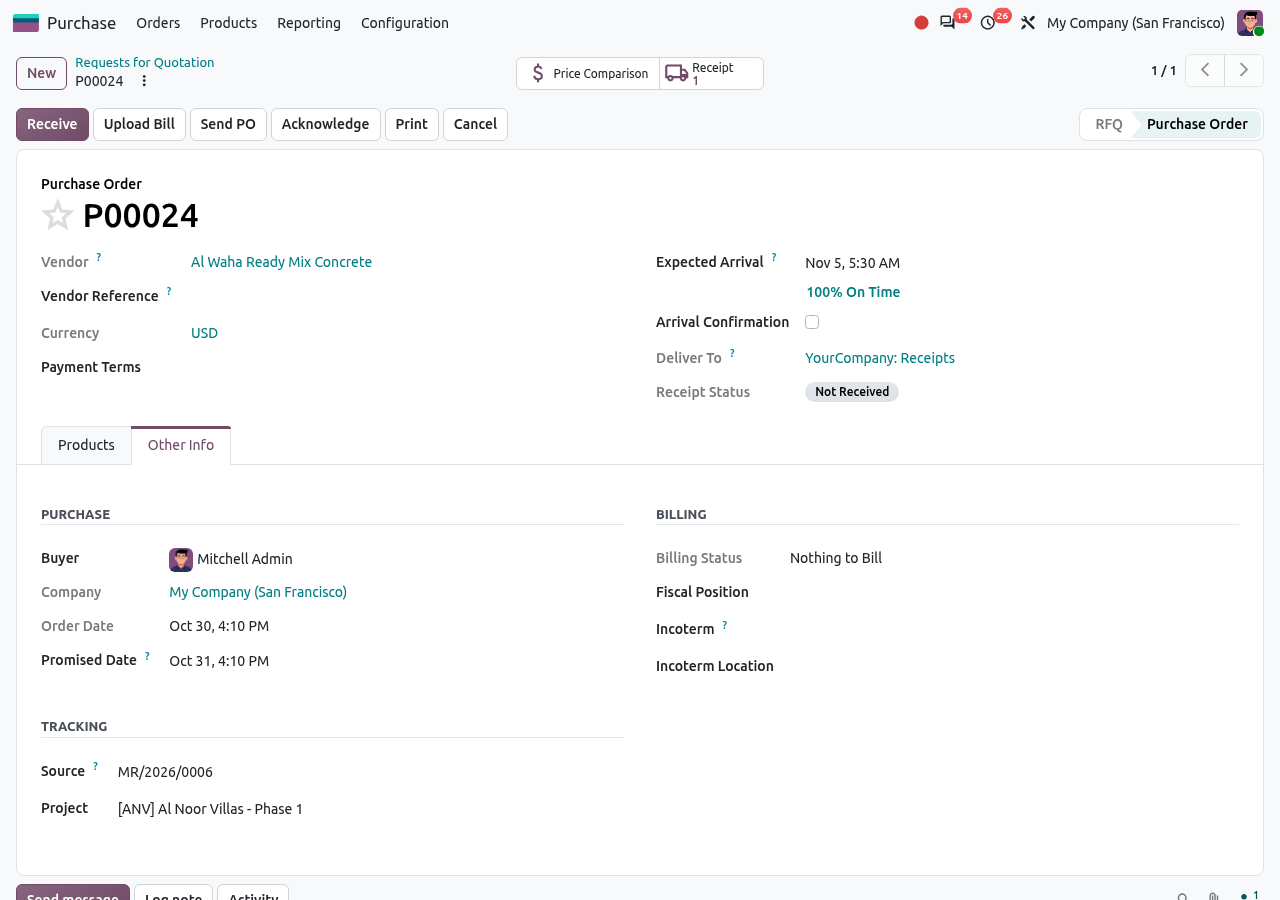
The Other Info tab: Source MR/2026/0006 and the Project. Send the RFQ to the vendor (Send RFQ), update the prices when the quotation comes back, then click Confirm Order. The receipt is created for the site store of the project: the storekeeper receives it on site with Receive Goods in the Site App (or the Receipt smart button).
Budget control on purchases
When a purchase order of a construction project is confirmed, Odoo compares each cost code of the order with what remains of the project's budget for that code (budget minus actual costs minus orders already committed). What happens depends on the setting , block Procurement, Budget Control on Purchases:
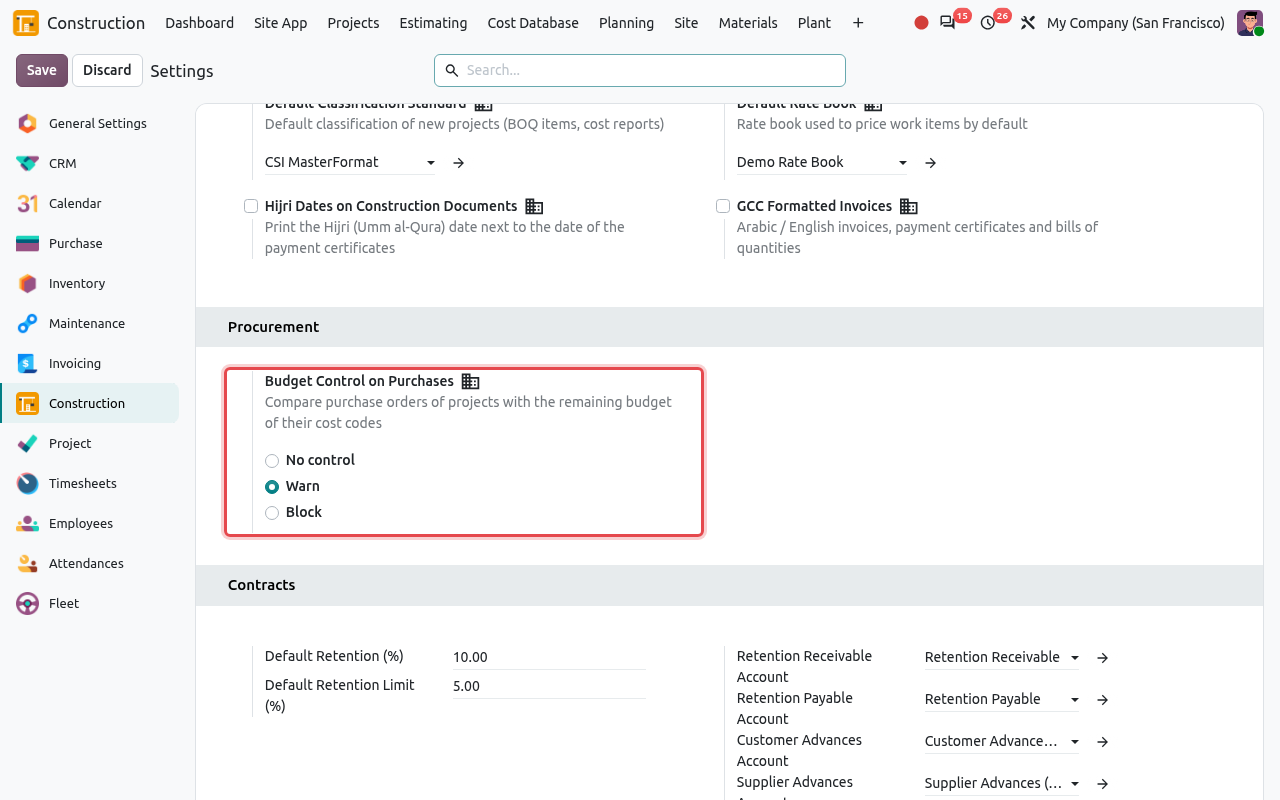
| Setting | What happens when the order exceeds the budget |
|---|---|
| No control | Nothing: the order is confirmed. |
| Warn (default) | The order is confirmed, a warning is written in its chatter, and the project manager gets a to-do activity Purchase over budget. |
| Block | The order is refused with the message "Budget exceeded on ...: 20.10 Ready-mix concrete needs ..., ... left". Revise the budget or change the cost code first. |
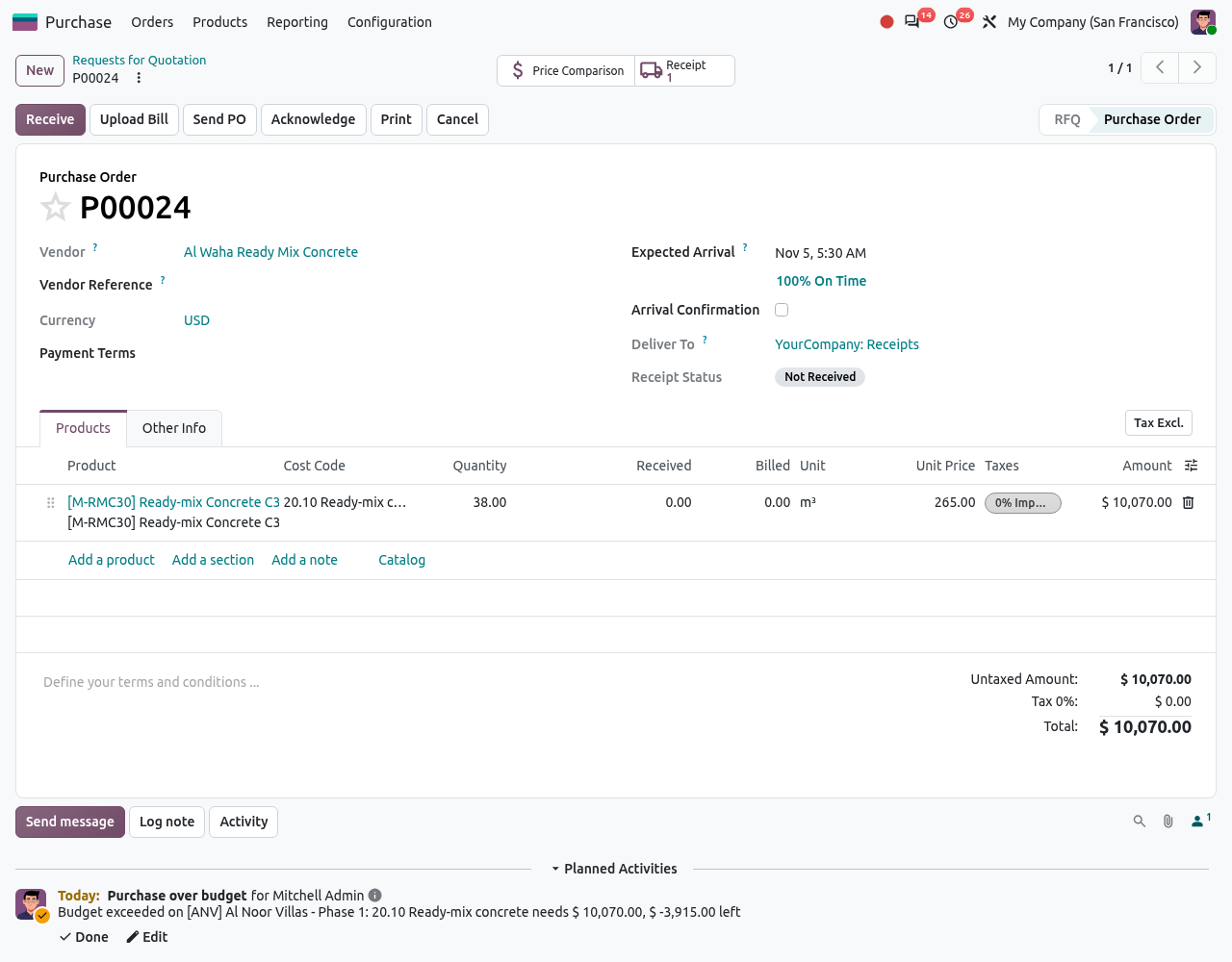
TIP
Lines without a cost code, or whose cost code has no line in the budget, are reported as "... without budget line". Always set the cost code on the purchase lines of a project.
Site Issues
A site issue records materials taken from the site store and used in the works (for example 600 cover blocks used for the slab of villa 19). The materials leave the stock and their cost becomes an actual cost of the project, on the cost code of each line.
Go to . The list shows the issues (references ISS...). Click New.
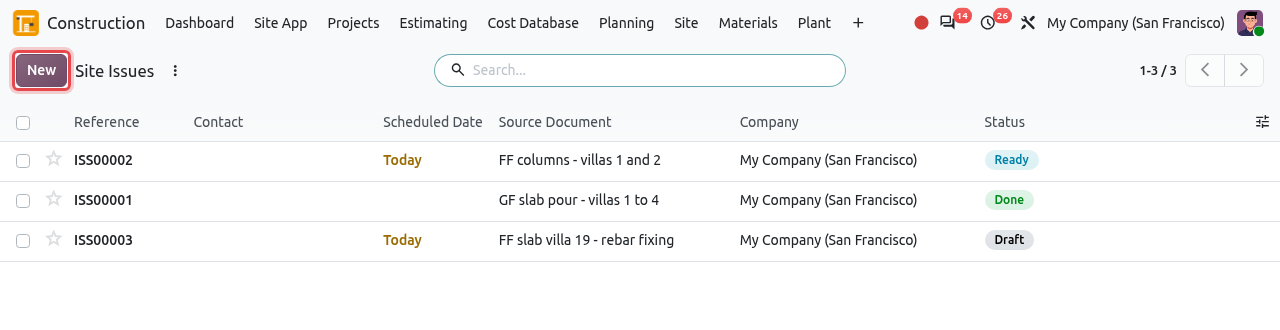
The list of site issues. The Operation Type is already Site Issues. Type what the materials are for in Source Document. In the Additional Info tab, choose the Project. If your user can manage several stock locations, choose the project's site store (for example Sites/ANV) as the source location.
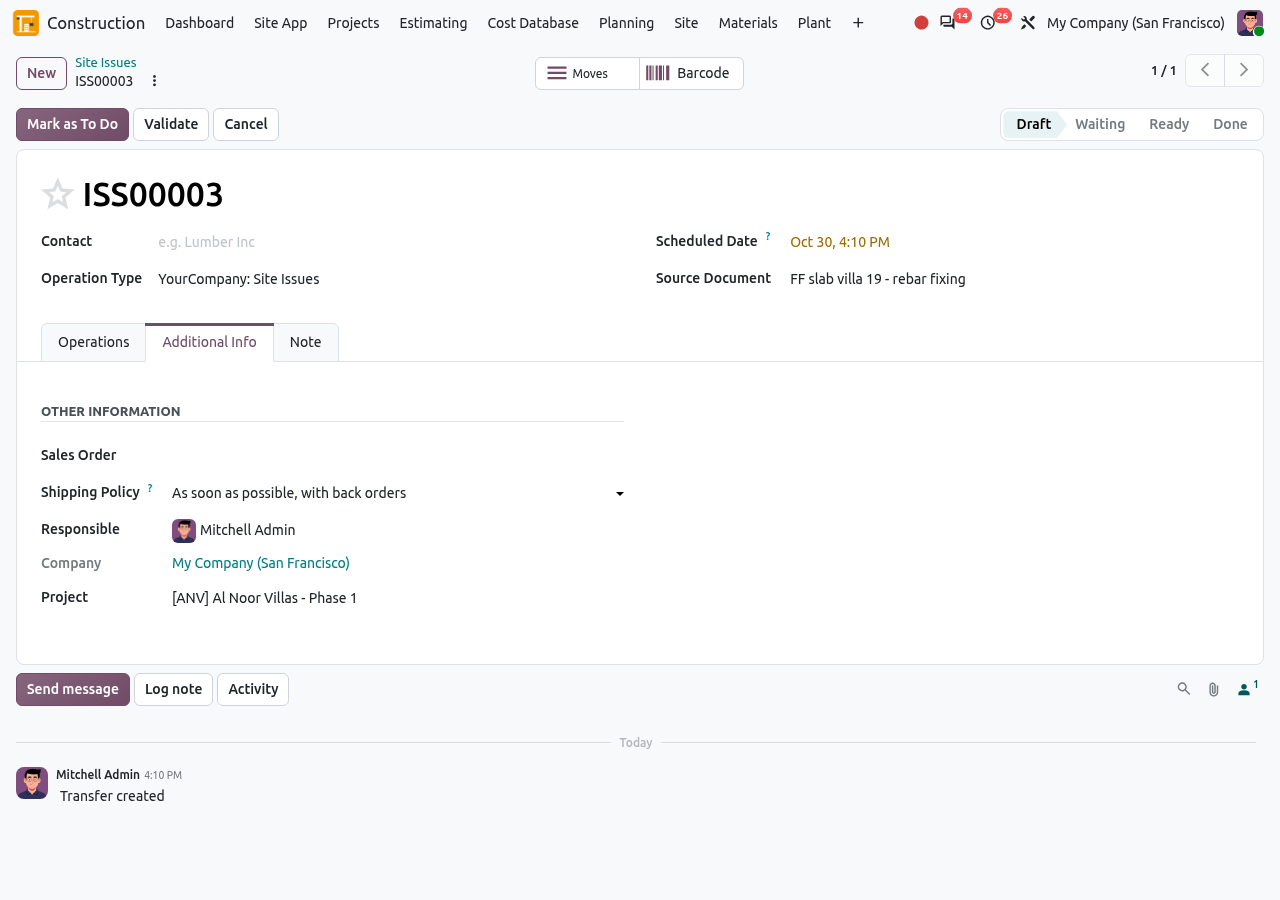
The Project is set in the Additional Info tab. In the Operations tab, click Add a Product, choose each material and type the quantity used. Check the Cost Code column (shown once the project is set).
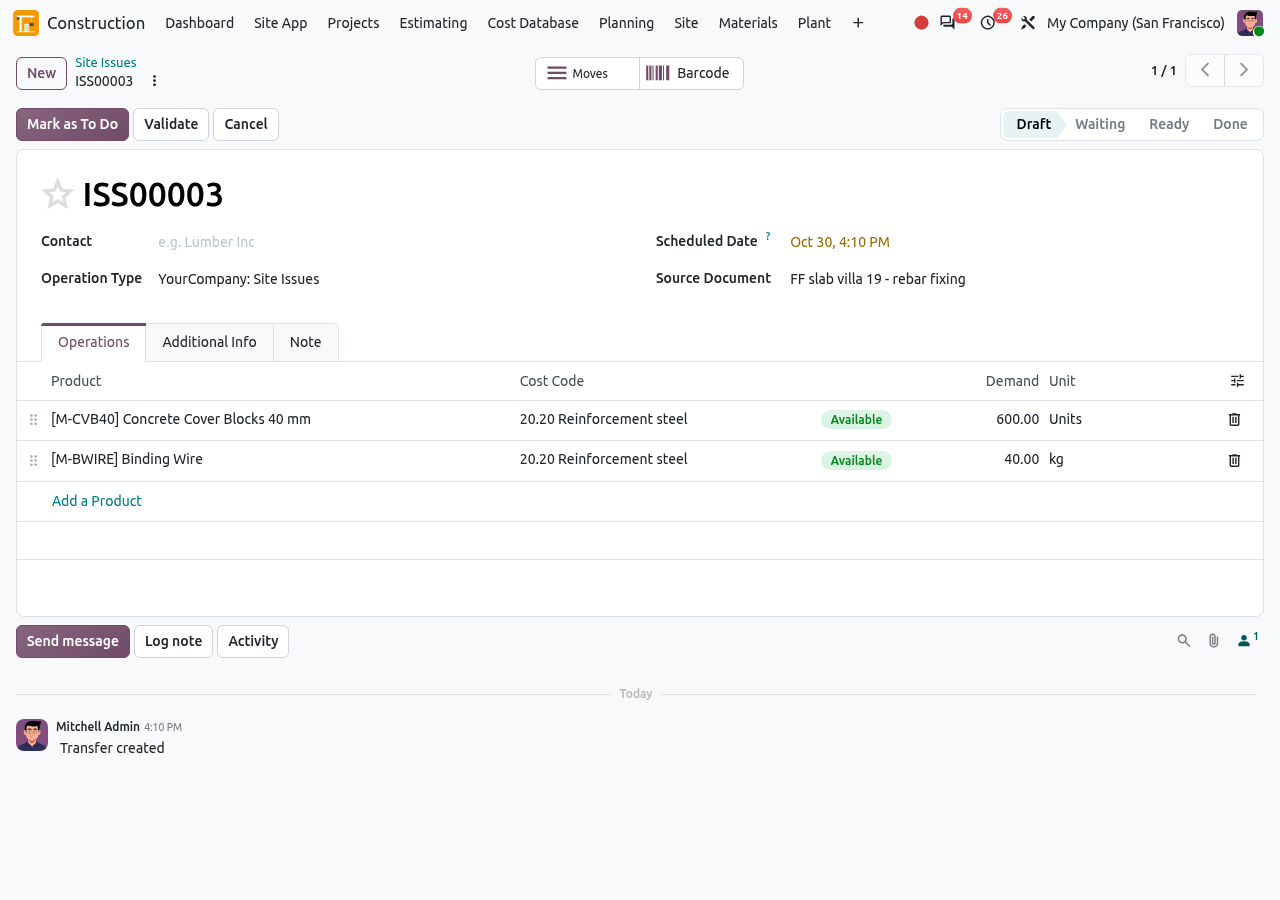
A site issue of cover blocks and binding wire, charged to cost code 20.20. Click Validate. The stage becomes Done: the materials are out of the site store and their cost is booked on the project and the cost codes.
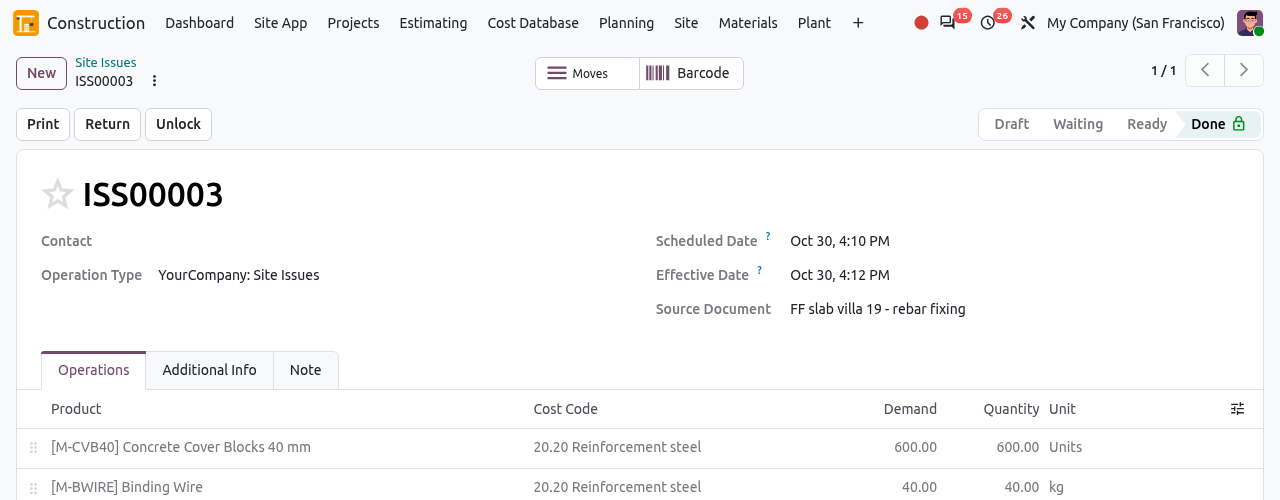
The validated site issue.
CHECK THE SOURCE LOCATION
A site issue must start from the project's site store. By default, the Site Issues operation proposes the central store (WH/Stock), and the source location field is only visible to users with the Storage Locations option of Inventory. Ask your administrator to enable it for the storekeepers, so that they can pick the site store.
Site Stock
shows what is in the site stores of all projects, grouped by site store. Click a group to see the materials, the quantity on hand and the quantity reserved for open issues. Click History on a line to see its moves.