
Appearance
Portal for Clients, Consultants and Subcontractors
The portal is a simple website where people outside your company log in and work on the project with you: the client approves payment certificates and variations, the consultant answers RFIs and reviews submittals, the subcontractor sends its payment applications and closes its snags. They do not need an Odoo licence and they only see what concerns them.
WHO DOES WHAT
Inside the company, a project manager or an administrator gives the portal access (see Give a partner portal access). Outside, the portal users open /my/construction on your Odoo address, for example https://your-company.odoo.com/my/construction. Every decision they take is logged in the chatter of the record, with their name.
What each external role sees and does
What a portal user sees depends on the external role of its company in the project team, and on the records where its company is named (for example as the responsible party of a snag).
| External role | Sees | Can do |
|---|---|---|
| Client Representative | Progress and site photos, payment certificates, variations, RFIs, submittals, transmittals | Approve or dispute certified payment certificates; approve or reject submitted variations; acknowledge transmittals |
| Consultant / Engineer | RFIs, submittals, inspection requests, NCRs and snags of the project; payment certificates, variations and transmittals (read only) | Answer RFIs; review submittals (codes A to D); record inspection results (A, B, C) |
| Subcontractor | Its work orders, payment certificates and payment applications; NCRs, snags and inspections where it is the responsible party; transmittals sent to it | Submit payment applications; send the corrective action of an NCR; mark snags as fixed with a photo |
| Supplier | The standard purchase portal: requests for quotation and purchase orders | Reply to RFQs, follow orders |
Give a partner portal access
Two things are needed: the company of the person must have an external role in the project team, and the person must have a portal user.
1. Add the external role to the project team
Open the project and its Team tab, or . Add a line with:
Field What to enter Role An external role: Client Representative, Consultant / Engineer, Subcontractor or Supplier. Contact The company or the person. All the contacts of that company get the same rights. From / To Optional. The role works only between these dates (for example the subcontract period). Outside them, the portal shows nothing. External lines get a Portal Access button.
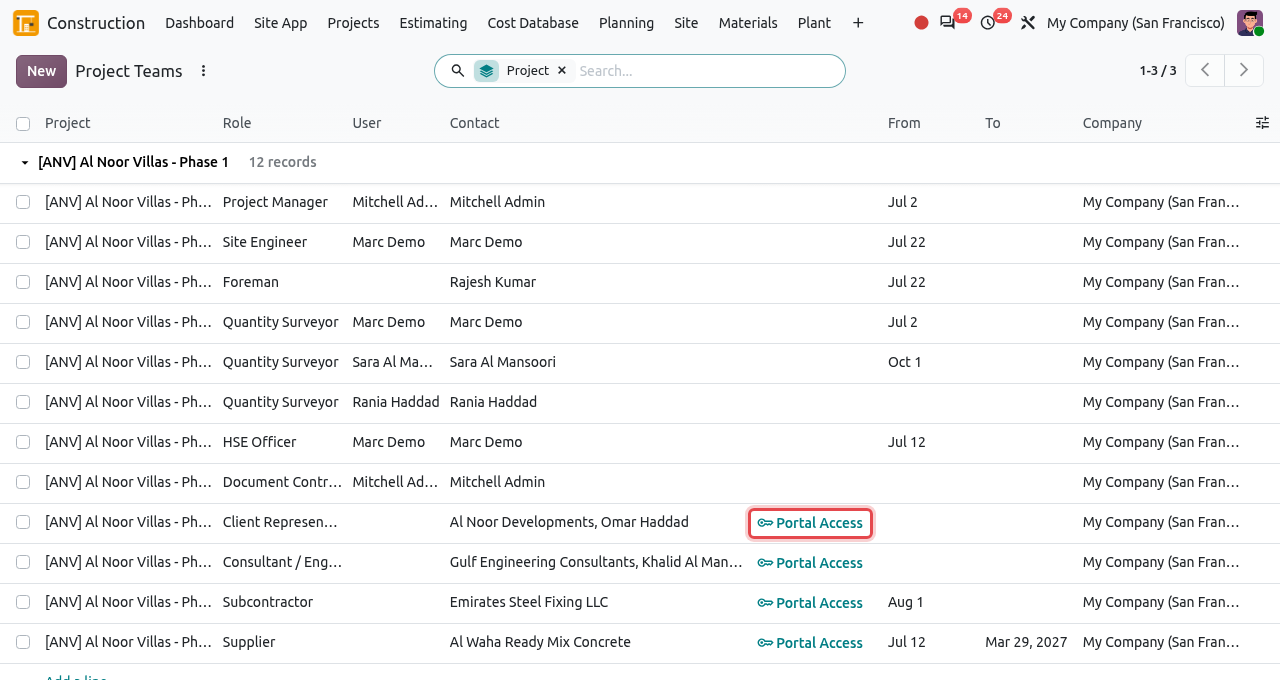
The team of Al Noor Villas: the client representative, the consultant, the subcontractor and the supplier have a Portal Access button. Click Portal Access on the line. The standard Grant Portal Access window opens with the contact. Check the e-mail address, then click Grant Access. Odoo creates the portal user and e-mails an invitation with a link to choose a password. For a contact who already has access, the window shows Revoke Access and Re-Invite.
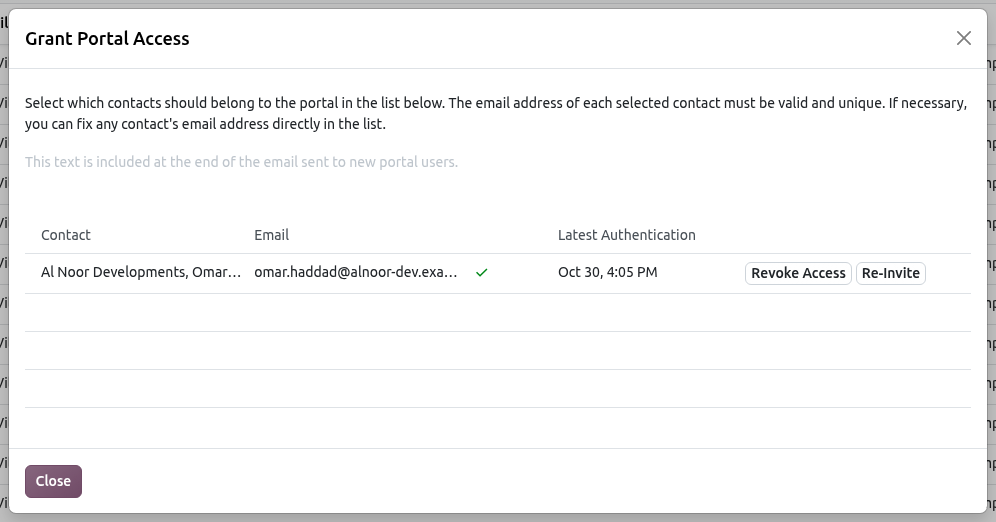
Omar Haddad already has access: he can be re-invited, or his access can be revoked.
FROM THE CONTACTS APP
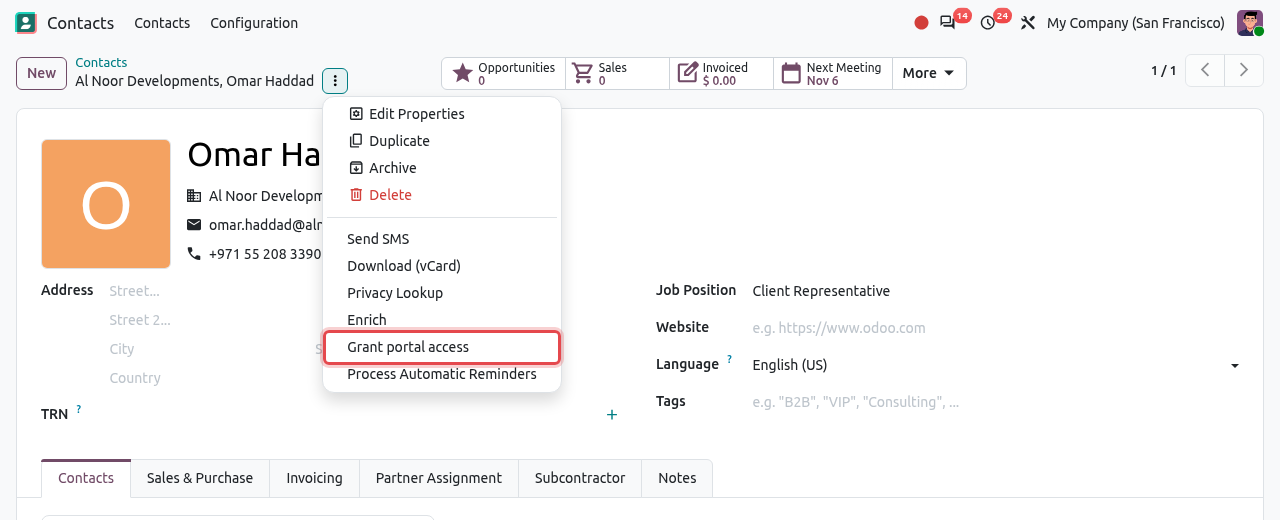
You can also open the person in the Contacts app, click the gear (⋮) menu next to the name and choose Grant portal access. The access is the same; the project team role is still needed to see construction records.
WARNING
Give the portal access to a person (for example Al Noor Developments, Omar Haddad), with his own e-mail. Each e-mail can be used by one user only. Only external roles get a Portal Access button.
The portal home and the project page
After logging in, the portal user lands on My account. The Construction Projects tile opens the construction portal.
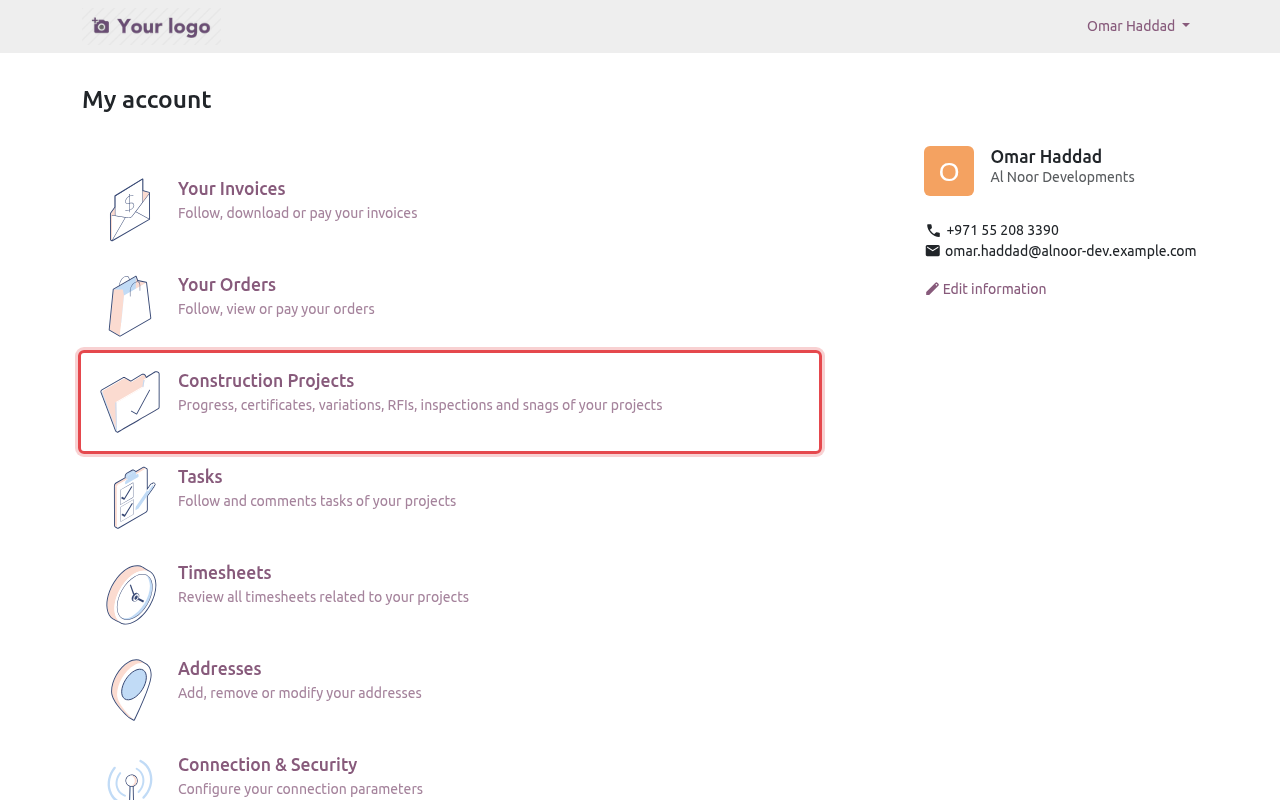
The portal home of the client representative. The list shows the projects where the user's company has a role.
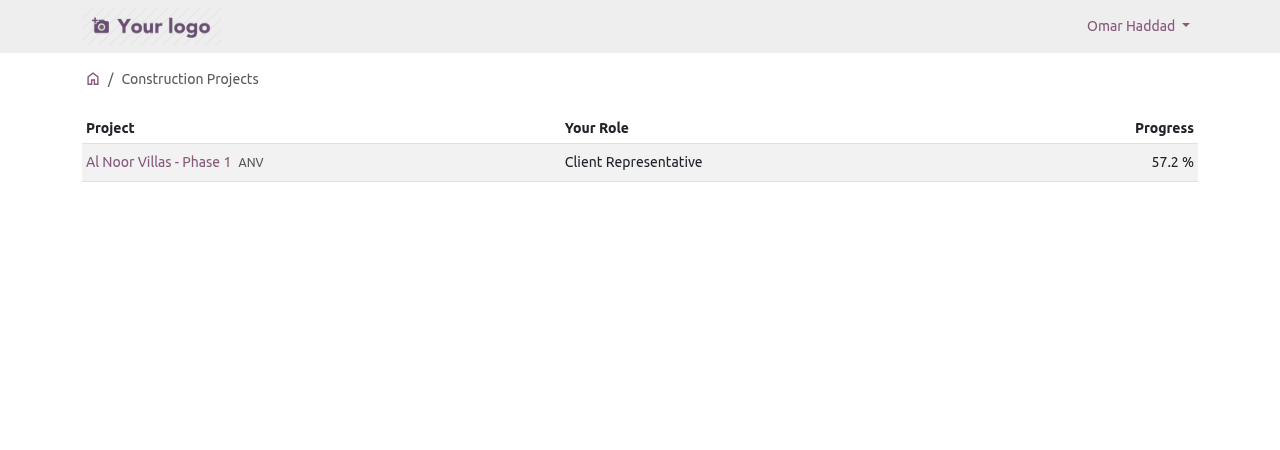
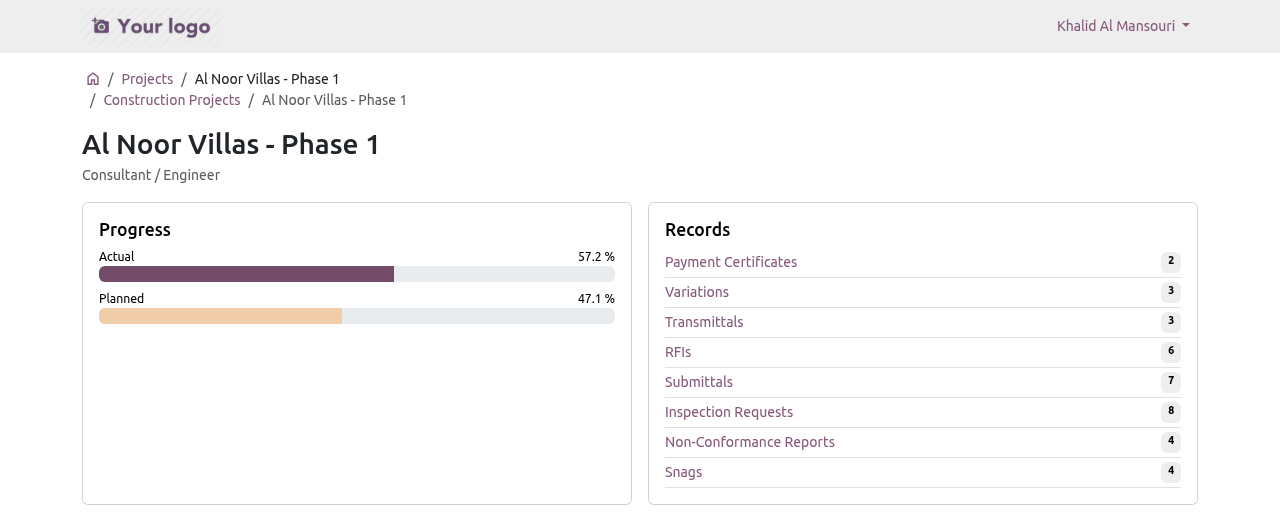
The projects of the user. Clicking a project shows the user's role, the actual and planned progress, the number of records of each kind shared with the user, and the latest site photos (from approved daily site reports). Click a record type to open its list.
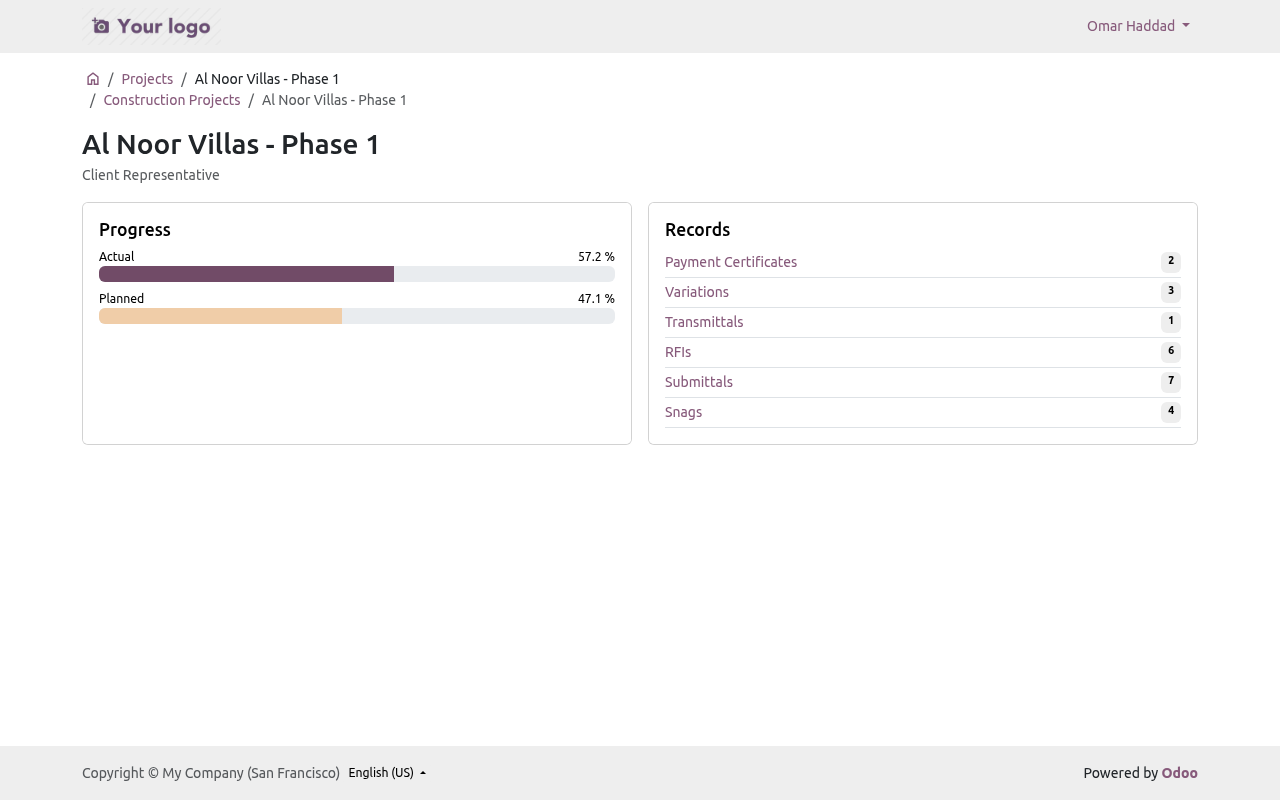
The project page seen by the client representative.
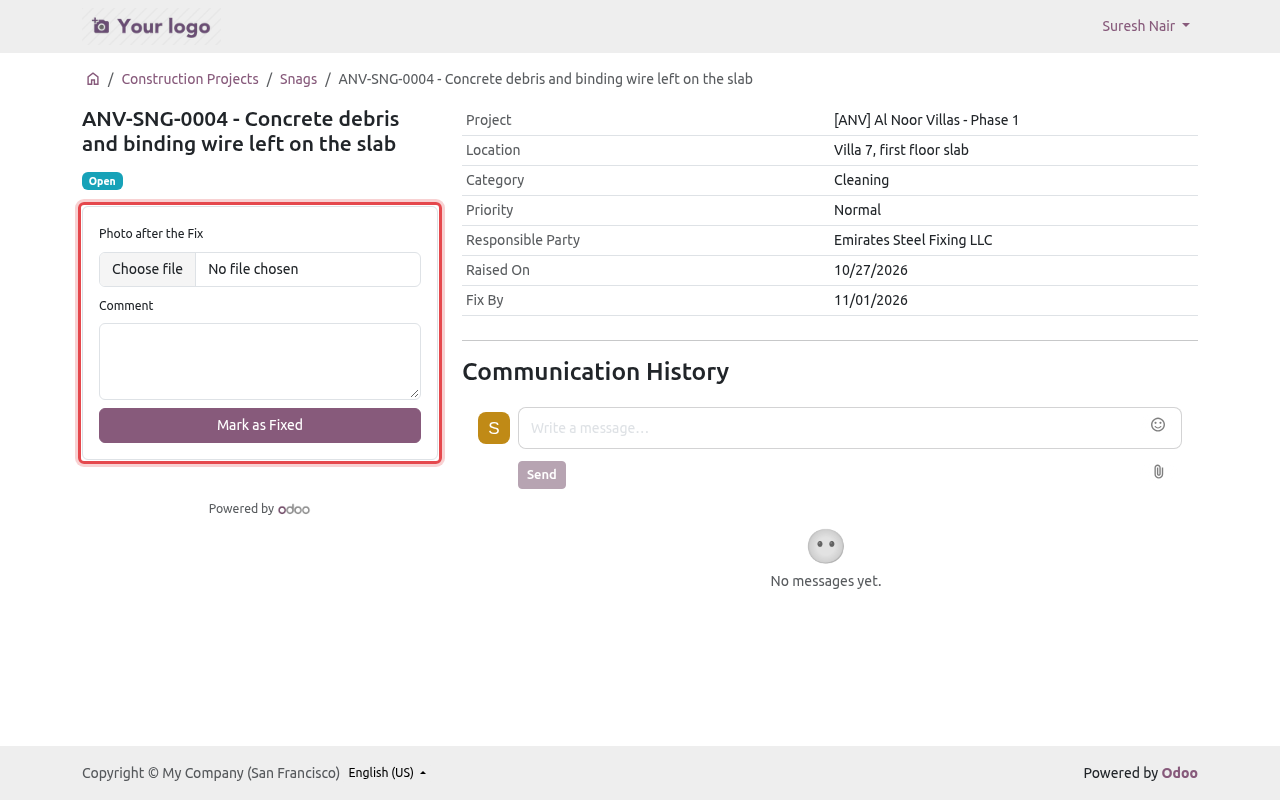
Every record page has the same layout: the status and a Download PDF button on the left, with a small form for each action the user can take now; the details on the right; and the Communication History below, where the user can send messages and files to your team.
Client representative
Approve or dispute a payment certificate
When your quantity surveyor certifies a payment certificate of the client contract, its Client Approval becomes Awaiting Client and the client sees it on the portal.
The client opens Payment Certificates. The list shows the net amount, the status and the client approval of each certificate.
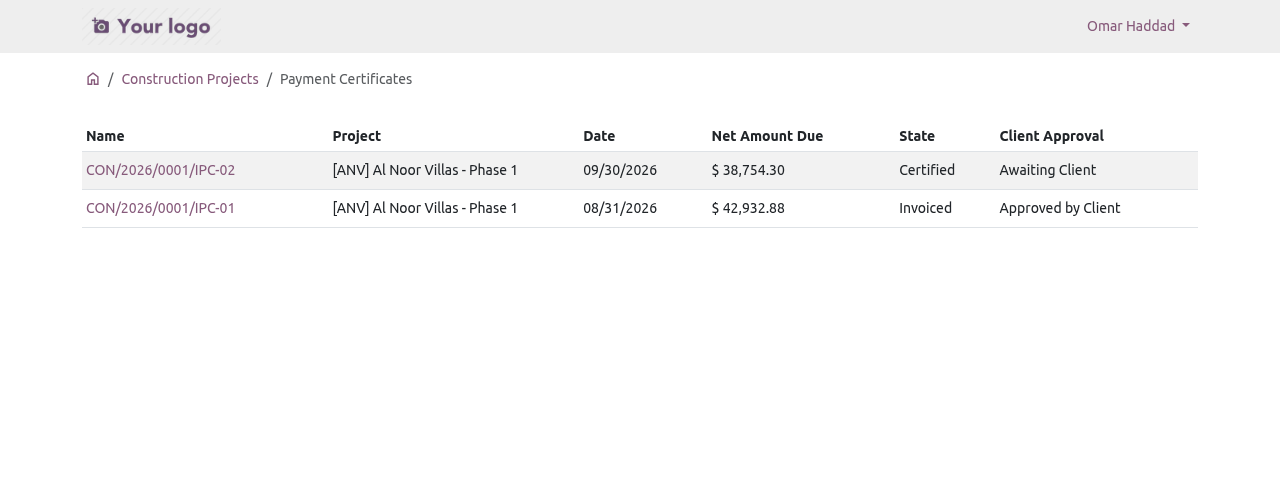
The payment certificates of the client. He opens the certificate, checks the amounts (or downloads the PDF), then either writes an optional comment and clicks Approve, or explains what he disputes and clicks Dispute (the explanation is required).
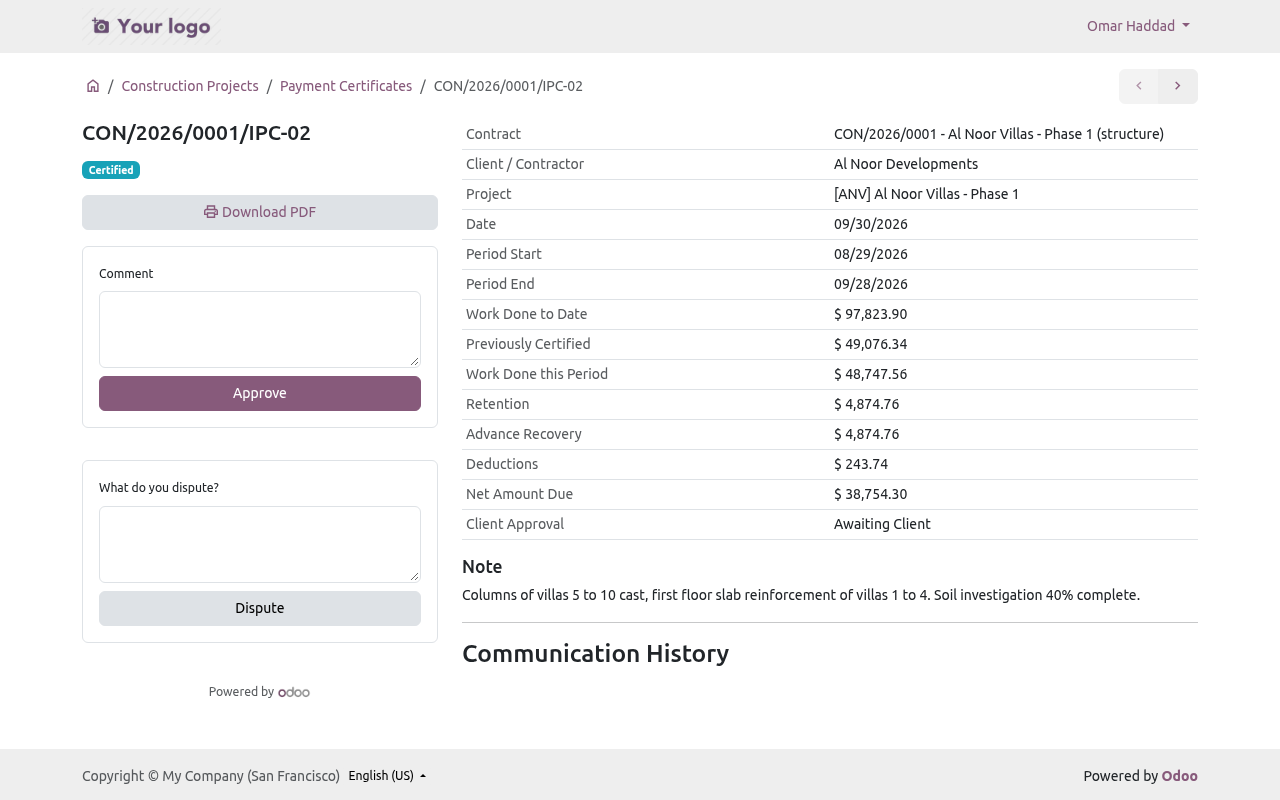
Certificate IPC-02, awaiting the client. In Odoo, the certificate shows Approved by Client or Disputed by Client, with who decided and when. A dispute creates a to-do for the project manager. A disputed certificate can still be approved later; resetting the certificate to draft clears the decision.
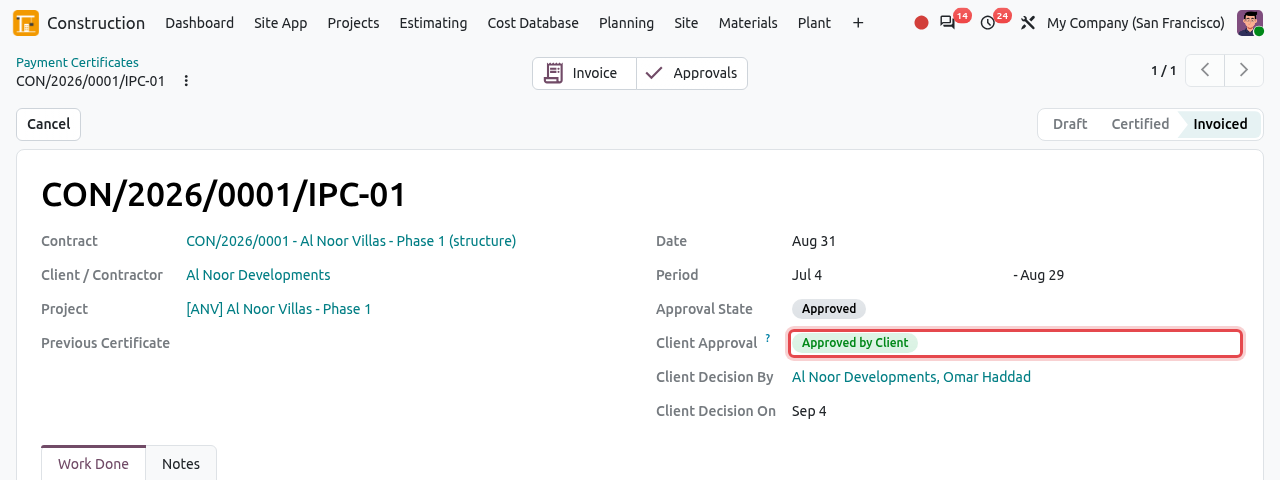
The client's decision on certificate IPC-01, as seen in Odoo.
Approve or reject a variation
Submitted variations of the client contract appear under Variations. The client clicks Approve (optional comment) or writes a reason and clicks Reject. An approval through the portal approves the variation as submitted, with the time claimed, and revises the contract like an approval in Odoo (see Variations).
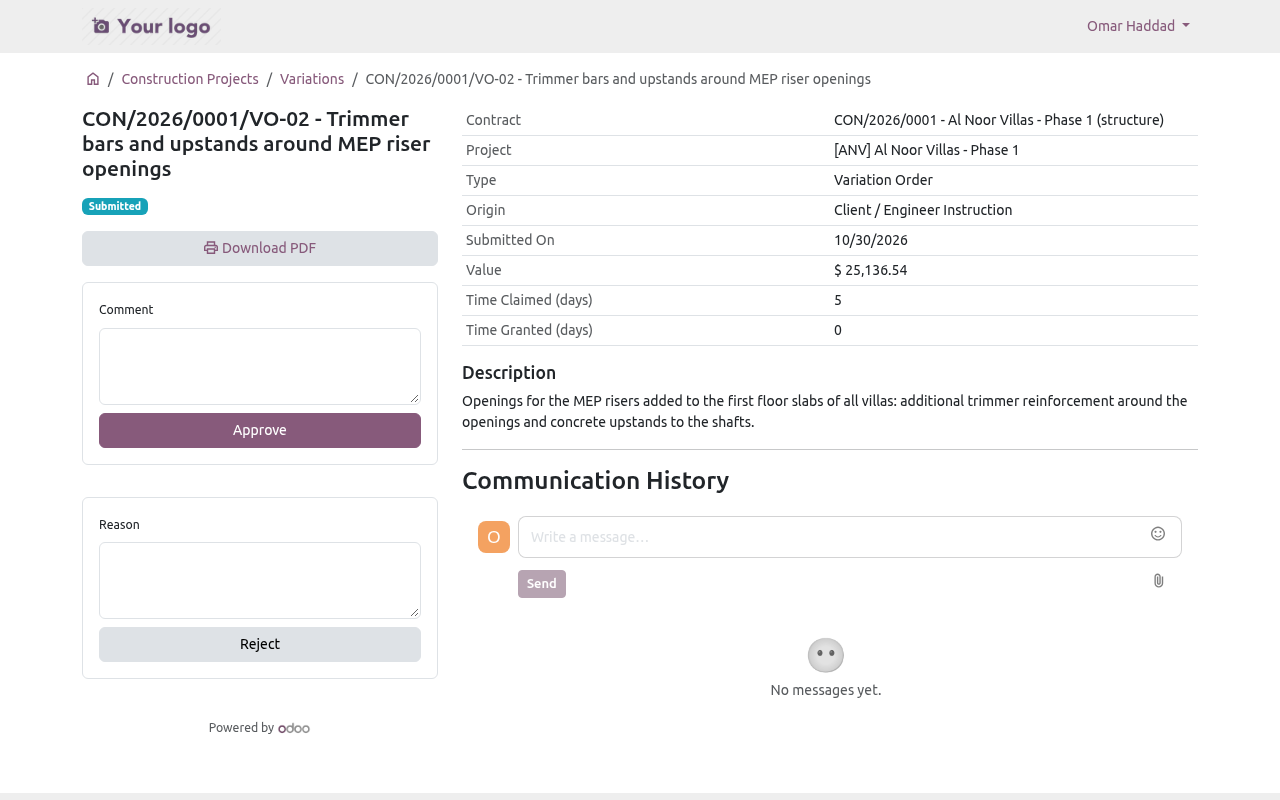
The client can also read RFIs and submittals, and click Acknowledge Receipt on transmittals sent to his company.
Consultant / engineer
The consultant sees the RFIs, submittals, inspection requests, NCRs and snags of the projects where his company is Consultant / Engineer.
Answer an RFI. On an open RFI (request for information), he types the answer and clicks Send the Answer. The RFI becomes Answered in Odoo.
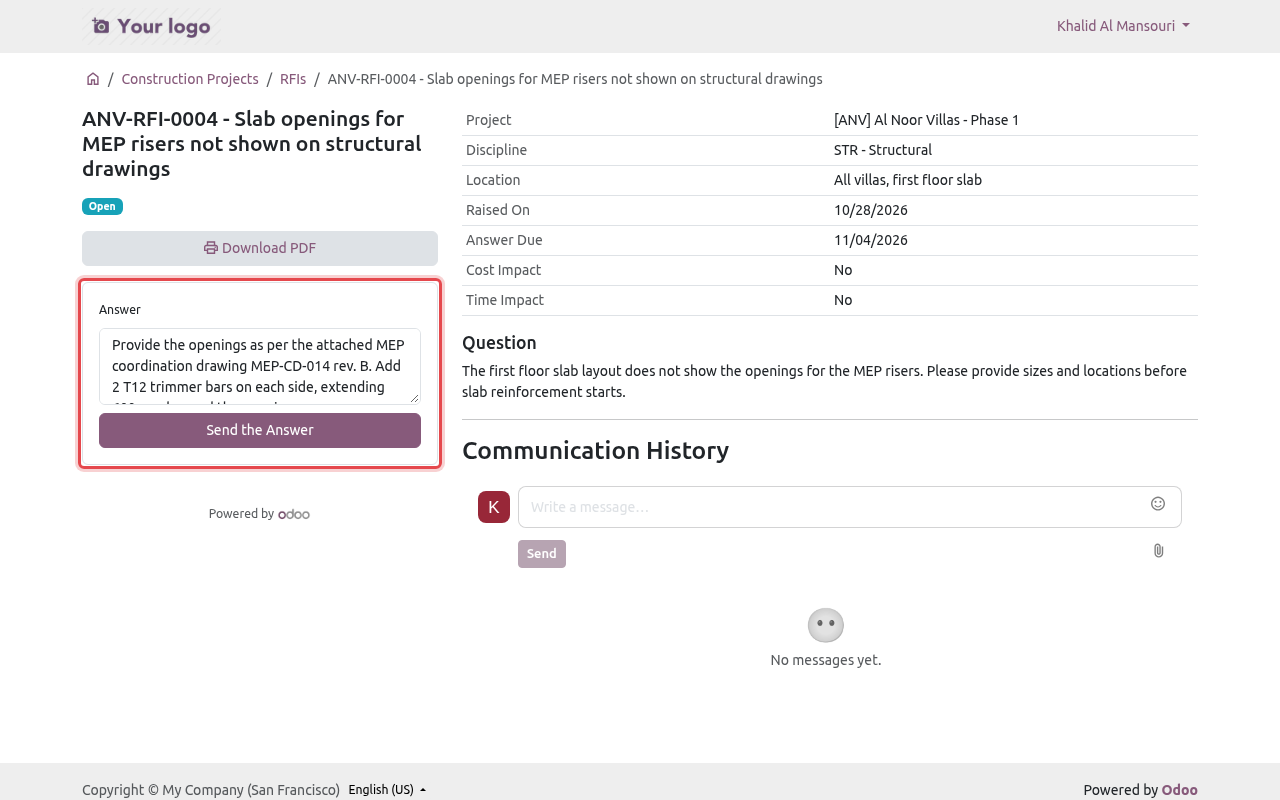
The consultant answers RFI ANV-RFI-0004. Review a submittal. On a submitted submittal (shop drawing, material, method statement...), he chooses the Review Code — A - Approved, B - Approved as Noted, C - Revise and Resubmit or D - Rejected — adds comments and clicks Record the Review. The files of the submittal are listed on the page.
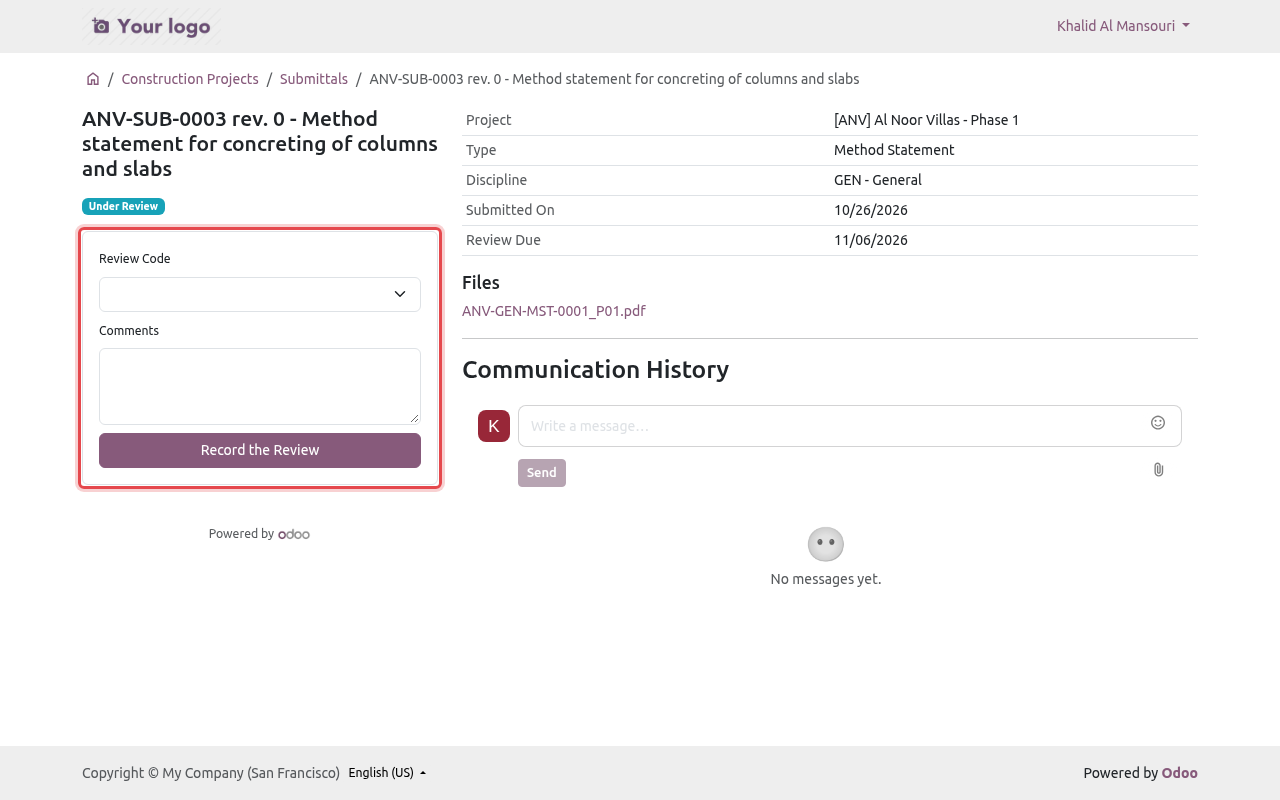
The review form of a submittal. Record an inspection result. On a requested inspection (WIR/MIR), he chooses the Result — A - Approved, B - Approved with Comments or C - Rejected, Re-inspect — writes remarks and clicks Record the Result.
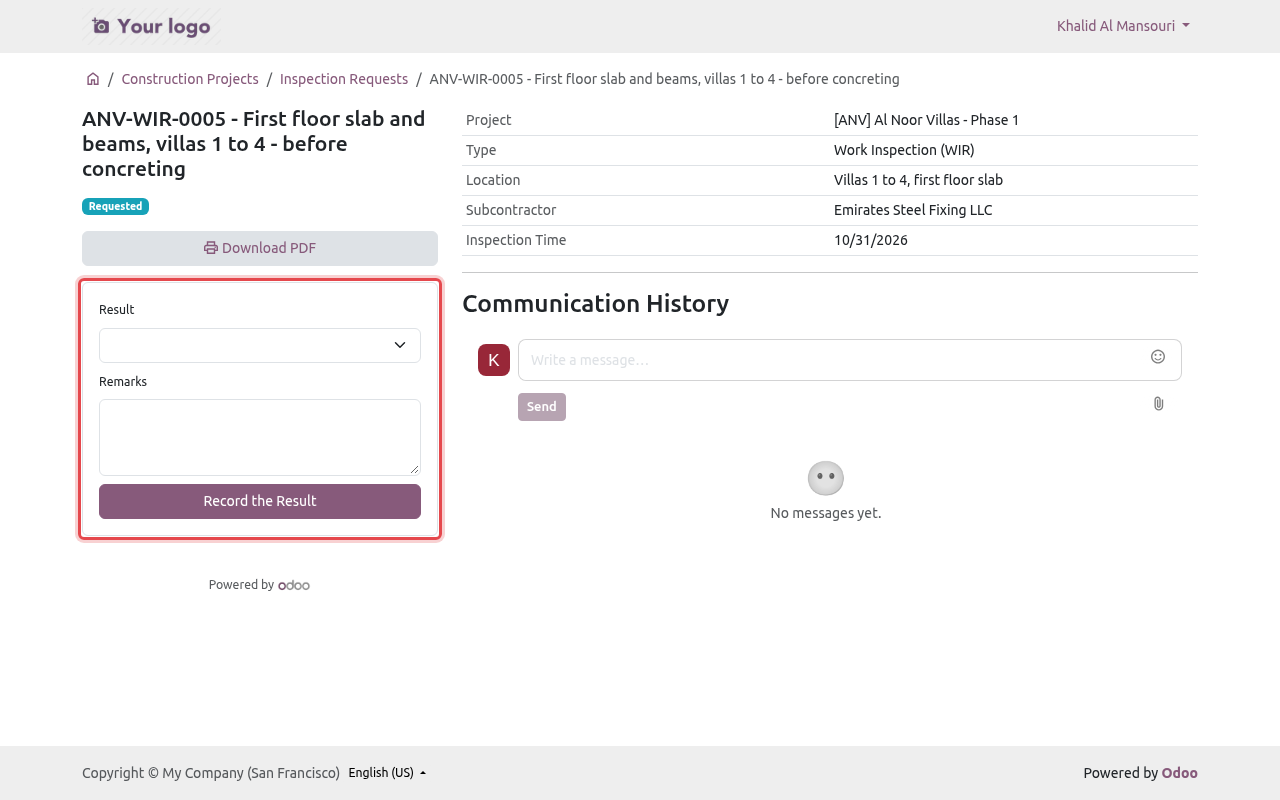
The result form of inspection ANV-WIR-0005.
Subcontractor
The subcontractor sees its own documents only: its work orders, payment certificates and payment applications, and the NCRs, snags and inspections where it is the responsible party.
The project page of a subcontractor has a New Payment Application button.
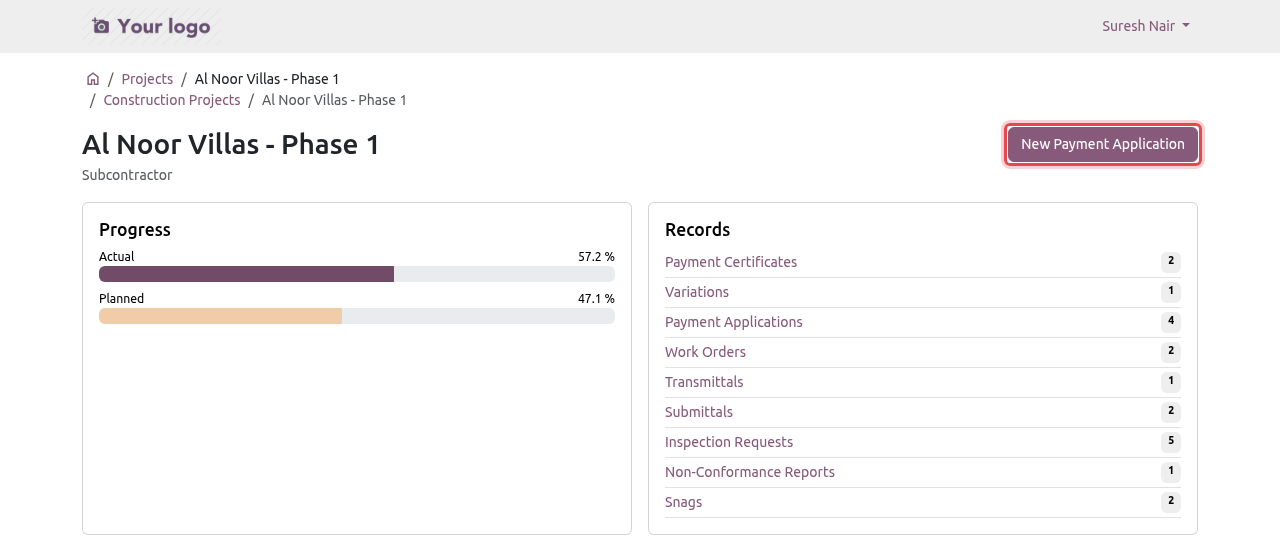
The project page seen by Emirates Steel Fixing LLC. Work Orders lists the instructions issued to it (see Work Orders), with location and dates.
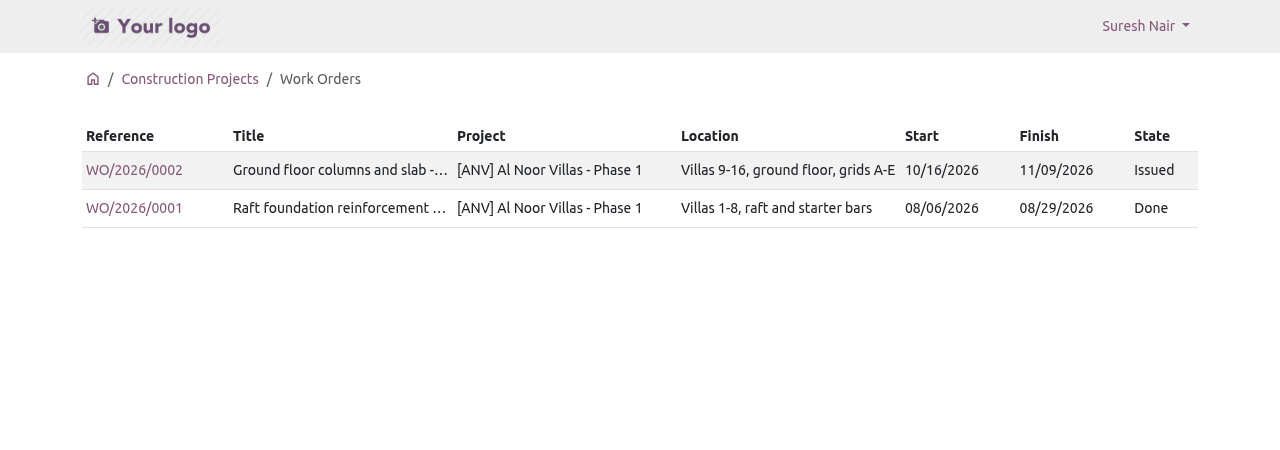
The work orders of the subcontractor.
Send a payment application
A payment application is the subcontractor's monthly claim: "this is the work we did, please pay us". Your quantity surveyor then measures it in a payment certificate.
The subcontractor clicks New Payment Application and fills in the form: the Subcontract (only its running subcontracts are listed), Work Done Until, the amount of Work Done this Period, a description of the work, and supporting documents (measurement sheets, photos). Then Submit.
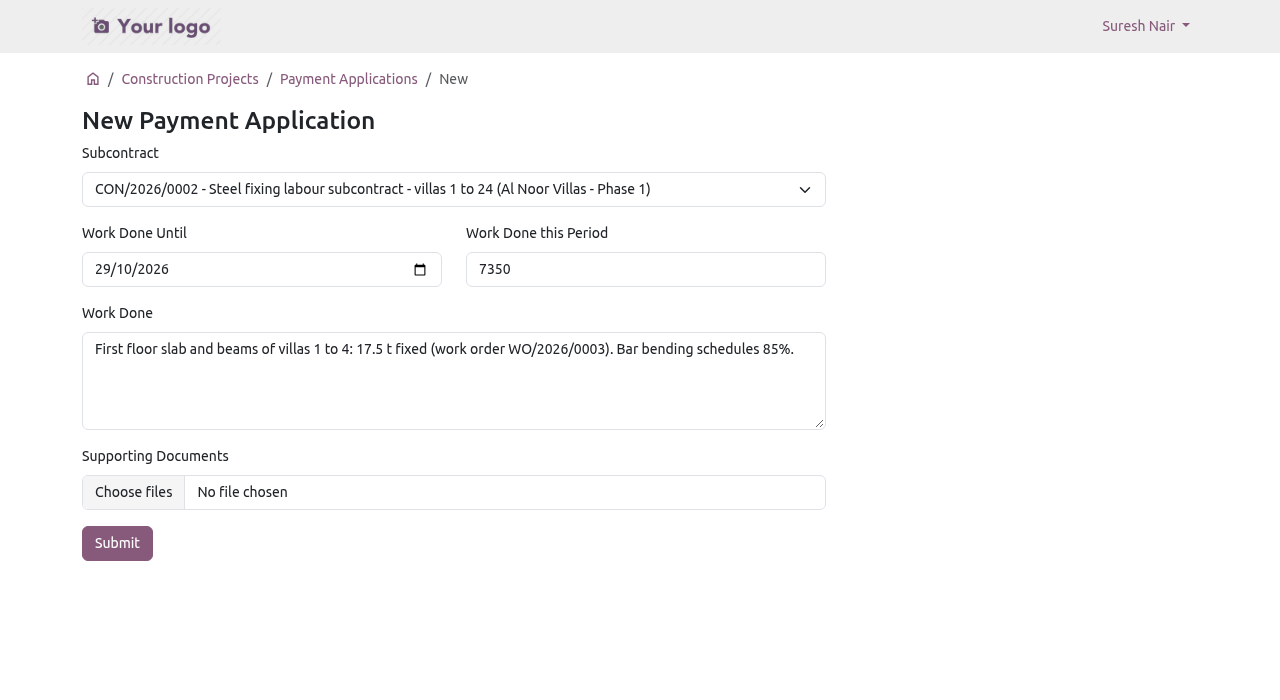
A new payment application for the steel fixing subcontract. The application is created as Submitted and the subcontractor sees "Done, thank you.". Odoo creates a to-do Measure PA/... for the quantity surveyor of the project (or the project manager).
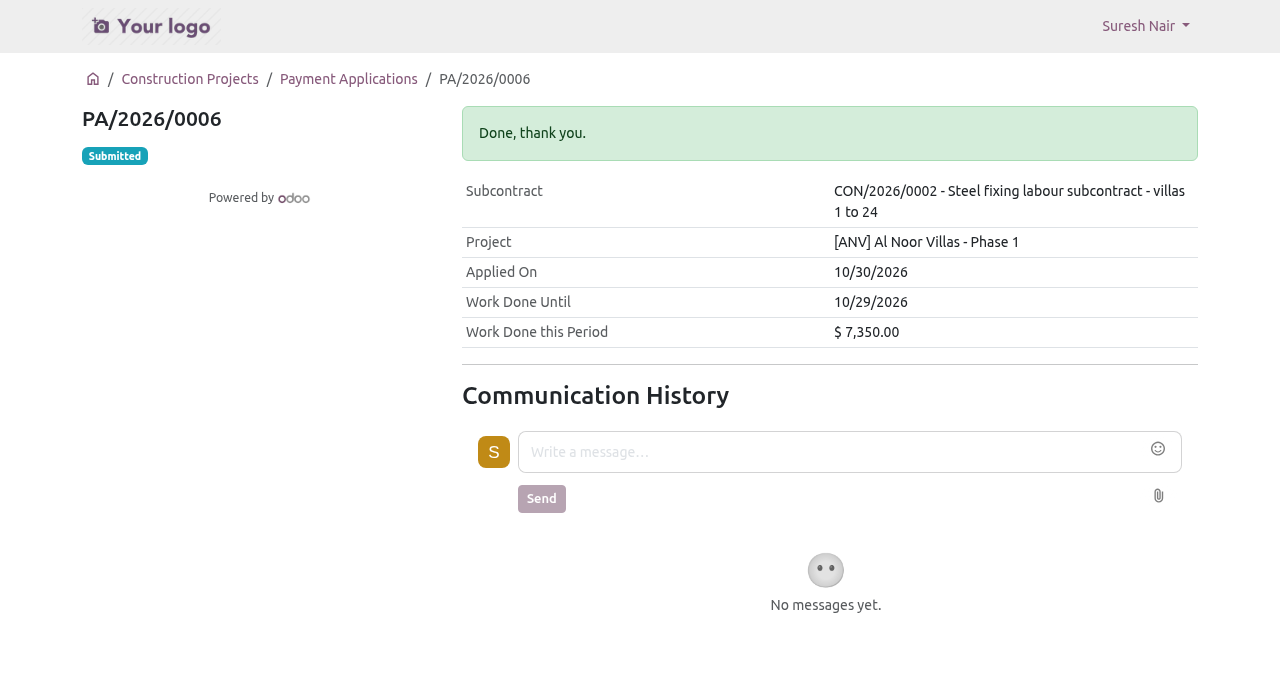
Application PA/2026/0006 is submitted. In Odoo, the quantity surveyor opens (submitted applications are shown first).
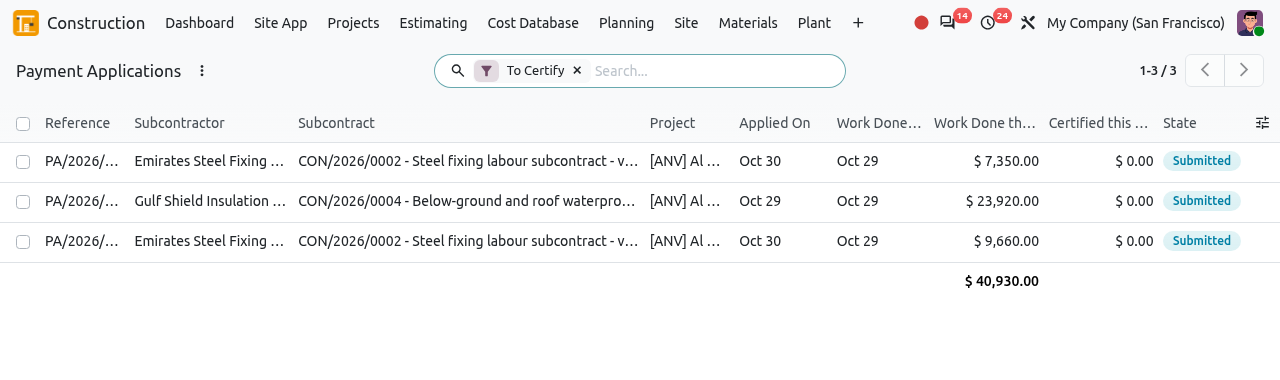
The payment applications of the subcontractors. He opens the application and clicks Start the Certificate: Odoo creates the draft payment certificate of the subcontract for the same period, and the application becomes Certified. The QS then measures the quantities in the certificate as usual (see Payment Certificates). To refuse the claim, he writes the Reason of the Rejection and clicks Reject: the reason is sent to the subcontractor.
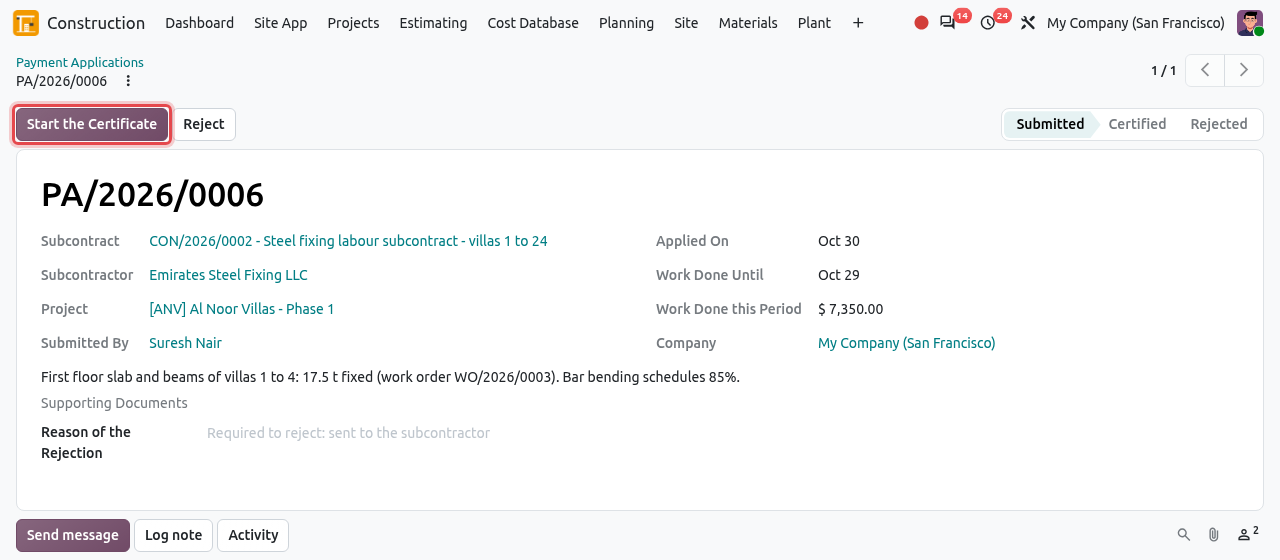
The application in Odoo, with the Start the Certificate button.
Submitted→Certified
WARNING
The amount must be positive and the subcontract must be running; otherwise the form shows an error. The application amount is only the subcontractor's claim: the amount paid is the one certified by your QS.
Close snags and NCRs
- Snags (small defects to fix) where the subcontractor is the responsible party show a form with Photo after the Fix (required) and a comment. Clicking Mark as Fixed sets the snag to Fixed; your QA/QC inspector then verifies it (see Quality).
- NCRs (non-conformance reports) that are open and name the subcontractor show a form with the Disposition (Rework, Repair, Use as Is, Reject and Replace), the root cause and the corrective action. Send the Corrective Action proposes it to your team.
TIPS
- If a portal user says "I see nothing", check the role line in the project team: the right role, the right company, and today between From and To.
- The action forms only appear when the action is possible (for example a certificate must be certified, a variation submitted, an RFI open). Otherwise the record is read-only.
- Messages written in the Communication History reach the followers of the record in Odoo.