
Appearance
Variations and Claims
A running contract often changes: the client adds work, the design changes, quantities grow or shrink, or the site is handed over late. In Odoo, each change is a variation. It is priced, approved inside the company, submitted to the client (or received from a subcontractor), and once approved it revises the contract BOQ, the contract value and, if time is granted, the completion date.
VARIATION ORDER OR CLAIM?
Variation Order (VO): a change instructed or agreed by the client or the engineer, for example extra paving or a new shade structure.
Claim (CL): a request for extra money and/or time for an event the contractor is not responsible for, for example a late handover of the site. A claim must be notified within the notice period of the contract.
Where: (variations of client contracts) and (variations of cost contracts). Also from the Variations smart button of a running contract.
Who: quantity surveyors prepare variations; a commercial manager approves client variations before they are submitted.
Draft→Request Approval→Submitted→ApprovedorRejected
Open the variations
In the Construction app, open Commercial (under + when the window is narrow) and click Client Variations and Claims.
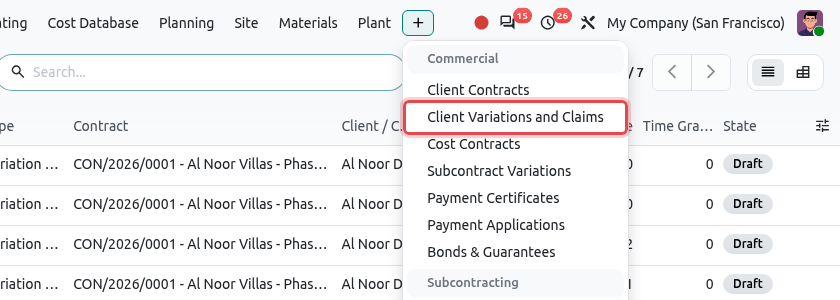
The variation menus in the Commercial menu. The list shows each variation with its reference (contract reference / VO-nn or CL-nn), title, type, contract, value, time granted and state. Use the filters Variation Orders, Claims, Pending Decision and Approved, or group by Contract, Project, Origin or Status.
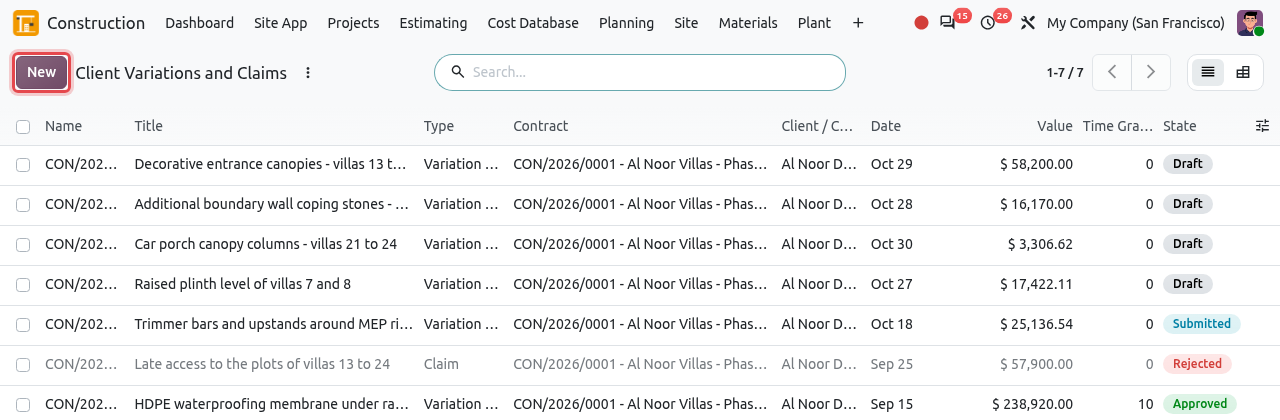
The client variations and claims.
Create a variation order: full example
The engineer of Al Noor Developments instructed (site instruction SI-ANV-EW-007) a shade structure over the parking bays of each of the 24 villas, with 350 m² of extra paving under them. The quantity surveyor records it on the external works contract CON/2026/0007.
Create the variation
Open and click New. In Contract, type the contract number or title and pick the running contract in the list. The client and the project follow from it.
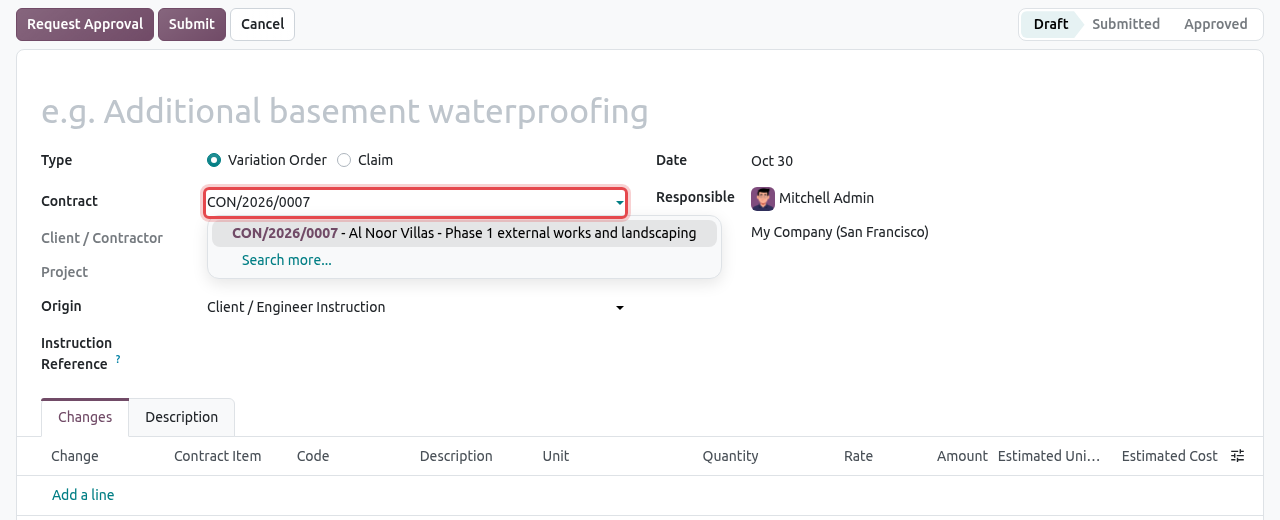
Choosing contract CON/2026/0007 on a new variation. Or start from the contract: open the running contract and click its Variations smart button, then New. The contract is then filled in for you.
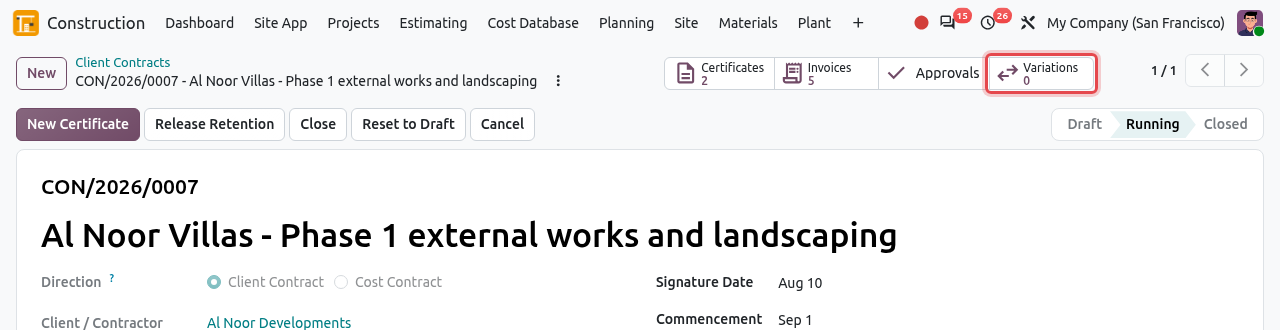
The Variations smart button of the contract. Fill in the header:
Field What to enter Title A short description, e.g. Shade structures to villa car parks. Type Variation Order or Claim. It cannot be changed after saving. Contract The running contract changed. Client and project follow from it. Origin Why the change happens: Client / Engineer Instruction, Design Change, Unforeseen Site Condition, Provisional Sum Expenditure, Contractor Proposal, Delay or Disruption, Other. Instruction Reference The reference of the instruction, site memo or letter, e.g. SI-ANV-EW-007. Date The date of the variation. Responsible The person who follows it. 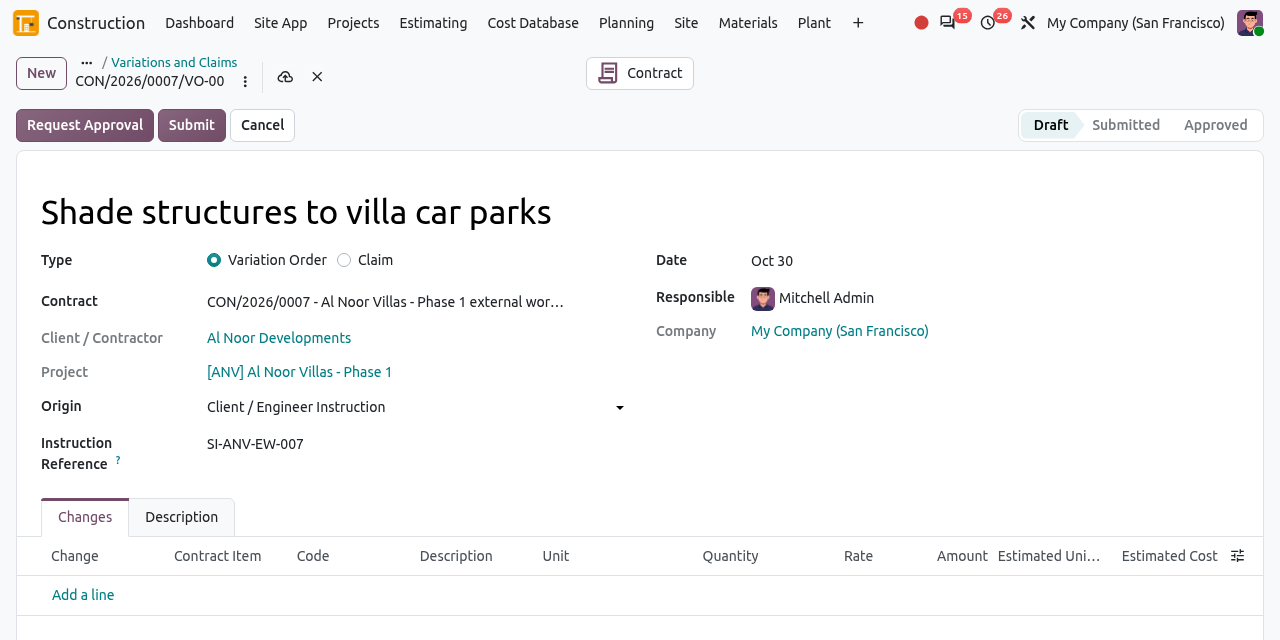
A new variation with its contract chosen: the client and the project are filled in from the contract.
Price the changes
In the Changes tab, click Add a line for each change. Choose the kind of change in the Change column:
Change How to fill it New Item Work that is not in the contract, at a new rate. Type the Description, Unit, Quantity and Rate. Leave the Code empty: on approval the item is numbered under a new section of the variation (VO01.1, VO01.2...). The quantity cannot be negative. Quantity Change More (or less) of a measured item of the contract, at its contract rate. Choose the Contract Item; code, description, unit and rate are copied from it. Type the extra Quantity, or a negative quantity for an omission. Optionally type the Estimated Unit Cost (what the work will cost you). Odoo then shows the Estimated Cost and the Margin of the variation. For quantity changes of a contract created from an estimate, the cost rate comes from the estimate.
If the change needs more time, type the Time Claimed (days). Explain the change in the Description tab (what, why, instruction and evidence). The Value at the bottom is the total of the changes.
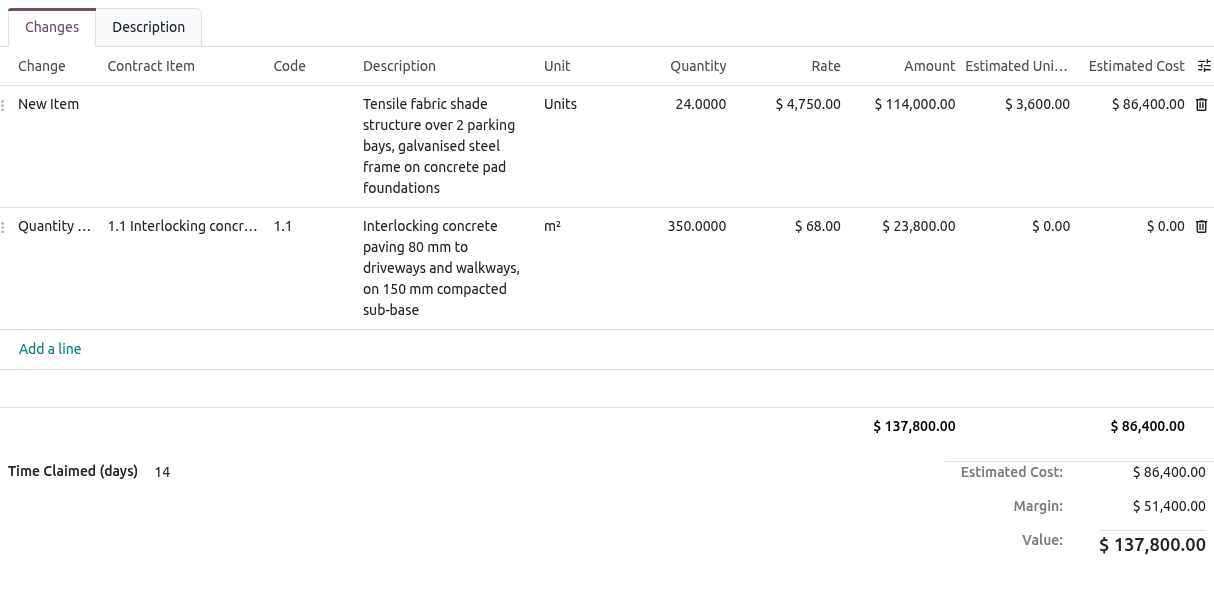
One new item (24 shade structures) and a quantity change (+350 m² on item 1.1): value 137,800.00, margin 51,400.00, 14 days claimed.
TIP
A quantity change always uses the contract rate. To agree a new rate for existing work, add it as a new item. Lump sum and provisional sum items cannot take a quantity change: add a new item instead.
Get the internal approval
Click Request Approval.
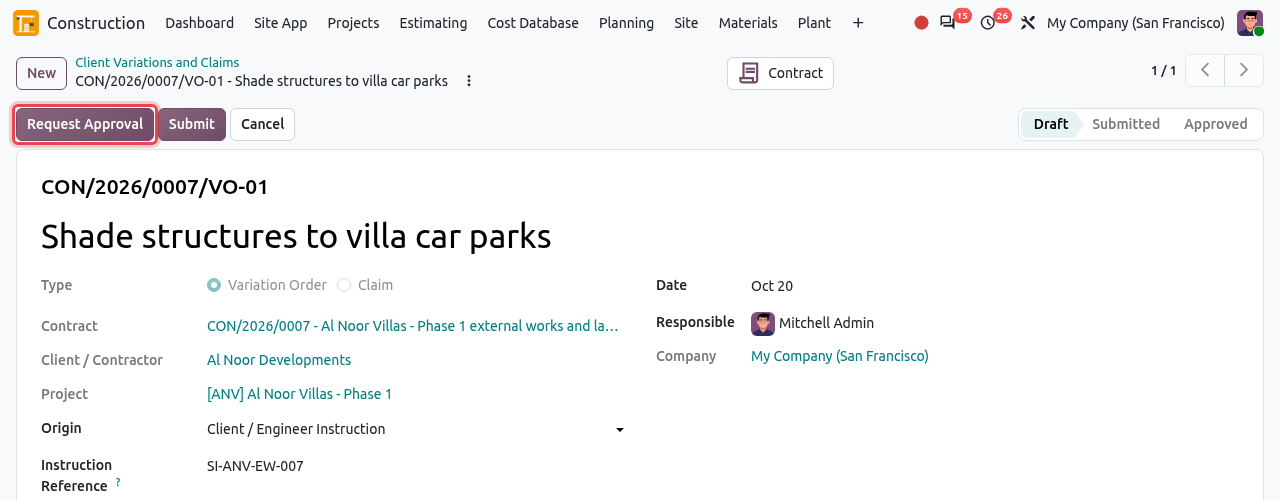
The saved draft variation, CON/2026/0007/VO-01. The Approval State becomes To Approve and the lines are locked. A commercial manager approves the request (see approvals). To change the variation meanwhile, click Withdraw Approval Request.
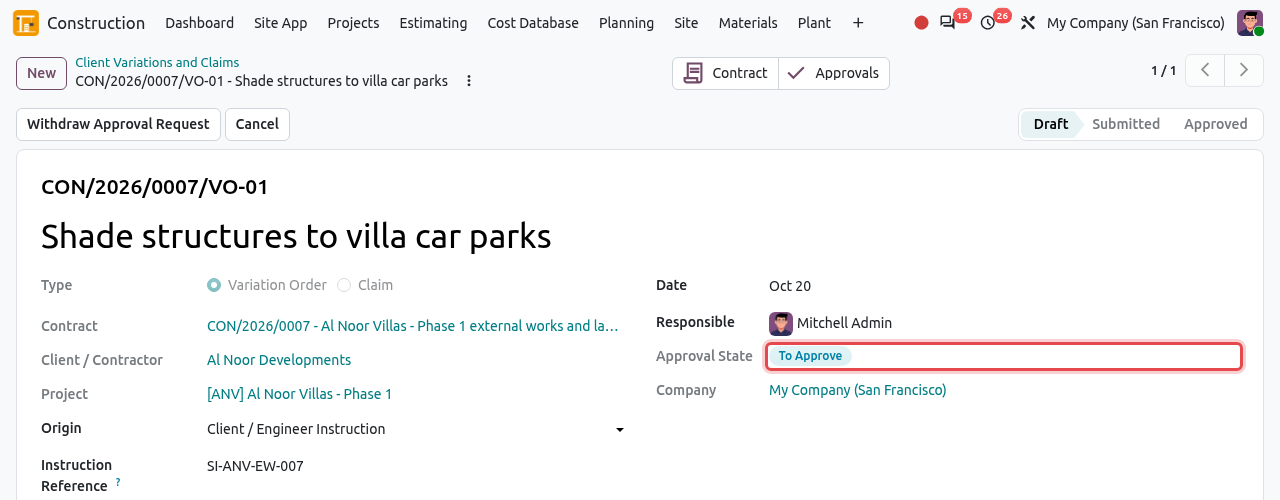
The variation waits for the internal approval.
Submit to the client
When the approval state is Approved, send the variation to the client or the engineer (print it, see below) and click Submit.
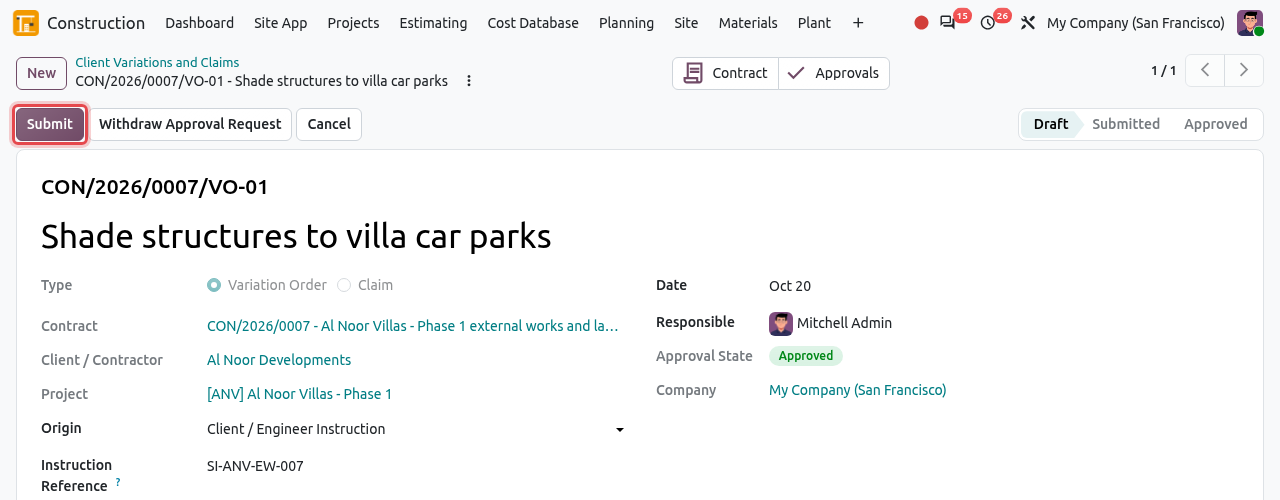
Submit is framed. The variation is Submitted. Odoo records the Submitted On date and the submitted value. The buttons now record the client's answer: Record Approval, Rejected, or Revise to change the figures after a negotiation.
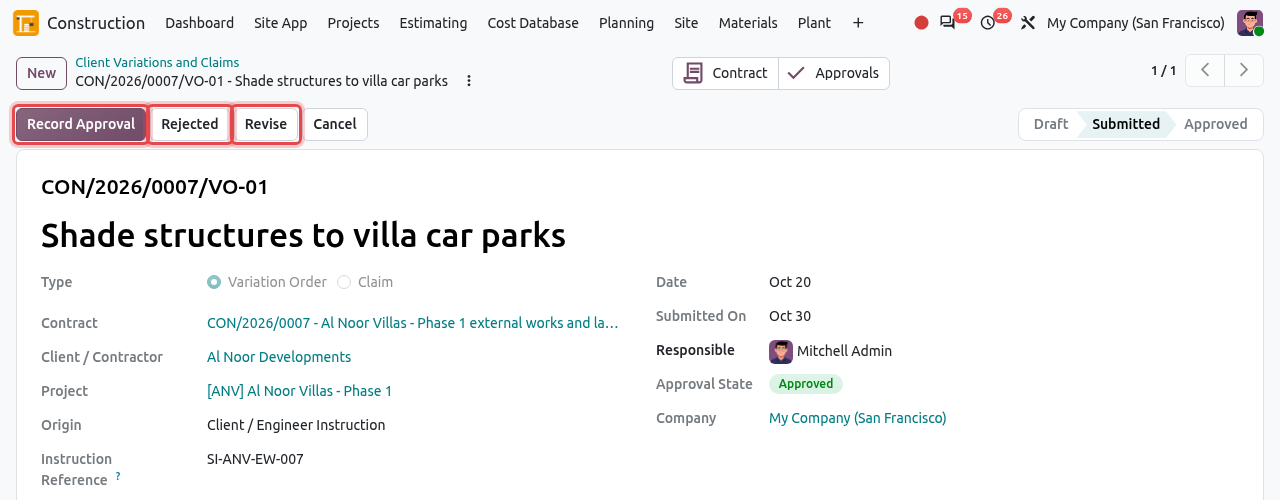
A submitted variation, waiting for the client's decision. While the client decides, the contract shows the variation in Pending Variations, and the Anticipated Final Value (current value plus pending variations).
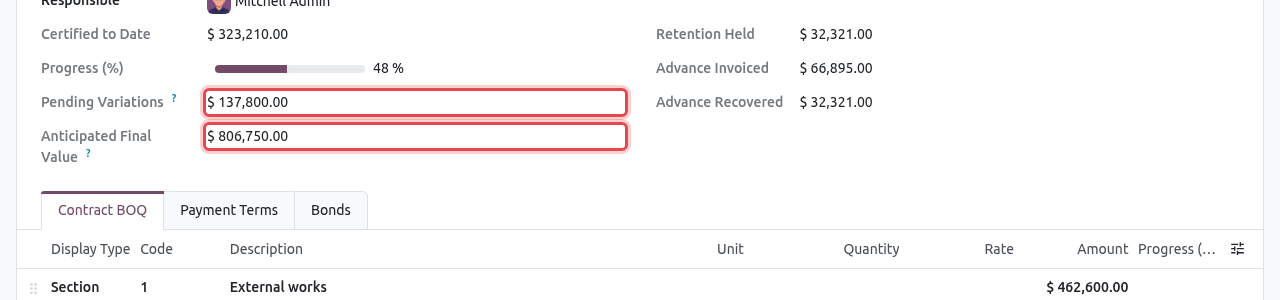
The contract with 137,800.00 of pending variations.
Record the client's approval
When the client approves, click Record Approval. In the window, enter:
Field What to enter Approved On The date of the client's approval. Approval Reference The reference of the approval letter or determination, e.g. AN-ENG-L-0112. Time Granted (days) The extension of time granted, which may be less than claimed (here 10 of the 14 days claimed). Click Approve and Revise Contract.
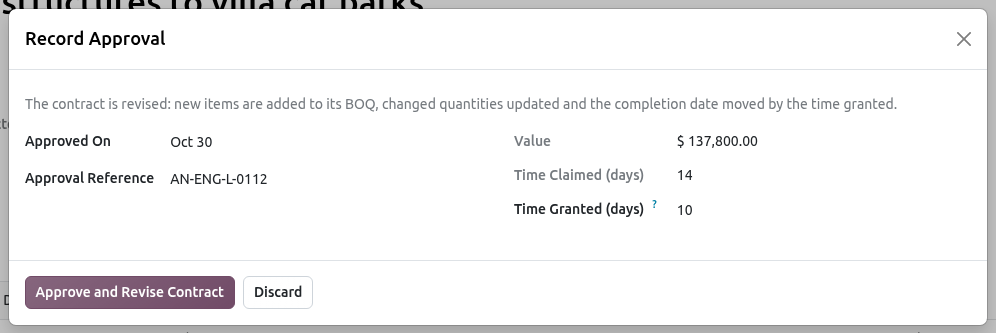
Recording the approval of the engineer. The variation is Approved, with its approval date and reference.
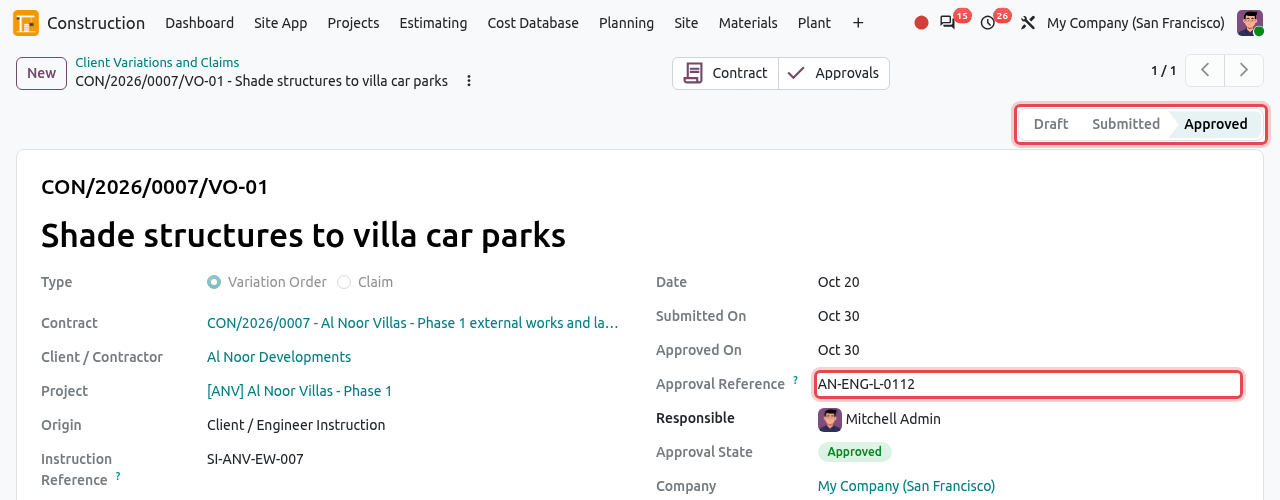
The approved variation.
What changes on the contract
The contract BOQ is revised: the new items are added under a new section named after the variation (VO01), and the quantities of the changed items are updated (item 1.1 goes from 2,400 to 2,750 m²). The Contract Value goes up by the value of the variation.
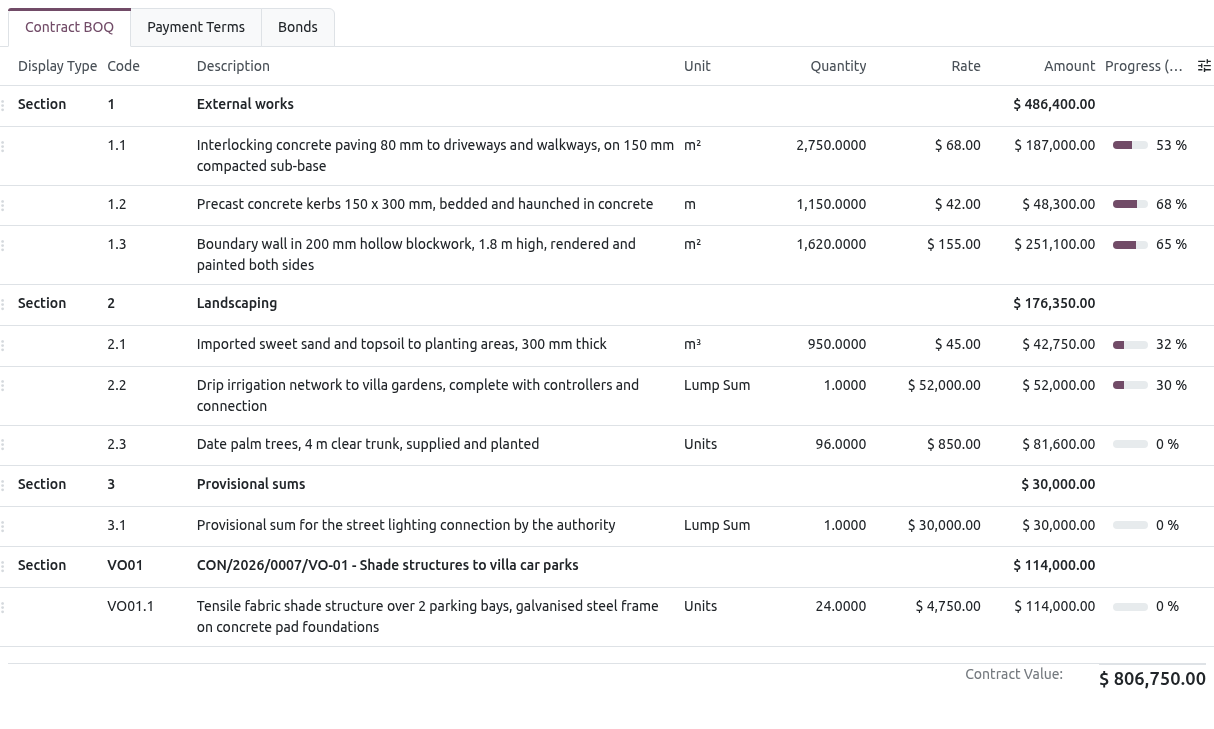
The revised BOQ: section VO01 and the new quantity of item 1.1. Contract value 806,750.00. The contract now shows the Original Value and the Approved Variations, and the Completion date moved by the time granted (31 May 2027 + 10 days = 10 June 2027). A message in the chatter of the contract records the revision.
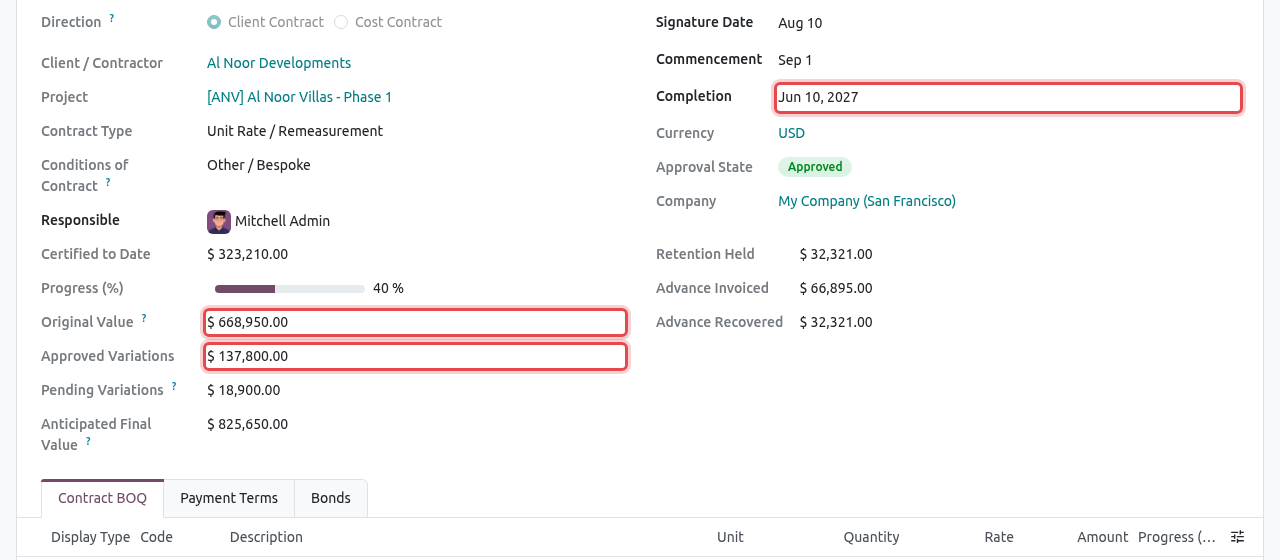
Original value 668,950.00 + approved variations 137,800.00. The pending claim (18,900.00) is shown apart. From the next payment certificate on, the new items appear in the Work Done tab and are certified like the others (see Payment Certificates). If the contract has a draft certificate, the new items are added to it at once. Note that the contract's Progress (%) drops, because the contract value grew.
Claims
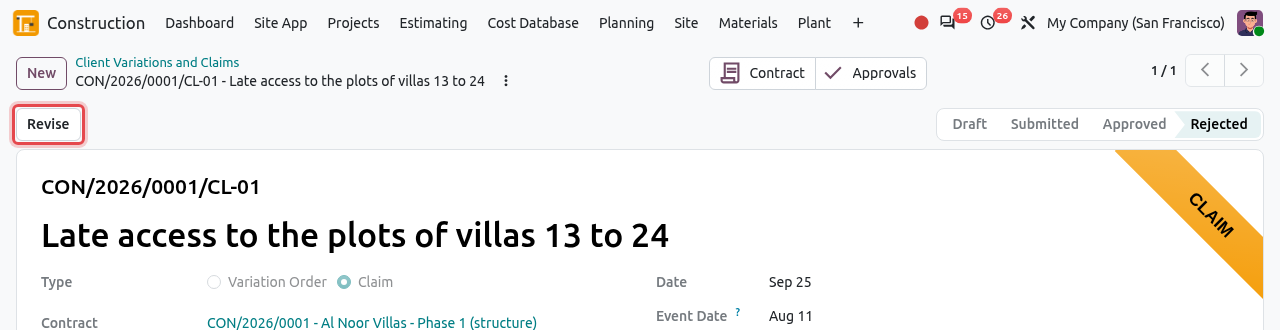
A claim is created like a variation order, with Type = Claim. It gets a CL-nn reference and an orange Claim ribbon. Two more fields appear:
| Field | What to enter |
|---|---|
| Event Date | When the event that gives rise to the claim happened, or became known. |
| Notice Date | When you notified the claim to the client. If it is later than the event date plus the Claim Notice Period (days) of the contract (28 by default), a red Late notice badge appears: the claim may be time-barred. |
Price the money claimed as new items (for example the prolongation costs as a lump sum) and enter the days in Time Claimed (days). A claim may be for time only, with no lines. Then follow the same steps: Request Approval, Submit, and record the decision.
In the example, the authority connected the irrigation water supply 21 days late. The claim was notified 15 days after the event, within the 28-day notice period.
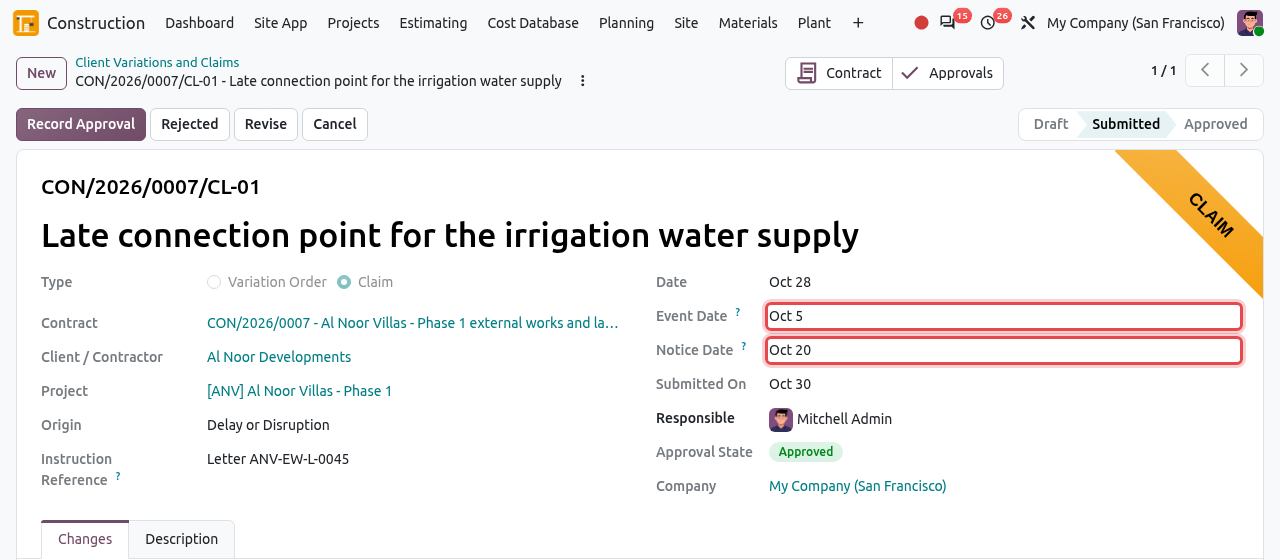
The submitted claim CL-01 with its event and notice dates. 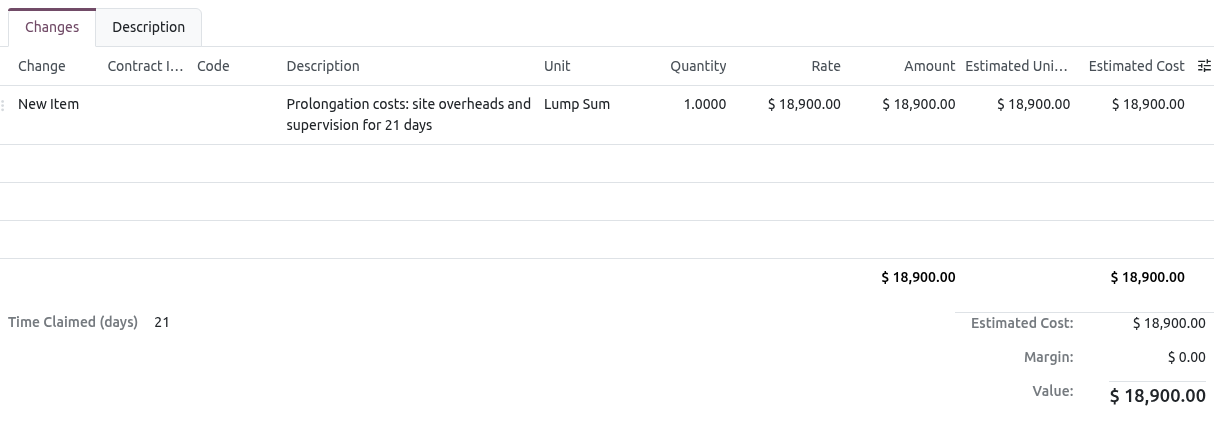
The claim: prolongation costs of 18,900.00 and 21 days.
Rejected, revised and cancelled variations
- Rejected: records that the client refused the variation (after a confirmation). The contract is not changed.
- Revise: puts a submitted, rejected or cancelled variation back to Draft to change its figures, for example after a negotiation. The internal approval is withdrawn and must be requested again. When the value changes, the form shows the Submitted Value next to the new value.
- Cancel: cancels a draft or submitted variation. An approved variation is part of the contract and cannot be cancelled: issue a new variation (with negative quantity changes) to undo it.
Subcontract Variations
Subcontract variations change a cost contract: you instruct a change to a subcontractor, or assess a change or claim it asks for. They work exactly like client variations; when approved, the subcontract BOQ and value are revised and the next subcontract certificates pay the new work.
Open the cost contract, click the Variations smart button, then New. Fill in the header and the changes. In the example, drawing LA-102 rev C adds drip lines (new lump sum item) and 8 more palms (quantity change on item 1.3) to the landscaping subcontract.
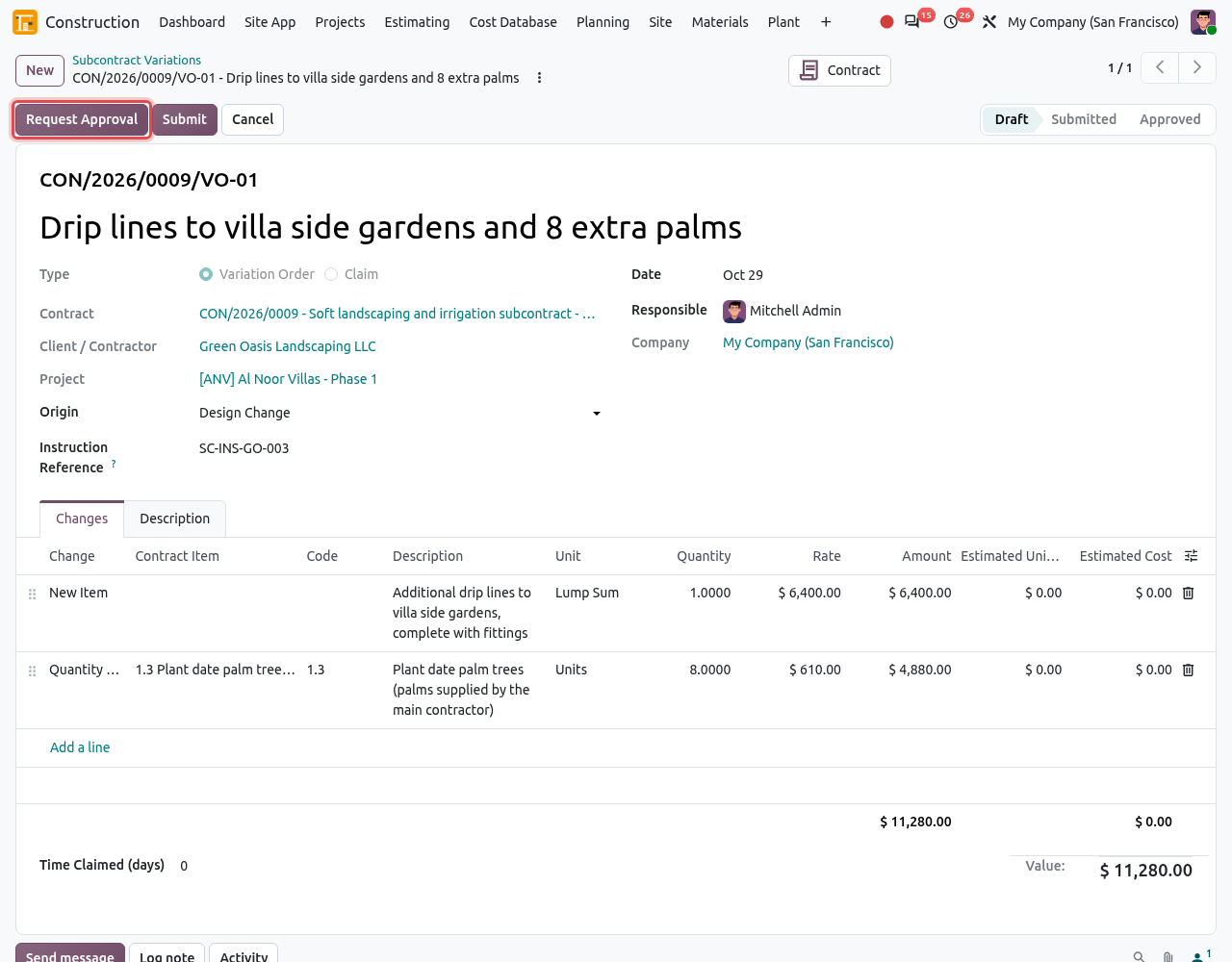
A draft subcontract variation of 11,280.00. Click Request Approval (in the example database it is approved at once, as no rule applies to subcontracts), then Submit when the subcontractor has the instruction, then Record Approval with your approval reference.
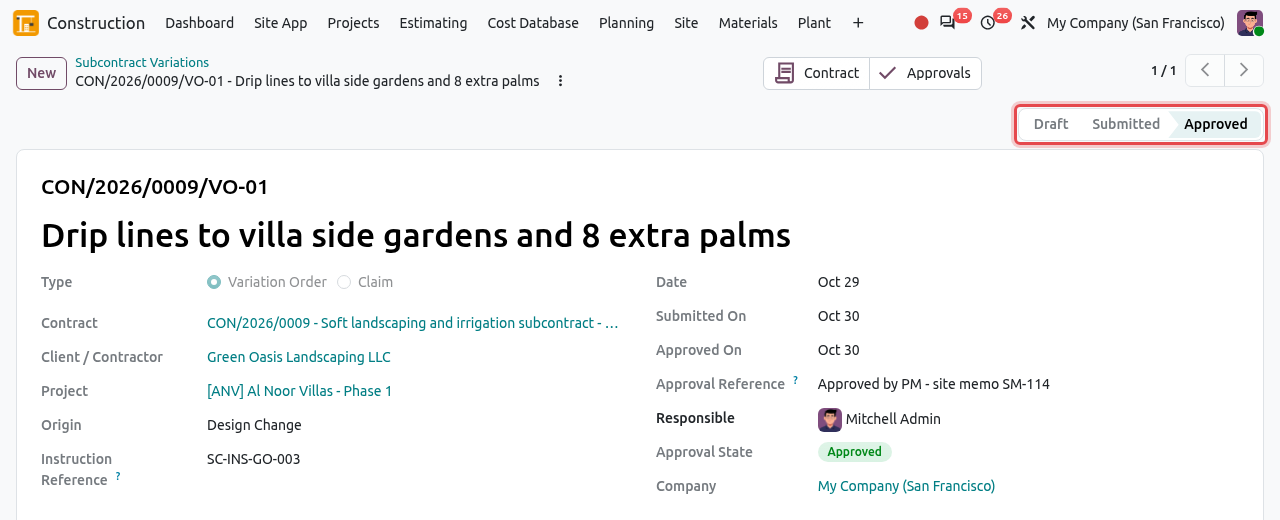
The approved subcontract variation. All subcontract variations are listed in .
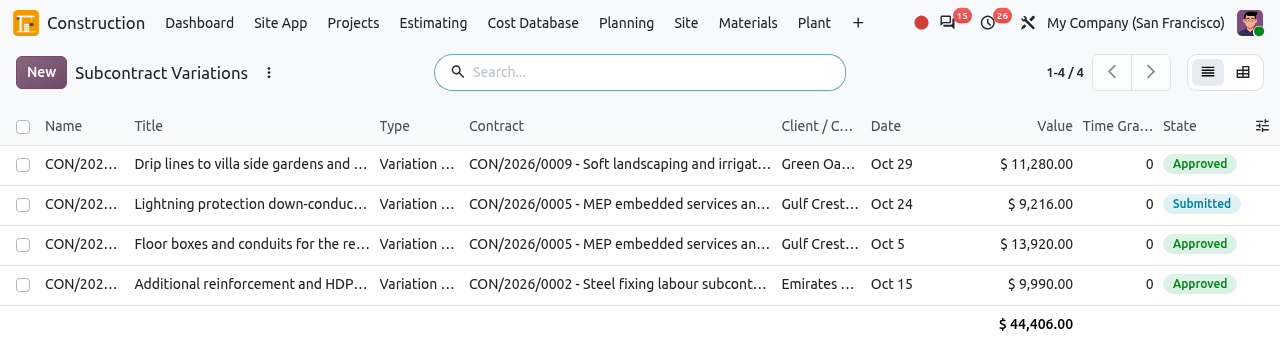
The subcontract variations.
Print a variation
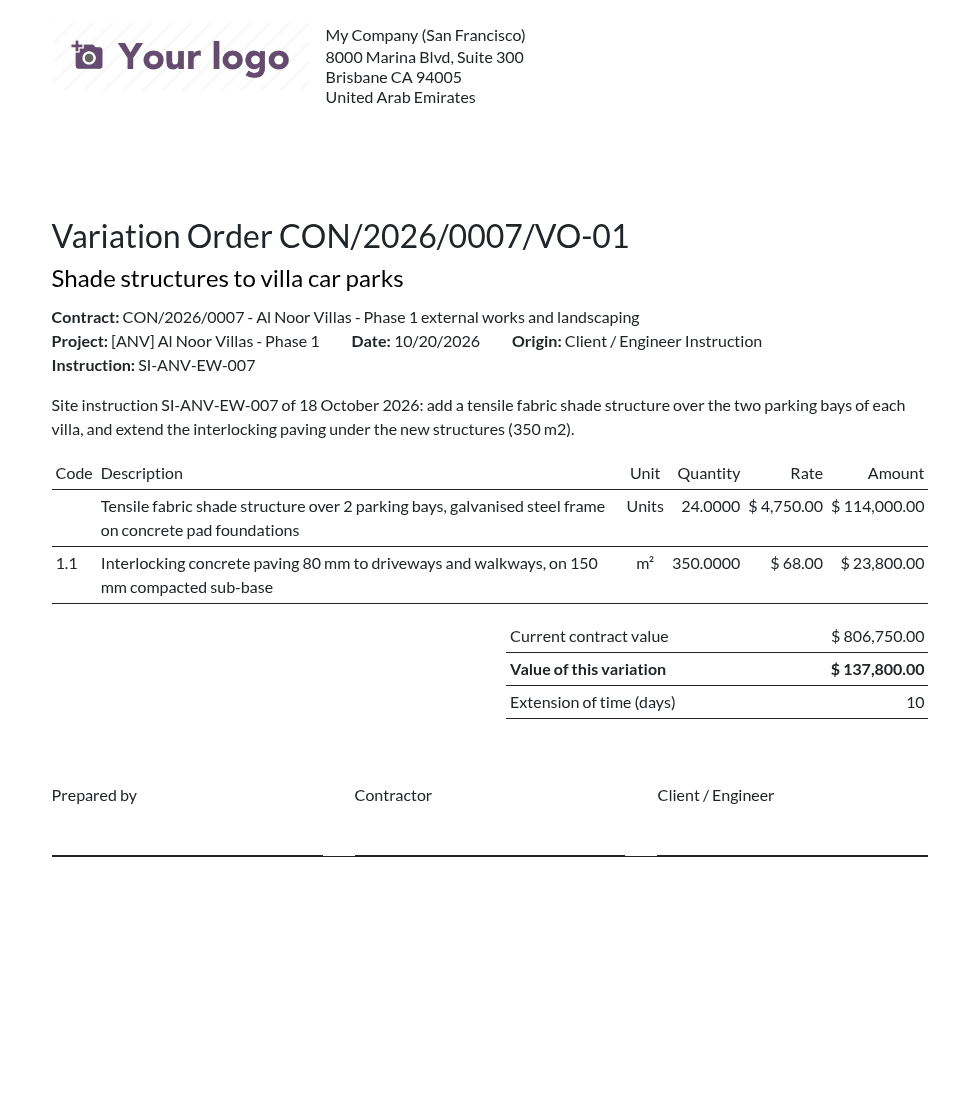
Open the variation, click the actions icon ⋮ next to its name and choose Variation. The PDF shows the instruction, the description, the priced changes, the current contract value, the value of the variation and the extension of time, with signature boxes for the contractor and the client / engineer. Send it to the client with the submission.
Analyse the variations
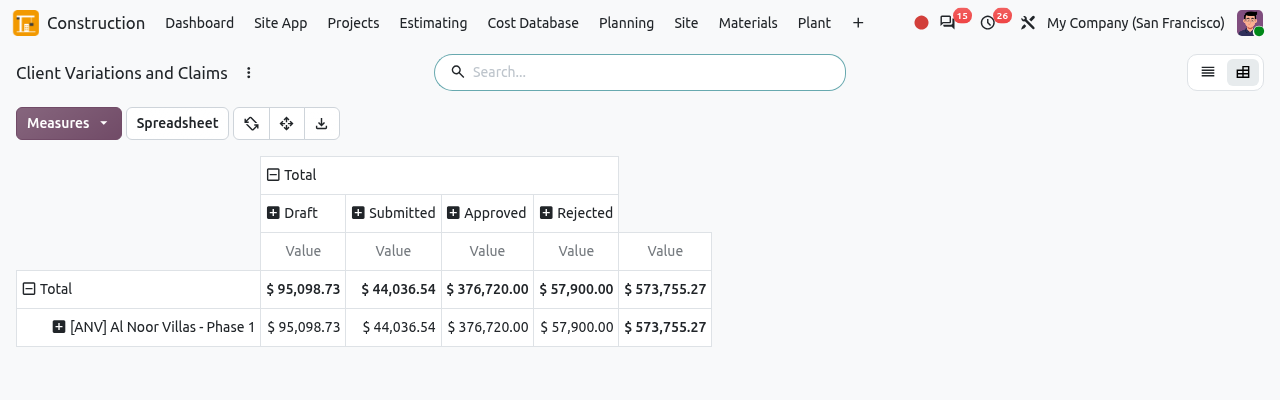
In the variations list, click the pivot icon at the top right to see the value of the variations by project and state (draft, submitted, approved, rejected).
Tips and common mistakes
- "Add the changes or the time claimed to ... first": a variation needs at least one line or some time claimed before it can be submitted.
- "... is submitted or under approval: revise it to change it": lines are locked after Request Approval. Use Withdraw Approval Request (draft) or Revise (submitted).
- "A quantity change is valued at the contract rate...": you changed the rate of a quantity change. Use a new item for a new rate.
- "... would fall below the quantity already certified": an omission cannot reduce an item below what is already certified.
- Variations can only be created on running contracts.
- Only draft or cancelled variations can be deleted.