
Appearance
Contracts
A contract records what was agreed with the other party: the work, the prices, the dates and the payment terms. Odoo uses it as the base of every payment certificate, invoice, bill and variation. This chapter shows how to create client contracts and cost contracts, take them through approval, and keep track of bonds, guarantees and statutory deductions.
TWO KINDS OF CONTRACT
Client Contract: the contract with the client (the employer). You bill the client with payment certificates and invoices.
Cost Contract: a contract you give to a contractor or subcontractor. You certify and pay their work with payment certificates and vendor bills.
Both use the same screen. The Direction field tells them apart, and cost contracts show an orange Cost Contract ribbon.
Where: and .
Who: quantity surveyors and commercial managers (Commercial roles), and project managers. An approver (usually the commercial manager) approves client contracts before they start.
Key words
| Word | Meaning |
|---|---|
| BOQ (Bill of Quantities) | The list of work items of the contract, each with a unit, a quantity and a rate. Quantity × rate = amount. The sum of the amounts is the contract value. |
| Lump sum / unit rate | Lump Sum: one fixed price for the whole job. Unit Rate / Remeasurement: the client pays the quantities actually done, at the BOQ rates. |
| Retention | A percentage that the client keeps from each payment (for example 10%) as security until the work is complete. It is paid back later with a retention release. |
| Advance payment | Money paid to the contractor at the start of the job. It is recovered (deducted again) from the later payment certificates. |
| Statutory deduction | An amount withheld from each certificate by law or by the contract, for example a withholding tax or an insurance contribution. |
| Bond / guarantee | A bank or insurance document that protects the client, for example a performance bond. It has an amount and an expiry date. |
Open the contracts
In the Construction app, open the Commercial menu. When the window is narrow, it is under the + button at the end of the top bar. Click Client Contracts.
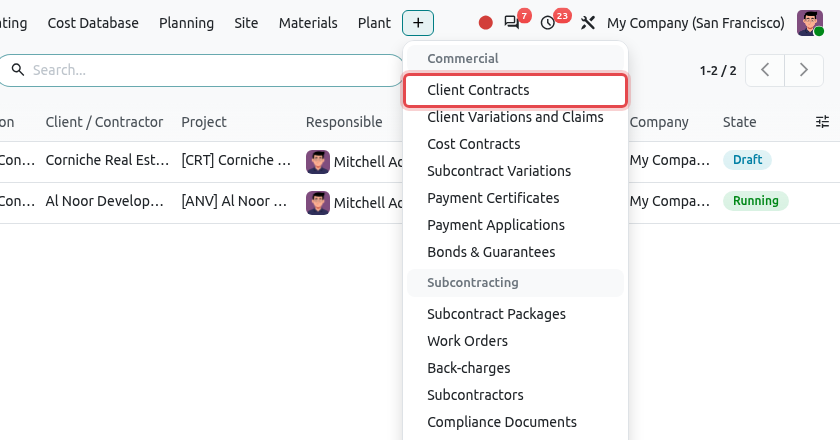
The Commercial menu holds contracts, variations, payment certificates, payment applications and bonds. The list shows every client contract with its client, project, value, progress and state. Click New to create a contract, or click a line to open one.
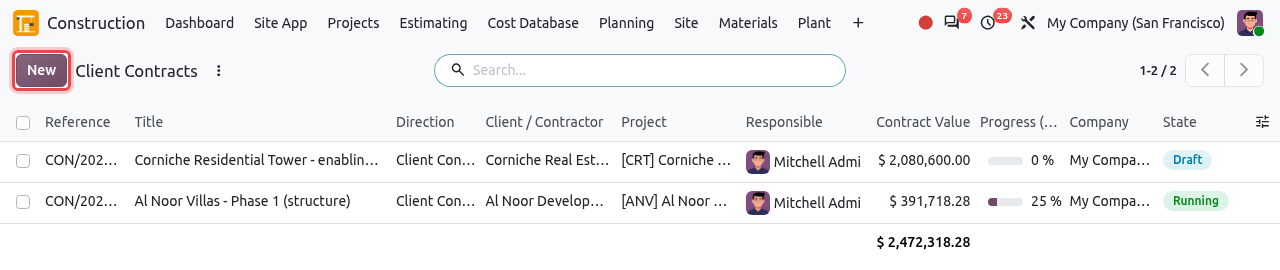
The list of client contracts. New is framed.
Create a client contract from scratch
Use this when the contract does not come from an estimate in Odoo, for example when the client sent its own BOQ. In the example, the company signed a second contract with Al Noor Developments for the external works and landscaping of the villas.
Draft→Request Approval→Approved→Running→Closed
Fill in the header
Click New. Fill in the fields at the top of the form:
Field What to enter Title (large text) A short name of the contract, e.g. Al Noor Villas - Phase 1 external works and landscaping. The reference (CON/2026/0007) is given when you save. Direction Client Contract (already selected in Client Contracts). Client / Contractor The client, e.g. Al Noor Developments. Project The construction project, e.g. [ANV] Al Noor Villas - Phase 1. Contract Type How the work is paid: Lump Sum, Unit Rate / Remeasurement, Cost Plus, Guaranteed Maximum Price, Time & Material or Design & Build. Conditions of Contract The standard form used: a FIDIC book (Red, Yellow or Silver, 1999 or 2017) or Other / Bespoke. A FIDIC form fills in the advance recovery (25% of each certificate, starting at 10% of the contract value) and the FIDIC interim payment terms for you. Check them against the contract. Responsible The person in charge of the contract. This person receives the reminders for expiring bonds. Signature Date, Commencement, Completion The key dates of the contract. Completion cannot be before commencement. Approved extensions of time move the completion date. Currency The contract currency (company currency by default). 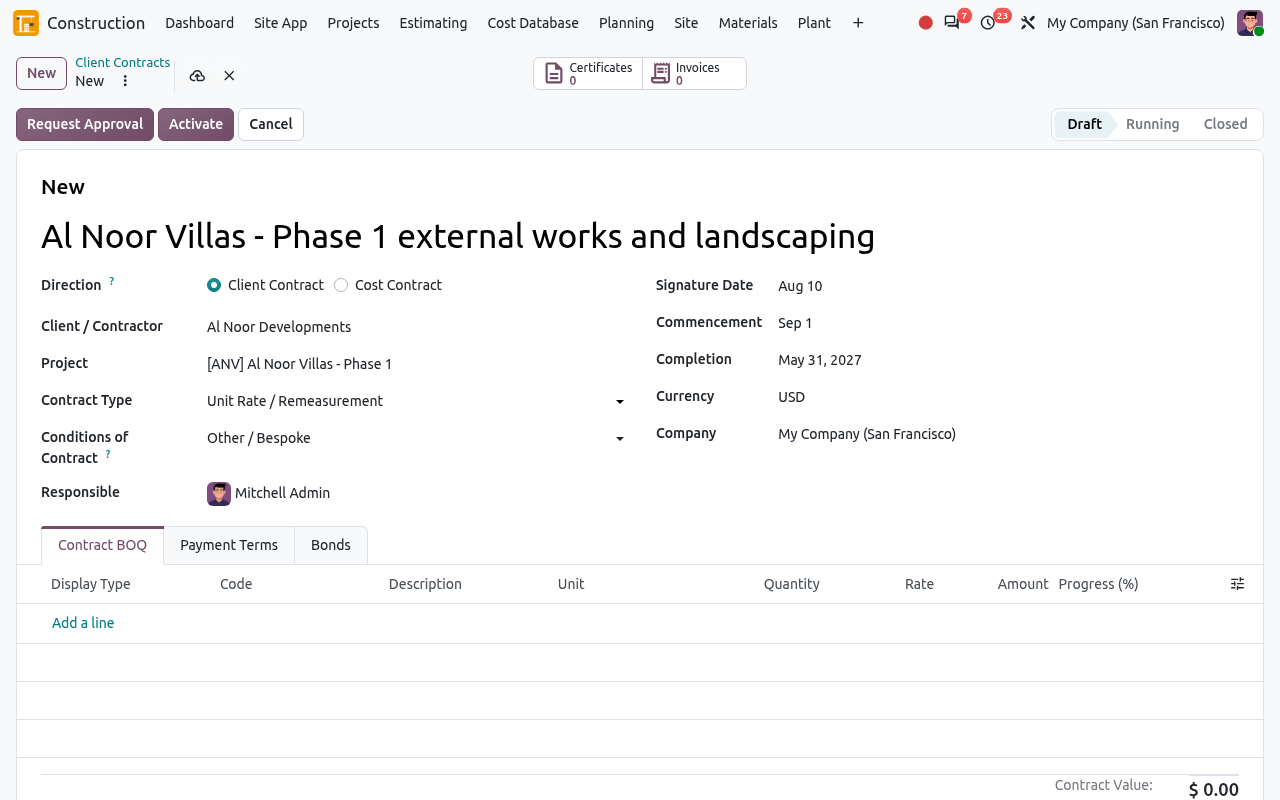
A new client contract with its header filled in.
Enter the contract BOQ
In the Contract BOQ tab, click Add a line for each line of the client's BOQ:
- To start a group of items, set Display Type to Section and type the section code and name (e.g. 1 External works). The section shows the total of its items.
- For a work item, leave Display Type empty and enter the Code (e.g. 1.1), Description, Unit, Quantity and Rate. Odoo calculates the Amount.
- Use Note lines for text without amounts.
The Contract Value at the bottom is the total of all items.
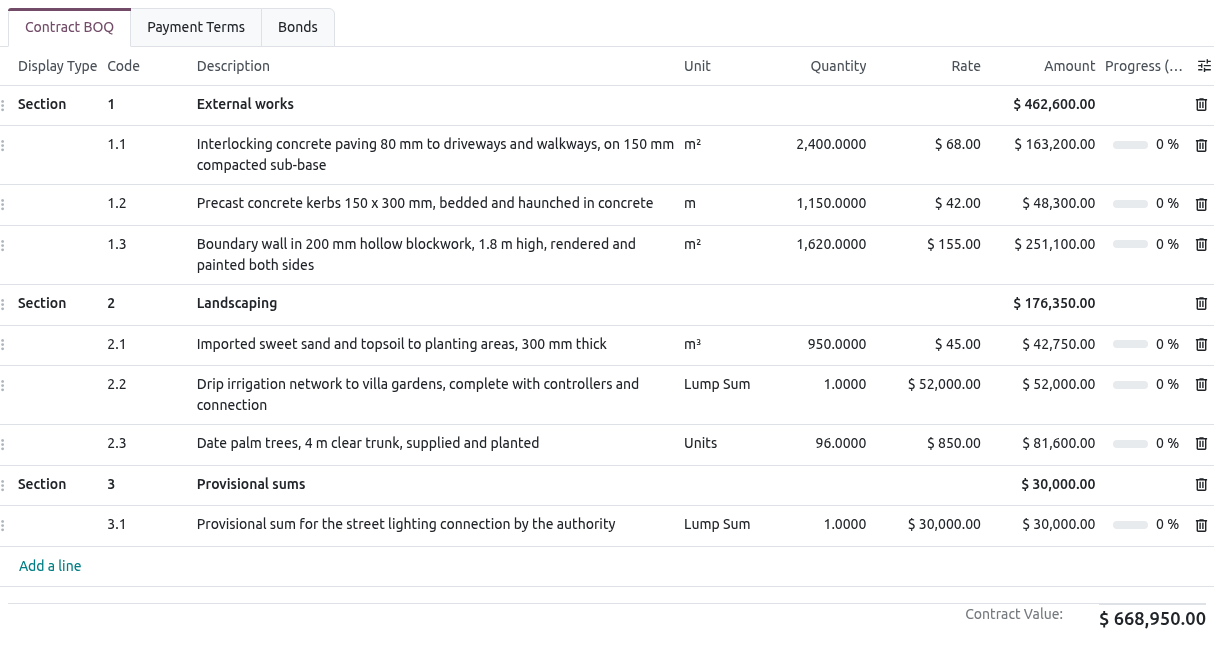
The contract BOQ: three sections and their items. The Progress column fills up as payment certificates are certified.
ITEM TYPES
Click the settings icon at the right end of the column titles to show the Item Type column. Measured items (the default) are paid by quantity. Lump Sum and Provisional Sum items are paid by percentage complete: their quantity is normally 1, and a certificate cannot pay more than 100% of them.
Set the payment terms, retention, advance and deductions
Open the Payment Terms tab and fill in the terms of the contract:
Field What to enter Retention (%) The share of the work done kept by the client on each certificate, e.g. 10. The default comes from the Construction settings. Retention Limit (%) Retention stops when it reaches this share of the contract value, e.g. 5. Enter 0 for no limit. Retention Booking Deducted on the invoice: the invoice shows a negative retention line. Separate journal entry: the invoice shows the full work done and Odoo books the retention apart when the invoice is confirmed (required where VAT is due on the full value, as in the GCC). VAT on Retention Only with Deducted on the invoice: charge VAT on each certificate, or when the retention is released. Advance (%) / Advance Amount The advance payment, as a percentage of the contract value (the amount is calculated) or as an amount. Advance Recovery (%) The share of the work done of each certificate deducted to repay the advance. By default it is the same as the advance percentage. Recovery Starts at (%) Recovery starts once the work certified passes this share of the contract value (10 under FIDIC). 0 starts with the first certificate. Taxes, Payment Terms, Income / Expense Account Used on the invoices and bills of the contract. Usually the defaults are right. Statutory Deductions Click Add a line and choose a deduction type, e.g. CAR Insurance Contribution. The rate comes from the type and can be changed. See Deduction Types. Claim Notice Period (days) The days allowed to notify a claim after the event (28 under FIDIC). Late claims are flagged, see Claims. 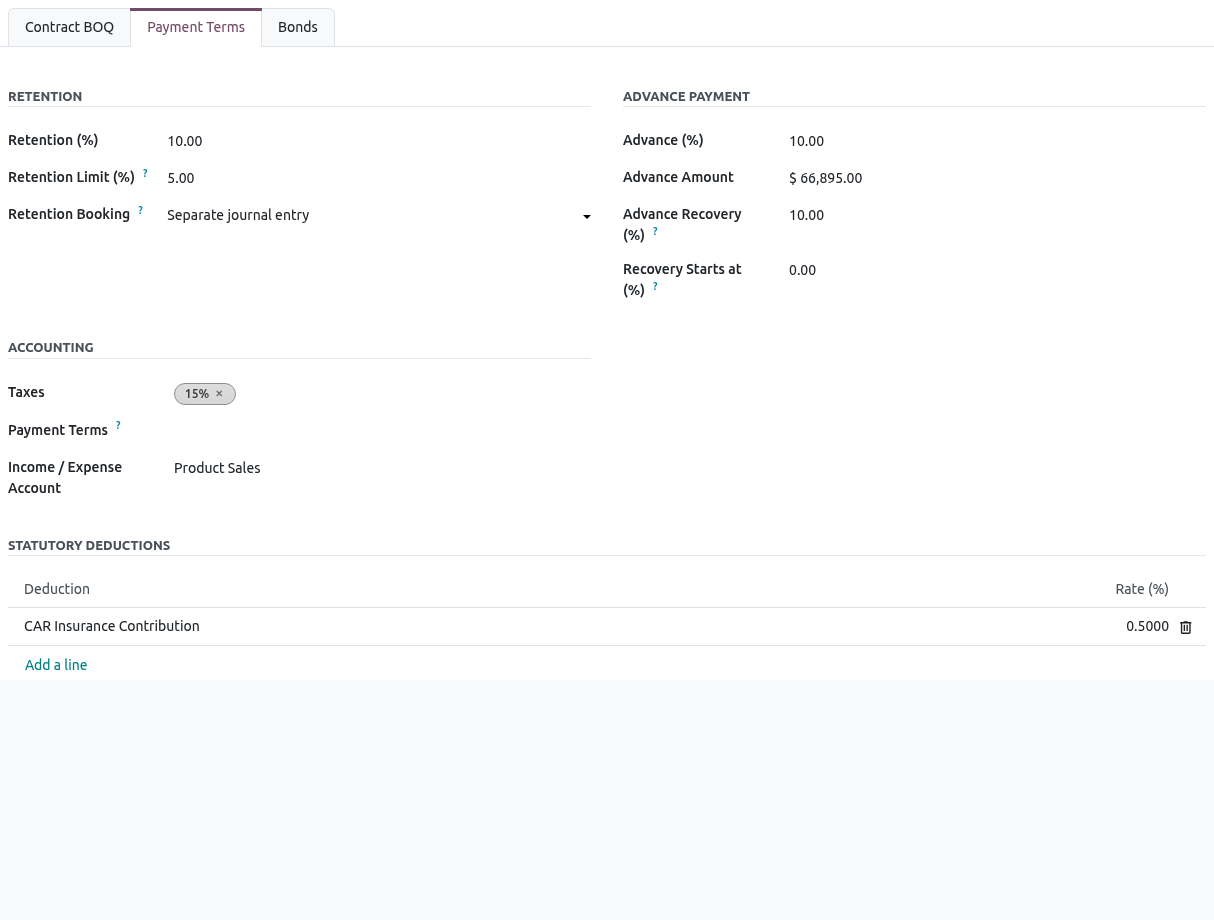
Payment terms: 10% retention up to 5% of the contract value, a 10% advance recovered at 10%, and a 0.5% CAR insurance deduction.
Record the bonds of the contract
In the Bonds tab, click Add a line for each bond or insurance given for this contract: choose the Bond Type, type the bond Number, the Issuer (Bank / Insurer), the Amount, the Issue Date and the Expiry Date. The same bonds appear in Bonds & Guarantees.
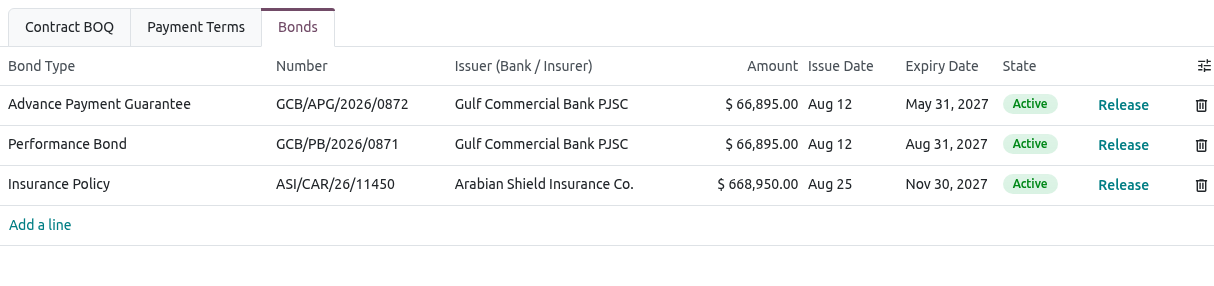
The advance payment guarantee, the performance bond and the CAR insurance policy of the contract.
Get the contract approved
When an approval rule exists for contracts (see Teams, Roles & Approvals), a contract must be approved before it can start. In the example database, client contracts are reviewed by a Commercial Manager.
Check the BOQ and the terms, then click Request Approval.
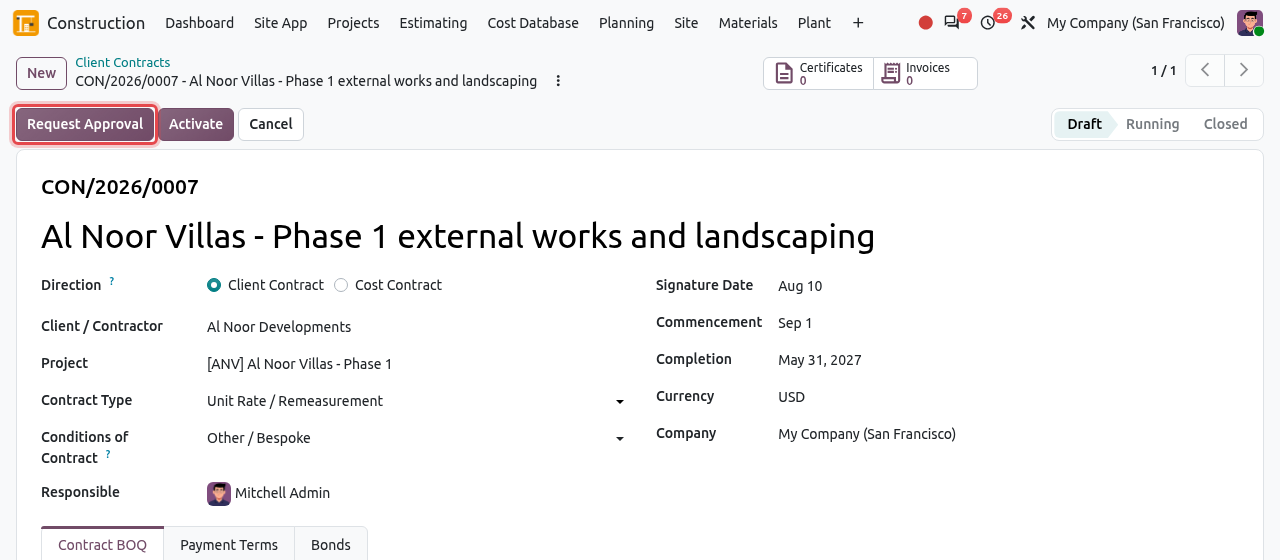
A draft contract: Request Approval is framed. The Approval State becomes To Approve and an Approvals smart button appears. The approvers get an activity (a to-do) in Odoo. While the request is pending, the BOQ and the terms are locked.
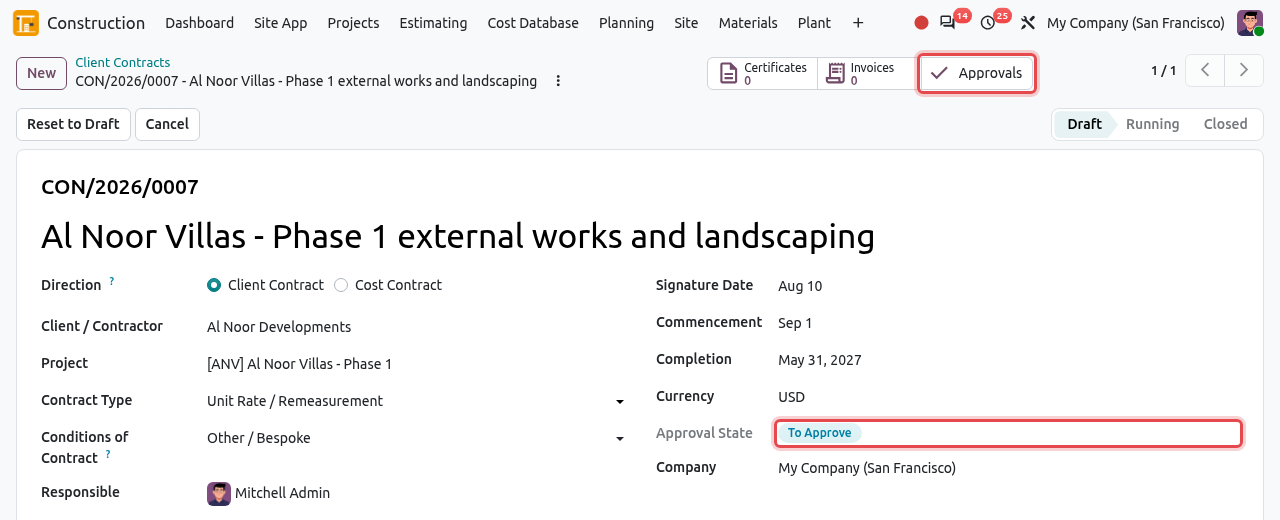
The contract waits for approval. Click the Approvals smart button to follow the request. The approver opens (or clicks the activity), opens the request and clicks Approve, or Reject with a reason. The person who asked for the approval cannot approve it.
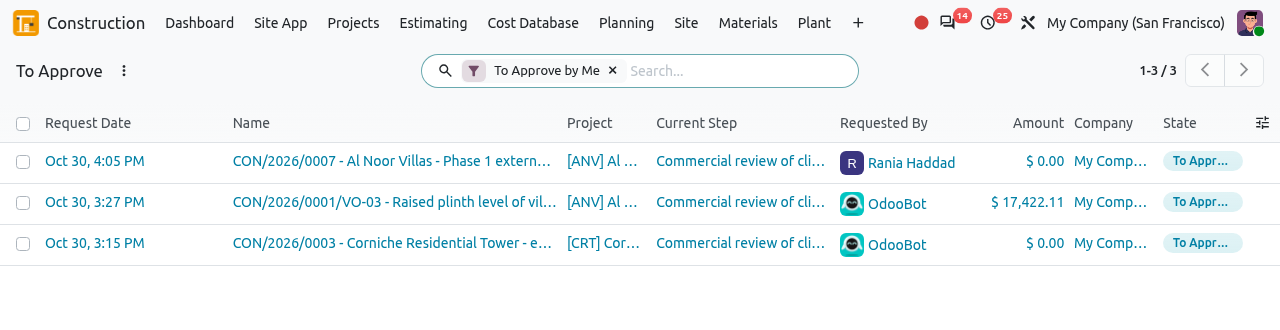
The requests waiting for the current user. 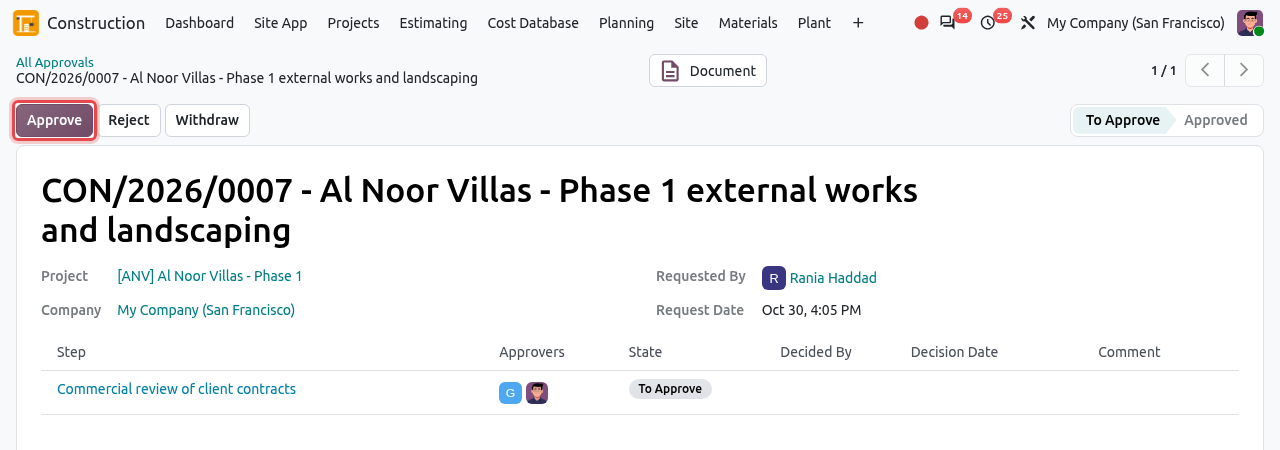
The approval request seen by the approver. Approve is framed.
Activate the contract
When the Approval State is Approved, click Activate.
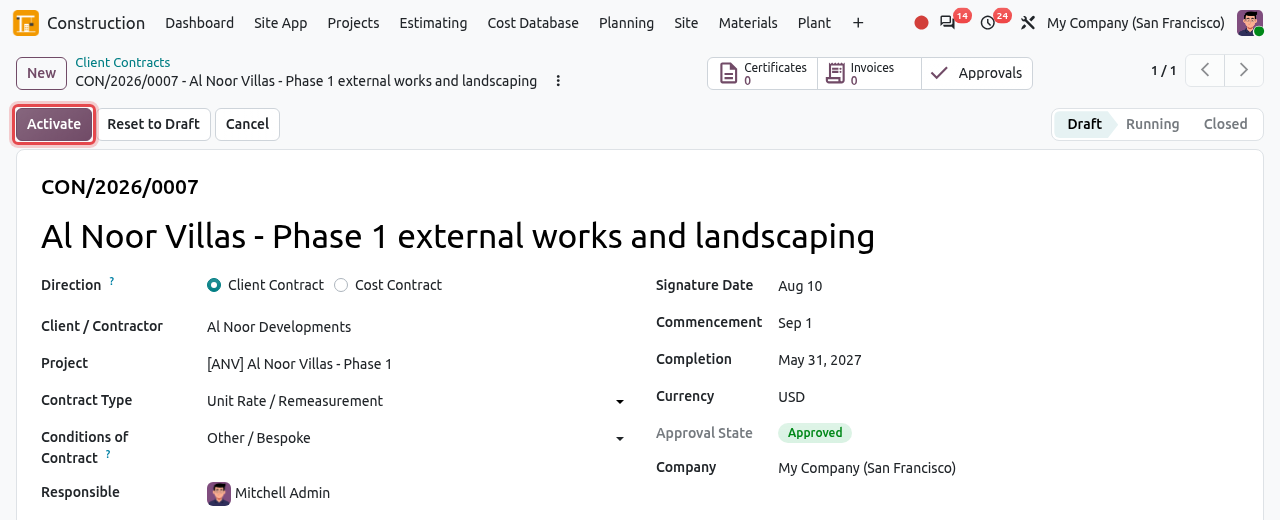
The approved contract: Activate is framed. The contract is now Running. Its BOQ is locked: from now on it changes only through variations. New figures appear: Certified to Date, Progress (%), Retention Held, Advance Invoiced and Advance Recovered. The new buttons are explained below.
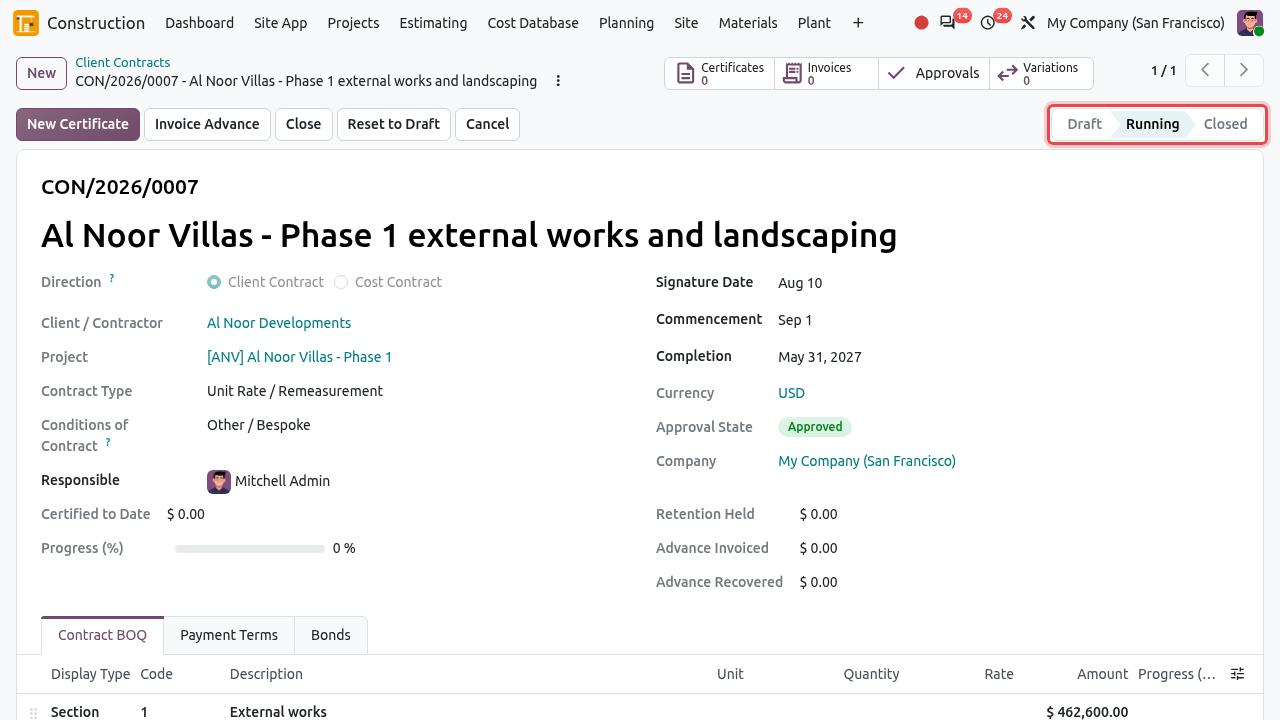
A running contract with its action buttons and smart buttons.
Buttons and smart buttons of a running contract
| Button | What it does |
|---|---|
| New Certificate | Starts the next payment certificate. See Payment Certificates. |
| Invoice Advance | Creates the advance payment invoice (client contract) or bill (cost contract). Shown once, when an advance is set and not yet invoiced. |
| Release Retention | Gives back all or part of the retention held. See Release the retention. |
| Close | Closes the contract when the final account is agreed. |
| Reset to Draft | Puts the contract back to draft to correct it. Only possible while it has no certificate (cancelled certificates excepted). The approval must then be given again. |
| Cancel | Cancels the contract. Not possible once work is certified. |
| Smart buttons | Certificates, Invoices (invoices, bills and retention entries), Approvals, Variations; on cost contracts also Work Orders and Back-charges (see Subcontracting). |
Close the contract
When the final account is agreed with the other party, click Close and confirm with Ok. The contract becomes Closed. You can still release the retention of a closed contract.
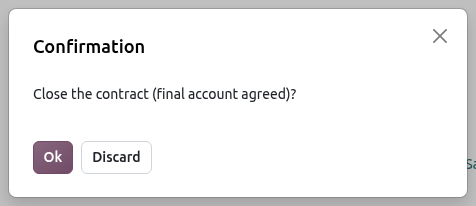
Odoo asks for a confirmation before closing.
WARNING
A contract cannot be closed while it has a draft certificate: certify or cancel it first (message "Confirm or cancel the draft certificates first.").
Create a client contract from a won estimate
When the estimate of a contractor project is marked Won (see Estimating), Odoo creates the client contract automatically: same client, project, title, currency and contract type, and a contract BOQ copied from the estimate with the estimate rates. Markups shown as separate amounts become a lump sum item at the end of the BOQ.
Open the won estimate. The Contract smart button opens the contract created from it. If no contract was created (for example the client was missing when the estimate was won), the Create Contract button appears at the top of the estimate instead: click it.
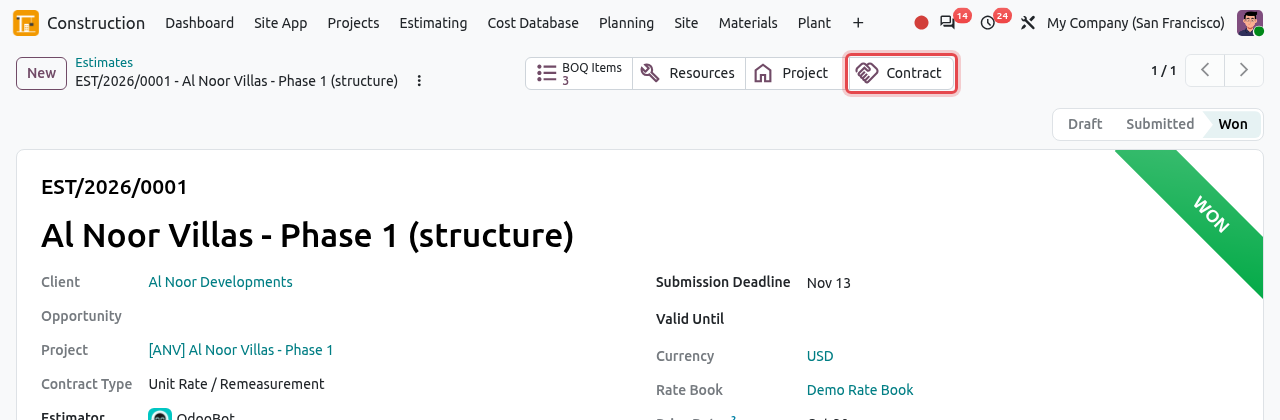
The won estimate EST/2026/0001 and its Contract smart button. The contract opens in Draft. Its Estimate field links back to the estimate. Check the BOQ and fill in the dates and payment terms, then continue as for a new contract: request approval and activate.
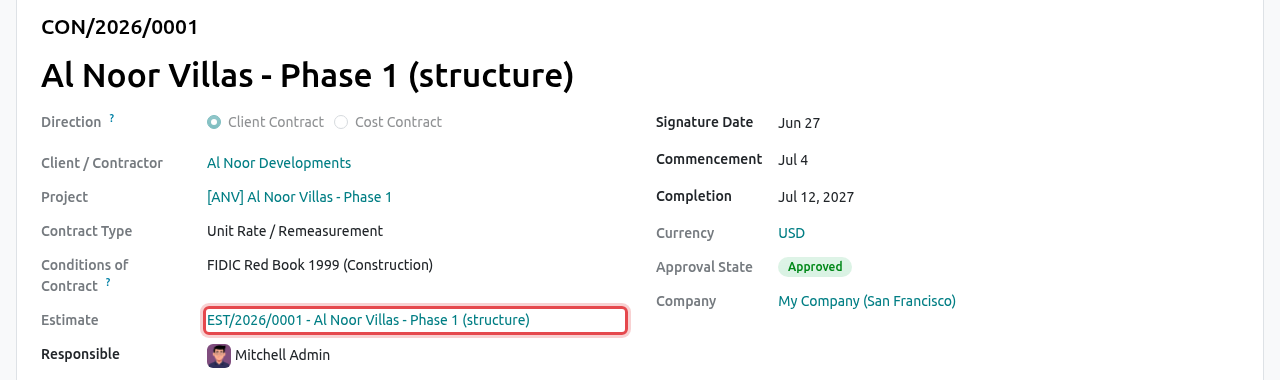
The ANV main contract was created from the estimate.
Cost contracts
A cost contract is the contract with a subcontractor or contractor that works for you. It has the same BOQ, retention, advance and deductions as a client contract, but its certificates create vendor bills instead of invoices. Its bills are charged to the project and to the Cost Code of the contract (by default 40 Subcontract, in the Payment Terms tab).
Open .
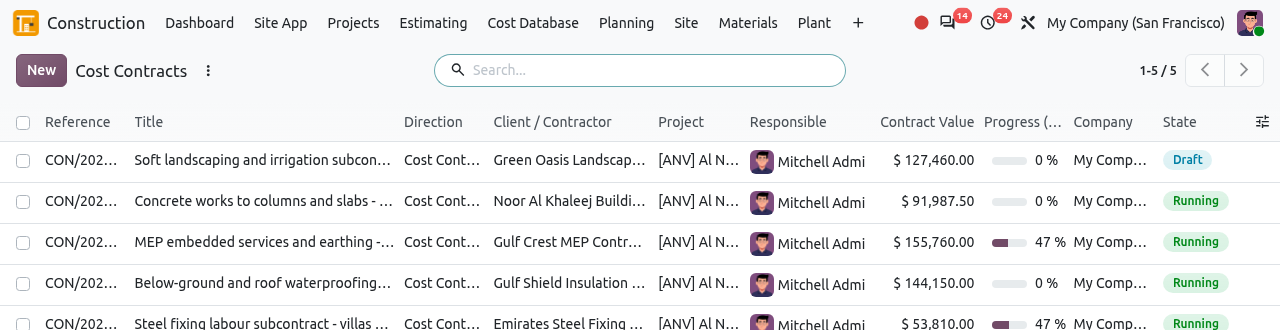
The cost contracts of the company. Click New. The Direction is already Cost Contract. In Client / Contractor, choose the subcontractor (e.g. Green Oasis Landscaping LLC). Fill in the BOQ with the subcontract rates, and the payment terms, exactly as for a client contract.
Click Request Approval, then Activate. In the example database, no approver is needed for cost contracts, so the approval is given at once; you must still click Request Approval before Activate.
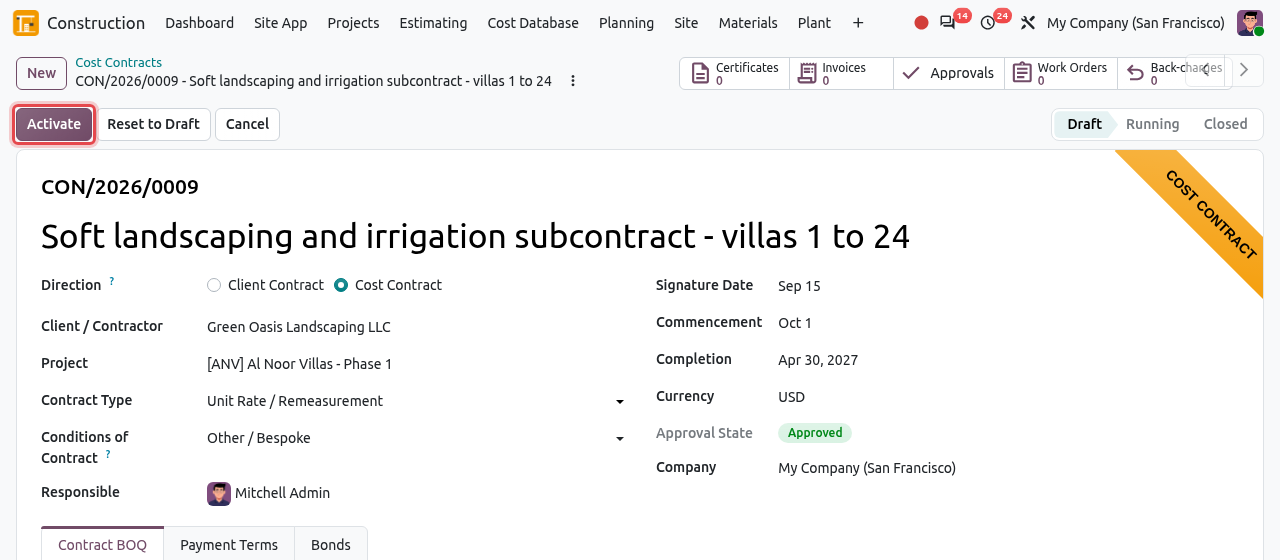
A cost contract (orange ribbon), approved and ready to activate.
TIP
Subcontracts are usually prepared from a subcontract package and its bids. See Subcontracting.
Bonds & Guarantees
This menu lists the bonds, guarantees and insurance policies of all contracts in one place, so that nothing expires unnoticed. Bond types: Bid Bond, Performance Bond, Advance Payment Guarantee, Retention Bond, Warranty Bond and Insurance Policy.
Active→ReleasedorExpired
Open . By default the list shows the Active bonds, sorted by expiry date (the first to expire at the top).
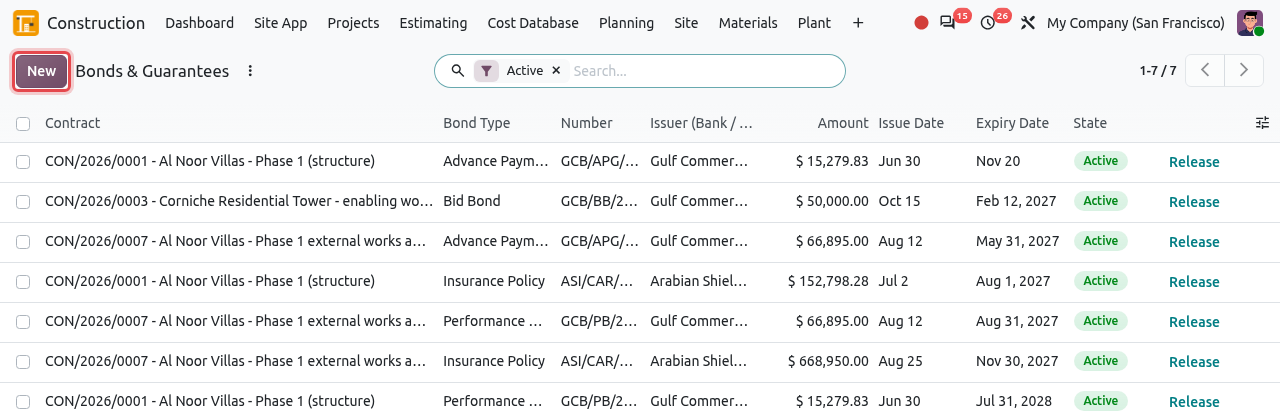
The active bonds. New is framed. Click New and fill in the form:
Field What to enter Contract The contract that the bond secures. Bond Type Performance Bond, Advance Payment Guarantee, etc. Number The reference printed on the bond. Issuer (Bank / Insurer) The bank or insurance company. Amount, Currency The amount guaranteed. The currency is the contract currency. Issue Date, Expiry Date The validity of the bond. Notes Conditions and history of extensions. 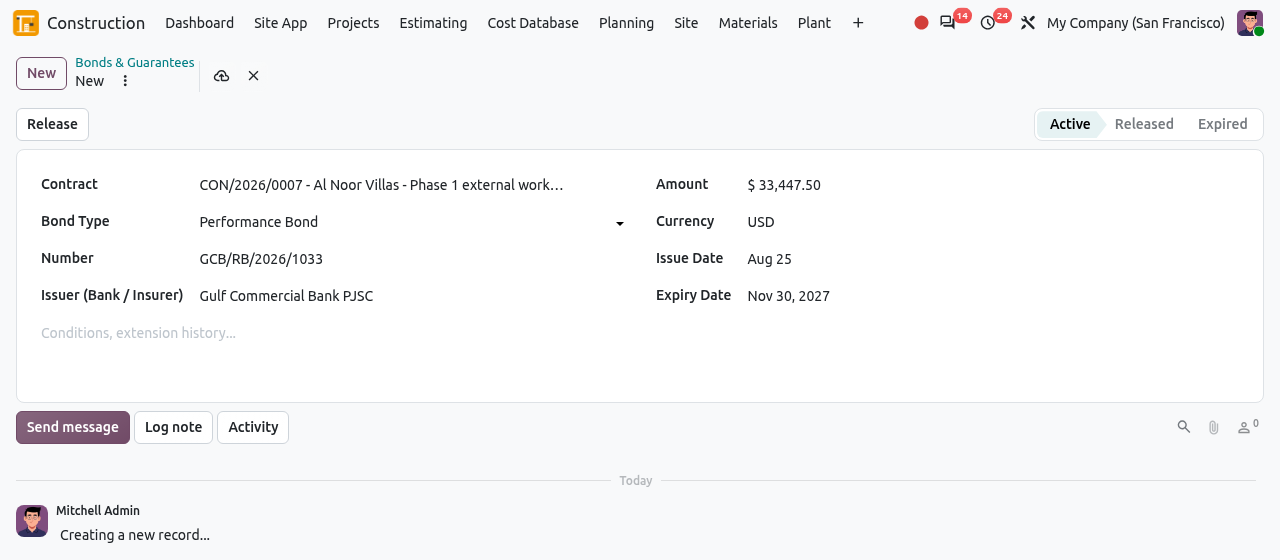
A new bond being entered. When the bank returns the bond or the contract no longer needs it, click Release (on the form or on the line of the list). The bond becomes Released.
EXPIRY REMINDERS
Every day, Odoo checks the bonds. 30 days before the expiry date, the Responsible of the contract gets an activity "... expires soon: extend or release it". After the expiry date, the bond becomes Expired. To extend a bond, change its expiry date and note the extension.
Deduction Types (configuration)
Deduction types are the statutory deductions that can be added to contracts, such as a withholding tax or a contribution to the contractor's all risk (CAR) insurance. They are defined once by the commercial manager or the accountant, then chosen in the Payment Terms tab of each contract.
Open .
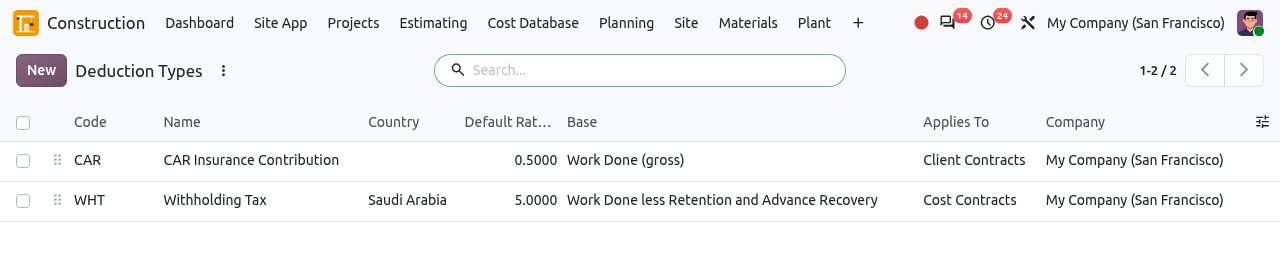
The deduction types of the company. Click New (or open a type) and fill in:
Field What to enter Name, Code E.g. Withholding Tax, WHT. The code must be unique in the company. Country The country where it applies (for information). Default Rate (%) The rate proposed when the type is added to a contract. Base Work Done (gross), or Work Done less Retention and Advance Recovery. Applies To Client Contracts, Cost Contracts or Both. Account on Client Invoices The account of the amount the client withholds from our invoices. Account on Contractor Bills The account of the amount we withhold from contractor bills and pay to the authority. Description Legal basis, filing and payment rules. 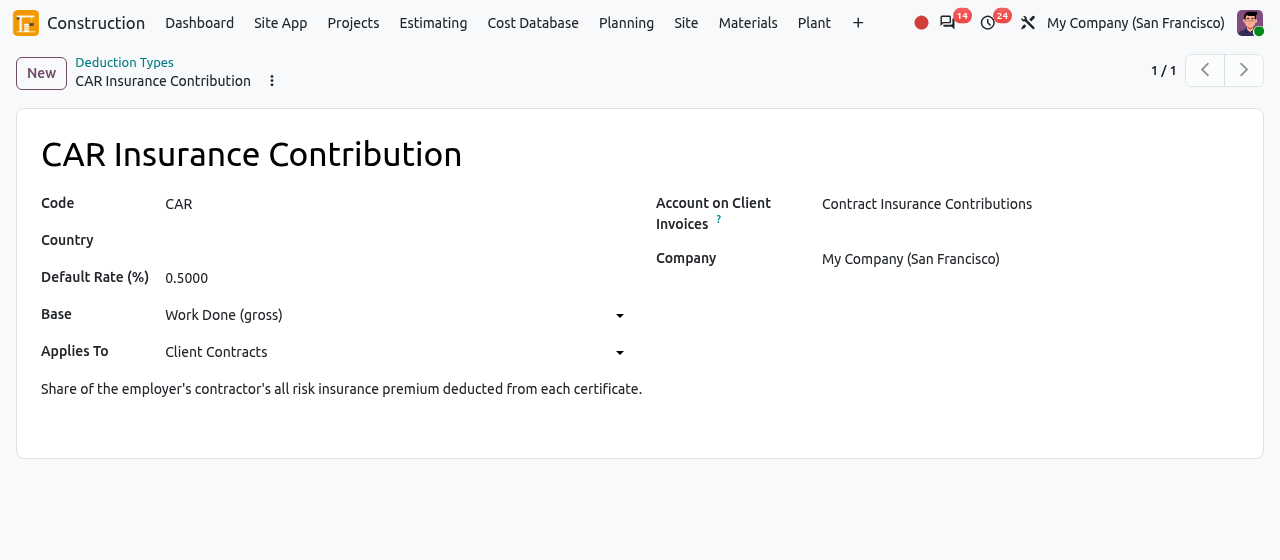
The CAR insurance contribution: 0.5% of the work done, on client invoices.
WARNING
Set the account of the deduction before invoicing. Otherwise Create Invoice on a certificate stops with "Set the accounts of the deduction ...".
Tips and common mistakes
- "Add the contract BOQ before activating": a contract without any BOQ item cannot be activated.
- "... must be approved first": click Request Approval and wait for the approval before Activate. This also applies to cost contracts, which are approved at once.
- "The BOQ of ... can only change in draft, before approval": once a contract is waiting for approval, approved or running, its BOQ is locked. Before work is certified, use Reset to Draft; afterwards, use a variation.
- A contract and its project must belong to the same company.
- The retention and advance accounts come from (see Configuration). If they are missing, invoicing stops with a message asking you to set them.
- Separate journal entry cannot be combined with VAT when the retention is released: Odoo refuses this combination.