
Appearance
Payment Certificates
A payment certificate (also called an interim payment certificate, IPC, or running bill) is the monthly statement of the work done on a contract. The quantity surveyor measures the quantities done to date, Odoo values them at the contract rates, deducts what was certified before, the retention, the advance recovery and the deductions, and turns the result into an invoice or a vendor bill.
Where: , and the New Certificate button of a running contract.
Who: quantity surveyors prepare certificates; a project quantity surveyor (and a director for large amounts) approves them; users with invoicing rights create the invoices and bills.
How a certificate is calculated
Amounts are cumulative: each certificate states the total work done since the start of the contract. The previous certificate gives what was already paid, and the difference is paid now. If a quantity was over-measured last month, you simply enter the right quantity to date and the next certificate corrects it.
| Line on the certificate | How it is calculated |
|---|---|
| Work Done to Date | For each BOQ item: Qty to Date × Rate, added up. |
| Previously Certified | The Work Done to Date of the previous certificate. |
| Work Done this Period | Work Done to Date − Previously Certified. |
| Retention | Retention % of the work done to date (up to the retention limit), less the retention already held. |
| Advance Recovery | Recovery % of the work done to date (beyond the start threshold, up to the advance invoiced), less what was already recovered. |
| Deductions | The statutory deductions of the contract on the work done this period. |
| Net Amount Due | Work done this period − retention − advance recovery − deductions (before VAT). |
Draft→Request Approval→Certified→Invoiced
Invoice the advance payment
If the contract has an advance payment (Payment Terms tab of the contract), invoice it first: the advance recovery of the certificates is limited to the advance invoiced.
Open the running contract (here CON/2026/0007, the external works contract of the ANV project) and click Invoice Advance.
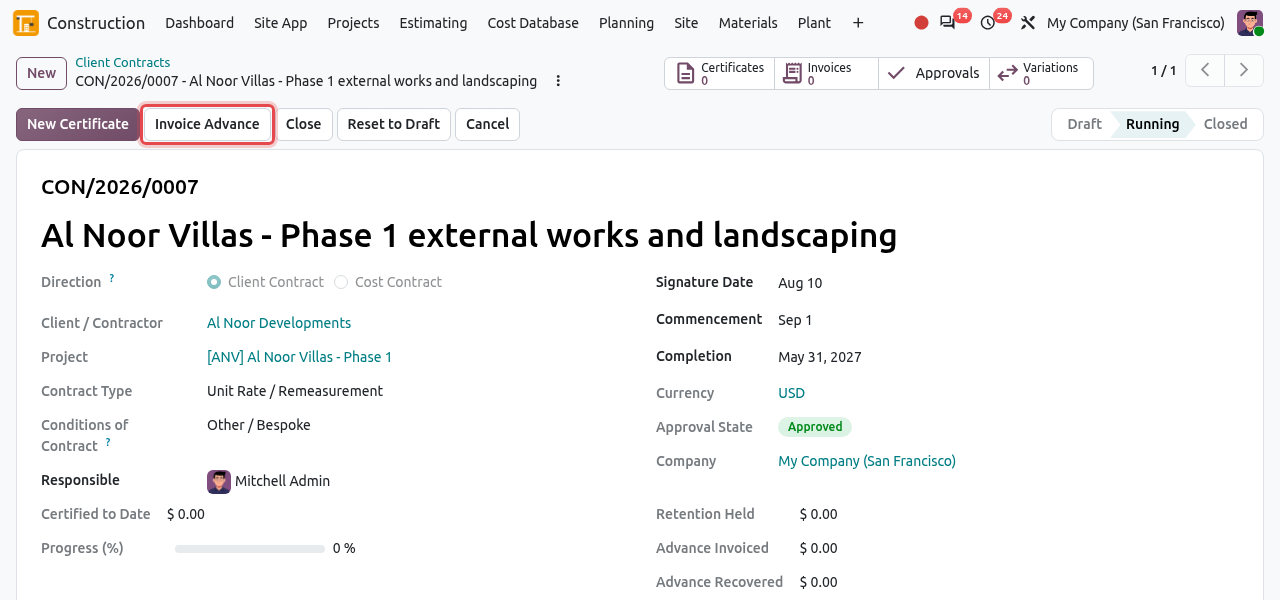
The running contract. Invoice Advance is framed. Odoo creates a draft customer invoice for the advance amount (66,895.00 plus VAT) and opens it. The accountant checks it and clicks Confirm. The contract shows the amount in Advance Invoiced and the button disappears. On a cost contract, the button creates a vendor bill instead.
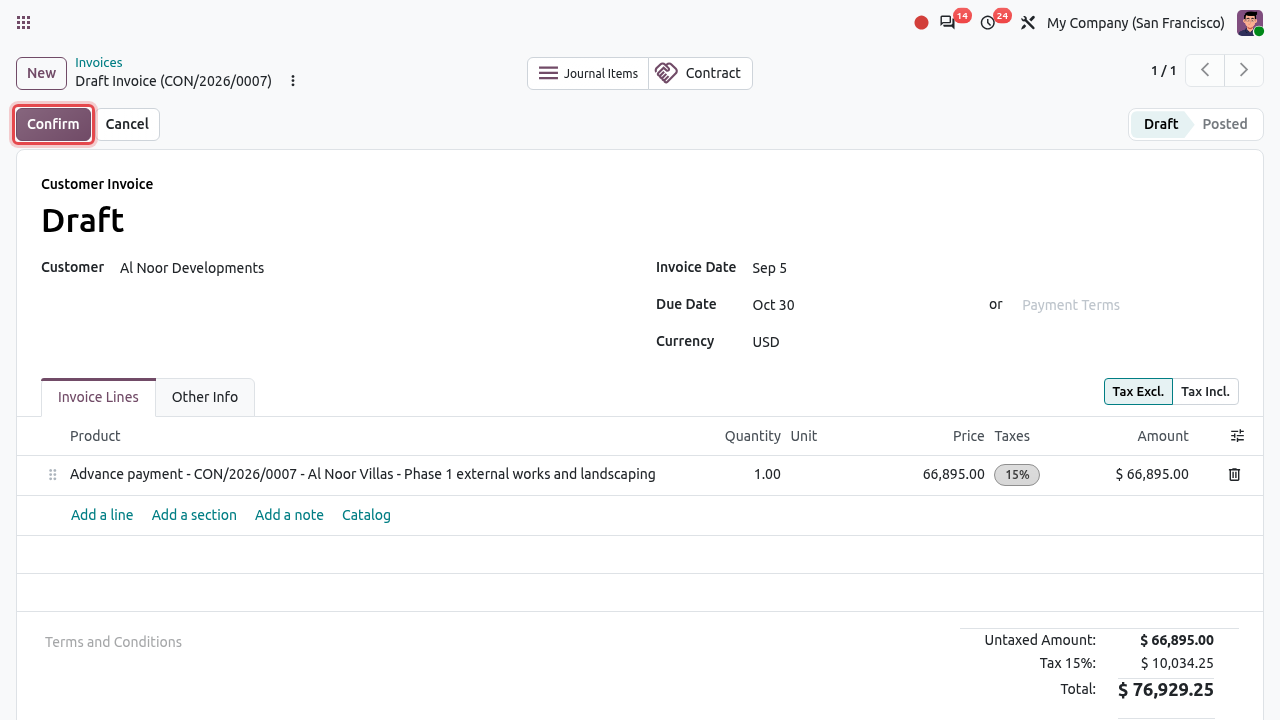
The draft advance invoice. The Contract smart button leads back to the contract.
Prepare a certificate: full example
In this example, the quantity surveyor prepares the second certificate of contract CON/2026/0007 for the work done in October 2026. The first certificate (IPC-01, September) is already certified and invoiced.
Start the certificate
Open the contract and click New Certificate. (Certificates are always started from their contract: there is no New button in the Payment Certificates list.)
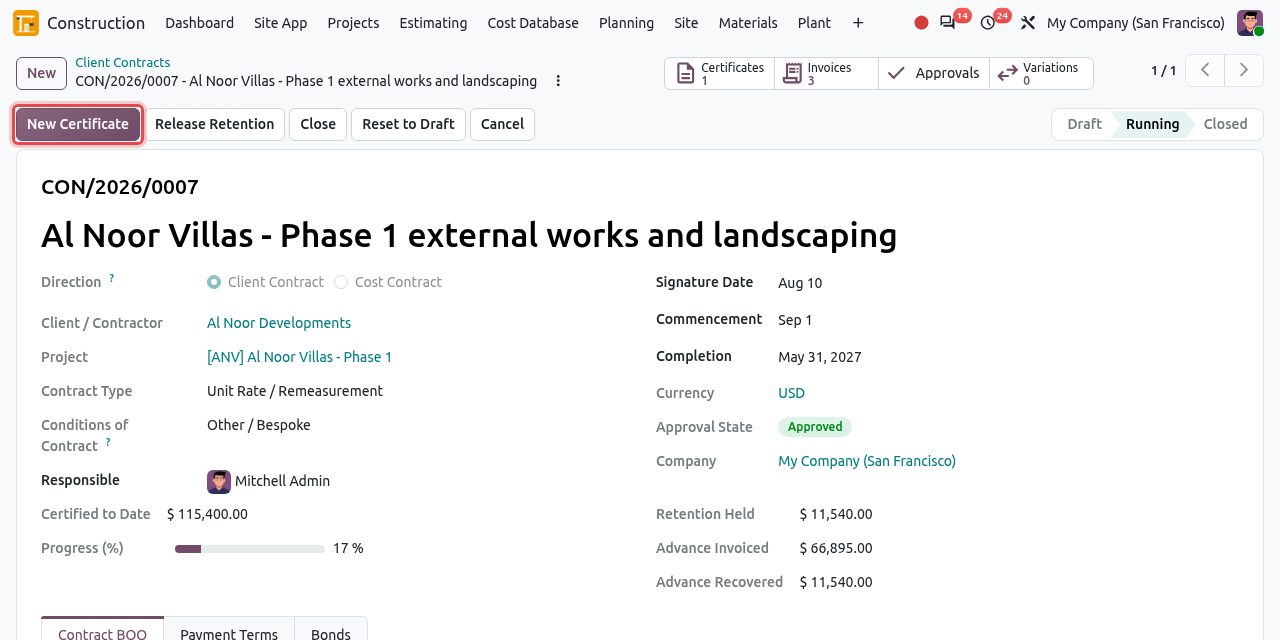
New Certificate on a running contract. Odoo creates the certificate CON/2026/0007/IPC-02 in Draft and opens it. It is numbered after the previous one and linked to it in Previous Certificate. Check the Date and the Period (start and end of the work measured). The period starts by default at the end of the previous one.
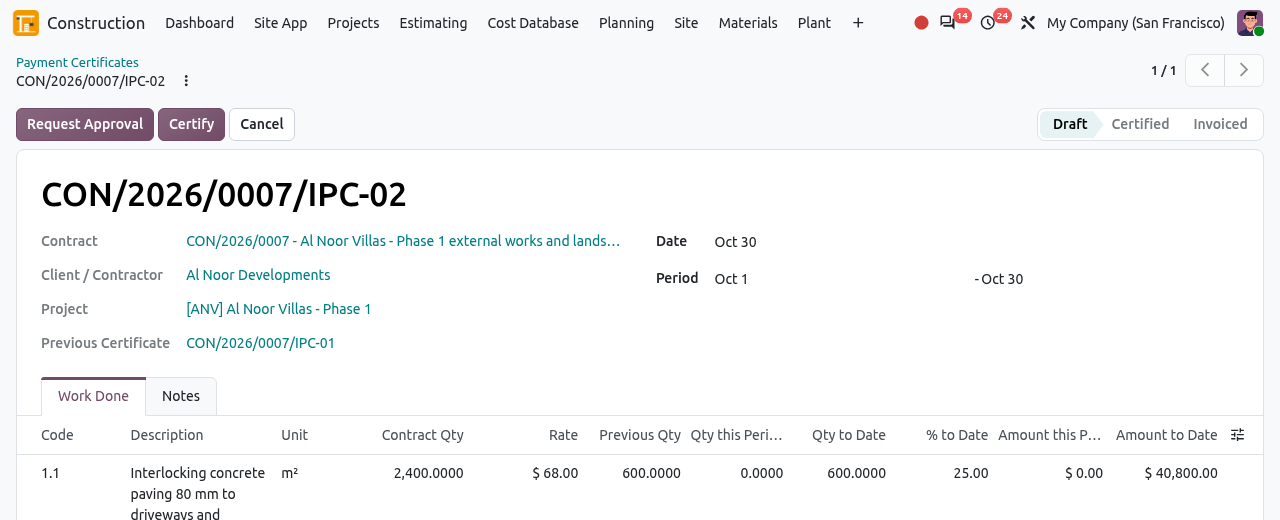
The new certificate IPC-02, linked to IPC-01. The Work Done tab has one line per BOQ item of the contract. Each line starts with the quantities of the previous certificate: Previous Qty = Qty to Date, and Qty this Period = 0.
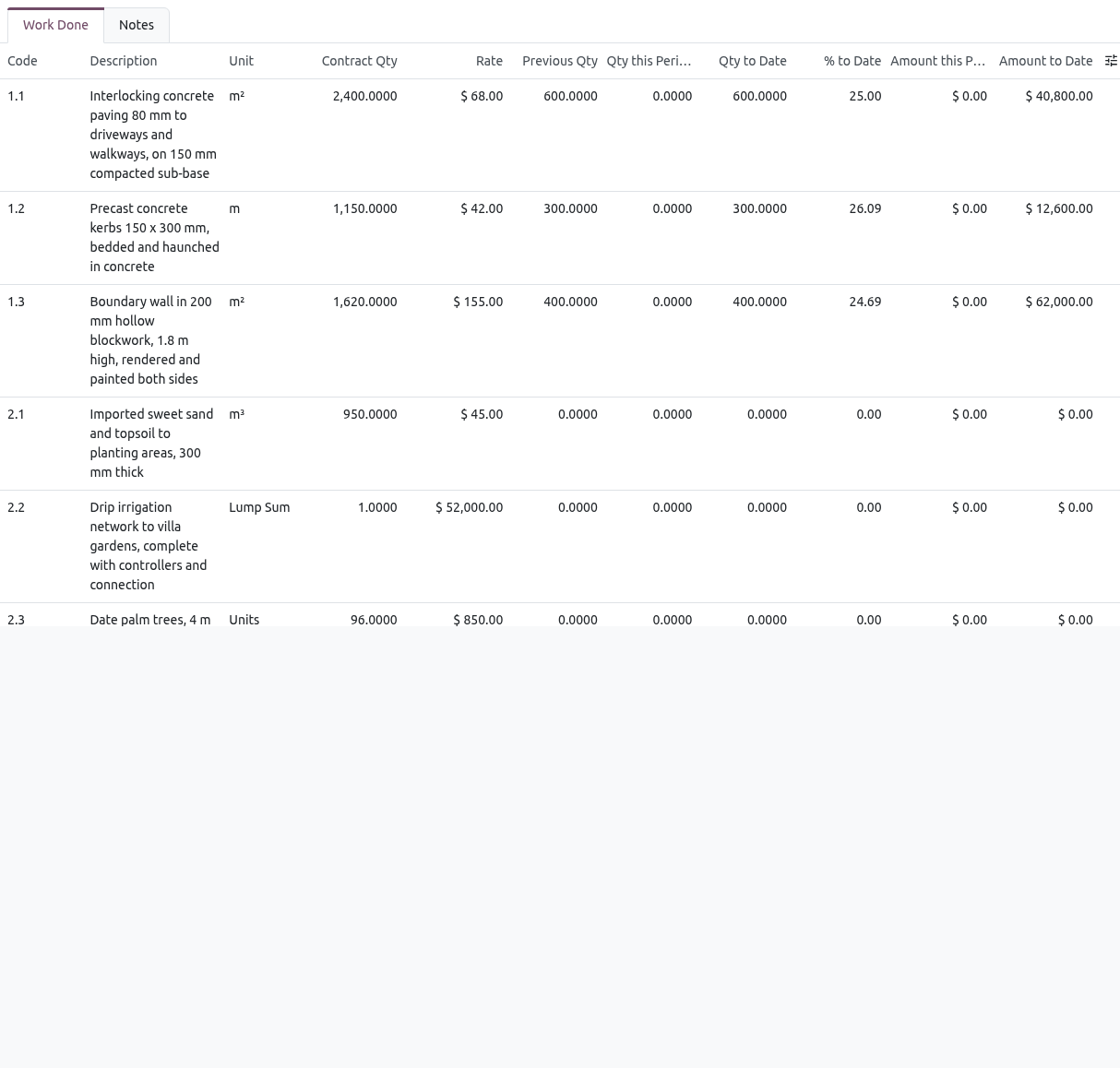
Before measurement: the quantities to date are those of IPC-01.
Enter the quantities measured
For each item, click the line and type one of these values, whichever is easiest:
- Qty this Period: the quantity done during the period (e.g. 850 m² of paving);
- Qty to Date: the total quantity done since the start (e.g. 1,450 m²);
- % to Date: the percentage complete. Use it for lump sum items, e.g. 30 for an irrigation network 30% complete.
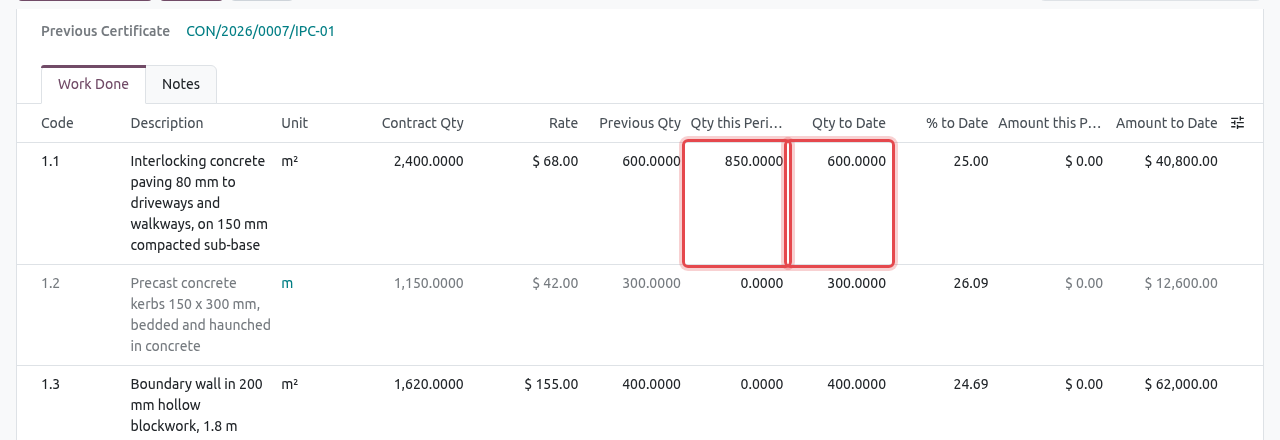
Typing 850 in Qty this Period. The other columns are updated when you save. Save (cloud icon at the top). The quantities to date, percentages and amounts are recalculated.
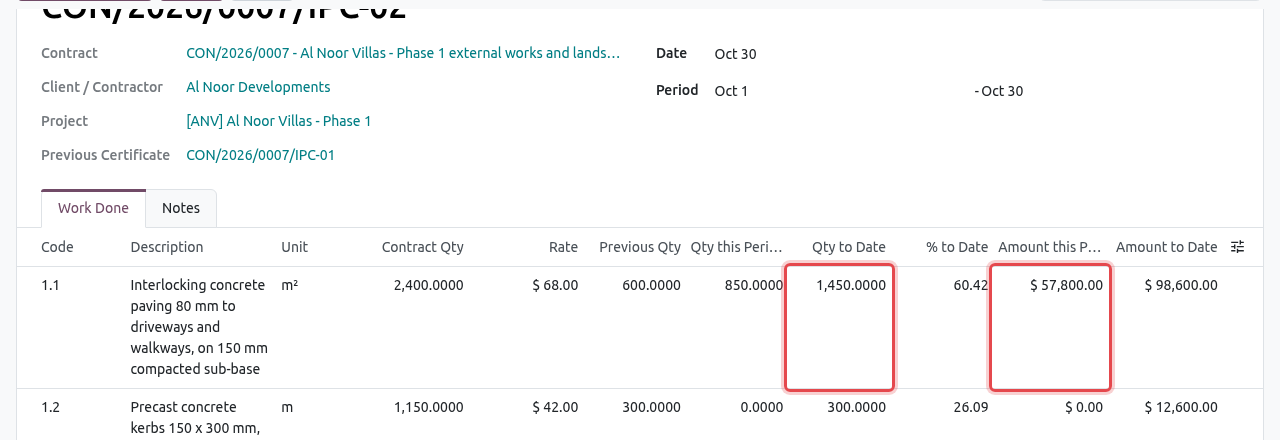
After saving: 600 + 850 = 1,450 m² to date, 57,800.00 this period. Fill in all items, then check the totals under the lines. To Date shows the cumulative figures; This Certificate shows what is paid now. Use the Notes tab for the measurement basis and the remarks of the engineer.
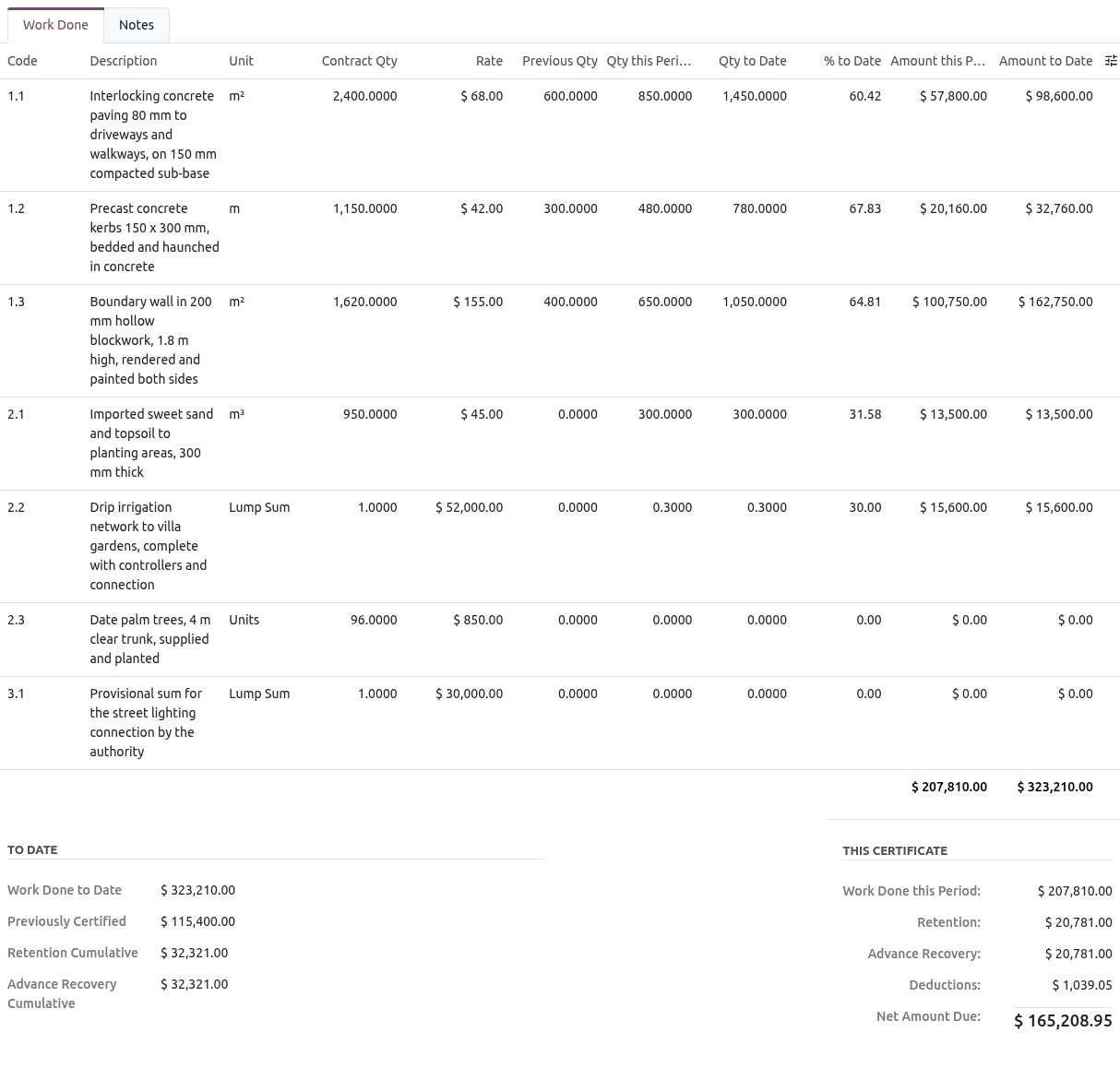
IPC-02: 207,810.00 of work this period, less 10% retention, 10% advance recovery and the 0.5% CAR deduction = 165,208.95 net.
LIMITS
A quantity to date cannot be negative. A lump sum or provisional sum item cannot go above 100%. A measured item can go above the contract quantity (remeasurement); approve the extra quantity with a variation when needed.
Get the certificate approved
Click Request Approval.
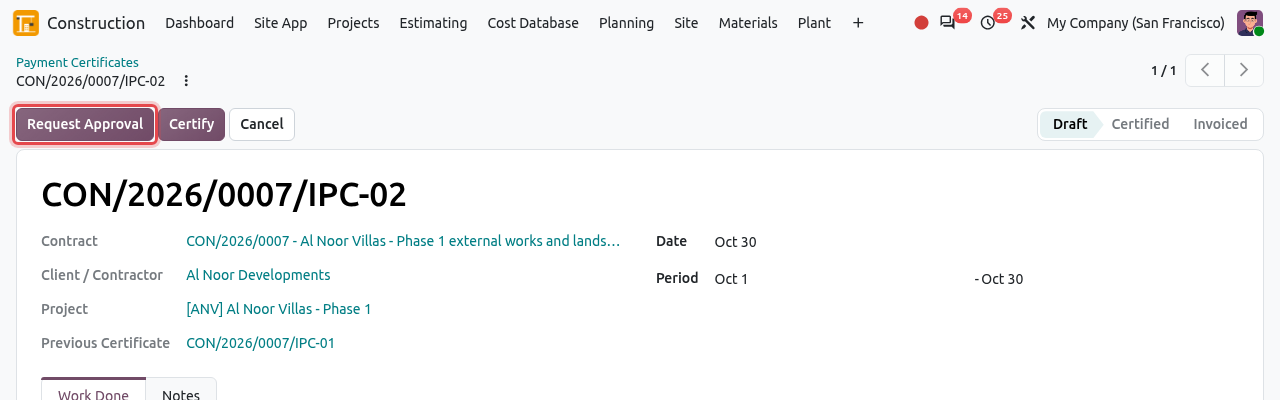
Request Approval is framed. The Approval State becomes To Approve and the lines are locked. In the example database, client certificates are checked by the project's Quantity Surveyor (a team member of the project other than you), and certificates of 250,000 or more also by a Construction Director. The approvers approve the request as explained in Get the contract approved.
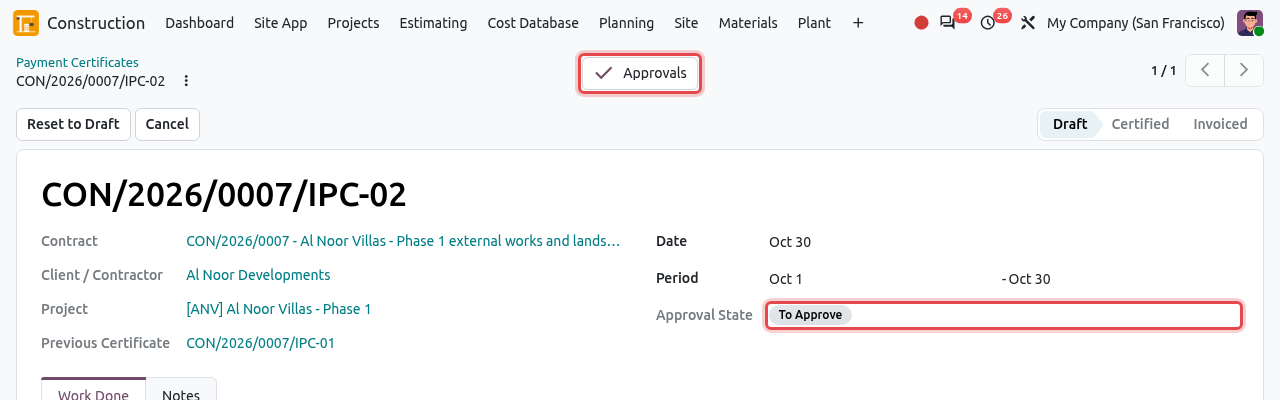
The certificate waits for approval. The Approvals smart button opens the request.
CHANGE A CERTIFICATE UNDER APPROVAL
To correct a certificate that is waiting for approval or already approved, click Reset to Draft. The approval is withdrawn; change the lines and request the approval again.
Certify
When the approval state is Approved, click Certify.
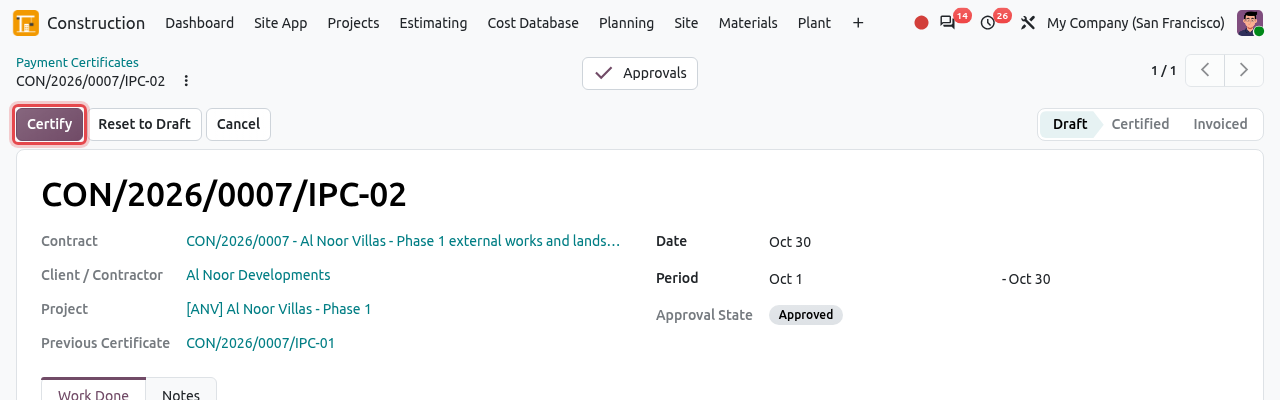
Certify is framed. The certificate becomes Certified. It is now the base of the next certificate, and the contract's Certified to Date and Progress (%) are updated. For a client contract, the Client Approval shows Awaiting Client: the client's representative can approve or dispute the certificate on the portal (see Portal). The answer appears here, with who decided and when.
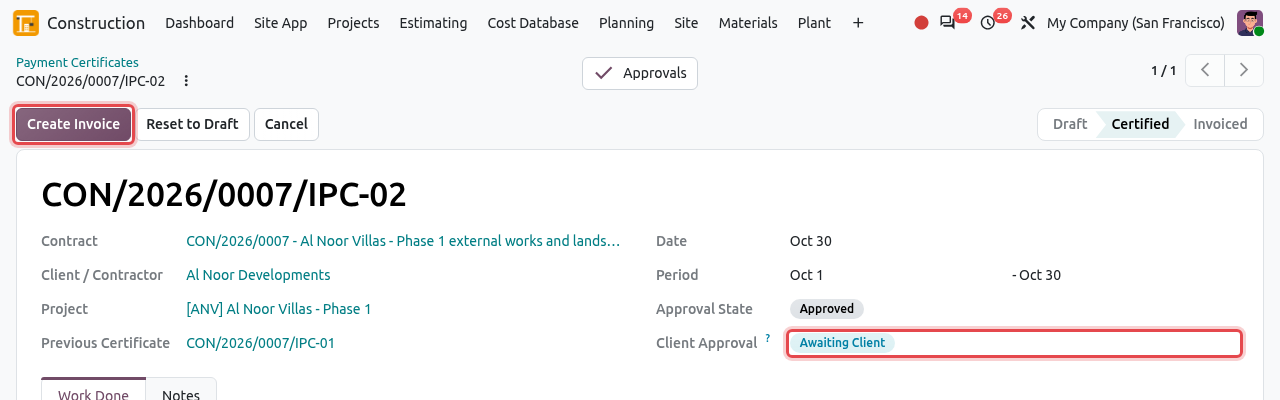
The certified certificate: Create Invoice and the client approval status are framed.
Create the invoice
Click Create Invoice (on a cost contract: Create Bill). Only users with invoicing rights see this button.
Odoo creates a draft customer invoice dated as the certificate and opens it. It has one line for the work done this period, and negative lines for the advance recovery and the deductions. The retention is a negative line too when the contract books it on the invoice; when it is booked by separate journal entry (as here), the invoice shows the full work done and Odoo creates the retention entry when the invoice is confirmed. The accountant checks the invoice and clicks Confirm. If the result is negative, Odoo creates a credit note.
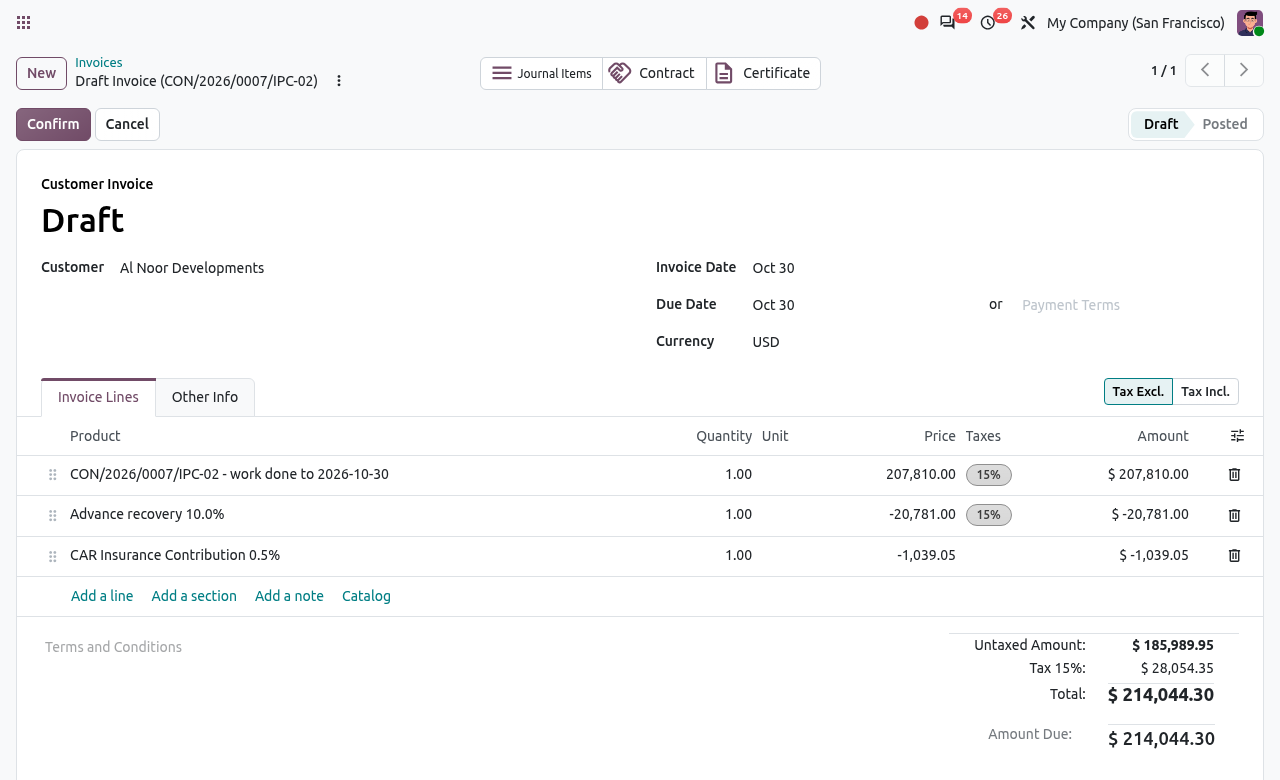
The invoice of IPC-02: work done, advance recovery and CAR deduction. The Certificate smart button leads back to the certificate. The certificate is now Invoiced and has an Invoice smart button.
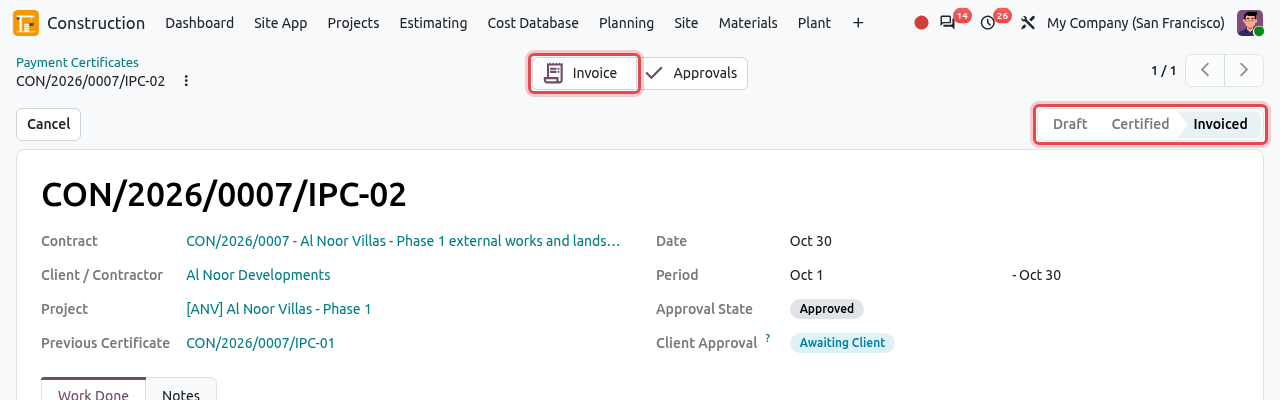
The invoiced certificate and its Invoice smart button. On the contract, the Invoices smart button lists all the documents of the contract: the advance invoice, the certificate invoices and the retention entries (MISC/...).
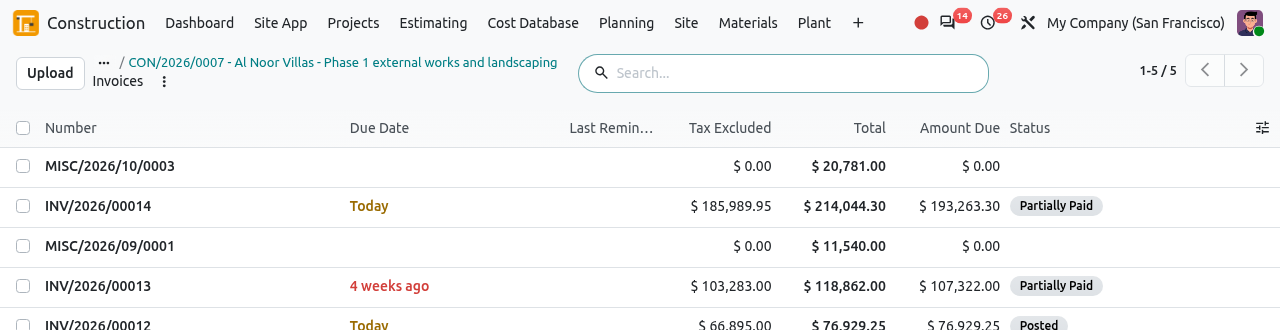
The invoices and retention entries of CON/2026/0007.
Print the certificate
On the certificate, click the actions icon ⋮ next to its name, then Payment Certificate. Odoo downloads the PDF.
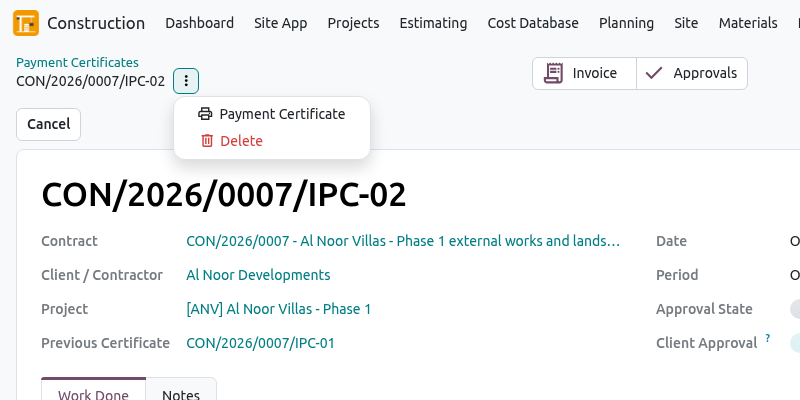
The print menu of a certificate. The PDF shows every item with previous, this period and to-date quantities, the summary from contract value to net amount due, and signature boxes (Prepared by, Checked by, Approved / Certified by).
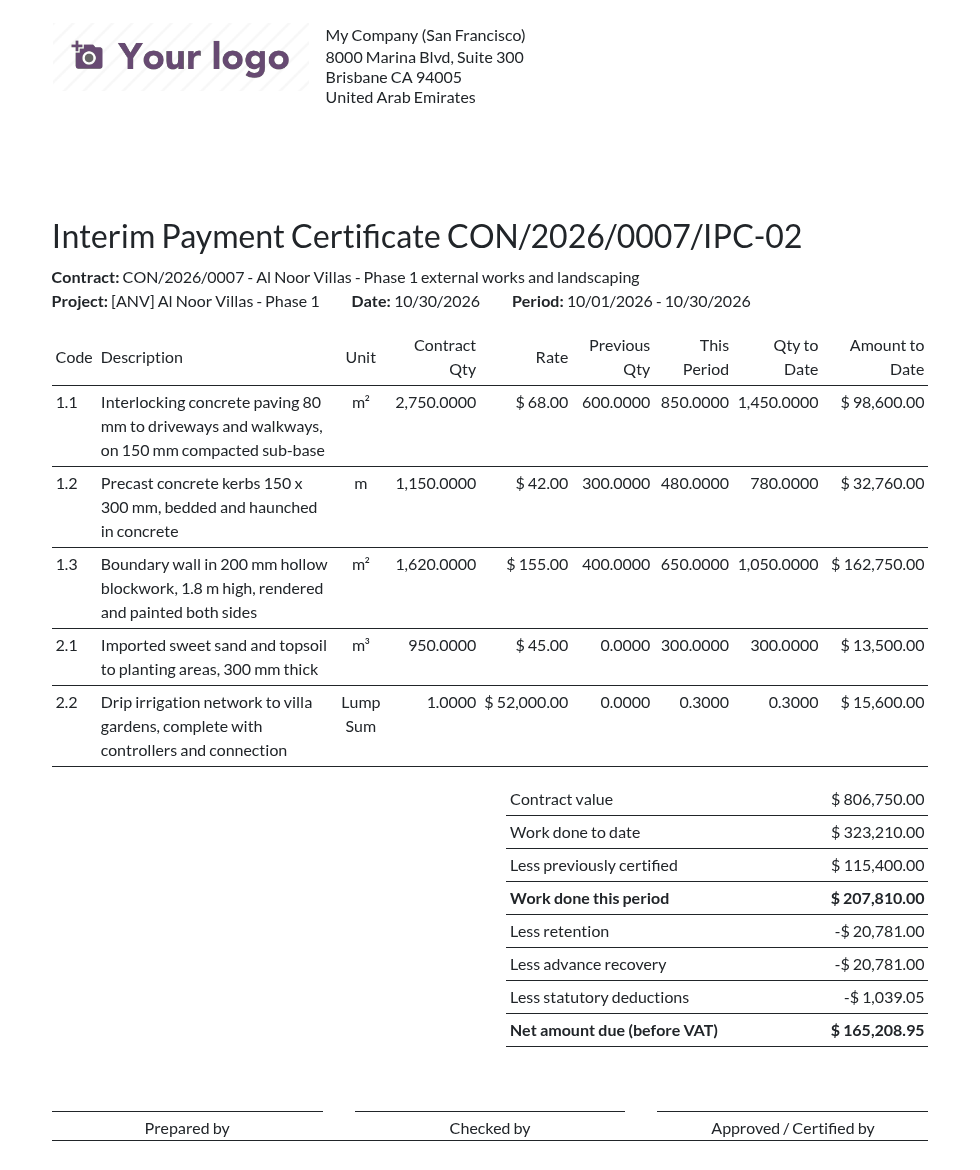
The printed interim payment certificate.
The Payment Certificates list
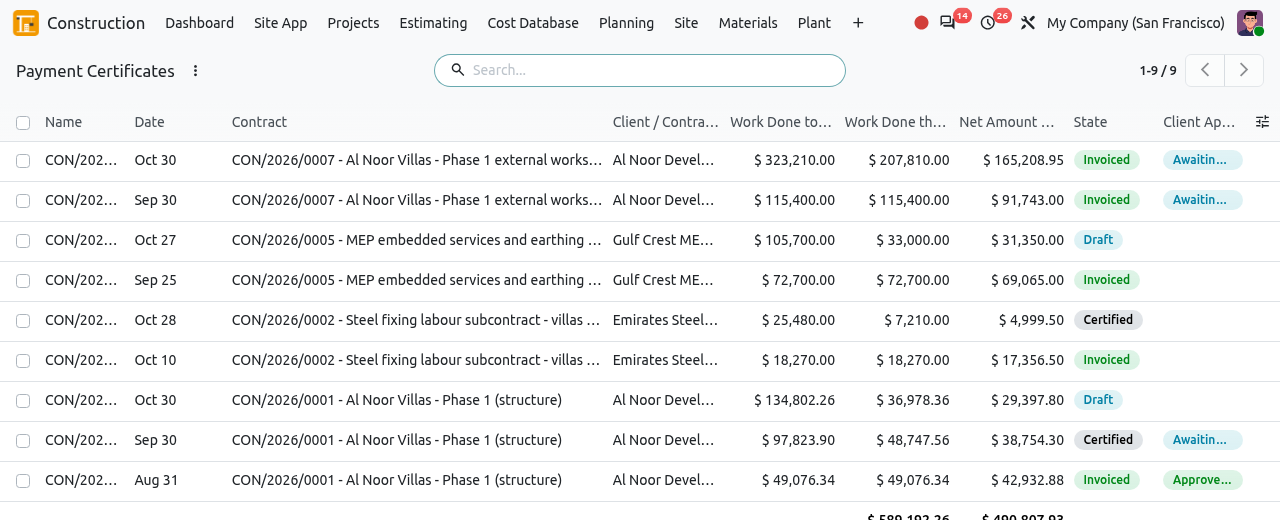
Open to see the certificates of all contracts, with the work done to date, this period, the net amount, the state and the client approval. Useful filters: Client and Contractors (direction), Draft, To Invoice (certified but not invoiced); group by Contract or Project.
Cancel or correct a certificate
- Reset to Draft (on a certified or cancelled certificate): back to draft, for example when the client disputed the quantities. Only the last certificate of a contract can go back; cancel the later ones first.
- Cancel: cancels the certificate. An invoiced certificate can be cancelled only after its invoice is cancelled (message "Cancel the invoice ... first.").
- Only one draft certificate per contract is allowed: certify or cancel it before starting a new one.
- Only draft certificates can be deleted.
Release the retention
The retention is usually paid back in two halves: at completion of the works and at the end of the defects liability period. The contract field Retention Held shows the retention currently held.
On the running or closed contract, click Release Retention.
In the window, enter the Release (%) of the retention held (50 by default) or the Amount, and the Date. Click Create Invoice. Odoo creates an invoice for the released amount (a bill for a cost contract), or a journal entry when the retention is booked by separate entry. The released amount is deducted from Retention Held.
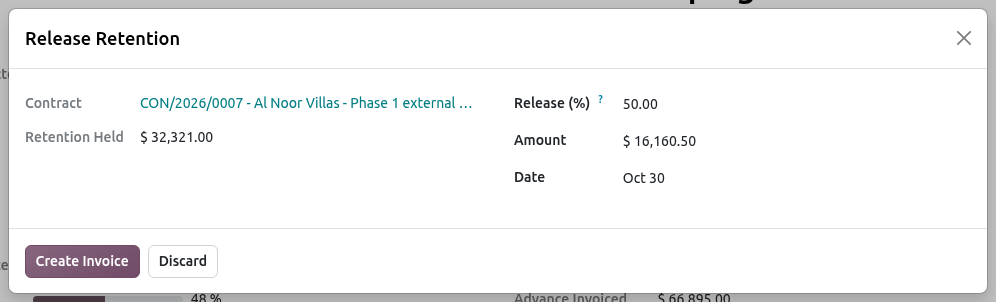
Releasing 50% of the retention held.
WARNING
You cannot release more than the retention held, and the amount must be positive.
Certificates of cost contracts
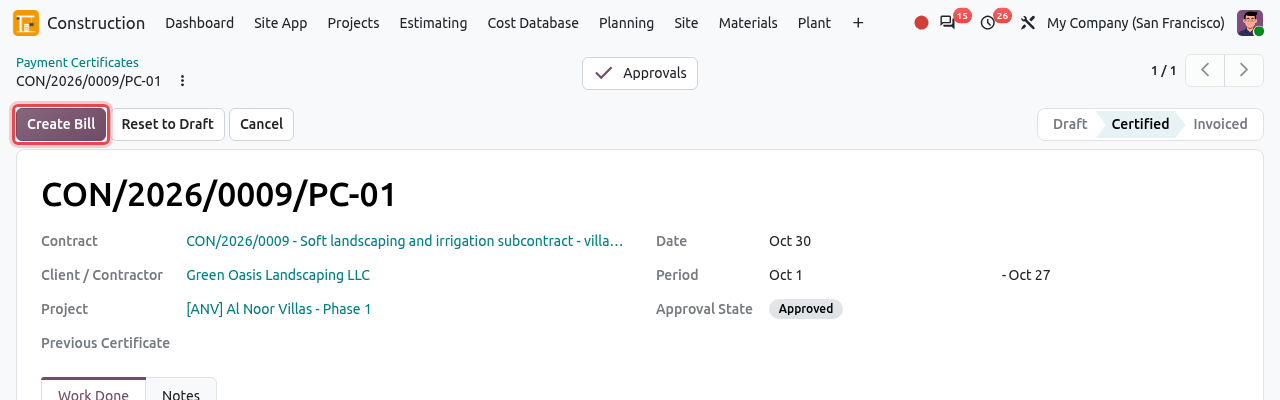
Subcontractors are certified the same way, from their cost contract: New Certificate, measure, Request Approval, Certify, then Create Bill. The certificate is named PC-01, PC-02... instead of IPC. Back-charges of the subcontractor are deducted on the certificate (see Subcontracting).
Payment Applications (from subcontractors)
Subcontractors who have access to the portal send their monthly payment application there: the amount they claim for the period, a description of the work and supporting documents. The quantity surveyor of the project receives an activity "Measure PA/...", checks the claim on site, and either starts the payment certificate from it or rejects it.
Submitted→CertifiedorRejected
Open . The list shows the applications To Certify; remove the filter to see all of them.
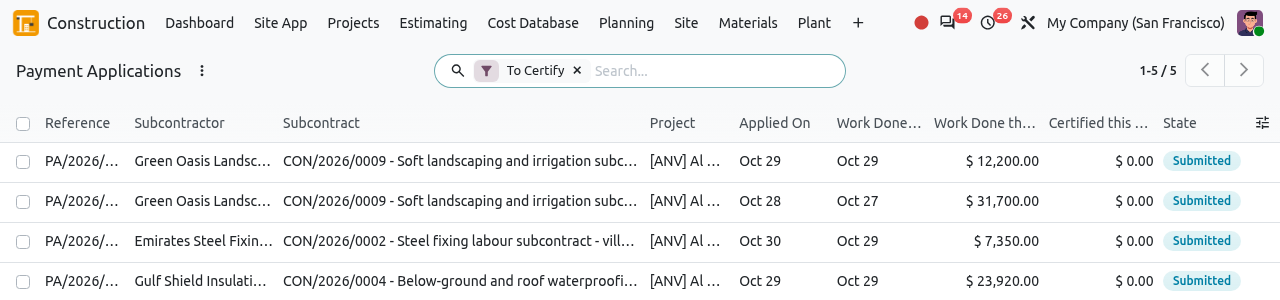
The payment applications to certify. Open an application. It shows the subcontract, the period (Work Done Until), the amount claimed (Work Done this Period), the description of the work and the supporting documents.
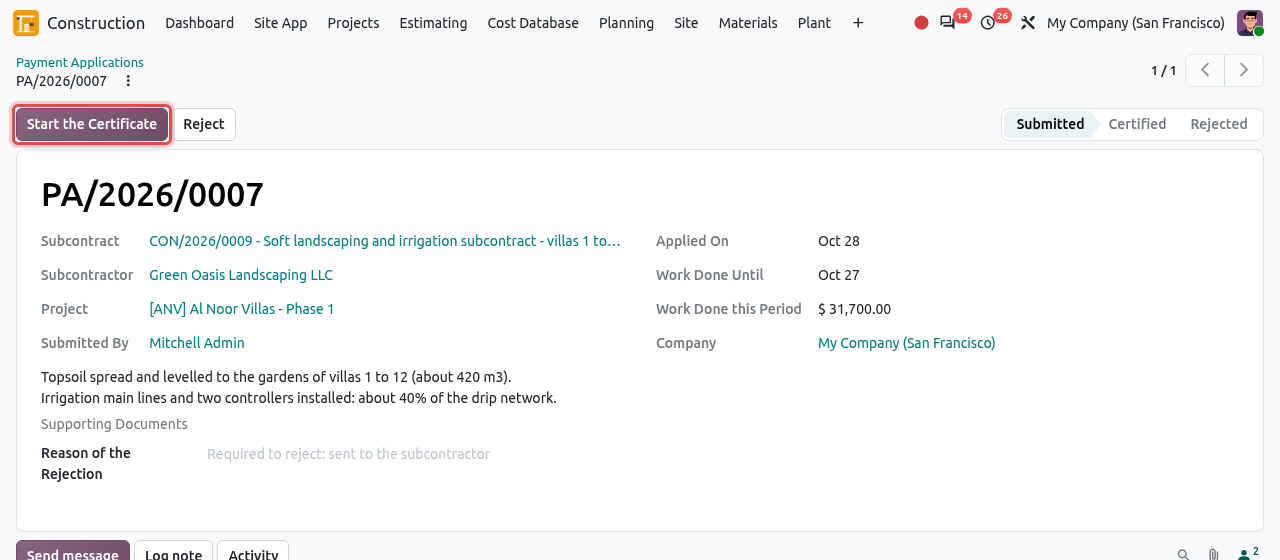
The application of Green Oasis Landscaping for October. To accept it, click Start the Certificate. Odoo creates the draft payment certificate of the subcontract for the period and opens it. The application becomes Certified and gets a Certificate smart button, and its Certified this Period shows the amount you certify.
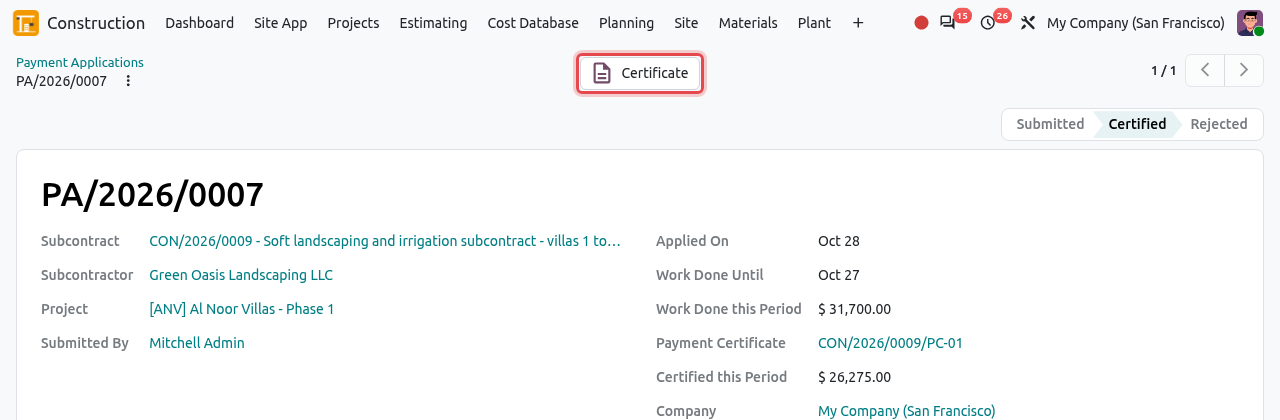
The application and its Certificate smart button. In the certificate, enter the quantities you measured (they can differ from the claim), then request approval, certify and create the bill as above.
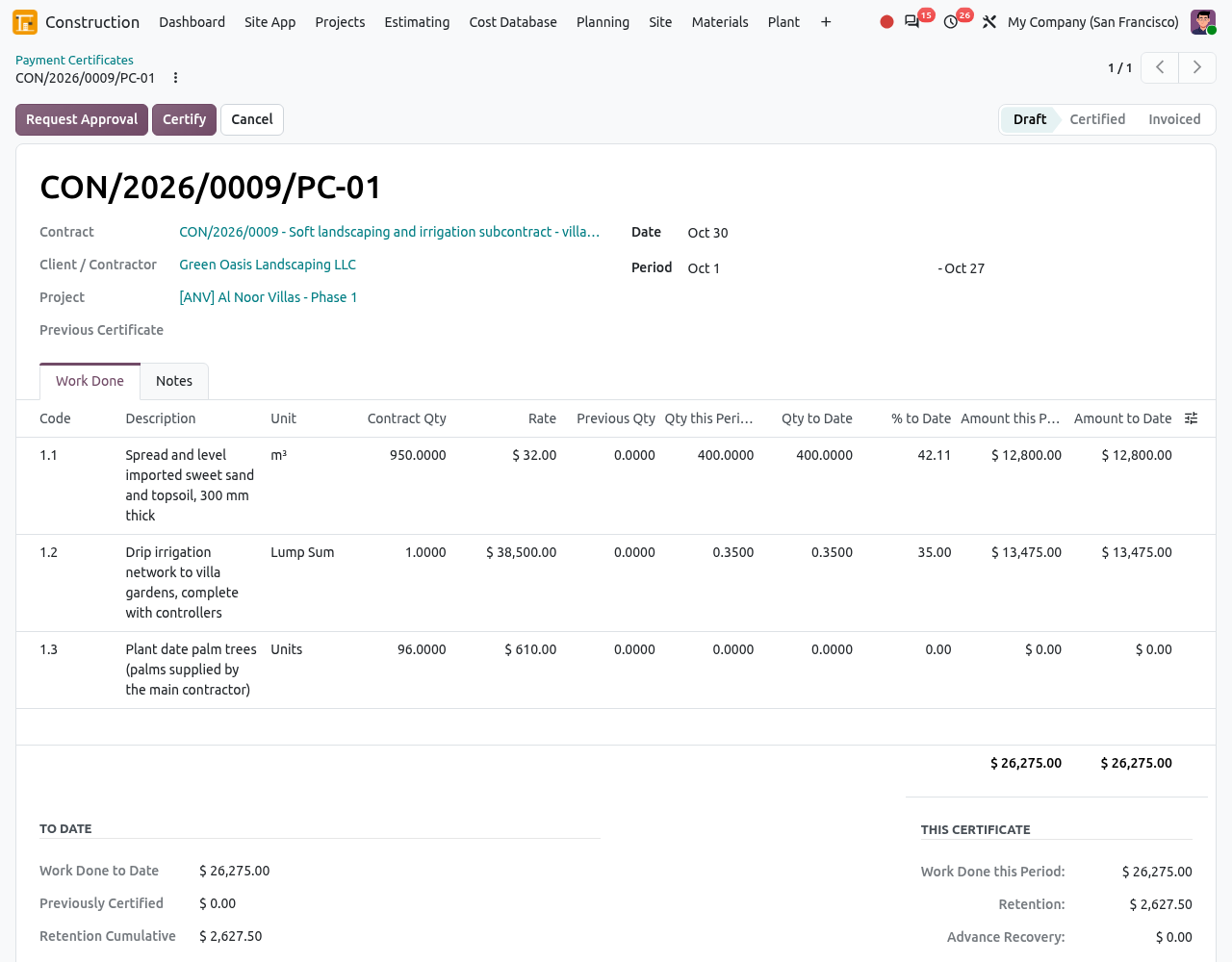
The certificate CON/2026/0009/PC-01 with the measured quantities: 26,275.00 certified against 31,700.00 claimed. To refuse an application, type the Reason of the Rejection and click Reject. The reason is required: it is sent to the subcontractor as a message.
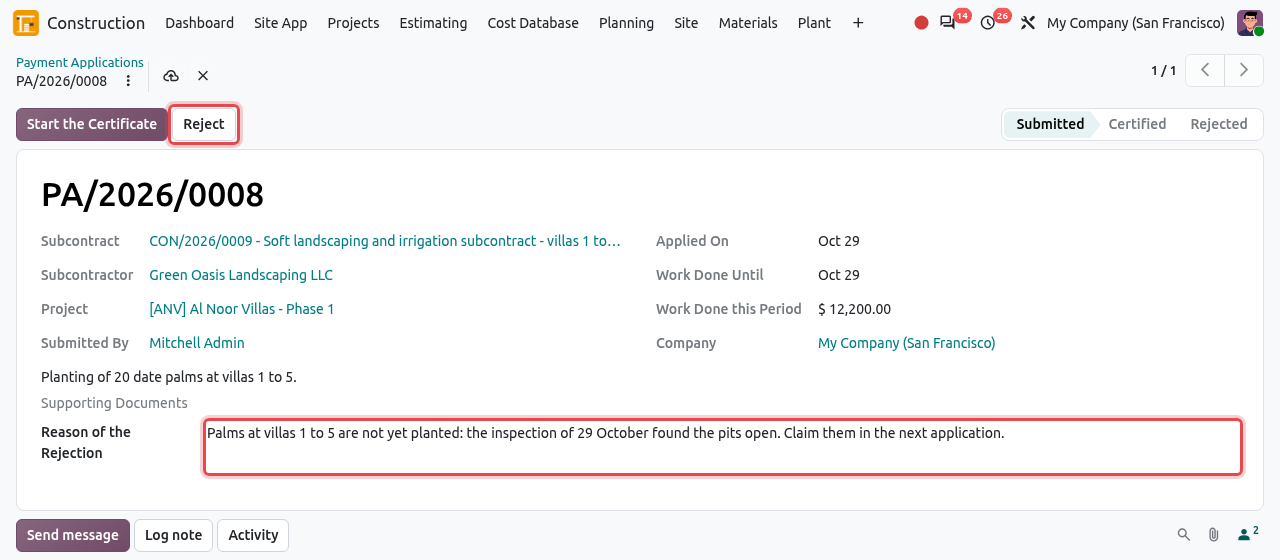
Rejecting an application: the reason and the Reject button are framed.
GOOD TO KNOW
Applications are created by the subcontractors on the portal; there is no New button in the back office. Start the Certificate fails if the subcontract already has a draft certificate: certify or cancel it first.
Tips and common mistakes
- "... is not running": certificates can only be started on running contracts.
- "Confirm or cancel the draft certificate of ... before starting a new one": finish the current draft first.
- "... must be approved first": click Request Approval before Certify. On subcontract certificates the approval is given at once, but the click is still needed.
- "Only draft certificates can be changed" or "Reset the certificate to draft...": lines are locked once the certificate is under approval or certified.
- Approved variations add their new items to the contract BOQ, and to the draft certificate if there is one; the next certificates certify them like any other item.
- When the retention is booked by separate journal entry, the customer invoice shows as Partially Paid after the retention entry is reconciled with it: the open amount is what the client must pay now.