
Appearance
Estimating
An estimate is your price for a job. You enter the client's bill of quantities (BOQ: the list of work items with their quantities), Odoo prices each line with the work items and rate book of the Cost Database, adds your markups (overhead, profit), and you submit the tender. When the client accepts it, one click turns the estimate into a project, a client contract and a budget.
WHERE AND WHO
Menu , with two entries: Estimates and Default Markups. Estimators prepare estimates; the Estimation Manager reviews them. The Create Contract and Create Budget buttons of a won estimate are for Quantity Surveyors.
The life of an estimate
Draft→Submitted→Won
A submitted estimate can also become Lost. Two more stages exist: Revised (an older version replaced by a new one) and Cancelled.
| Stage | What it means | Buttons you see |
|---|---|---|
| Draft | You are preparing the price. Everything can be changed. | Request Approval, Submit to Client, Create Quotation, Lost, New Version, Cancel |
| Submitted | The tender was sent to the client. The BOQ and the markups are locked. | Won, Lost, Create Quotation, New Version, Reset to Draft, Cancel |
| Won | The client accepted. Odoo created the project, the contract and the budget. | Create Contract / Create Budget (only if they were not created) |
| Lost | The client chose someone else. The reason is kept. | New Version, Reset to Draft |
| Revised | Frozen old version; work continues on the new version. | none |
Create an estimate
Click in the top bar.
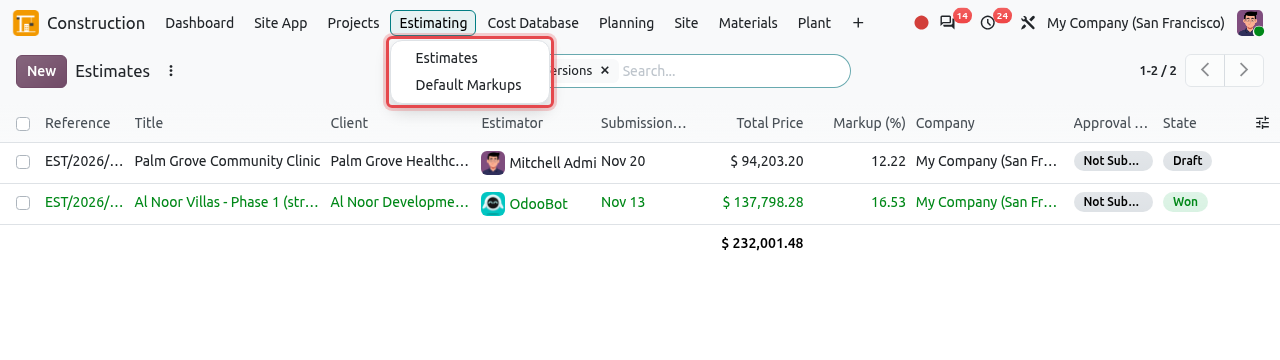
The Estimating menu. The list shows the estimates with their client, deadline, total price, markup, approval and stage. By default the Latest Versions filter hides old (revised) versions. Click New.
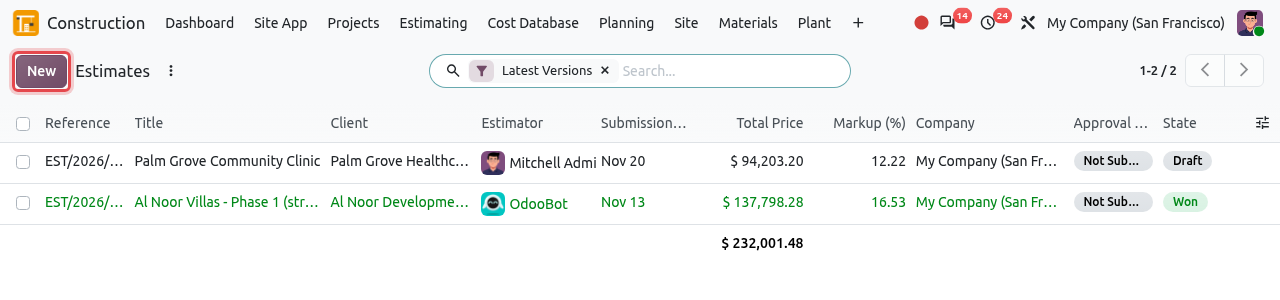
The list of estimates and the New button. Fill in the header. In this example we price the enabling works of the Corniche Residential Tower:
Field What to enter Title (big title) Name of the job or tender, e.g. Corniche Residential Tower - Enabling Works and Piling. It becomes the project name if you win. Client The customer, e.g. Corniche Real Estate Development. Opportunity Optional: the CRM opportunity of the tender (see From a CRM opportunity). Project Only if the project already exists (here [CRT] Corniche Residential Tower). Leave it empty for a new job: Odoo creates the project when you win. Contract Type Lump Sum, Unit Rate / Remeasurement, Cost Plus, Guaranteed Maximum Price, Time & Material or Design & Build. It is copied to the project and the contract. Estimator You, by default. Submission Deadline / Valid Until The tender due date and the date until which your price is valid. Currency The currency of the tender. Rate Book The price list used to price the work items, e.g. Dubai 2026. The company's default rate book is proposed. Price Date Date of the exchange rates, when the rate book and the estimate use different currencies. 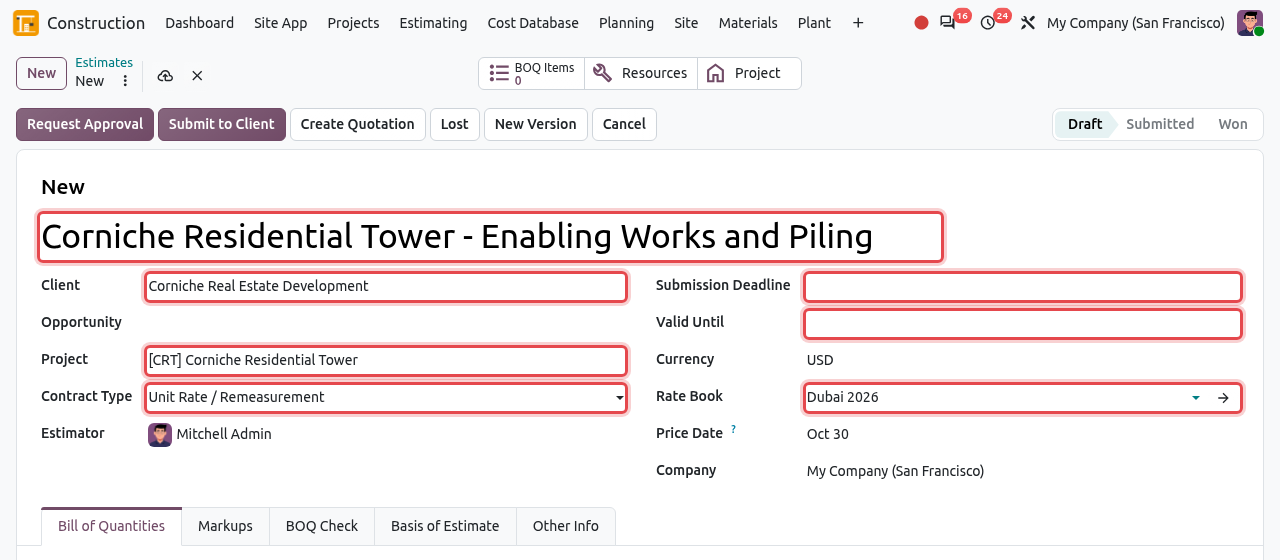
A new estimate: title, client, project, contract type, dates and rate book. Save (cloud icon). Odoo gives the estimate its reference, e.g. EST/2026/0003, and copies the default markups into the Markups tab.
The estimate form has five tabs. The examples below use the estimate EST/2026/0002 - Palm Grove Community Clinic for the client Palm Grove Healthcare LLC.
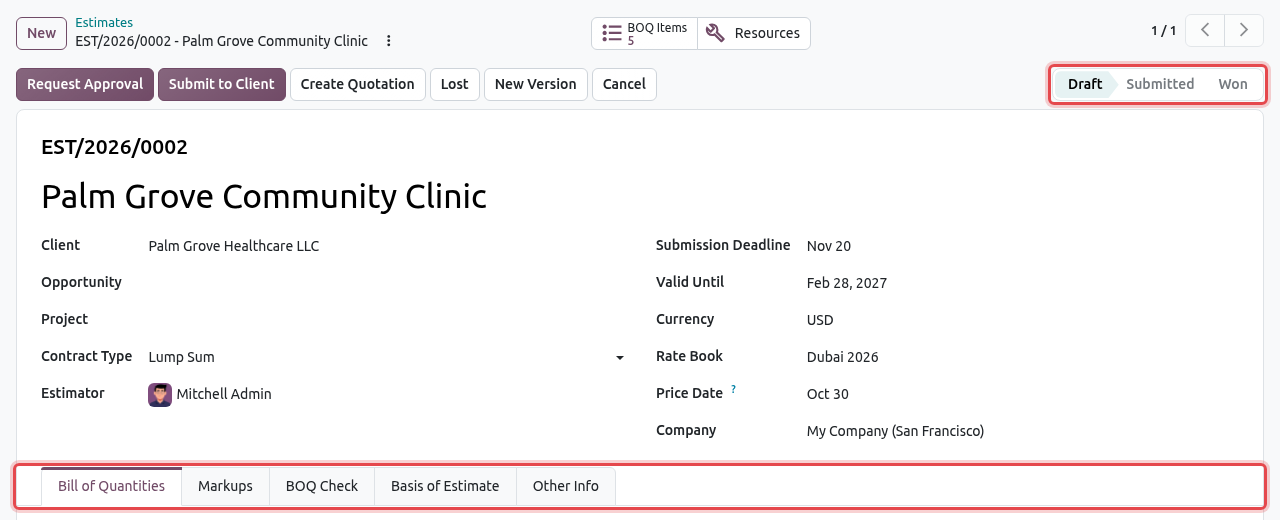
Build the bill of quantities
The Bill of Quantities tab holds three kinds of lines, chosen in the Display Type column:
- Section: a heading that groups items and shows their subtotal (e.g. 2 Masonry).
- Item (Display Type left empty): a priced line with a unit and a quantity.
- Note: free text printed in the BOQ, without price.
The code decides where a line belongs: item 2.1 goes under section 2, item 2.1.4 under section 2.1 (or 2 if there is no 2.1). A note belongs to the line above it.
Click Add a line. For a section, choose Display Type = Section and type its Code (e.g. 1) and Description (e.g. Concrete works).
Click Add a line again for each item and fill in:
Column What to enter Code The item number of the client's BOQ, e.g. 1.1. Description The item text as written by the client. Work Item The work item of the Cost Database that prices this line, e.g. 03.30.01 Reinforced concrete C30 in columns. The unit and the unit cost are filled in. Unit Filled from the work item; you can choose a convertible unit. Quantity The quantity to price (or use measurements, next step). Manual Unit Cost Only for lines without a work item, e.g. a subcontractor's quotation. Odoo shows the Unit Cost (your cost), the Rate (unit price to the client, markups included) and the Amount. Section lines show the subtotal of their items. The totals of the estimate are under the list: Direct Cost, Total Markup, Markup (%) and Total Price.
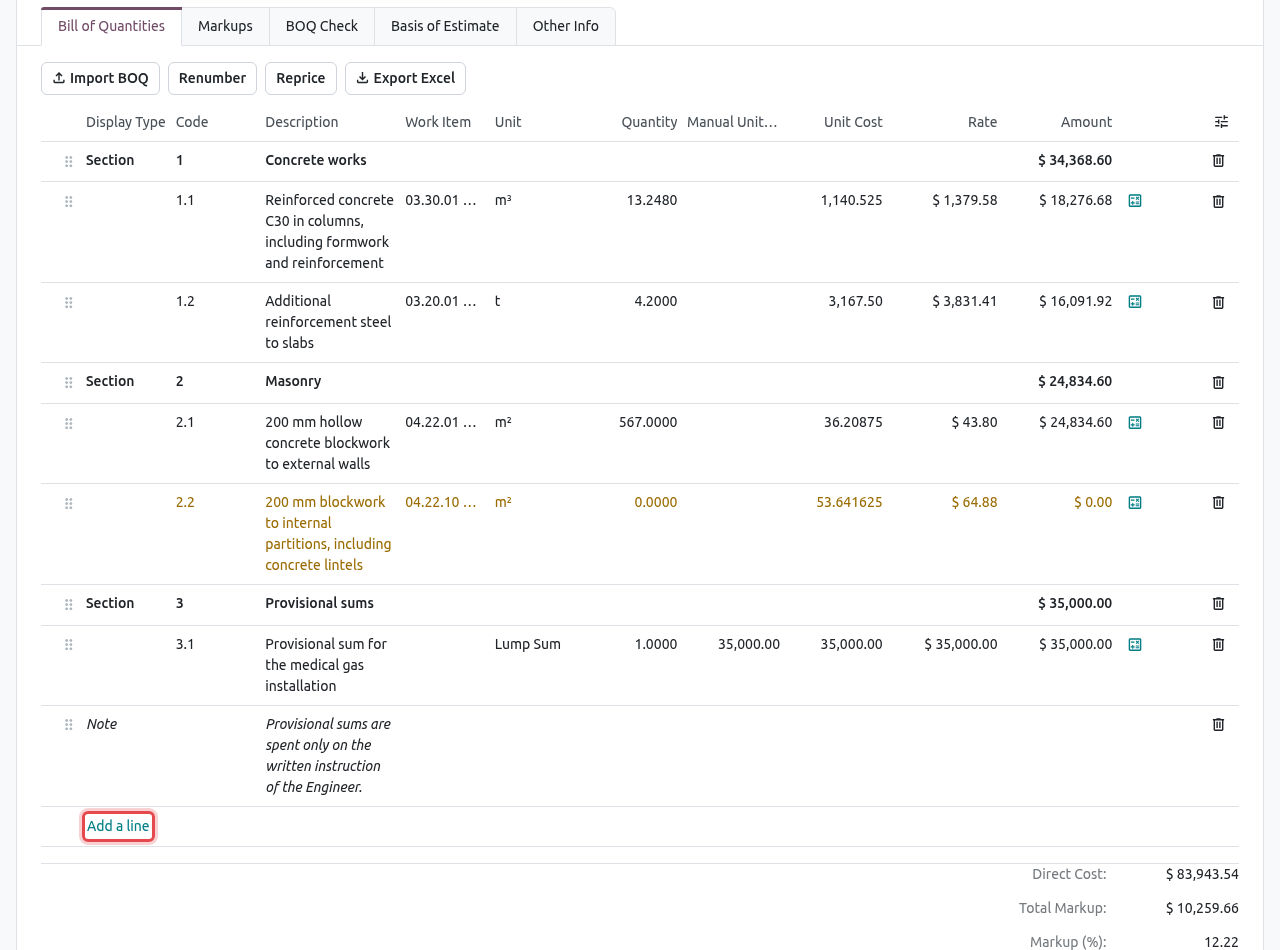
The BOQ of the clinic: three sections, items priced with work items, a provisional sum and a note. Item 2.2 is shown in yellow because one of its resources has no rate in the rate book; its quantity is still 0. To measure a quantity from the drawings, click the small calculator icon at the end of the item line. In the dialog, under Measurements, click Add a line for each part: Description, Location (grid, level or zone), Nos, Length, Width, Height / Depth. Tick Deduction for openings to subtract. Each line gives Nos × L × W × H (empty dimensions are ignored), and the item Quantity becomes the total. Click Save.
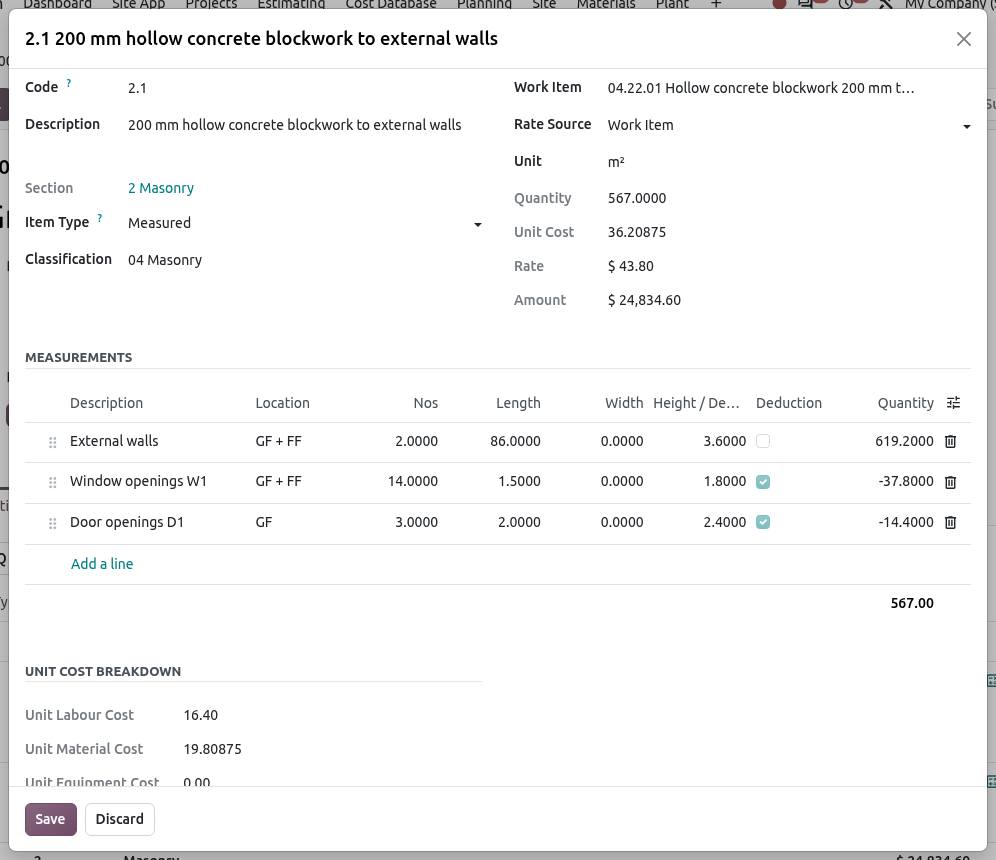
Blockwork to external walls: 619.20 m² of walls minus window and door openings = 567.00 m². The bottom of the dialog shows the unit cost per cost type.
Item types: measured, lump sum, provisional sum
The dialog of an item (calculator icon) also has the Item Type and the Classification (the column can also be shown in the list with the column selector at the right end of the header).
| Item Type | Use it for | How it is priced |
|---|---|---|
| Measured | Normal items with a quantity (m³, m², t…). | Quantity × rate, markups included. |
| Lump Sum | One global price (site offices, mobilisation). | Unit Lump Sum, quantity 1, markups included. |
| Provisional Sum | An amount fixed by the client for work not yet designed (e.g. medical gas installation). | Carried at cost, without markup. |
Buttons above the BOQ
- Import BOQ: load the client's BOQ from Excel or CSV (see below).
- Renumber: renumber all sections and items 1, 1.1, 1.1.1… in their current order (after you dragged lines with the handle on the left).
- Reprice: price again all the items that use a work item, with the current rate book. Prices are frozen in the estimate when you enter a line, so use this after changing the rate book or a work item. Manual rates are kept.
- Export Excel: download the priced BOQ as an Excel file (amounts are formulas).
These buttons, like the BOQ itself, can only be used while the estimate is in Draft and not approved or waiting for approval.
Import the client's BOQ
Prepare a .xlsx or .csv file with a header row. Required columns:
codeanddescription. Optional:unit,quantity,rate,type. Rows without unit and quantity become sections (or notes when they have no code); aratebecomes a manual unit cost. For example:code,description,unit,quantity,rate 1,Enabling works,,, 1.1,Site clearance and removal of debris off site,sqm,4200,2.10 1.2,Temporary site hoarding 2.4 m high including gates,m,380,48.00 1.3,Site offices and welfare facilities for the duration of the works,LS,1,65000 2,Bored piling,,, 2.1,Bored cast-in-place concrete piles 600 mm diameter,m,2650,165.00 2.2,Pile integrity testing,nos,96,85.00 ,All piles are tested as required by Dubai Municipality.,,,In the Bill of Quantities tab, click Import BOQ, choose the File and click Import. The lines are added at the end of the BOQ and the chatter records the import.
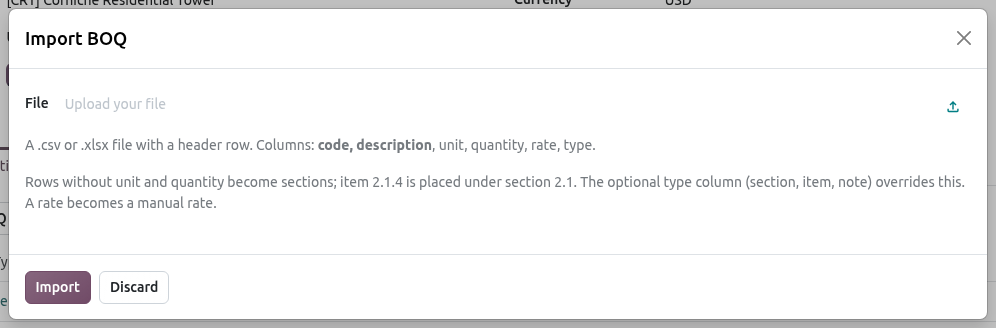
The Import BOQ dialog explains the columns. Check the result, then choose a Work Item on the lines you want to price from the Cost Database (a work item replaces the manual rate).
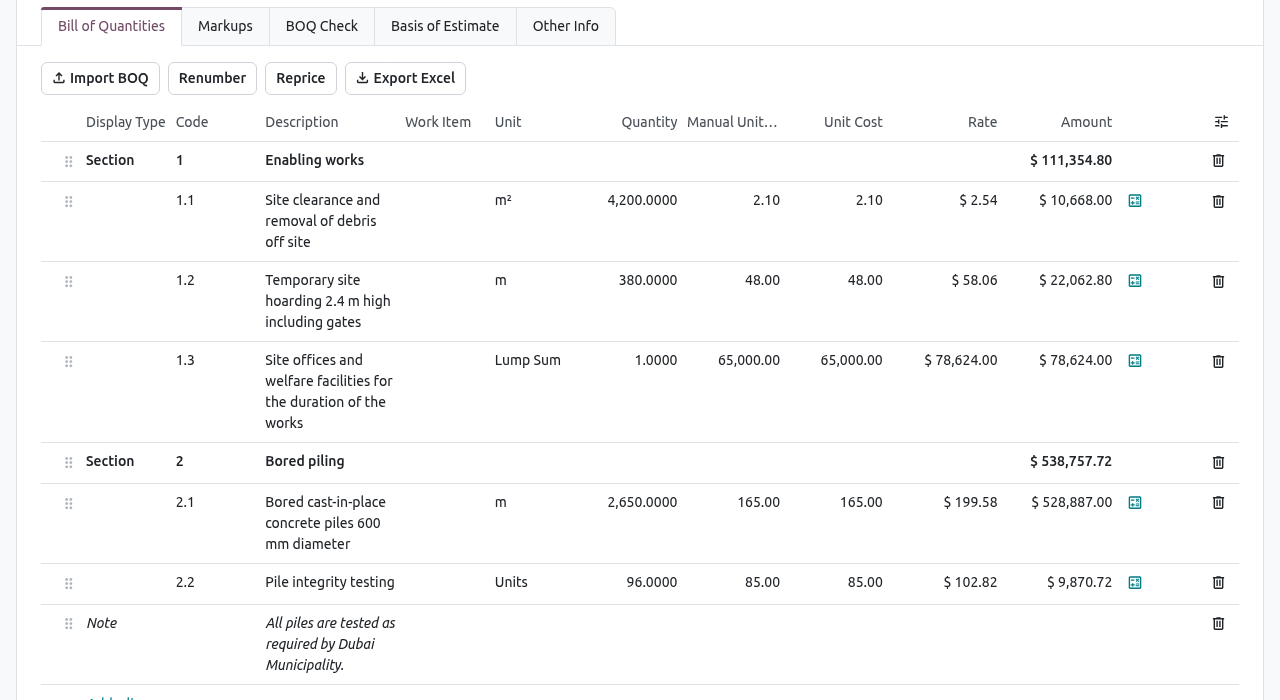
The imported BOQ: each section shows the subtotal of its items; the final note belongs to the last section.
FAULTY ROWS
If a row has an unknown unit or a wrong number, nothing is imported and Odoo lists the faulty rows with their row number. Correct the file and import it again.
Markups
Markups turn your direct cost into a selling price. They are in the Markups tab, one line each:
| Column | Meaning |
|---|---|
| Name / Markup Type | e.g. Site and head office overhead / Overhead. Types: Overhead, Profit, Contingency, Risk, Other. |
| % | The percentage. |
| Apply On | Direct Cost: percentage of the cost only. Cost and Previous Markups: percentage of the cost plus the markups above it (lines are applied in order; drag them with the handle). |
| Spread in Rates | Ticked: the markup is included in the unit rates of the items (the client does not see it). Unticked: it is shown as a separate amount at the end of the BOQ. |
| Amount | The markup in money. |
Open the Markups tab and adjust the lines for this tender. The Cost Breakdown below shows the direct cost by type (labour, material, equipment, subcontract, other) and the Markup Base (direct cost without provisional sums).
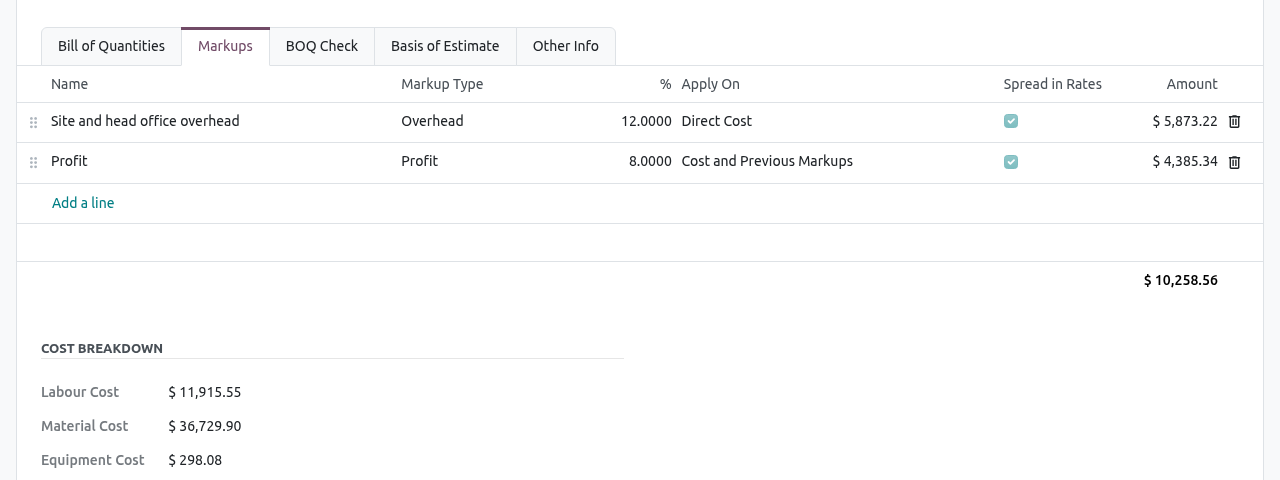
12% overhead on cost, then 8% profit on cost plus overhead: 12% + 8% × 1.12 = 20.96% in total.
WHY IS THE MARKUP (%) LOWER THAN EXPECTED?
Provisional sums are carried at cost. In the clinic estimate, the $35,000 provisional sum has no markup, so the overall Markup (%) is 12.96% instead of 20.96%.
Basis of estimate
In the Basis of Estimate tab, write the scope, inclusions, exclusions and assumptions of your price. This text protects you later, when the client asks for work you did not price.
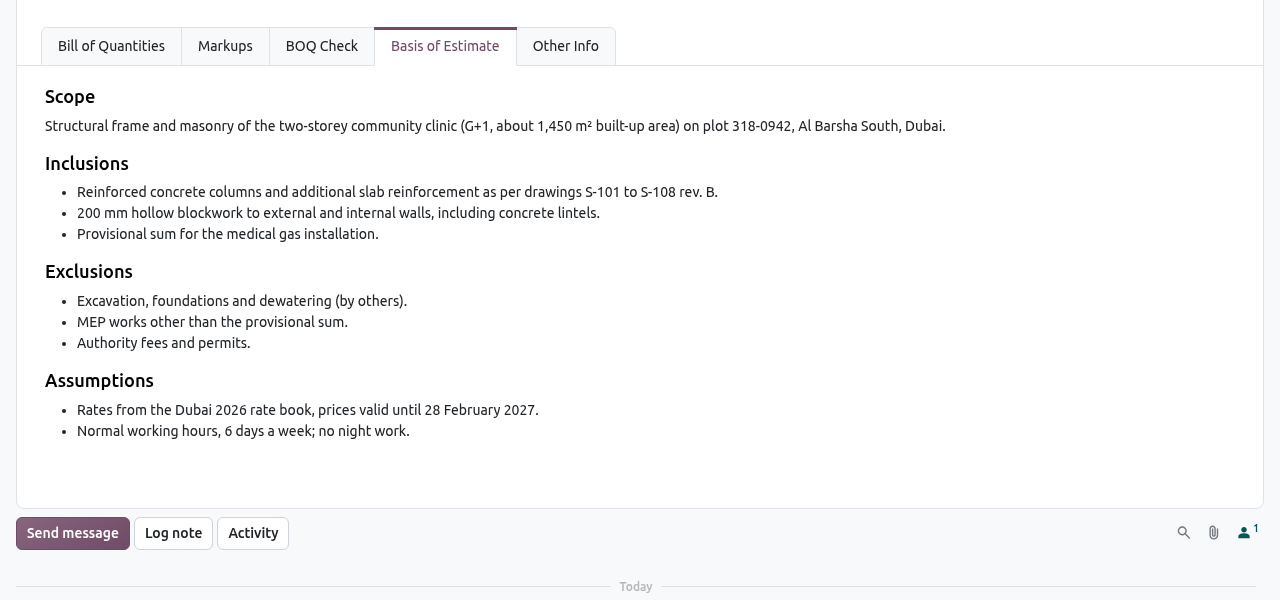
Scope, inclusions, exclusions and assumptions of the clinic estimate.
The Other Info tab shows the classification standard, the linked quotation, the previous version and, for a lost estimate, the lost reason.
Check the BOQ
The BOQ Check tab lists the problems of the BOQ. Errors (red) block the submission; warnings (yellow) do not, but you should read them.
| Severity | Problem | How to fix it |
|---|---|---|
| Error | Code … is used … times. | Give each line its own code, or click Renumber. |
| Error | Quantity is zero or negative. | Enter the quantity or the measurements. |
| Error | Item is not priced. | Choose a work item or type a manual unit cost. |
| Error | The BOQ has no items. | Add items. |
| Warning | Item without code. | Give the item a code. |
| Warning | Some resources of the work item are missing from the rate book. | Add the resource to the rate book (see Cost Database), then Reprice. |
| Warning | Item is not classified. | Choose a classification on the item (shown when the estimate has a classification standard). |
| Warning | Section without items. | Add items or delete the section. |
Open the BOQ Check tab. Here item 2.2 has no quantity yet (error) and uses a resource missing from the rate book (warning).
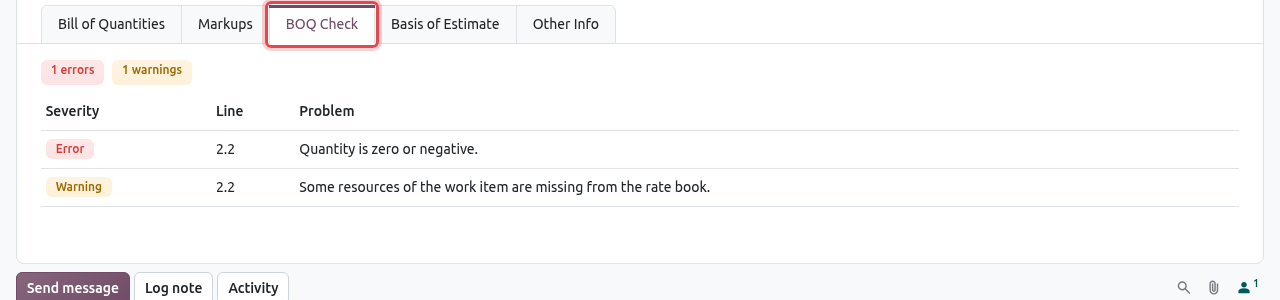
One error and one warning. Fix the errors. When only warnings are left, you can submit.

After entering the quantity of item 2.2 (145 m²), only the warning is left.
Resources needed by the estimate
Click the Resources smart button at the top of the estimate. Odoo breaks every item down into the resources it needs: hours of labour, quantities of materials and plant, with their cost. Use it to check the price and to ask suppliers for quotations. Switch to the pivot view (icon at the top right) to analyse it.
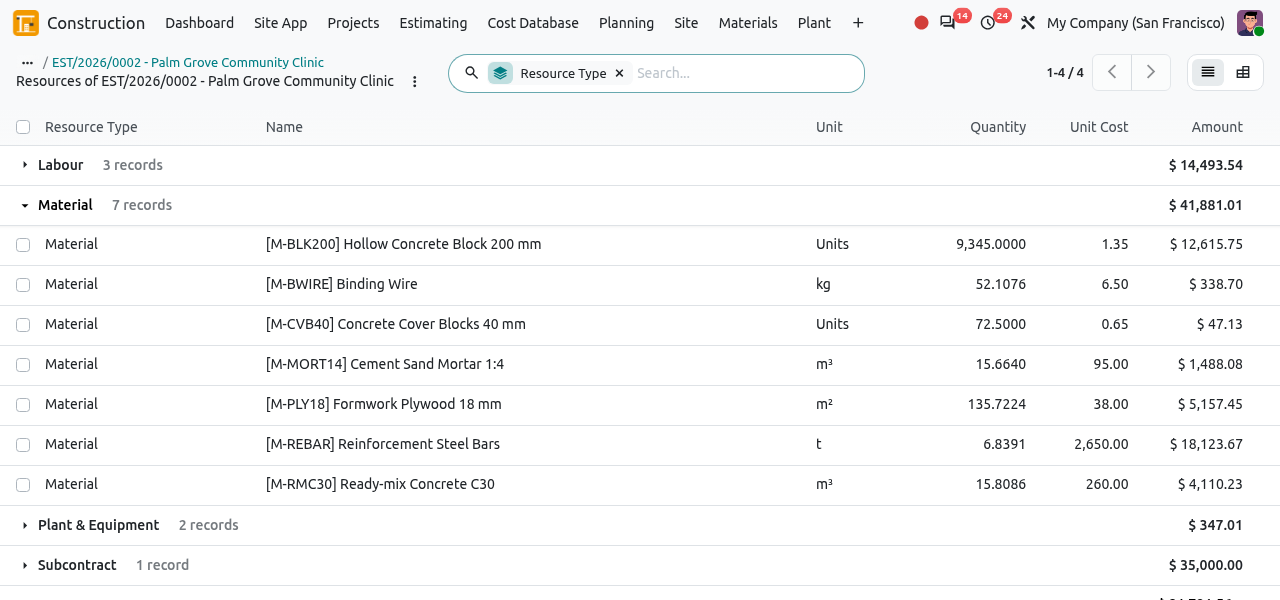
The resources of the clinic estimate, grouped by type. Manual and provisional amounts appear as one line per cost type.
Approve and submit the estimate
Your company can require an internal approval before a tender is sent (rules are set in Teams, Roles & Approvals).
Click Request Approval. The approvers receive a request. When no approval rule exists for estimates, the request is approved at once and kept for the record.
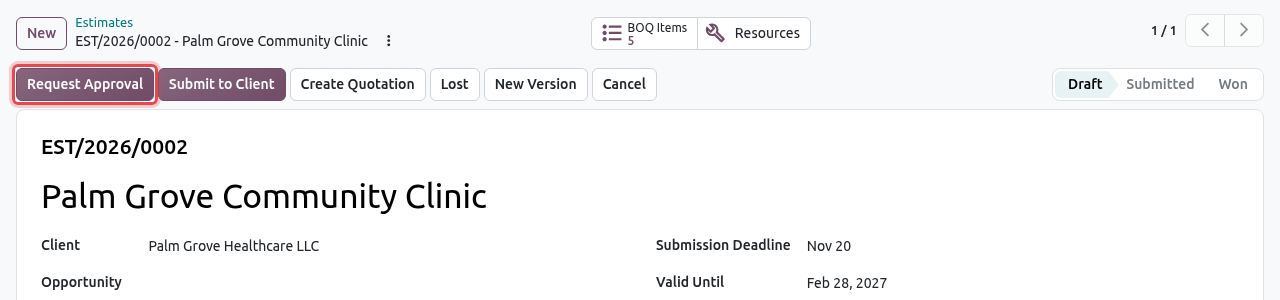
The Request Approval button of a draft estimate. When the estimate is approved, the Approval State shows Approved and the Approvals smart button opens the approval history. The BOQ and markups are now locked. Click Submit to Client.
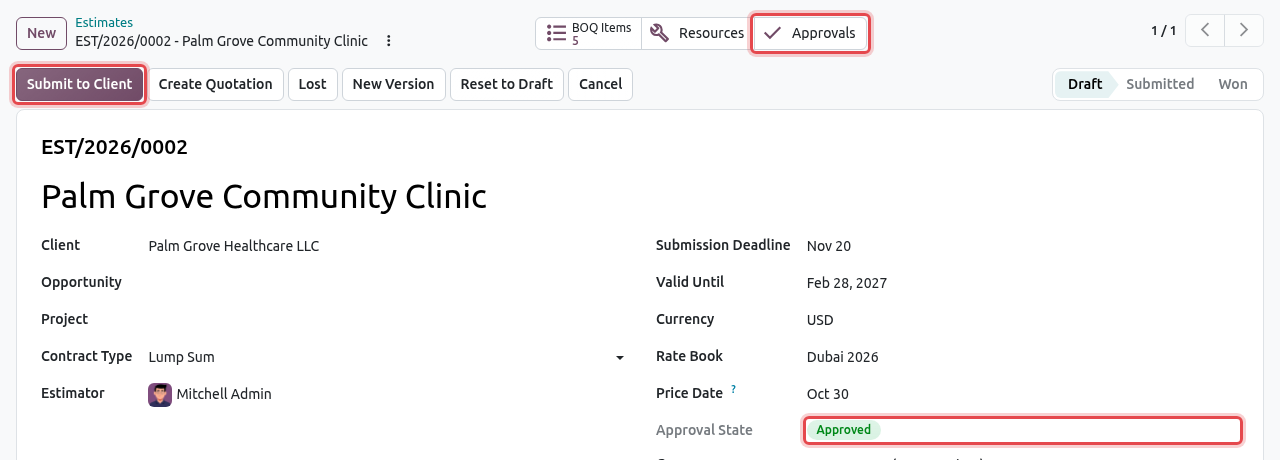
Approved: the estimate can be submitted. The estimate moves to Submitted. Send your tender documents to the client (see Prints and exports) and wait for the answer.
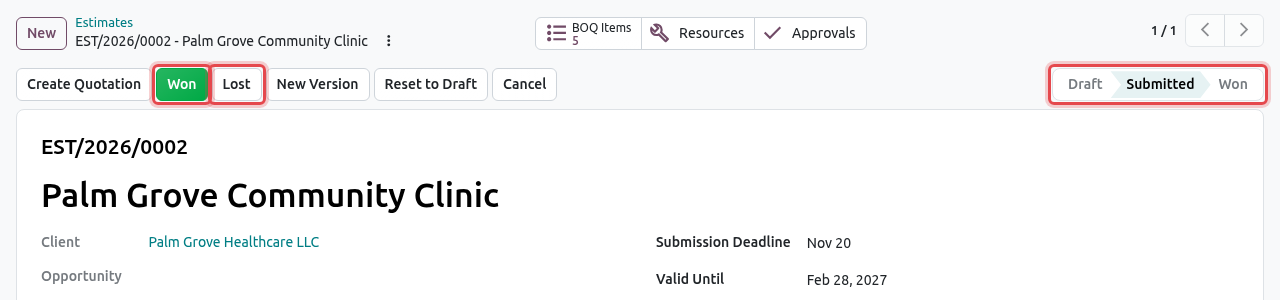
A submitted estimate: Won and Lost record the client's answer.
SUBMISSION IS BLOCKED WHEN…
- the BOQ check has errors: Fix the 1 errors of the BOQ check before submitting.
- an approval rule exists and the estimate is not approved: … must be approved first. While the approval is pending or rejected, the Submit to Client button is hidden.
To change an approved or submitted estimate, click Reset to Draft: the approval is withdrawn and must be requested again.
Mark the estimate as won
When the client accepts your price, open the submitted estimate and click Won. Confirm with Ok.
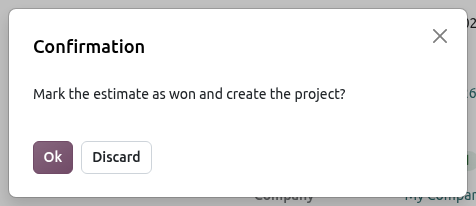
Odoo asks for confirmation before creating the project. The estimate shows a green WON ribbon. Odoo has created, automatically:
- a construction project named after the title of the estimate, for the same client, in the Pre-construction phase, with the contract type of the estimate (unless the estimate was already linked to a project);
- a client contract in Draft, with the same BOQ and the same rates (when your role on the project is main contractor or subcontractor and the estimate has a client); markups shown separately become one lump sum item;
- a draft budget for the project: the direct cost of the estimate split by cost code (labour, materials, plant, subcontract…), if the project has no budget yet;
- if the estimate is linked to a CRM opportunity, the opportunity is marked as won.
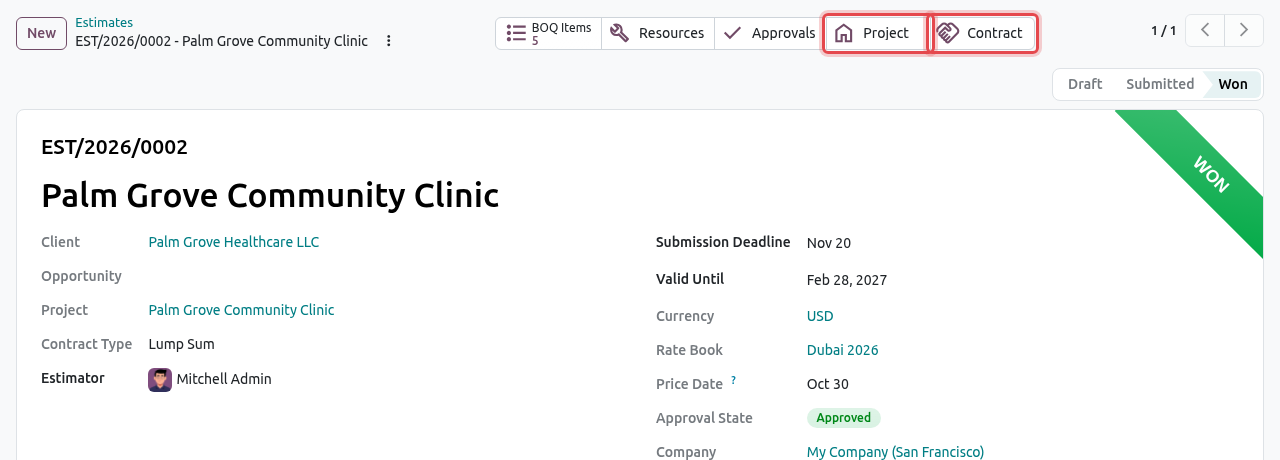
A won estimate with its Project and Contract smart buttons. Click the Project smart button to open the new project, and complete it as explained in Projects.
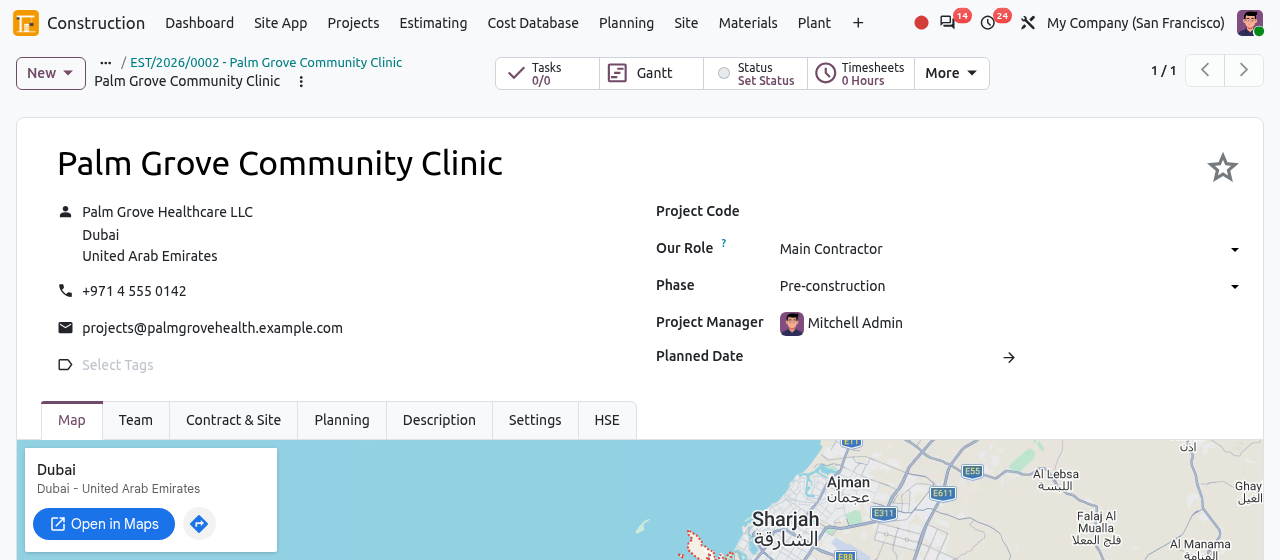
The project Palm Grove Community Clinic, created by the won estimate. Click the Contract smart button to open the client contract. Its value equals the total price of the estimate. Continue with Contracts. The budget is in (see Cost Control).

The draft client contract created from the estimate: $103,610.80.
CREATE CONTRACT / CREATE BUDGET
If the contract or the budget was not created (for example the estimate had no client, or the project already had a budget), a Quantity Surveyor can create them from the won estimate with Create Contract and Create Budget. Each button disappears once its document exists.
Mark the estimate as lost
When the client chooses another bidder, click Lost. Choose a Lost Reason and write a Note (winning price, competitor, client feedback). Click Mark as Lost.
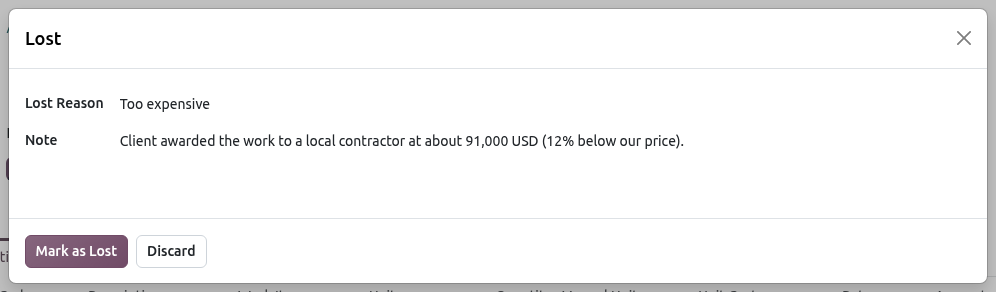
Record why the tender was lost: it helps to price the next one. The estimate shows a red LOST ribbon; the reason is in the Other Info tab and in the chatter. If the estimate came from a CRM opportunity and no other estimate of that opportunity is still in play, the opportunity is marked as lost too.
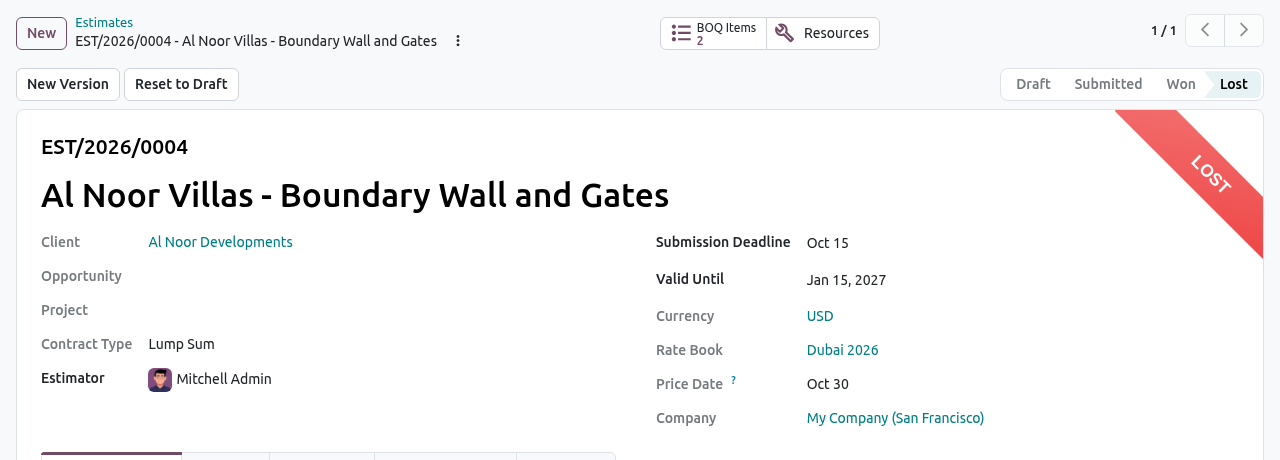
A lost estimate. New Version or Reset to Draft reopen it if the client comes back.
Versions and revisions
Clients often ask for a revised price (new drawings, value engineering). Keep a trace of every price you sent by creating a new version instead of changing the submitted one.
Open the draft, submitted or lost estimate and click New Version.
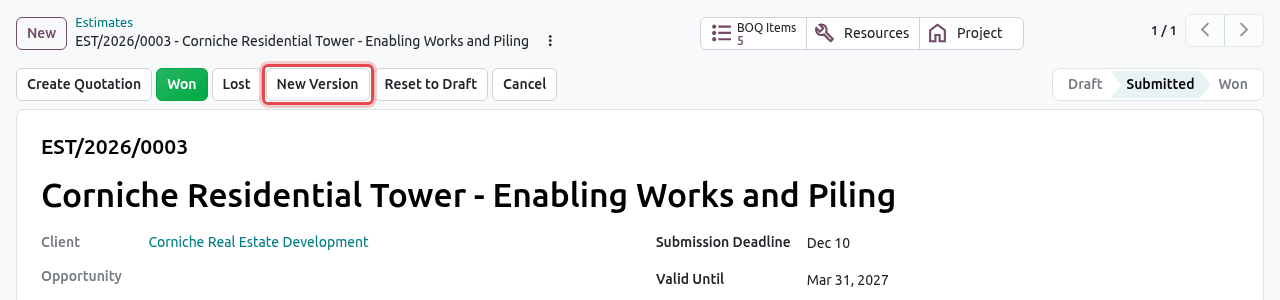
The submitted Corniche estimate before revision. Odoo copies the estimate with all its BOQ lines, measurements and markups as v2 (same reference, e.g. EST/2026/0003 v2) in Draft, and opens it. The old version becomes Revised and can no longer be changed. Make your changes in v2 and submit it.
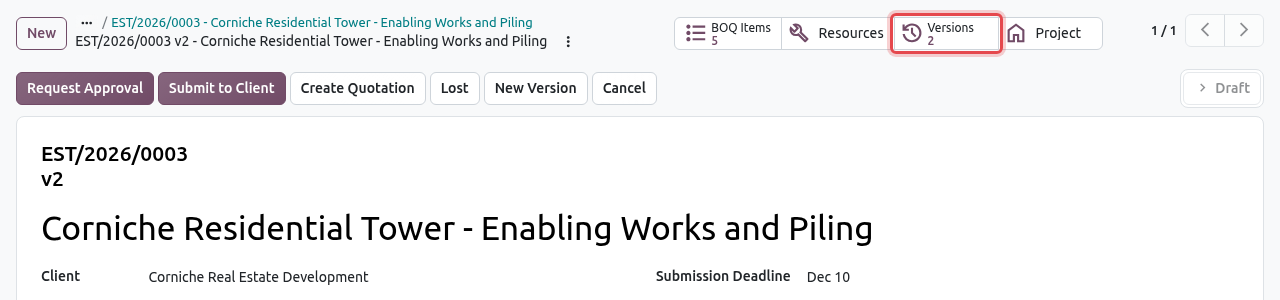
Version 2 in Draft, with the Versions smart button. Click the Versions smart button to compare all the versions of the estimate.
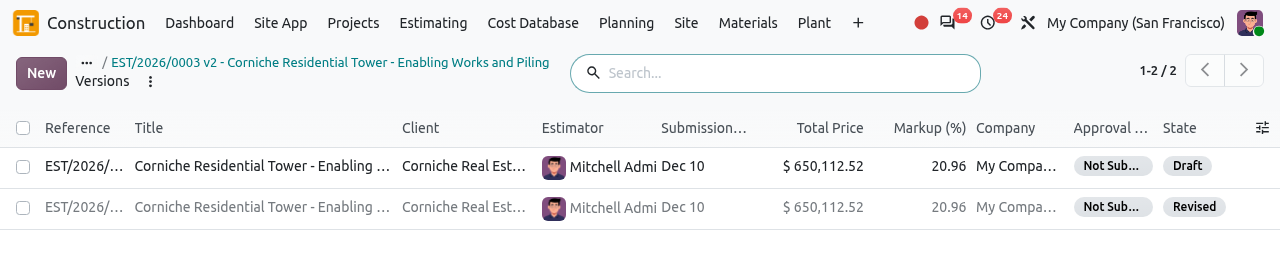
v2 in Draft and v1 Revised.
Prints, exports and quotation
To print the BOQ, click the ⋮ icon next to the estimate name, then Print:
- Priced BOQ: the BOQ with rates and amounts, and a summary by section with the total. Send it with your tender.
- Unpriced BOQ: the same document without prices, for example to ask subcontractors for their prices.
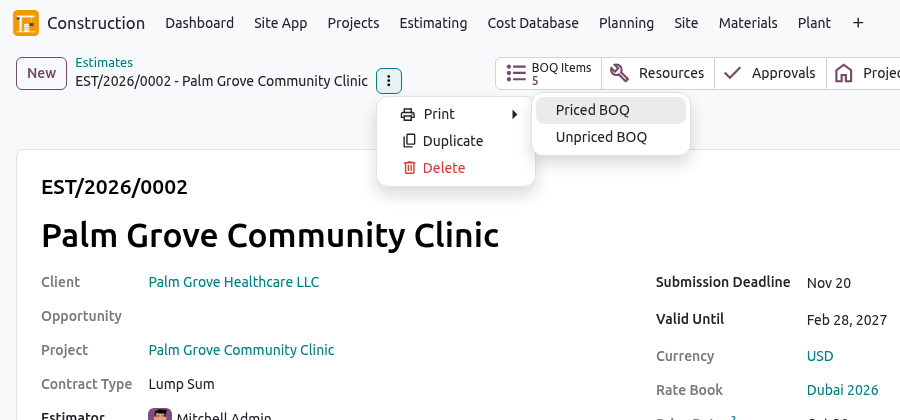
The two BOQ prints. The Priced BOQ is a PDF with your company letterhead.
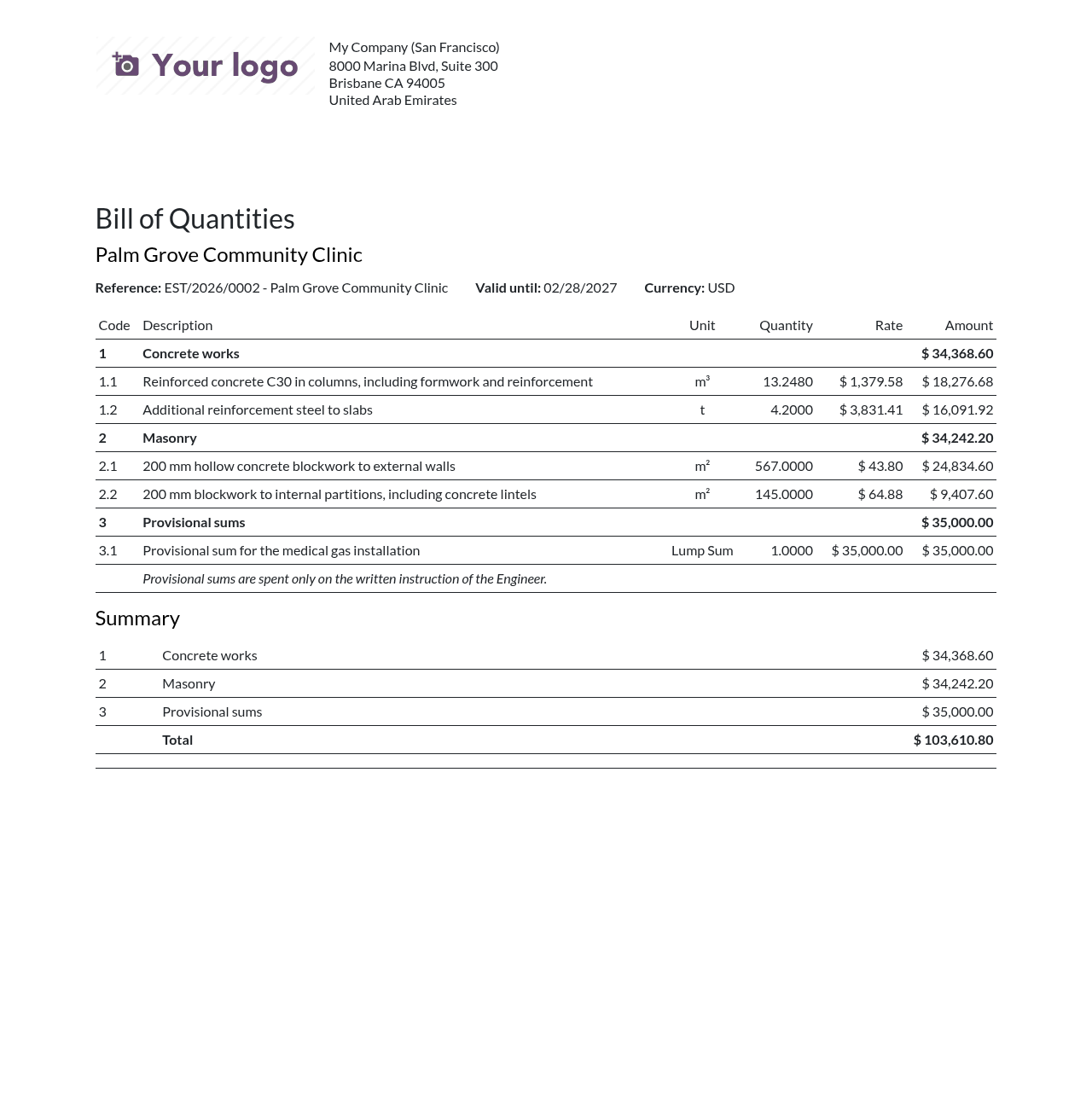
The Priced BOQ of the clinic estimate.
- Export Excel (above the BOQ, in Draft) downloads the priced BOQ as an .xlsx file.
- Create Quotation (Draft or Submitted, needs a client) creates a sales quotation with one line per top-level section at its total price, plus one line for the markups shown separately. Use it if you want to send a standard Odoo quotation. It is linked in the Other Info tab.
Follow your estimates
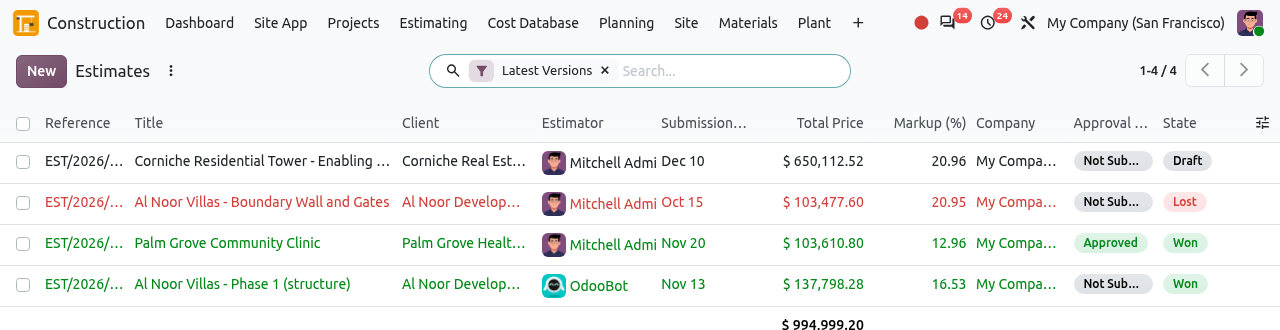
The list of estimates shows each stage in colour (green = won, red = lost, grey = revised or cancelled). Use the filters My Estimates, In Progress, Won, Lost, To Approve, and group by Status, Client or Estimator. Remove the Latest Versions filter to see the revised versions too.
From a CRM opportunity
If you use the CRM app, open the opportunity of the tender and click its Estimates smart button, then New: the client, title and opportunity are filled in for you. Winning the estimate marks the opportunity as won; losing all its estimates marks it as lost.
Default Markups
Default markups are the markups every new estimate of your company starts with, so you do not type them each time.
Go to . Click New to add a line, and fill Name, Markup Type, %, Apply On and Spread in Rates directly in the list. Drag the lines to set their order (it matters for Cost and Previous Markups).
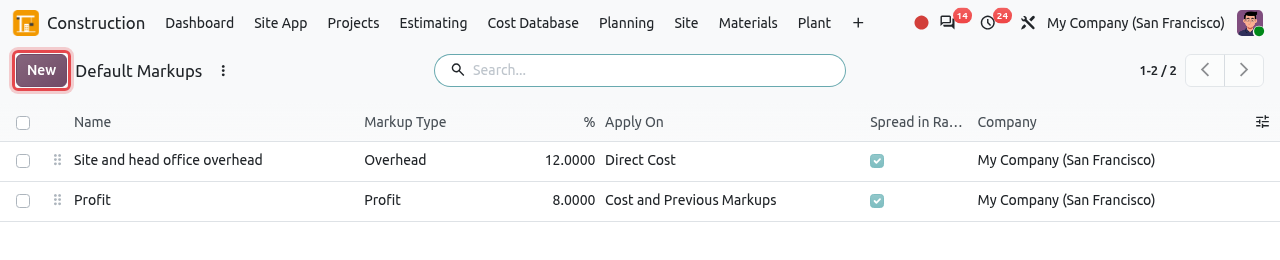
12% overhead on cost, then 8% profit on cost and overhead.
TIP
Changing the default markups does not change existing estimates: only new estimates get the new values. Adjust the Markups tab of an existing draft estimate directly.
Tips and common mistakes
- Only drafts can be changed. A submitted, approved or waiting-for-approval estimate is locked (Only draft estimates can be changed). Use Reset to Draft, or better New Version if the client already has your price.
- Prices are frozen. Changing a rate book later does not change existing estimates. Click Reprice in a draft to take the new prices.
- Units must match. The unit of an item must be convertible to the unit of its work item; a BOQ line in m² cannot use a work item in m³.
- Won and revised estimates cannot be cancelled or put back to draft.
- Link the project when it exists. If the project already exists (like the Corniche Residential Tower), select it in Project before winning, otherwise Odoo creates a second project.