
Appearance
Cost Database
The Cost Database is your company's price library. It holds the resources you pay for (labour, materials, plant, subcontracts), the rate books that give each resource a price, and the work items that combine resources into one unit of work, for example one m² of blockwork. Estimates use it to price a bill of quantities in a few clicks.
WHO USES IT
Estimators and estimation managers keep the cost database up to date. Only an Estimation Manager sees the Import and Revise Rates buttons of a rate book. Everybody who prepares estimates reads it.
How it fits together
Three things work together to give a price to one unit of work:
Resources→Rate Book (price of each resource)→Work Item (recipe of resources)→Unit cost→Estimate
- A resource is one thing you buy or pay for: a Mason (per hour), Ready-mix Concrete C30 (per m³), a Concrete Pump (per hour).
- A rate book is a price list of resources for a place and a period, for example Dubai 2026. The same resource can have a different price in each rate book.
- A work item (also called an assembly or unit-rate analysis) is a recipe: the quantity of each resource needed for one unit of work. Odoo multiplies the quantities by the rates of the rate book and gives the unit cost.
- A price index is a published series of numbers (for example a construction cost index) used to update all the rates of a book when prices rise.
Opening the Cost Database
In the Construction app, click in the top bar. The menu has four entries: Work Items, Resources, Rate Books and Price Indices.
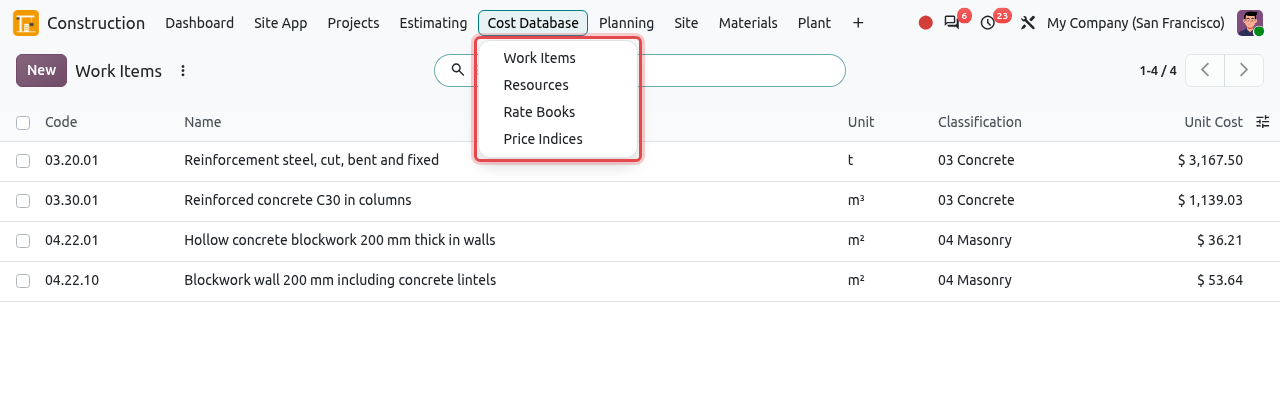
The Cost Database menu.
Resources
Resources are normal Odoo products with one extra field, Resource Type. A product becomes a construction resource as soon as it has a resource type. You can then price it in rate books, use it in work items, and buy it on purchase orders.
| Resource Type | Examples | Usual unit |
|---|---|---|
| Labour | Mason, Helper, Steel Fixer, Plasterer | Hours |
| Material | Ready-mix Concrete C30, Reinforcement Steel Bars, Hollow Concrete Block 200 mm | m³, t, Units |
| Plant & Equipment | Concrete Pump, Concrete Vibrator | Hours, Days |
| Subcontract | Waterproofing by a specialist, piling | m², m, Lump Sum |
| Other | Anything else (permits, testing) | Lump Sum, Units |
Create a resource
Go to . The list is grouped by resource type; click a group (for example Material) to open it. Click New.
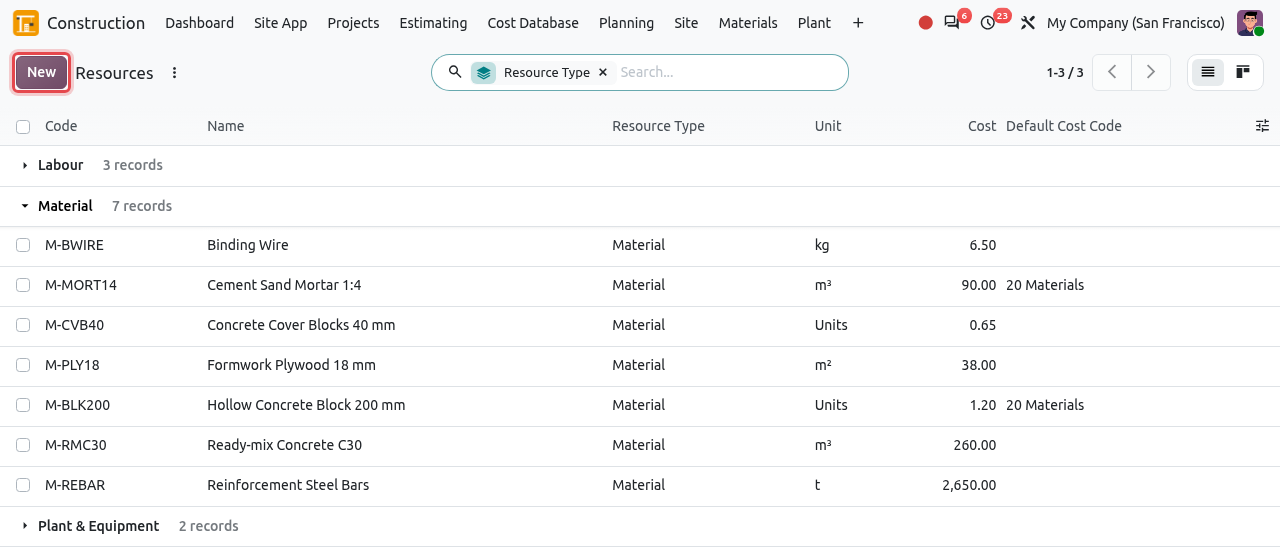
Resources grouped by type, with their code, unit, cost and default cost code. Fill in the form. The example below creates the labour resource Plasterer:
Field What to enter Product Name (big title) A clear name, e.g. Plasterer. Product Type Service for labour, plant hire and subcontracts; Goods for materials you receive in a store. Cost and its unit (per …) The standard cost and the unit it is counted in. Click the unit next to the cost (Units by default) to change it, e.g. Hours. This cost is used only when no rate book gives a price. Resource Type Labour, Material, Plant & Equipment, Subcontract or Other. It is set to Material by default. Default Cost Code The budget cost code charged when the resource is bought or used on a project, e.g. 10 Labour. It appears once a resource type is chosen. 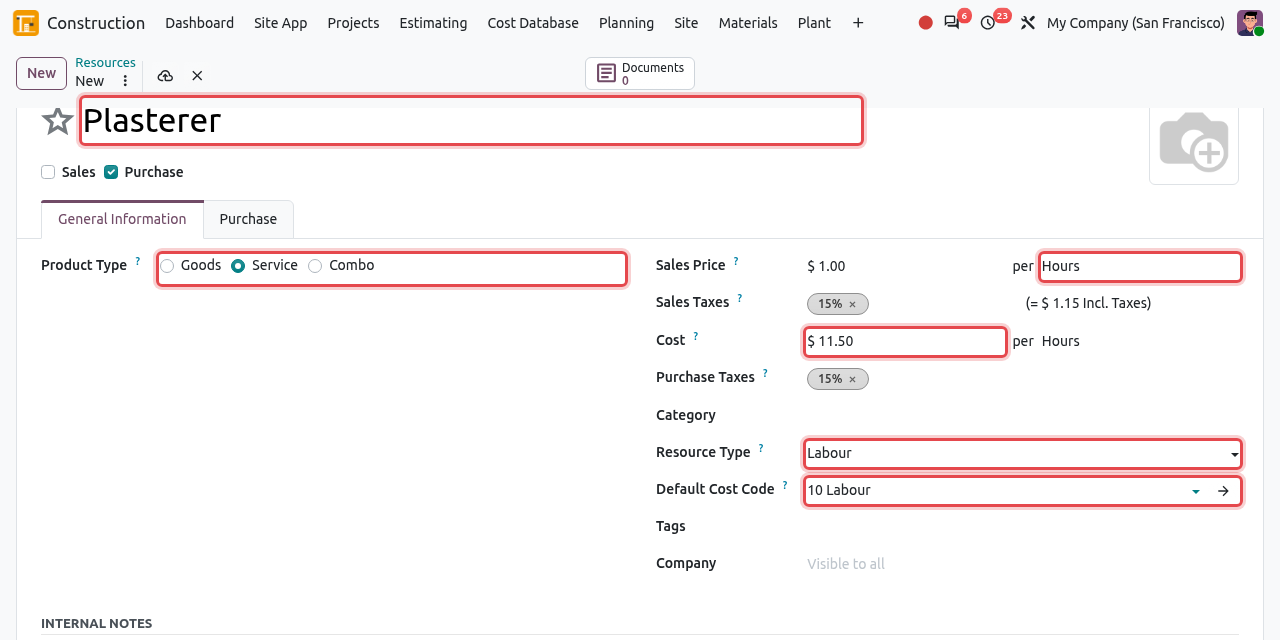
A new labour resource: name, Service type, cost per hour, resource type and default cost code. Click the cloud icon (save) next to the record name. The resource now appears in the Labour group of the list.
TIP
Leave Sales unticked: resources are bought, not sold. Odoo unticks it for you when you create a resource from this menu.
RESOURCE CODES
Codes such as L-PLAST or M-BLK200 make resources easy to find and are used by the rate import. The form opened from this menu has no code field: give the code when you import rates (the code column), or open the product from and fill its Reference field.
Rate Books
A rate book is a dated price list of resources (and, if you want, of complete work items). Typical rate books are one per country or city and per year, for example Dubai 2026.
Create a rate book
Go to and click New.
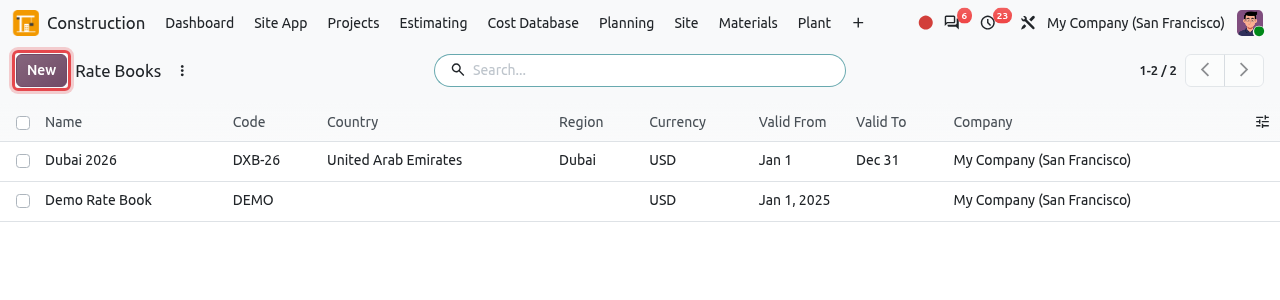
The rate books with their currency and validity dates. Fill in the header of the rate book:
Field What to enter Name e.g. Dubai 2026. Code Optional short code, e.g. DXB-26. Currency The currency of all the rates of the book. Country / Region Where the rates apply, e.g. United Arab Emirates / Dubai. Company Your company. Leave it empty to share the book with all your companies. Validity First and last day the rates are valid (the end date can stay empty). Fallback Rate Book Optional. When a resource has no rate in this book, Odoo takes it from the fallback book, e.g. a national book behind a city book. Price Index Optional. The index used by default when you revise the book (see Revise rates). 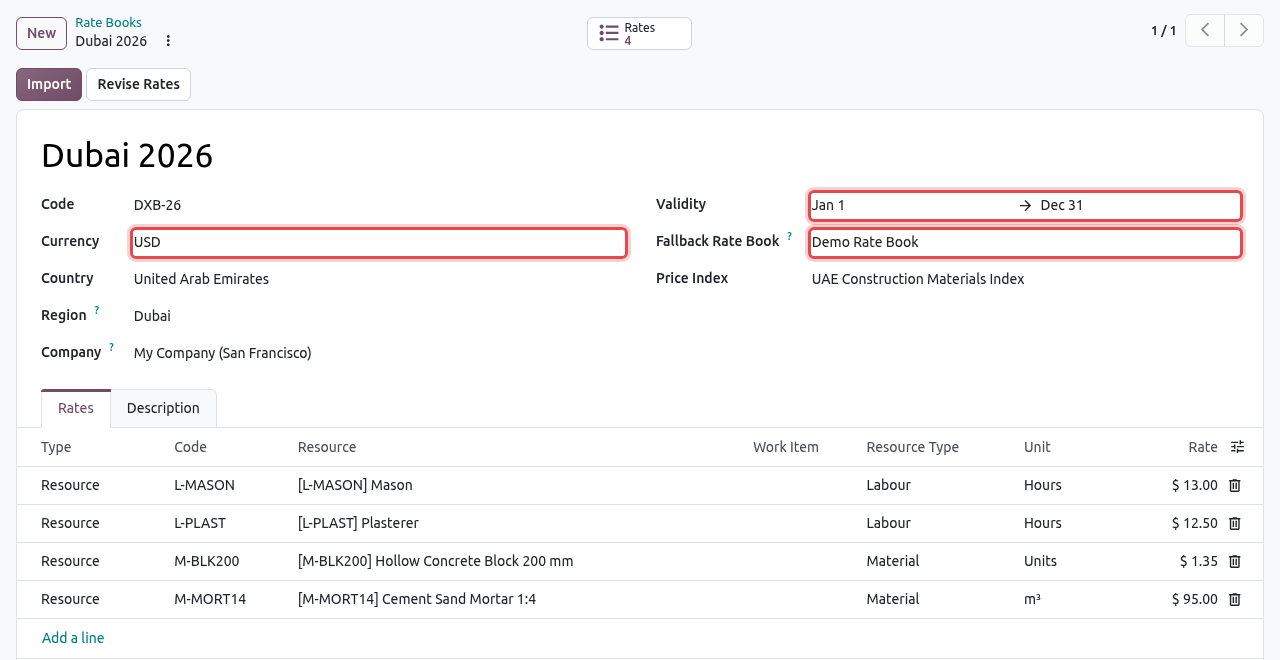
The Dubai 2026 rate book: currency, validity and fallback rate book are framed. In the Rates tab, click Add a line for each price. Keep Type = Resource, choose the Resource, check the Unit (it is filled from the resource) and type the Rate. Choose Type = Work Item to give a fixed price to a whole work item instead.
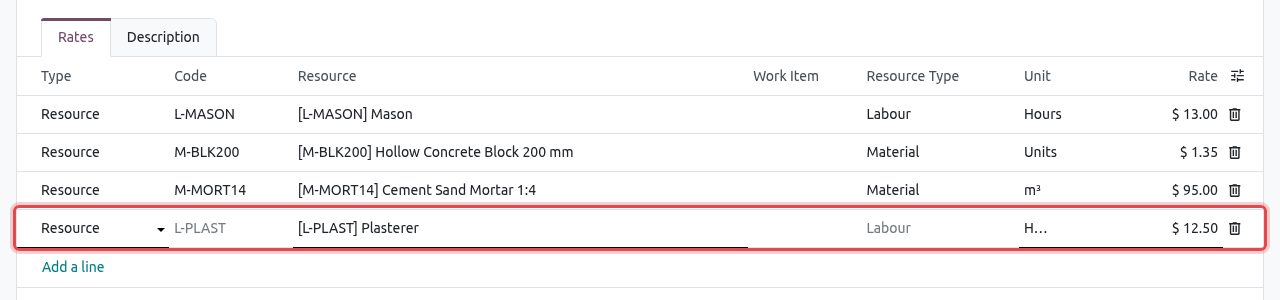
Adding the Plasterer at $12.50 per hour. Save. The Rates smart button at the top shows how many rates the book has; click it to see the rates as a searchable list (filter by Resources or Work Items, group by Resource Type).
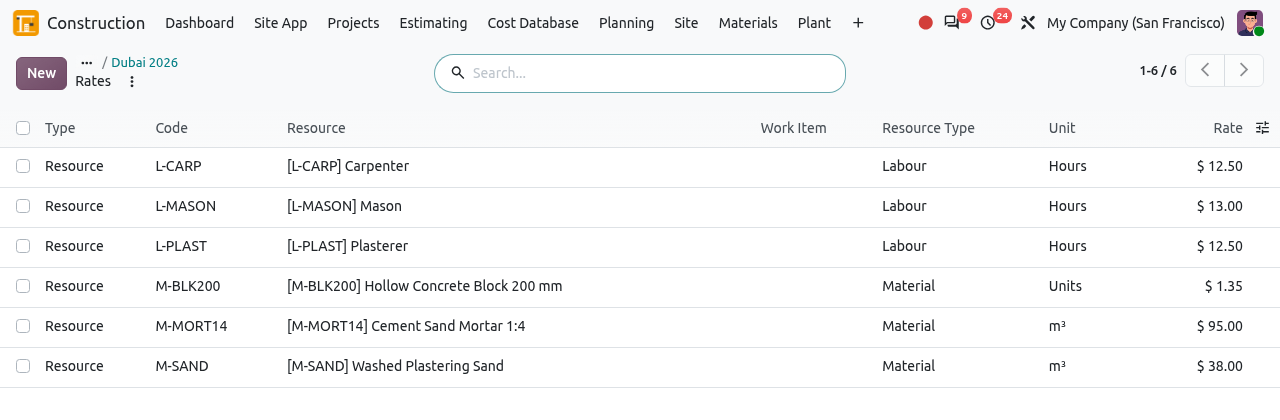
The rates of Dubai 2026, opened from the Rates smart button.
HOW ODOO FINDS A PRICE
For each resource, Odoo looks in this order: (1) the rate book itself, (2) its fallback rate book, then the fallback of the fallback, (3) the Cost of the resource. In the example, Dubai 2026 prices the Mason at $13.00, but has no Helper: the Helper is taken at $7.50 from the fallback Demo Rate Book.
RULES CHECKED BY ODOO
- A resource (or work item) can be priced only once per rate book.
- A rate cannot be negative, and the end of validity cannot be before the start.
- A rate book and its fallback must use the same currency, and a book cannot fall back on itself.
- The unit of a rate must be convertible to the unit of the resource (hours to days is fine, m³ to kg is refused).
Choose the default rate book
New work items and new estimates use the company's default rate book. If it is not valid on the day, Odoo takes the latest rate book of the company that is valid that day.
Go to , section Standards. Choose the Default Rate Book and click Save.
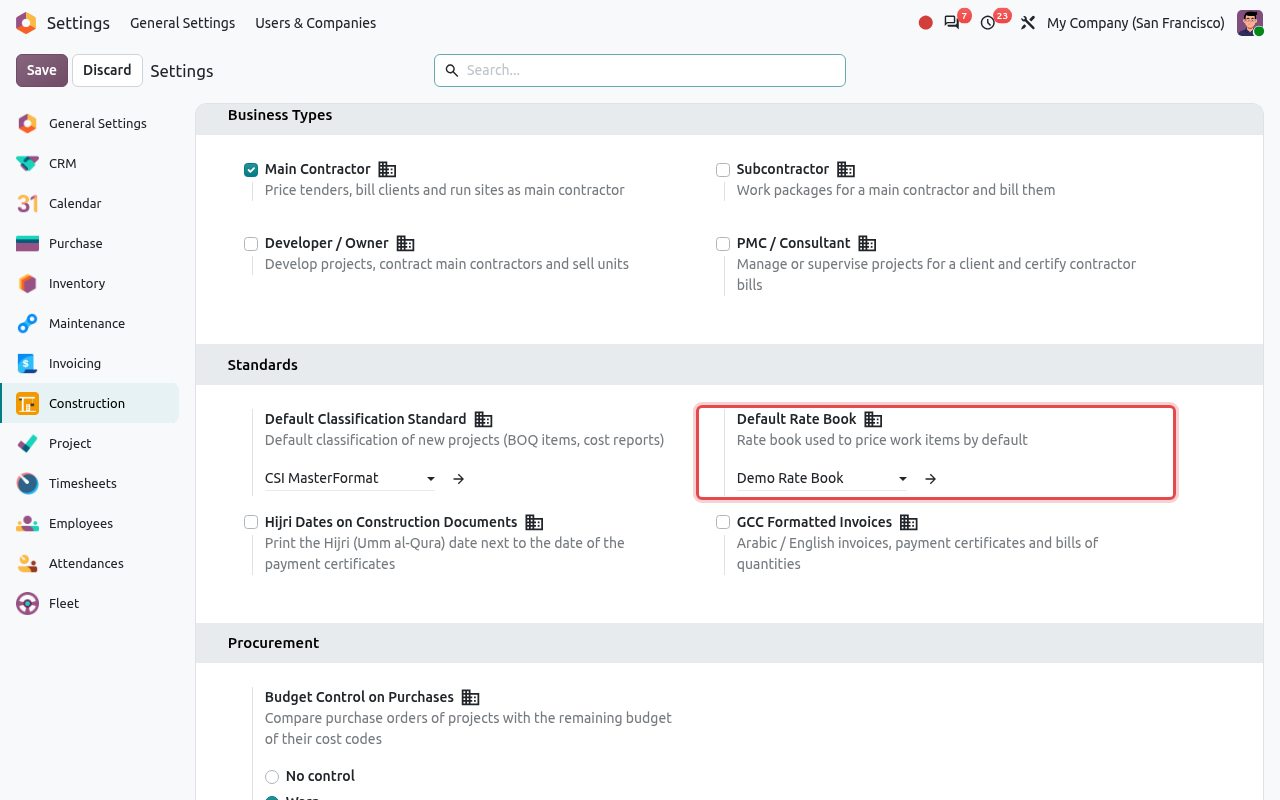
The Default Rate Book setting.
Import rates from a spreadsheet
Instead of typing hundreds of rates, import them from Excel (.xlsx) or .csv. Resources that do not exist yet are created at the same time.
Prepare the file with a header row. For resources, the columns are
code, name, type, uom, rateand optionallycost_code. For example:code,name,type,uom,rate,cost_code L-CARP,Carpenter,labour,hr,12.50,10 M-SAND,Washed Plastering Sand,material,m3,38.00,20 L-MASON,Mason,labour,hr,13.00,typeis one of labour, material, equipment, subcontract, other. Common unit spellings are understood: hr, m2, sqm, m3, cum, nos, each, t, ton, ls… For work items with a fixed rate the columns arecode, name, uom, rateand optionallyclassificationandtype.Open the rate book and click Import. Choose the Import Type (Resources or Work Items (fixed rates)), upload the File and click Import.
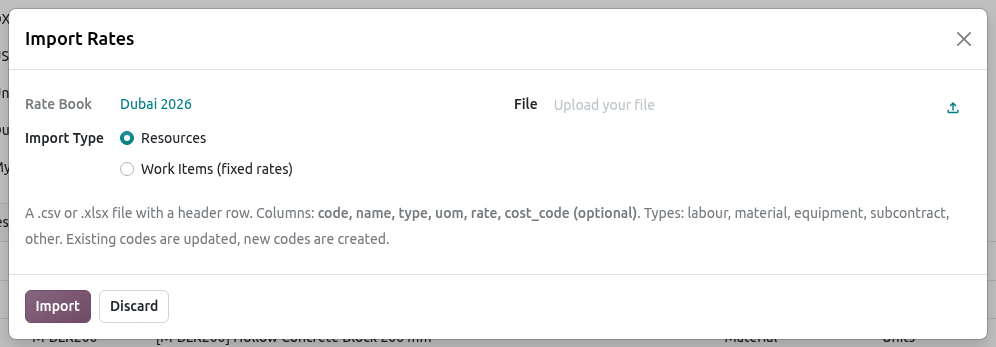
The Import Rates dialog lists the expected columns. Odoo shows how many rates were created and updated, and writes the same summary in the chatter of the rate book. Existing codes are updated, new codes are created.
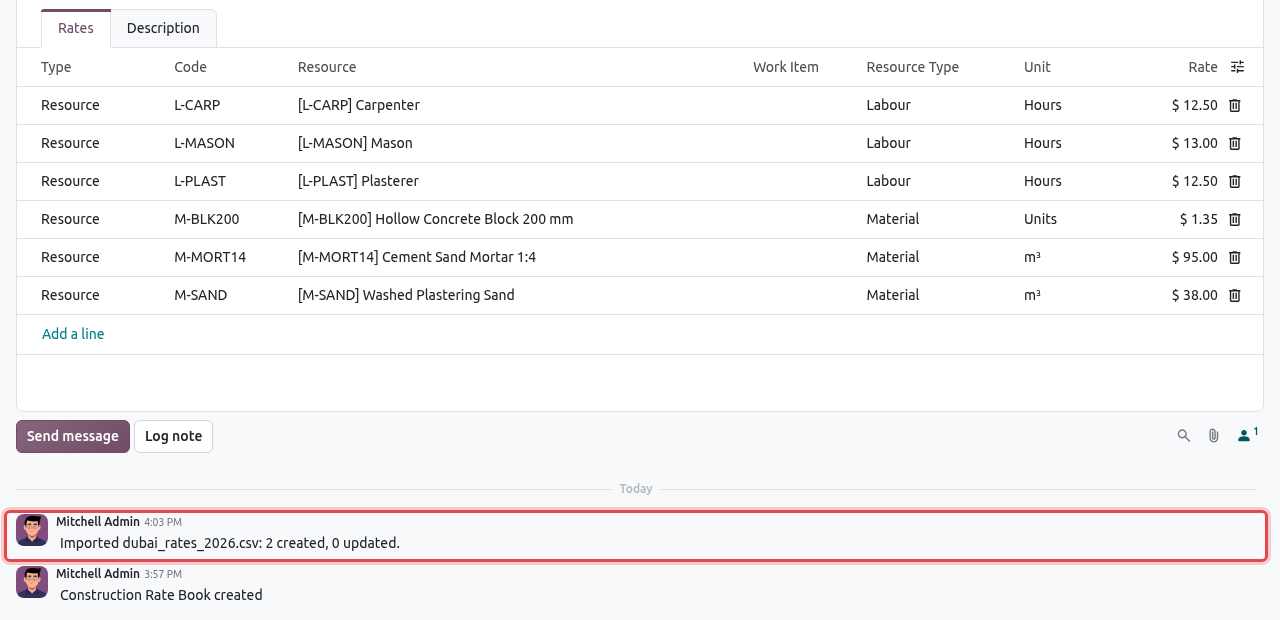
After the import: Carpenter and Washed Plastering Sand were created; the Mason rate was already correct, so nothing was updated.
ALL OR NOTHING
If one row has a problem (unknown unit, unknown cost code, wrong type, rate that is not a number, unit that does not match the existing resource), nothing is imported. Odoo lists the faulty rows, e.g. Row 4: unknown unit 'bag'. Fix the file and import again.
Revise rates (new year, price increase)
When prices change, do not overwrite the old book: estimates already priced with it must stay traceable. Create a revised copy instead.
Open the rate book and click Revise Rates. Fill in the dialog:
Field What to enter New Rate Book Name of the copy (proposed: old name + date). Valid From First day of the new prices. It must be after the start of the current book. End Validity of Current Book Ticked: the current book stops the day before the new one starts. Method Percentage: type the Change (%), e.g. 4 for +4% or -3 for -3%. Only Resource Type Optional: revise only one type (e.g. Material); the other rates are copied unchanged. The Factor shows the multiplier that will be applied (1.04 for +4%).
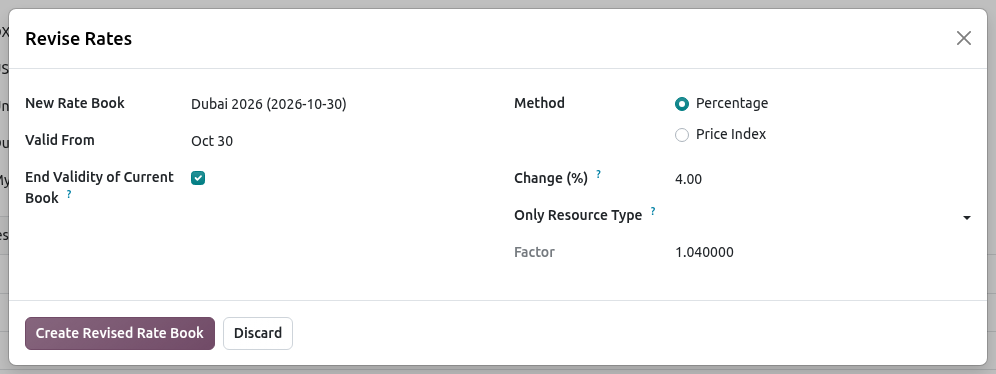
Revising by a percentage: +4% gives a factor of 1.04. To follow a published index instead, choose Method = Price Index, then the Price Index and the Index Base Date (the date the current rates are based on; proposed: start of the book). Odoo divides the index value at Valid From by the value at the base date.
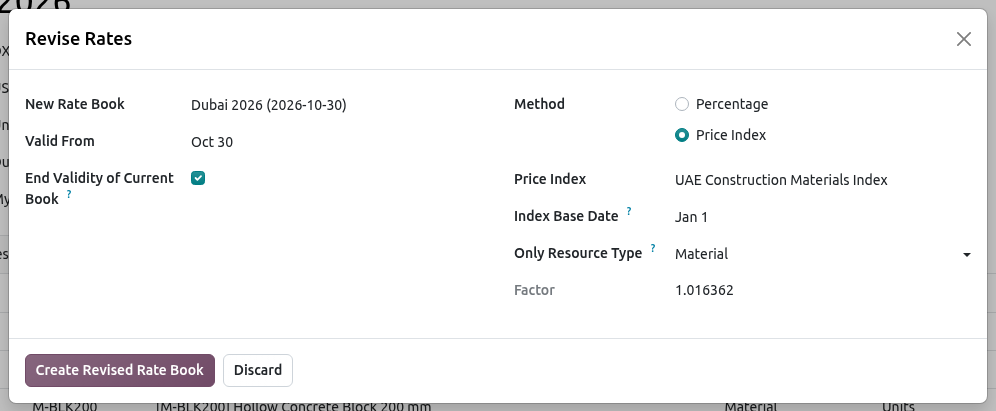
Revising only the materials with the UAE Construction Materials Index: 105.6 / 103.9 = factor 1.016362. Click Create Revised Rate Book. Odoo opens the new rate book with the revised rates; its chatter records the book it comes from and the factor used.
Work Items
A work item describes how to build one unit of work, for example 04.22.01 Hollow concrete blockwork 200 mm thick in walls, per m². Its components are resources or other work items, each with the quantity needed for one unit, plus a waste allowance.
Create a work item and see its unit cost
Go to and click New.
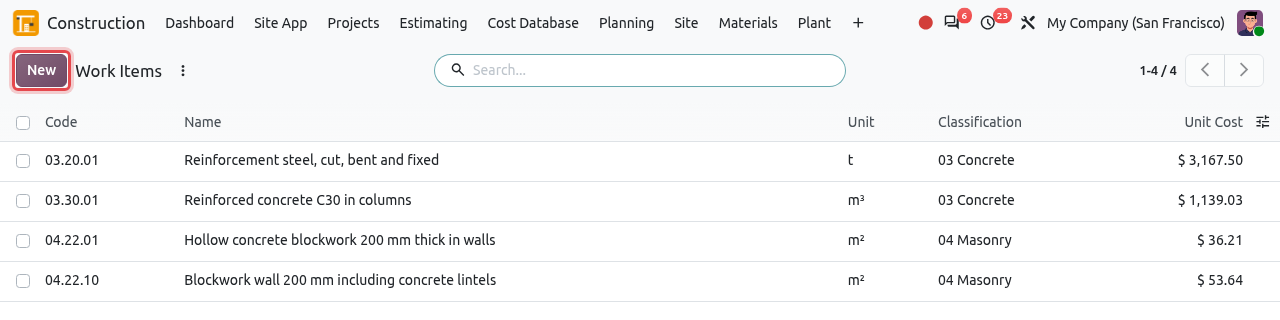
Work items with their unit and unit cost. Fill in the header:
Field What to enter Code A unique code, often taken from your classification, e.g. 09.24.01. It must be unique in the company. Name (big title) The description, e.g. Cement plaster 20 mm to internal walls. Unit The unit of the work item: m², m³, m, t, Units… Classification The section of your classification standard, e.g. 09 Finishes (CSI MasterFormat). Cost Type Used only when a rate book prices the whole work item at a fixed rate. Priced With The rate book used to show the unit cost on this screen. It is the default rate book at first. 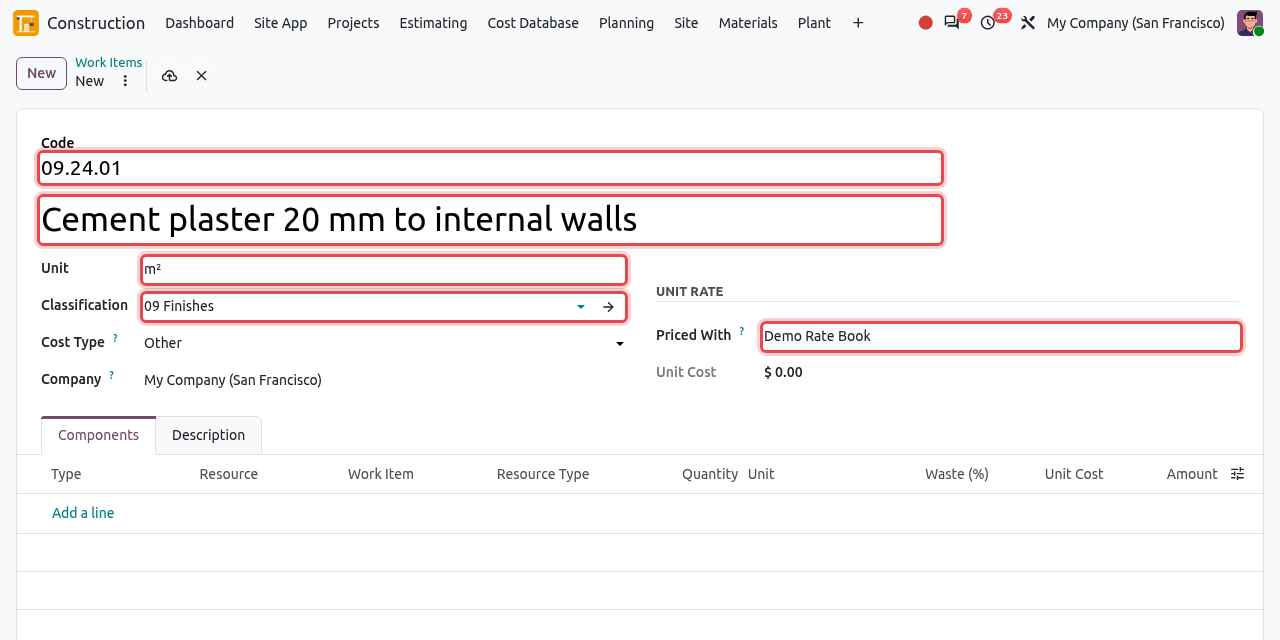
A new work item: code, name, unit, classification and the rate book used to price it. In the Components tab, click Add a line for each resource. Keep Type = Resource, choose the Resource, type the Quantity for one unit of the work item, and the Waste (%) if any. The Unit Cost (from the rate book) and the Amount are calculated at once.
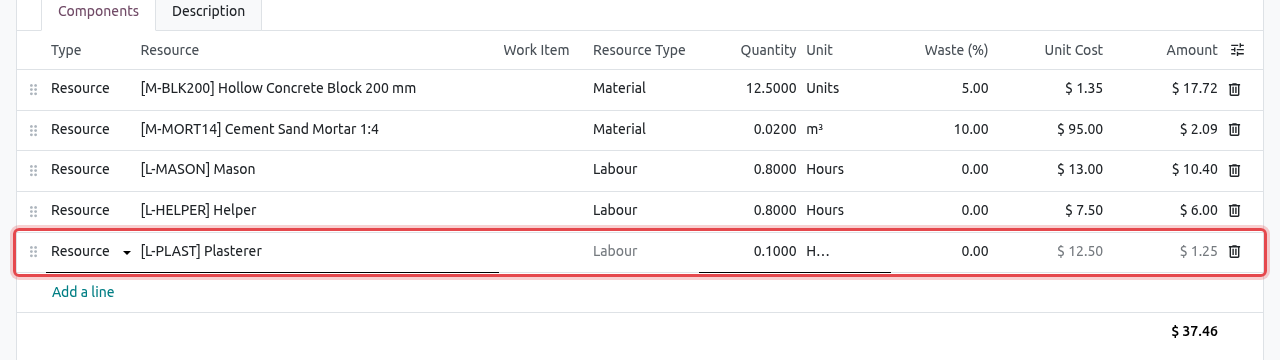
Adding a component: 0.10 hours of Plasterer per m² costs $1.25. Save. The Unit Rate box shows the cost of one unit, split by cost type (Labour Cost, Material Cost, Equipment Cost…), and the total Unit Cost.
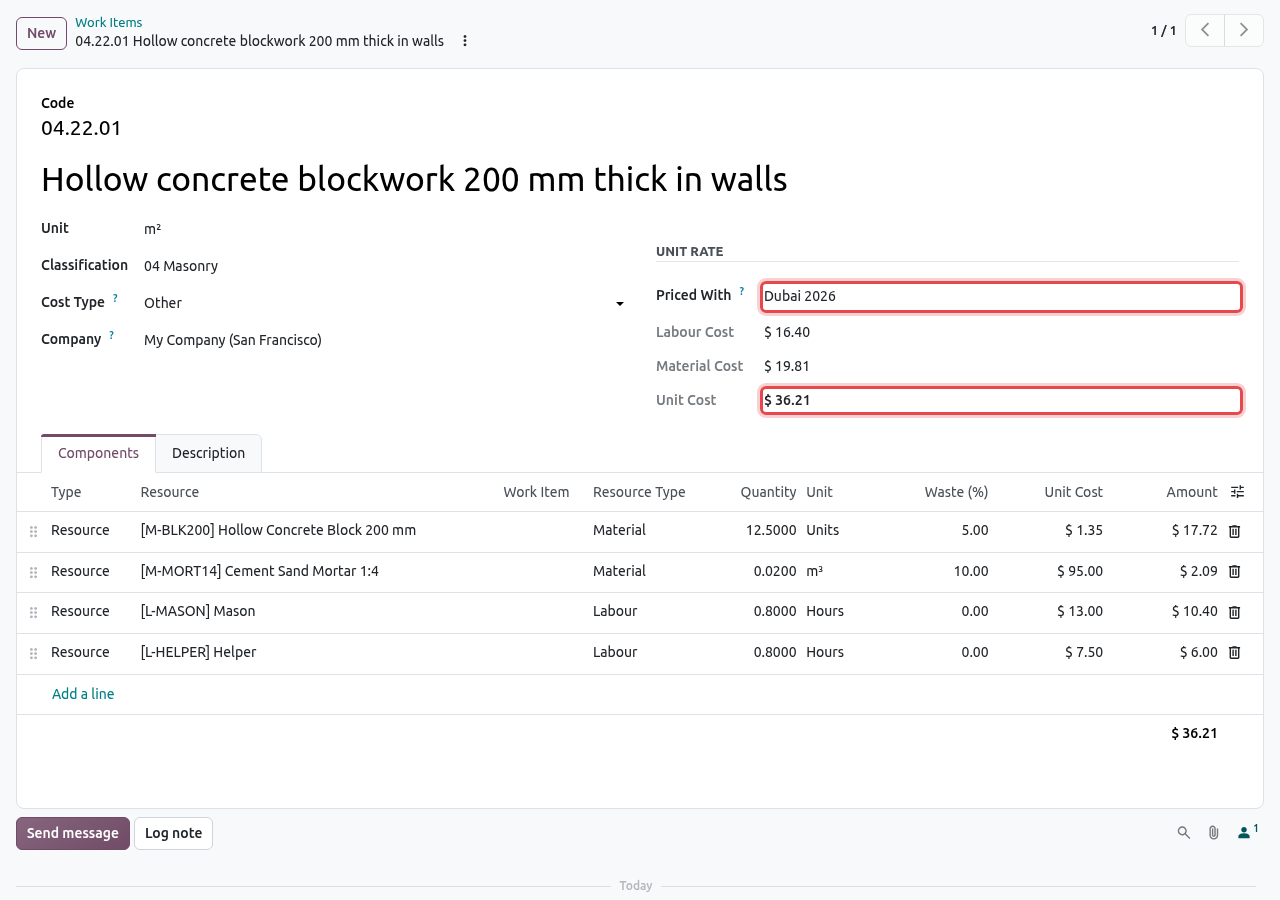
One m² of 200 mm blockwork priced with Dubai 2026: $36.21.
How the example is calculated (amount = quantity × (1 + waste) × rate):
| Component | Quantity per m² | Waste | Rate | Amount |
|---|---|---|---|---|
| Hollow Concrete Block 200 mm | 12.5 Units | 5% | $1.35 (Dubai 2026) | $17.72 |
| Cement Sand Mortar 1:4 | 0.02 m³ | 10% | $95.00 (Dubai 2026) | $2.09 |
| Mason | 0.8 Hours | – | $13.00 (Dubai 2026) | $10.40 |
| Helper | 0.8 Hours | – | $7.50 (fallback: Demo Rate Book) | $6.00 |
| Unit cost | $36.21 | |||
Work items inside work items
A component can also be another work item: set its Type to Work Item and choose it in the Work Item column. This lets you build bigger items from smaller ones. In the example below, one m² of Blockwork wall 200 mm including concrete lintels uses 1 m² of blockwork (04.22.01) plus 0.015 m³ of reinforced concrete (03.30.01), plus cover blocks.
Open the work item. The unit cost includes the cost of the sub work items, split by cost type.
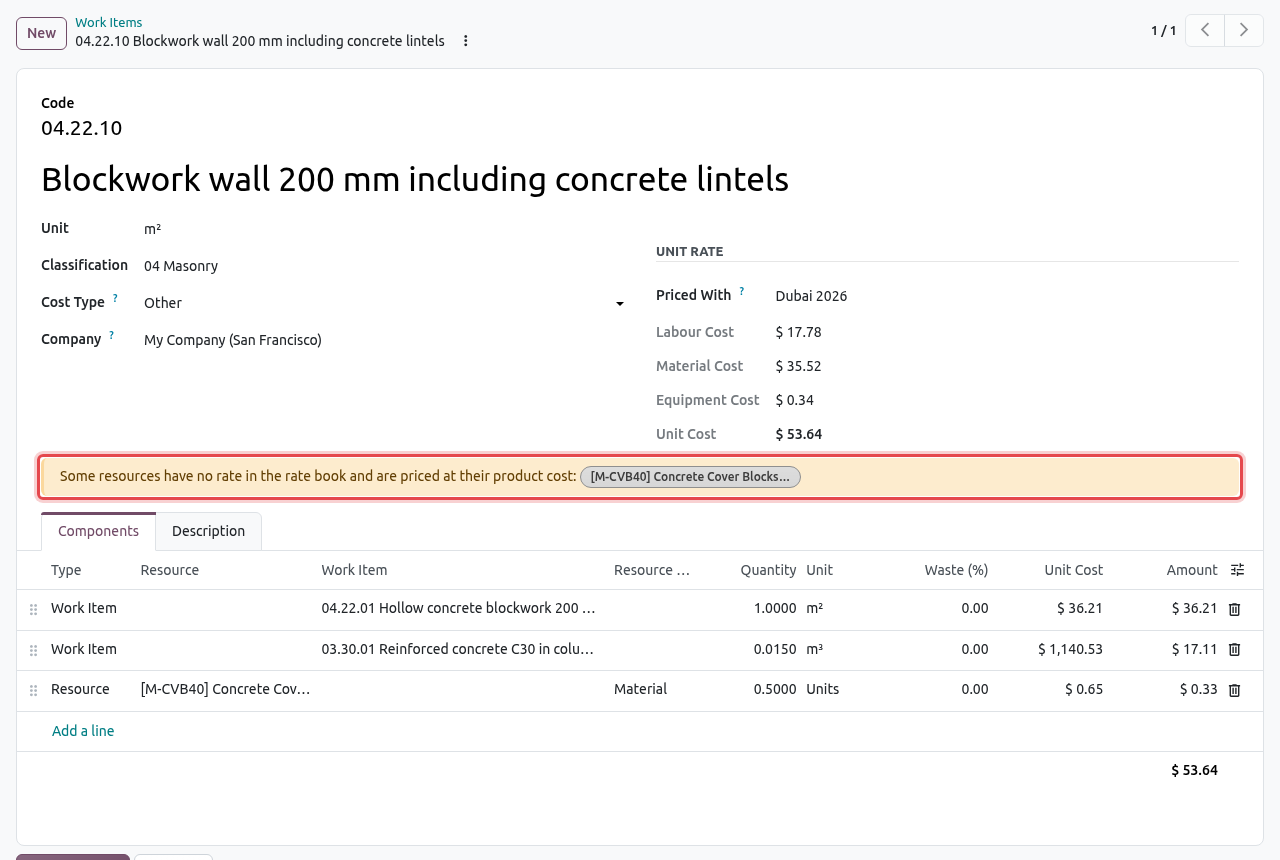
A work item made of two work items and one resource. The yellow banner warns that one resource has no rate in the rate book.
YELLOW BANNER: UNPRICED RESOURCES
Some resources have no rate in the rate book and are priced at their product cost means that neither the rate book nor its fallbacks price that resource, so Odoo used the Cost of the product. Add the resource to the rate book to get a reliable price. Estimates show the same problem as a warning in their BOQ check.
FIXED-RATE WORK ITEMS
If the rate book has a line of type Work Item for this work item, the blue banner The rate book prices this work item as a whole, so its components are not used appears and the unit cost is that fixed rate. This is handy for subcontracted items priced per m² by a specialist.
BLOCKED
A work item cannot contain itself, directly or through another work item. Odoo refuses with Work item … cannot contain itself, directly or through its components. A work item used inside another one cannot be deleted either; archive it instead.
TIP
Changing Priced With only changes the price shown on this screen. It does not change any estimate: each estimate prices its work items with its own rate book. Use the search filters With Components and Fixed Rate Only, or search a resource name to find all work items that use it.
Price Indices
A price index follows the change of construction prices over time (for example a national cost index published every quarter). In Odoo it is used to revise a rate book (see Revise rates).
Go to and click New.
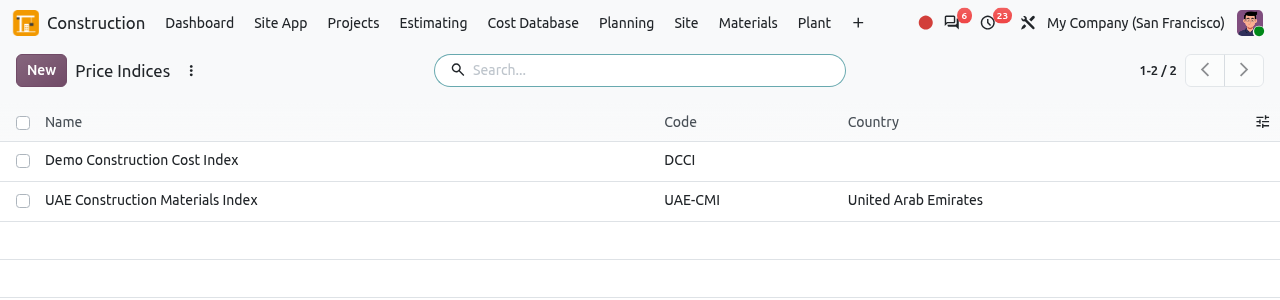
The list of price indices. Type the Name, an optional Code and Country, and a description (publisher, series). Then click Add a line for each published value: its Date and Value. Save.
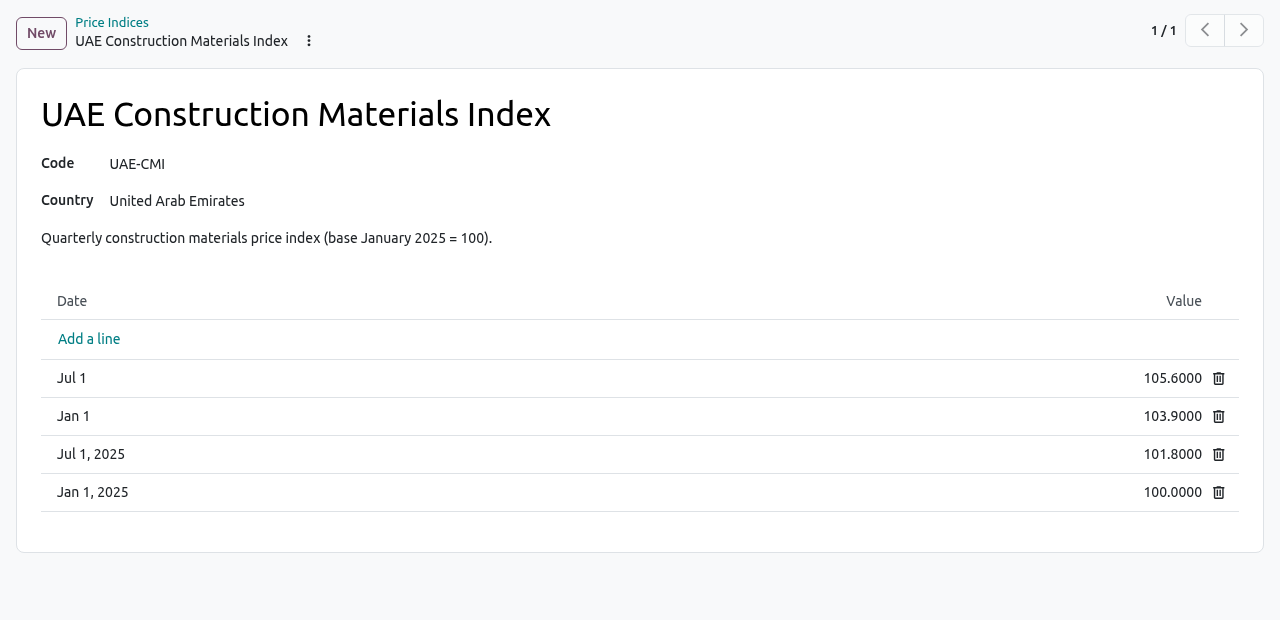
The UAE Construction Materials Index with one value every six months.
RULES
An index has only one value per date, and values must be positive. When revising a rate book, Odoo uses the latest value on or before each date; if there is none, it shows Price index '…' has no value on or before …. Enter the older values first.
Tips and common mistakes
- Use codes everywhere. Resource codes (Internal Reference) and work item codes make searching, importing and reading reports much easier.
- Quantities are per one unit. In a work item per m², type the hours or materials for one m², not for the whole job.
- Keep the units consistent. If the rate of a resource is per hour, a component in days is converted automatically; a component in kg for a resource in m³ is refused.
- Do not edit old rate books. Revise them, so that existing estimates keep their prices. Estimates are priced once and can be re-priced on purpose with the Reprice button (see Estimating).
- Archive instead of delete. Rate books, work items and price indices can be archived: open the record, click the ⋮ icon next to its name, then Archive. Use the Archived filter to find them again.