
Appearance
Inter-Company Contracts
Many construction groups have several companies in the same Odoo database: a main contractor, an MEP company, a developer... When one company of the group works for another, the same contract exists twice: as a cost contract in the company that buys the work and as a client contract in the company that does it. Odoo keeps the two in step for you: contracts, payment certificates, variations, invoices and purchases are mirrored automatically.
EXAMPLE USED IN THIS CHAPTER
The main contractor My Company (San Francisco) subcontracts MEP works to its sister company Gulf Crest MEP Contracting LLC. For the main contractor, Gulf Crest is a subcontractor (cost side). For Gulf Crest, the main contractor is the client (revenue side).
What is mirrored
| You do this in one company... | ...and Odoo does this in the other company |
|---|---|
| Activate a contract whose partner is another company of the database | Creates the same contract in the other direction (same BOQ, currency, dates, retention and advance terms) and activates it. If needed, it also creates the project in the other company. |
| Contractor (revenue side): Submit to Client on a draft payment certificate | Creates or updates the certificate of the client company with the same quantities, for certification. |
| Client (cost side): Certify the certificate (it may correct the quantities first) | Sends the certified quantities back to the contractor's certificate, which becomes Certified by the Client. |
| Contractor: posts the invoice of the certificate (or of the advance payment) | Creates the client's vendor bill, with the contractor's invoice number as reference. |
| Contractor: submits a variation or claim | Creates the same variation, submitted, in the client company. The client decides; its approval or rejection updates both contracts. |
| Confirm a purchase order to a group company | Creates the sales order in the supplying company (if it accepts sales orders from group purchases). |
The documents written in the other company are created by its inter-company user, never by a super-user, so the rights and the audit trail of each company are respected.
Settings (once per company)
An administrator does this once for each company of the group.
Create a technical user for each company (for example Group Sync (Main Contractor)), allowed in that company, with the group Construction Inter-Company User (in ).
Switch to the company (see Switch company), open and scroll to Group Companies:
Setting What to enter Inter-Company User The technical user of this company. It writes the documents mirrored into this company. Sales Orders from Group Purchases Ticked: a purchase order of another group company to this company creates the sales order here. Click Save.
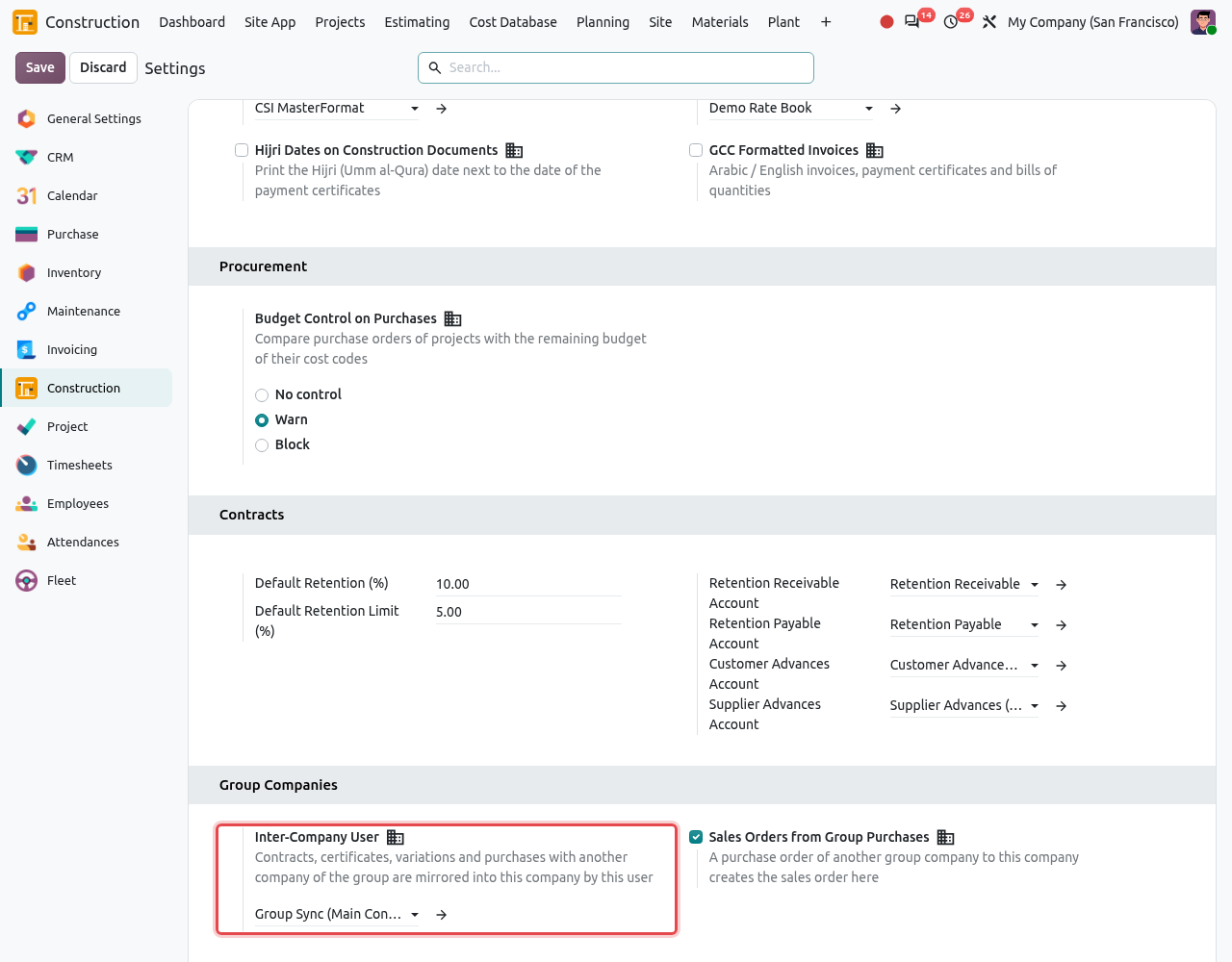
The Group Companies settings of My Company (San Francisco).
WARNING
Without an inter-company user in the other company, activating the contract stops with "Set the inter-company user of ... in the construction settings first." The user also needs the Construction Inter-Company User group and access to that company.
Switch company
Each company only sees its own records. The current company is shown at the top right of the screen.
Click the company name at the top right. The list of your companies opens.
Click the name of a company to switch to it. Tick the boxes instead to see several companies at the same time (the company of new records is the one shown first).
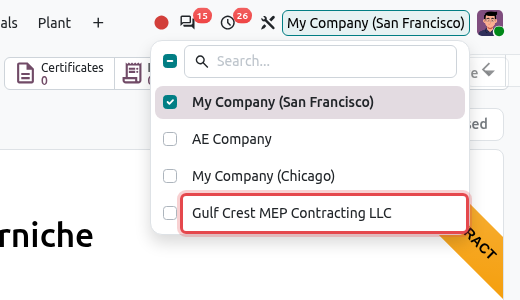
The company switcher. Click Gulf Crest MEP Contracting LLC to work in that company.
Create a contract with a group company
In this example the main contractor lets the temporary site power of the [CRT] Corniche Residential Tower project to Gulf Crest.
In My Company (San Francisco), open and click New. Fill in the contract as usual (see Contracts), with the group company as Client / Contractor: here Gulf Crest MEP Contracting LLC. Enter the BOQ items, the retention and the dates.
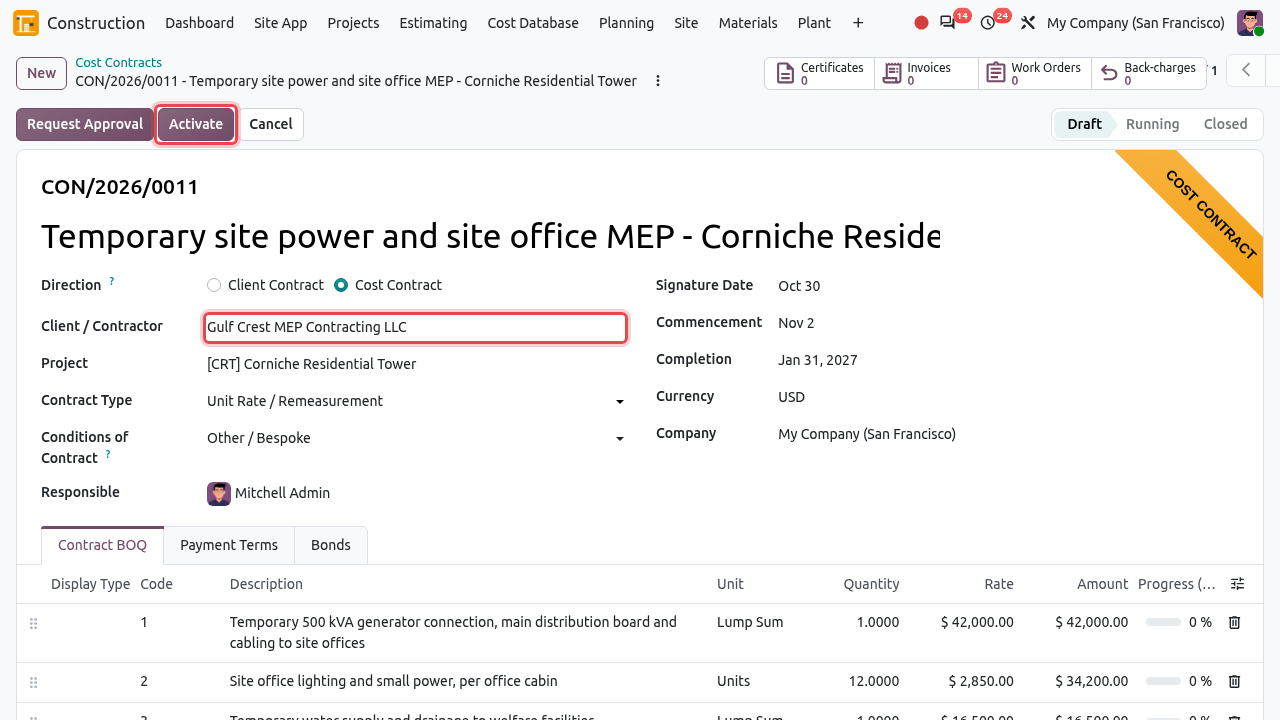
A draft cost contract with Gulf Crest MEP Contracting LLC. Get the approval if your company requires it, then click Activate. Odoo creates the mirror contract in Gulf Crest. The field Mirror Reference shows its number, and the chatter says where it was created.
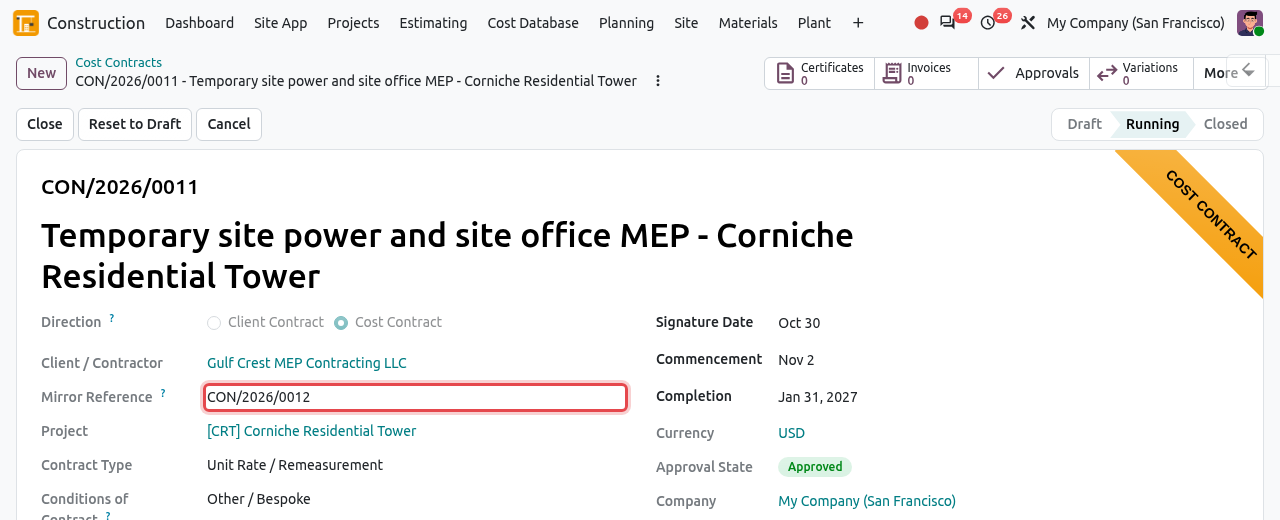
CON/2026/0011 is running; its mirror in Gulf Crest is CON/2026/0012. 
The chatter message. Switch to Gulf Crest MEP Contracting LLC and open . The mirror is a running Client Contract with the main contractor as client, the same items and terms, and a blue Group Company ribbon. Its Mirror Reference points back to CON/2026/0011.
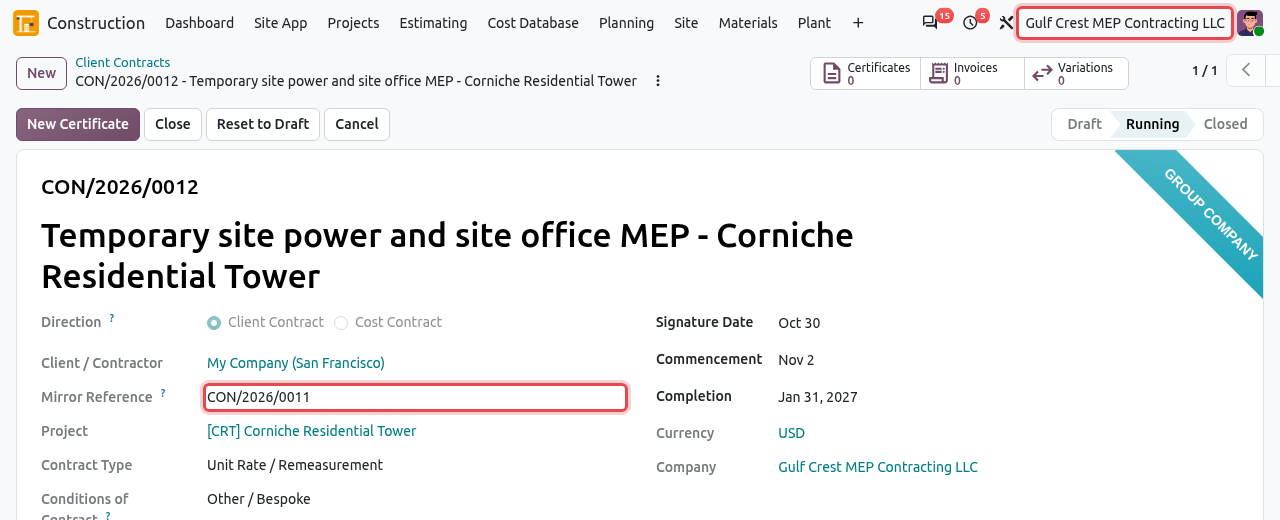
The mirror contract in Gulf Crest. The current company is shown at the top right.
WHO STARTS THE DOCUMENTS
Certificates and advance invoices always start on the contractor side (the client contract). On the cost contract of the client company, New Certificate and the advance invoice button are hidden; if someone tries anyway, Odoo answers "... certifies and invoices: its documents come here automatically."
Payment certificates between group companies
Contractor: draft→Submitted to the Client→Client certifies→Certified by the Client→Contractor invoices→Client bill
Contractor (Gulf Crest): create the payment certificate from the client contract with New Certificate and enter the quantities to date, as for any certificate (see Payment Certificates). Then click Submit to Client. The certificate shows a blue banner and Client Certification = Submitted to the Client. Its quantities are locked: they will come back from the client.
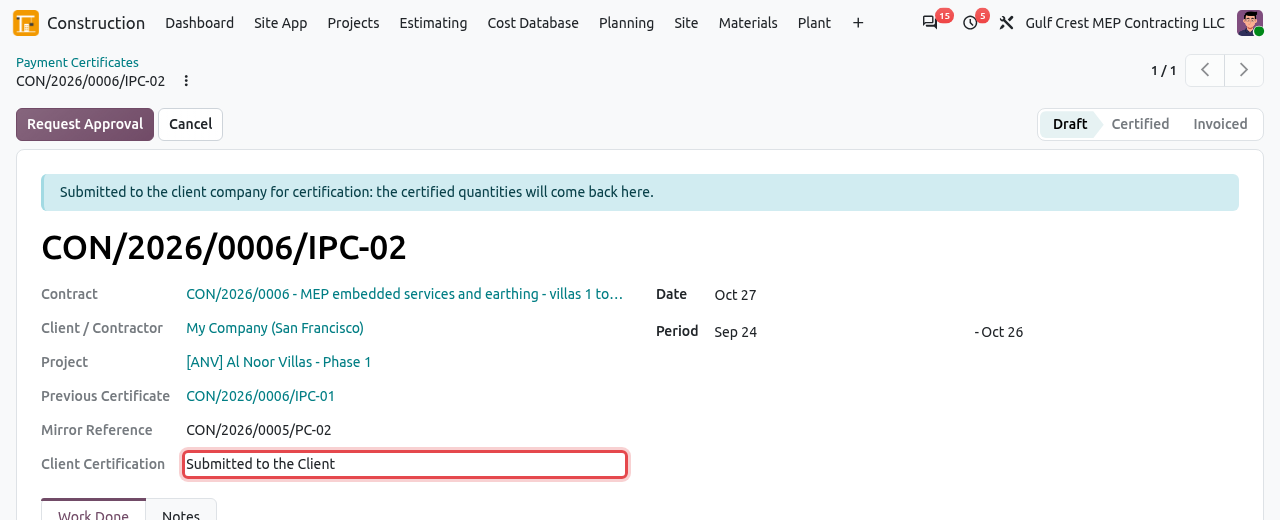
CON/2026/0006/IPC-02 of Gulf Crest, waiting for the client company. Client (My Company): the matching certificate is ready on the cost contract, with the Mirror Reference of the contractor's certificate and the same quantities. The QS checks them, corrects them if needed, and clicks Certify (after approval if required).
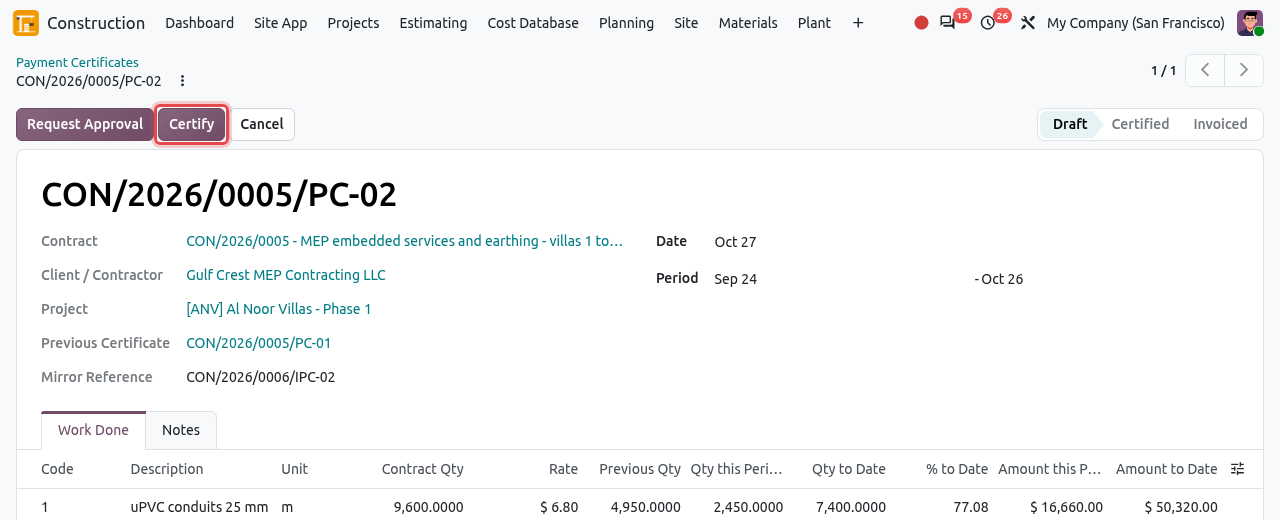
CON/2026/0005/PC-02 of the main contractor, ready to be certified. Contractor: the certified quantities arrive on its certificate, which shows Certified by the Client. Gulf Crest can now certify its own certificate, create the invoice and post it. The client cannot certify for the contractor: the contractor's Certify button stays hidden until the client has certified.
Client: when the contractor posts its invoice, Odoo creates the vendor bill of the client certificate, with the invoice number as reference. The client's Create Bill button is hidden for inter-company certificates.
CORRECTIONS
- The contractor cannot edit the quantities of a certificate submitted to the client ("The certificate is with the client for certification...").
- To correct a certificate already certified by the client, the client resets it to draft first; then the contractor can submit again.
- Cancelling a submitted contractor certificate also cancels the client's draft copy.
Variations between group companies
Contractor (Gulf Crest): create the variation on the client contract and click Submit (see Variations). Odoo creates the same variation, submitted, in the client company. On the contractor side the Approve and Reject buttons are hidden: the client decides.
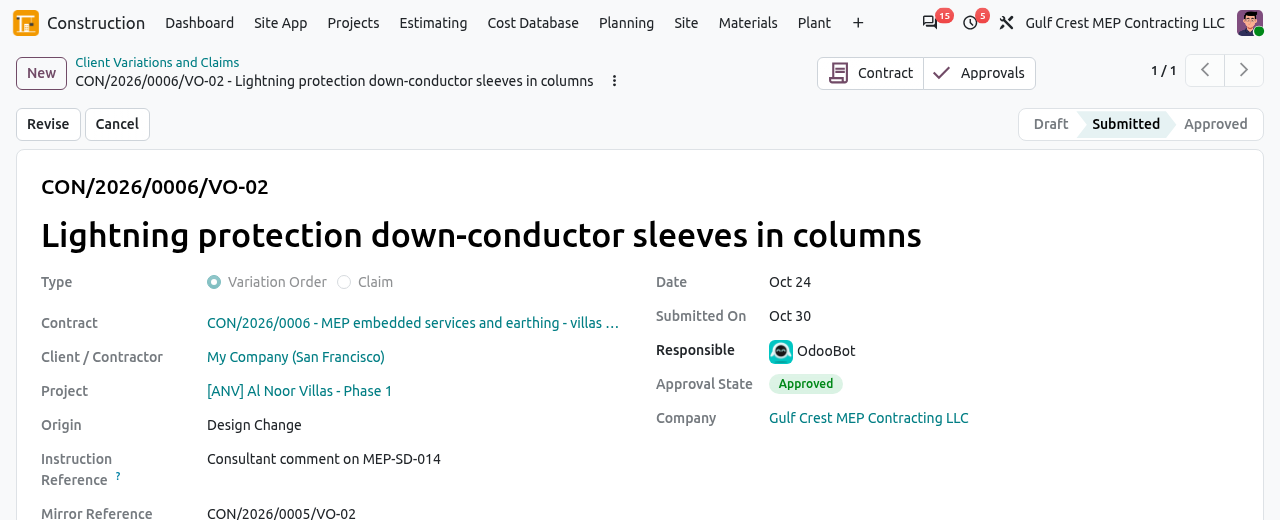
VO-02 in Gulf Crest: only Revise and Cancel are available. Client (My Company): open the variation in and click Record Approval (or Rejected). The decision is copied to the contractor's variation and both contracts are revised with the same new items.
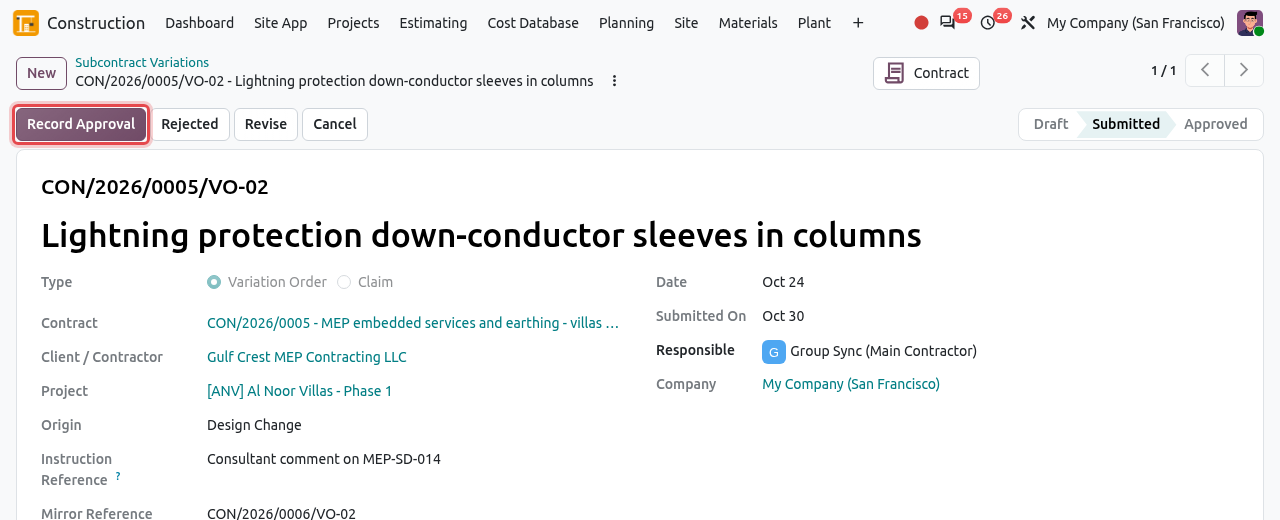
The same variation in the main contractor, ready for the decision.
If the contractor revises a submitted or rejected variation and submits it again, the client's copy is updated.
Purchases from a group company
When you confirm a purchase order (for example materials from ) to a group company that accepts Sales Orders from Group Purchases, Odoo creates the sales order in that company, with your purchase order number as customer reference. The chatter of the purchase order gives the sales order number. The sales team of the other company then confirms and delivers it as usual.

WARNING
The products of the order must be shared between the companies (no company set on the product, or the supplying company). Otherwise the confirmation stops with "These products are not shared with ...".
REPORTING
Invoices and bills between group companies are flagged Group Company so that they can be left out of consolidated figures.