
Appearance
Plant: Register, Allocations, Logs and Certificates
The Plant menu manages your construction equipment: cranes, excavators, pumps, generators... owned or rented-in. You register each machine with its hire rates and hour meter, send it to a project (allocation), record its daily hours and fuel (plant log), keep its certificates up to date and follow its maintenance. The hire of owned plant is charged to the projects automatically.
WHERE AND WHO
Menu: , with five sub-menus: Plant Register, Plant Allocations, Plant Logs, Plant Certificates and Maintenance Requests.
Users: the Plant Manager registers plant, allocates it and manages certificates and maintenance (the Maintenance Requests menu is only for plant managers); the Plant Operator records the plant logs, also from the Site App.
Plant Register
The plant register is the list of your construction plant. It uses the Equipment records of the Maintenance app, with extra construction information.
Go to . Each machine shows its category, serial number, ownership, current project, hour meter and hire rate. A machine shown in red has an expired certificate. Click New to register a machine.
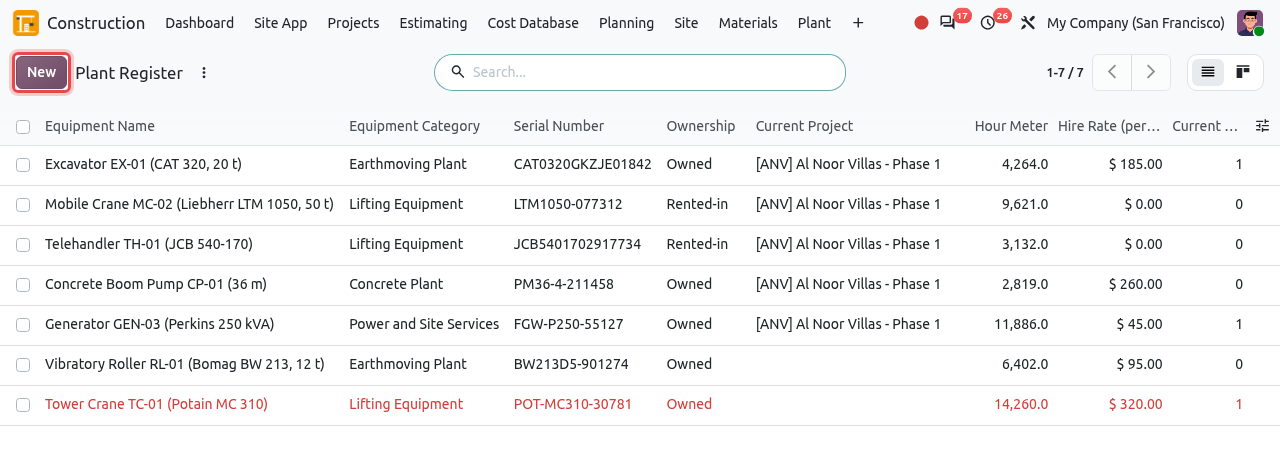
The plant register. The tower crane is red: one of its certificates is expired. Type the Name (for example Vibratory Plate Compactor PC-04 (Wacker DPU 6555)), choose the Equipment Category, the Maintenance Team and the Technician. Construction Plant is already ticked when you create from this menu: it shows the Construction tab.
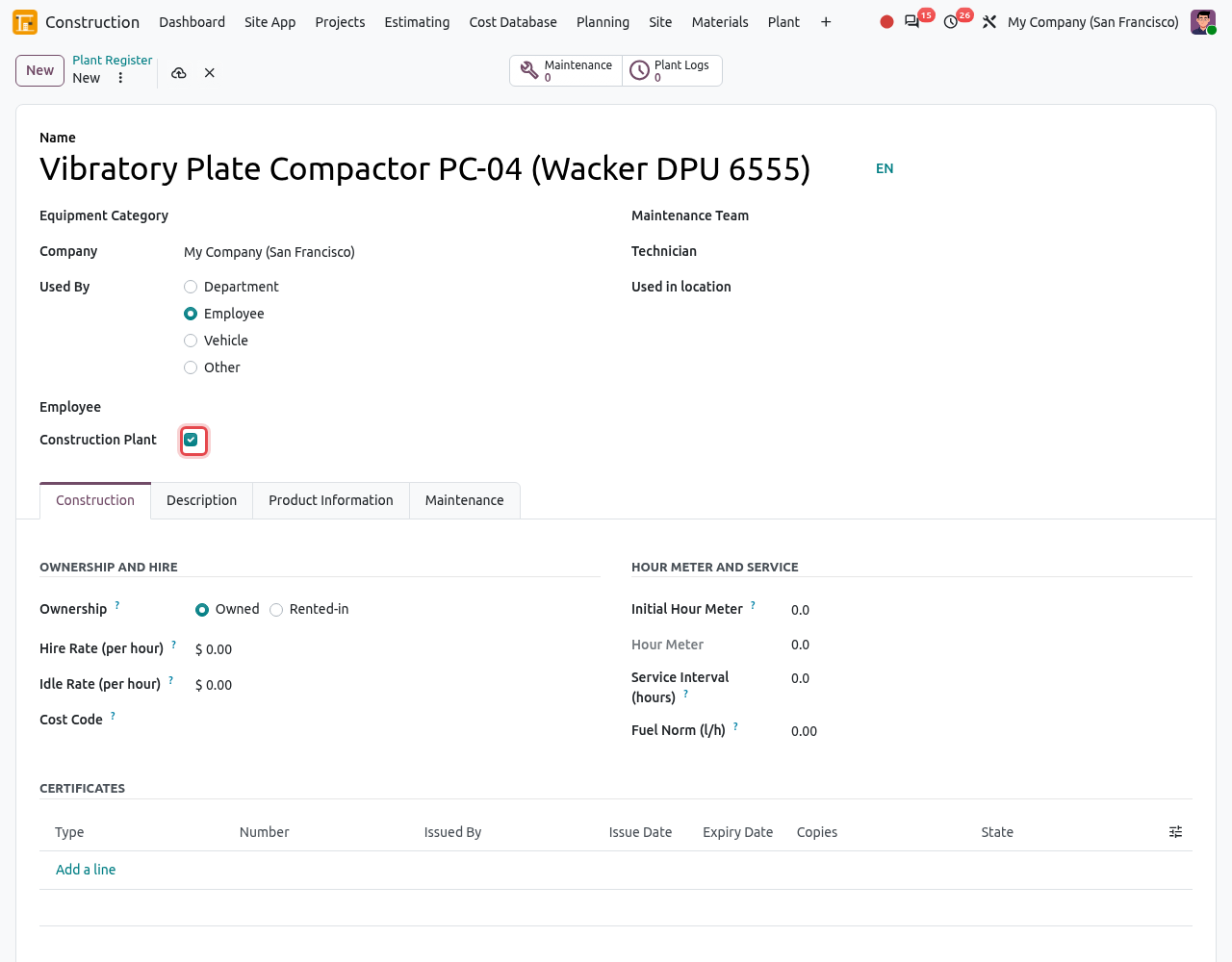
A new machine: Construction Plant is ticked (framed) and the Construction tab is open. Fill in the Construction tab:
Field What to enter Ownership Owned: your plant, hired internally to the projects. Rented-in: plant rented from a supplier, costed by the supplier's bills. Hire Rate (per hour) Owned plant: the internal hire charged to the project for each hour worked. Idle Rate (per hour) Owned plant: the charge for each hour on site without work (standby). Off-hire Date Rented-in plant: end of the rental. A week before, the responsible person gets a reminder to off-hire it or extend the rental. Cost Code Optional. The cost code of the hire charges; by default the plant cost code. Initial Hour Meter The hour meter reading when you register the machine. The Hour Meter then adds the hours of the confirmed logs. Service Interval (hours) A preventive service every so many working hours (for example 250). Odoo shows the Next Service at (hours). Fuel Norm (l/h) Expected fuel consumption per working hour. Plant logs more than 10% above the norm are flagged. Add the machine's certificates in the Certificates list of the same tab (see Plant Certificates). The Allocations list shows the projects the machine went to. Save.
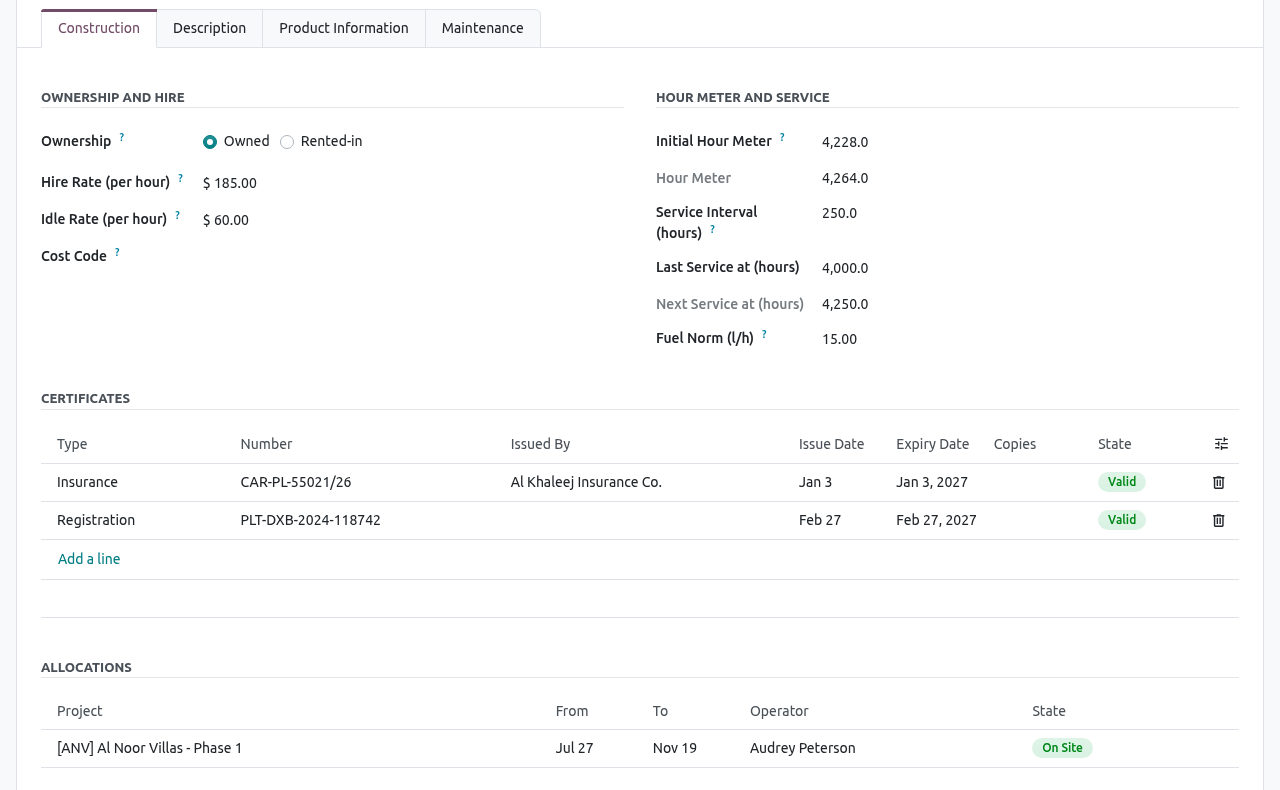
The Construction tab of the excavator: owned, $185/h worked, $60/h idle, service every 250 hours, its certificates and its allocation.
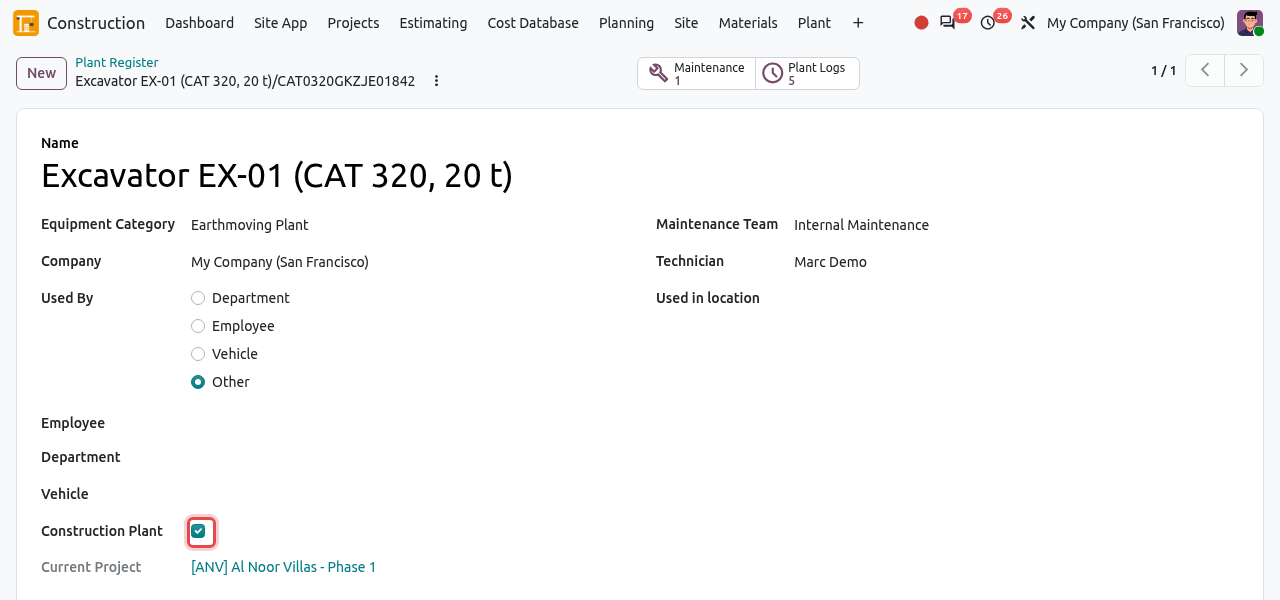
The top of the form shows the Current Project (where the machine is now) and two smart buttons: Maintenance (its maintenance requests) and Plant Logs.
Plant Allocations
An allocation sends a machine to a project, from its arrival (mobilisation) to its return. While a machine is On Site, it is proposed in the plant logs and the daily reports of that project.
Planned→On Site→Returned
Go to . By default only the plant On Site is listed; remove the filter to see all. Click New.
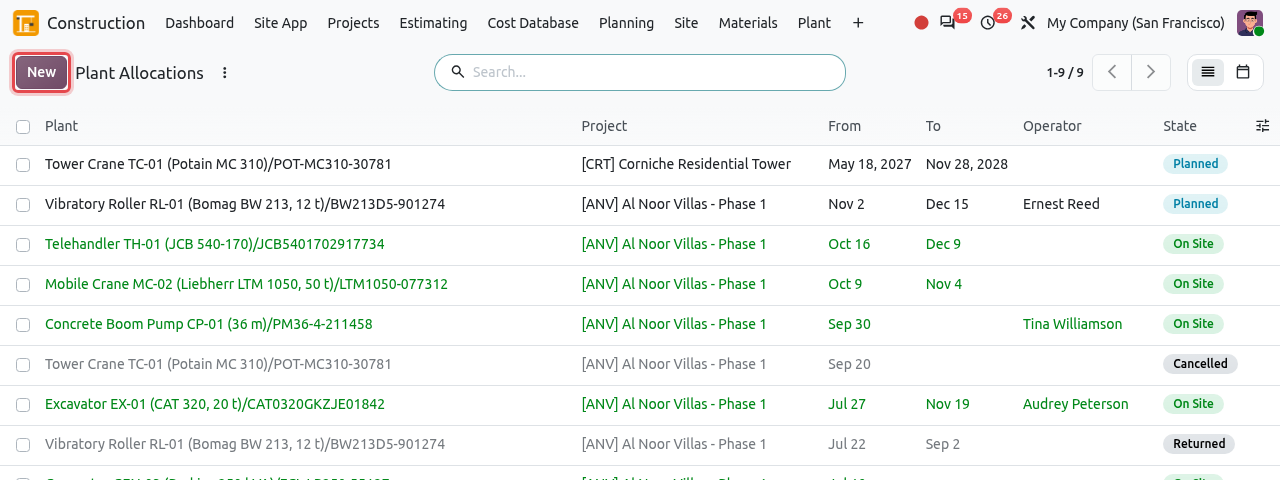
All the allocations, with their stage. Choose the Plant, the Project, the Operator, the dates From and To (planned return), and write the conditions (transport, operator...) in the note. Save: the allocation is Planned.
When the machine arrives on site, click Mobilise. The stage becomes On Site and the machine's Current Project is updated.
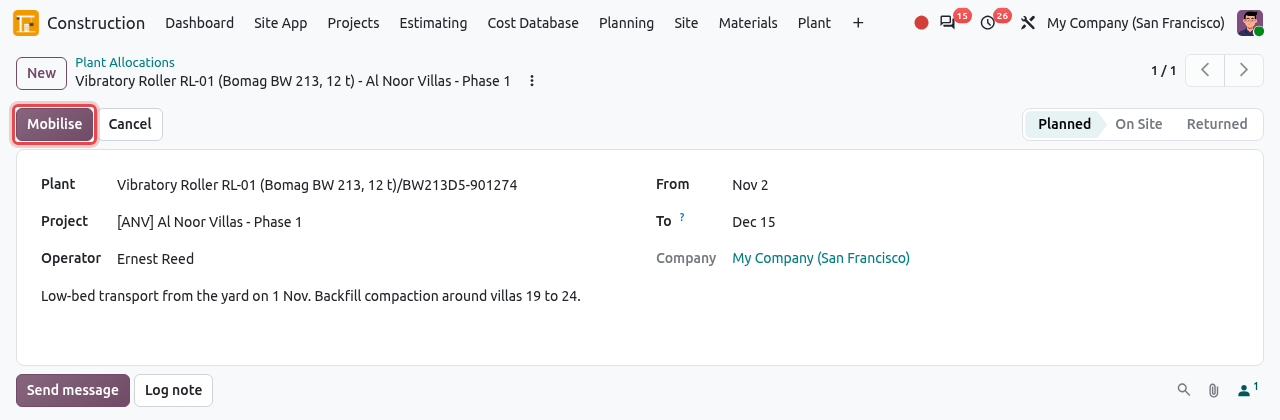
A planned allocation of the roller to Al Noor Villas: Mobilise is framed. 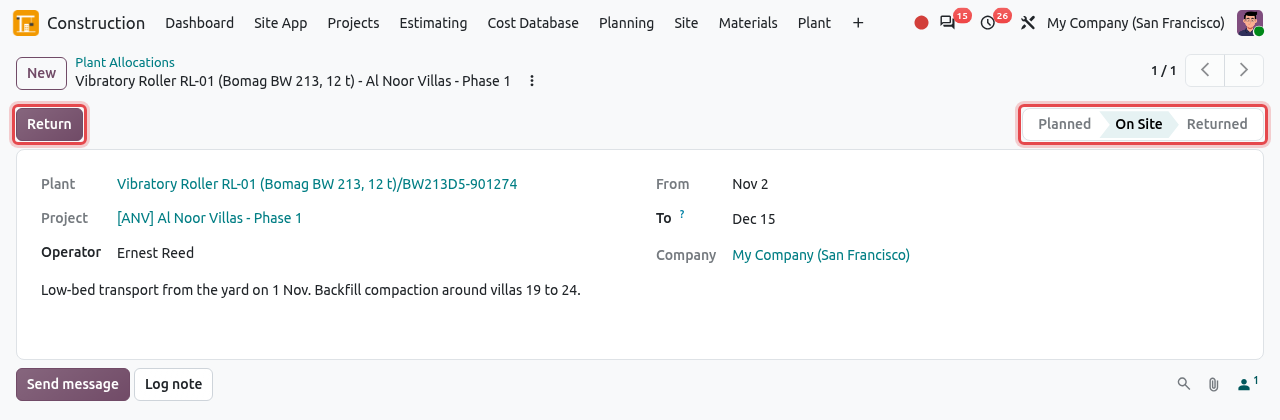
After Mobilise: the roller is On Site. Return is framed. When the machine leaves the project, click Return. The stage becomes Returned and the To date is set to today. A planned allocation that will not happen can be cancelled with Cancel.
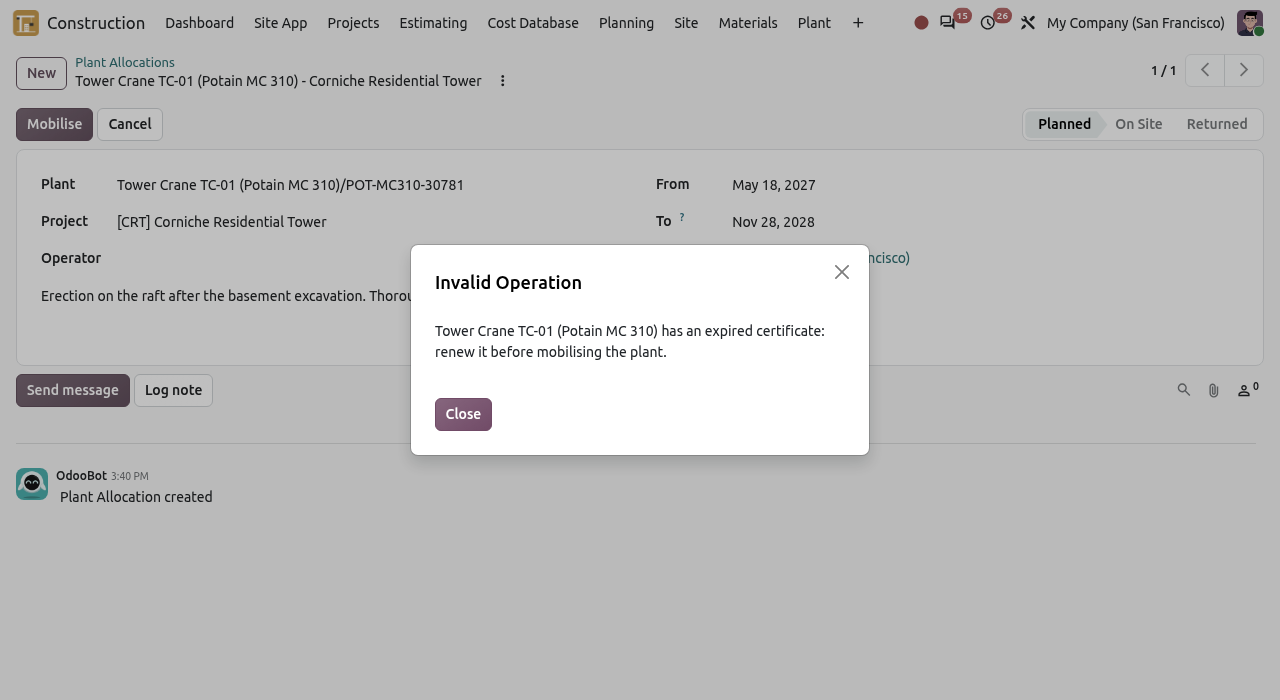
MOBILISATION IS BLOCKED WHEN
- a certificate of the machine is expired: "... has an expired certificate: renew it before mobilising the plant." Record the renewed certificate first.
- the machine is still on another project: "... is still on ...: return it first." Return it from its current allocation first.
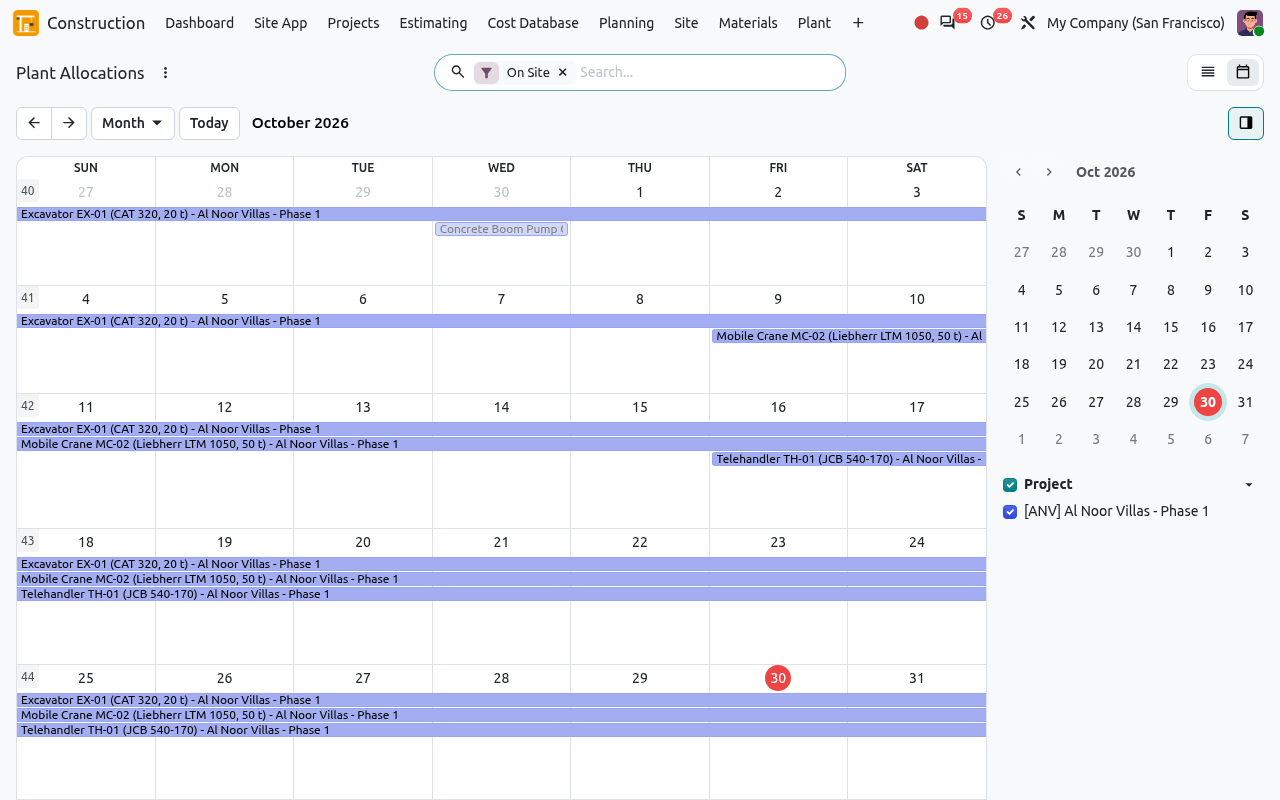
Switch to the Calendar view (button at the top right) to see which machine is where, month by month.
Plant Logs
A plant log records one day of use of a machine on a project: hours worked, idle and broken down, the hour meter and the fuel. Logs come from three places:
- the Plant tab of an approved daily site report (created and confirmed automatically);
- the Plant Log screen of the Site App (confirmed at once);
- this menu, by hand (below).
Draft→Confirmed
Go to and click New.
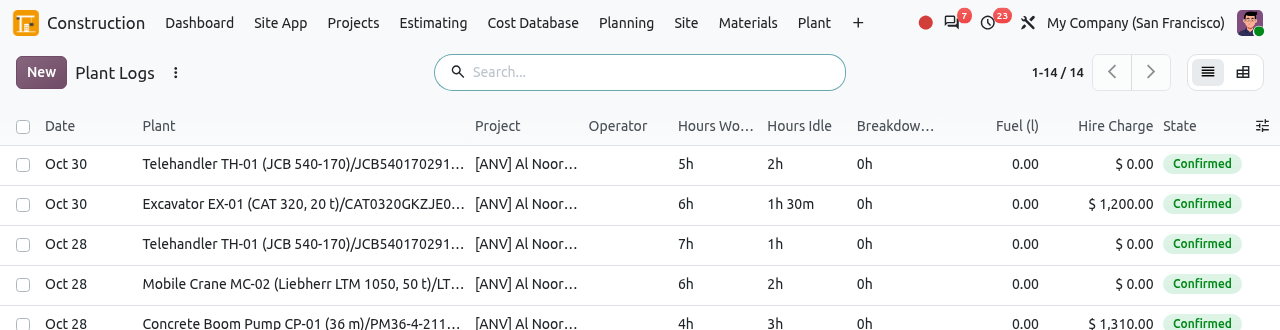
The list of plant logs, with the hours, fuel and hire charge. Draft logs are grey; logs over the fuel norm are red. Choose the Plant: the Project is filled in with its current project. Set the Date, the Operator and the Activity. Type the Hours Worked, Hours Idle, Breakdown Hours, the Meter Reading at the end of the day, the Fuel (l) and a note (work done, cause of a breakdown).
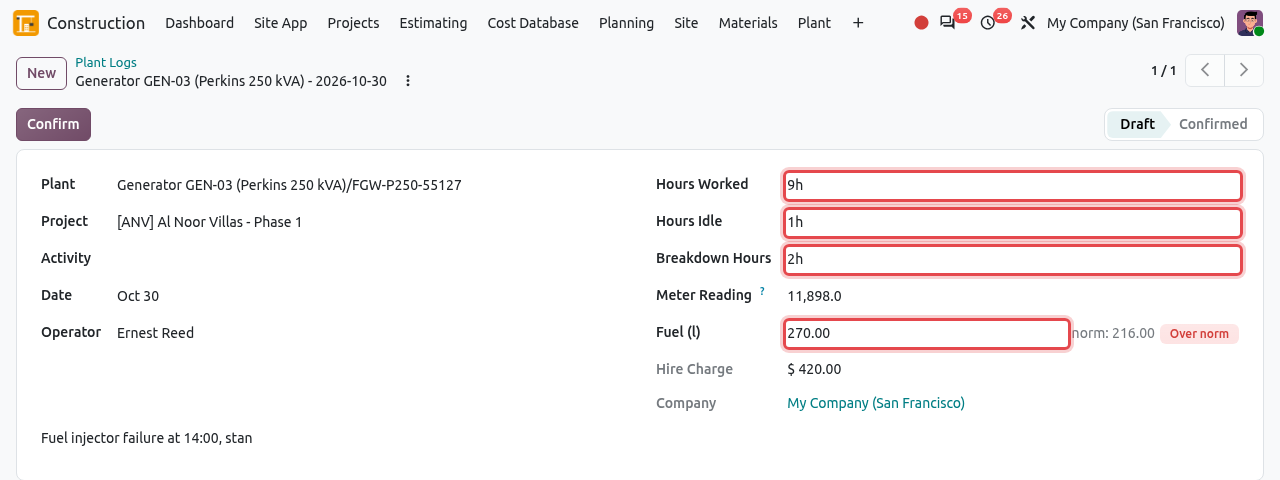
A draft log of the generator: 9 h worked, 1 h idle, 2 h breakdown. 270 l of fuel is over the norm of 216 l. Odoo shows the fuel norm (hours worked × fuel norm of the machine) and an Over norm badge when the fuel is more than 10% above it. For owned plant, the Hire Charge = hours worked × hire rate + hours idle × idle rate.
Click Confirm. The stage becomes Confirmed.
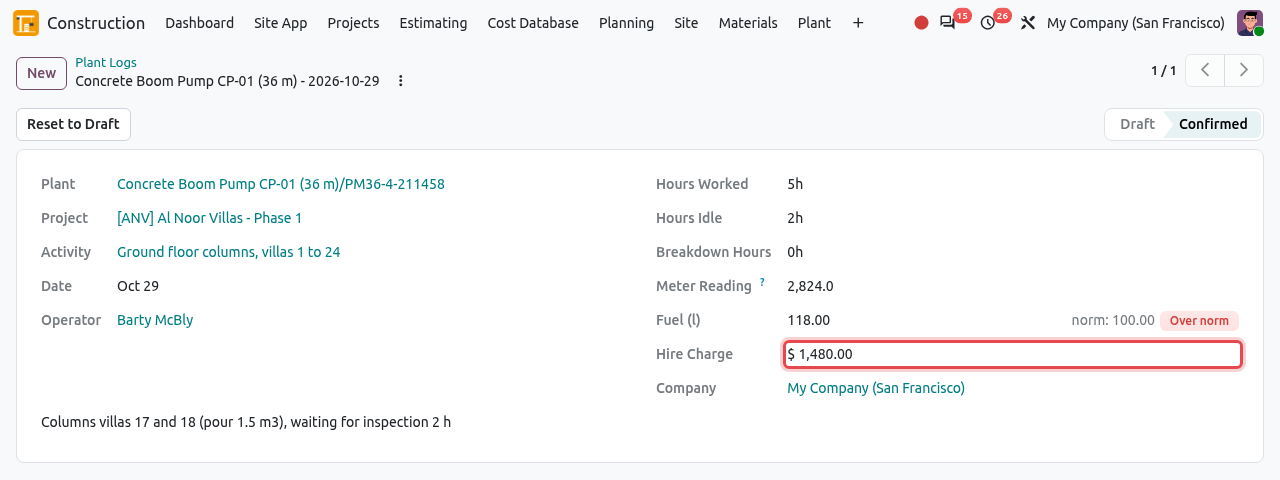
A confirmed log of the concrete pump: 5 h × $260 + 2 h × $90 = $1,480 charged to the project.
What the confirmation does
| Effect | Details |
|---|---|
| Hire charge | For owned plant, the hire charge becomes an actual cost of the project, on the plant cost code (see Cost Control). Rented-in plant has no hire charge: its cost comes from the supplier's bills. |
| Hour meter | The hours worked are added to the machine's Hour Meter. |
| Preventive service | When the hour meter reaches the Next Service at (hours), a preventive maintenance request "...: service due at ... hours" is opened. |
| Breakdown | When the log has breakdown hours, a corrective maintenance request "Breakdown of ... on ..." is opened (unless one is already open for the machine). |
CHANGING A CONFIRMED LOG
A confirmed log cannot be changed. A plant manager can click Reset to Draft, which removes its hire charge; correct it and confirm it again. Logs created by a daily report cannot be reset here: reset the daily report instead. A day has 24 hours: worked + idle + breakdown hours cannot exceed 24.
Plant utilisation report
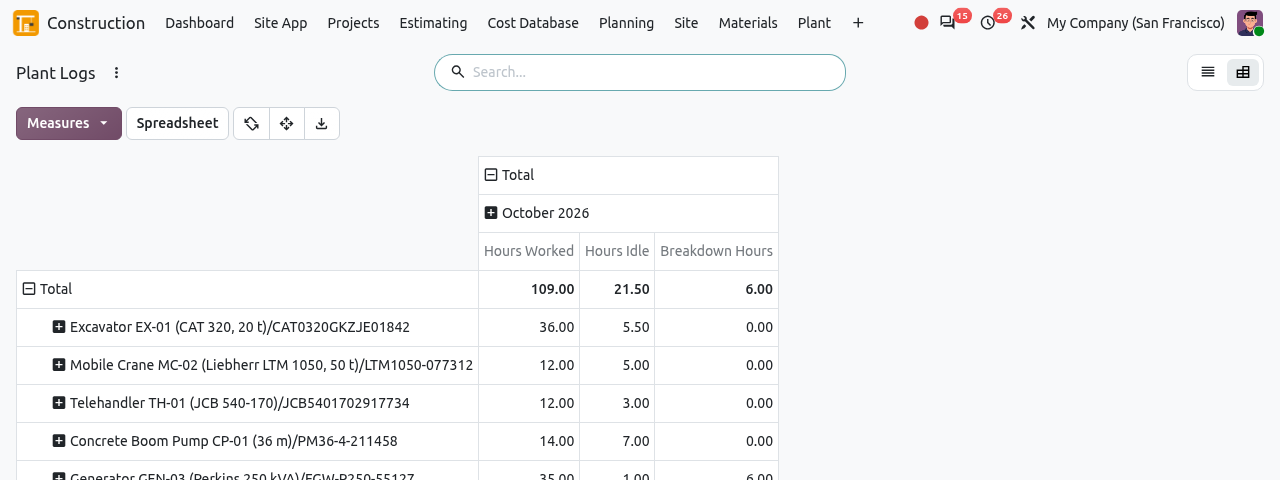
Switch the Plant Logs list to the Pivot view to see the hours worked, idle and broken down per machine and per month. Use the Breakdowns filter to list only the logs with breakdown hours, or group by Project.
Plant Certificates
Many machines need valid certificates to work on site: third-party inspection of lifting equipment, registration, insurance, calibration, operator licence. Odoo follows their expiry dates.
Go to . The list is sorted by expiry date. The State is computed from the expiry date:
- Valid (green): expires in more than 30 days, or has no expiry date;
- Expiring Soon (orange): expires within 30 days;
- Expired (red): the expiry date is past. The machine cannot be mobilised.
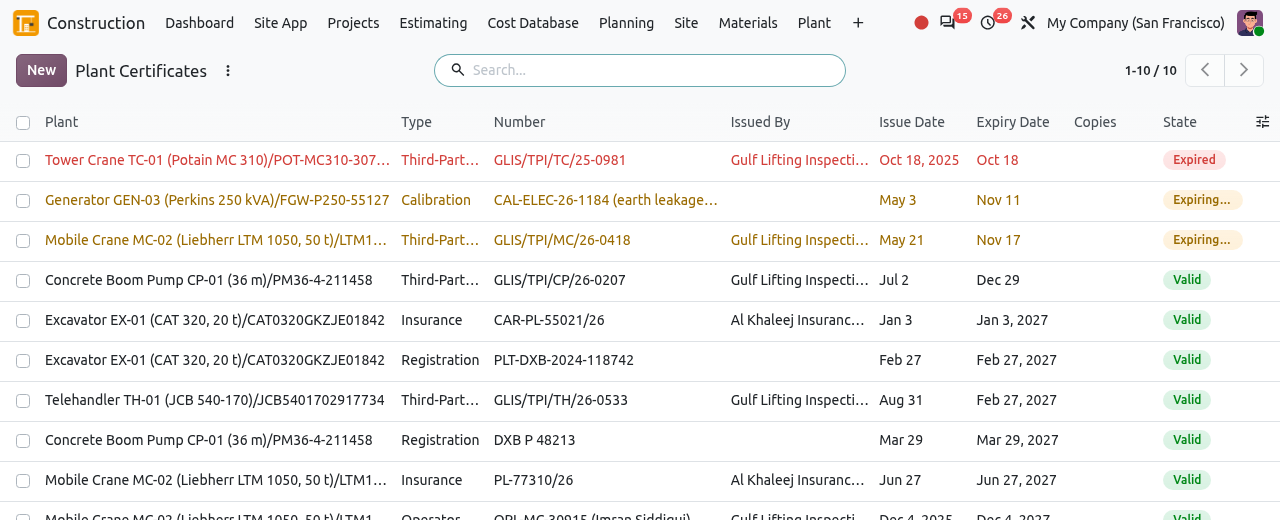
The tower crane's inspection is expired; two certificates expire within 30 days. To add a certificate, click New: a new line opens in the list. Choose the Plant, the Type, type the certificate Number, choose who issued it (Issued By), the Issue Date and the Expiry Date, and upload a scan in Copies. Save. You can also add certificates from the Construction tab of the machine.
When a certificate is renewed, add the new certificate as a new line (keep the old one as history), or update the number and the expiry date of the existing line.
REMINDERS
Every day, Odoo creates a to-do activity for the technician (or the owner) of each machine whose certificate expires within 30 days. Use the Expiring Soon and Expired filters to follow them, and the Certificate Issue filter of the Plant Register to find the machines concerned.
Maintenance Requests
opens the requests of the Maintenance app (plant managers only). Besides the requests created by hand, the plant logs create two kinds automatically: preventive requests when a service is due, and corrective requests when a machine breaks down.
Open the menu. The requests are shown by stage: New Request, In Progress, Repaired, Scrap. Drag a card to another column to change its stage.
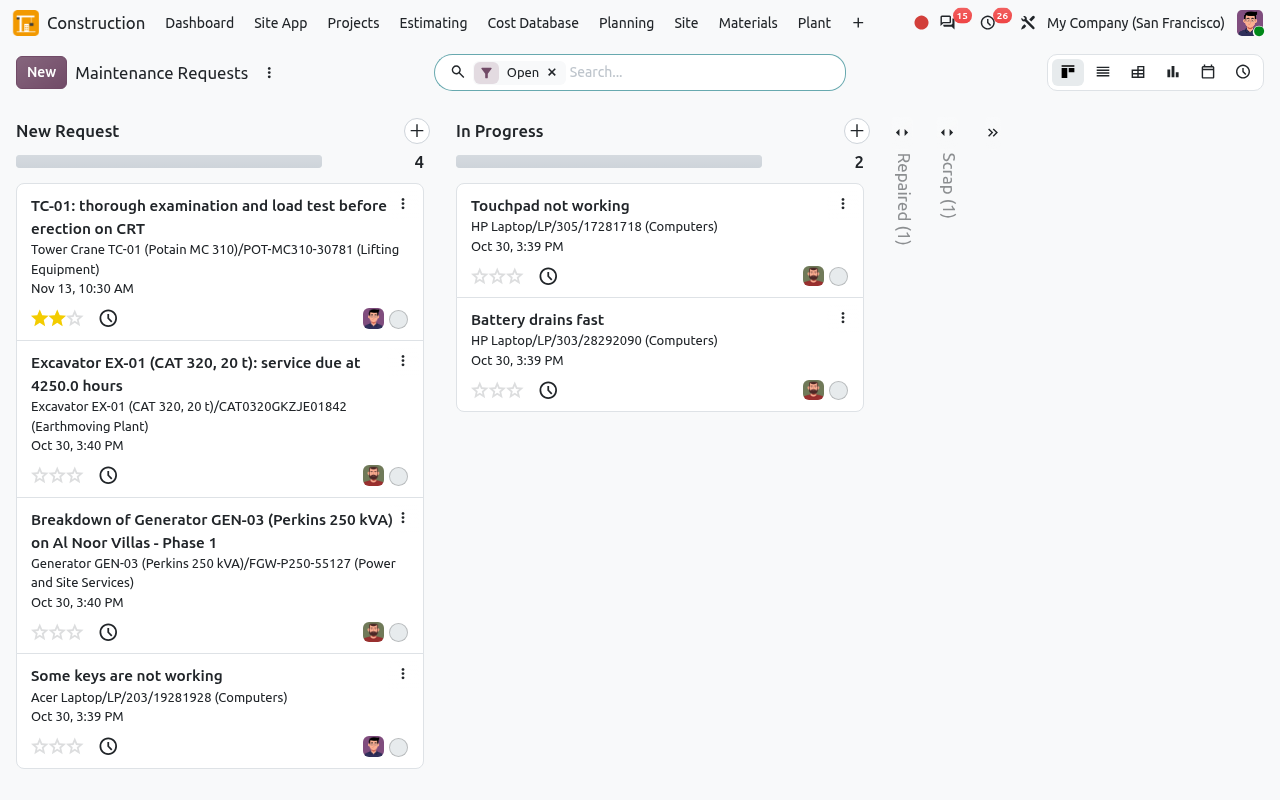
Open maintenance requests: a load test of the tower crane, a service due on the excavator and a generator breakdown created by a plant log. Open a request to see the machine, the type (Corrective or Preventive), the team, the person assigned and the planned date. Write what was done in the Notes tab.
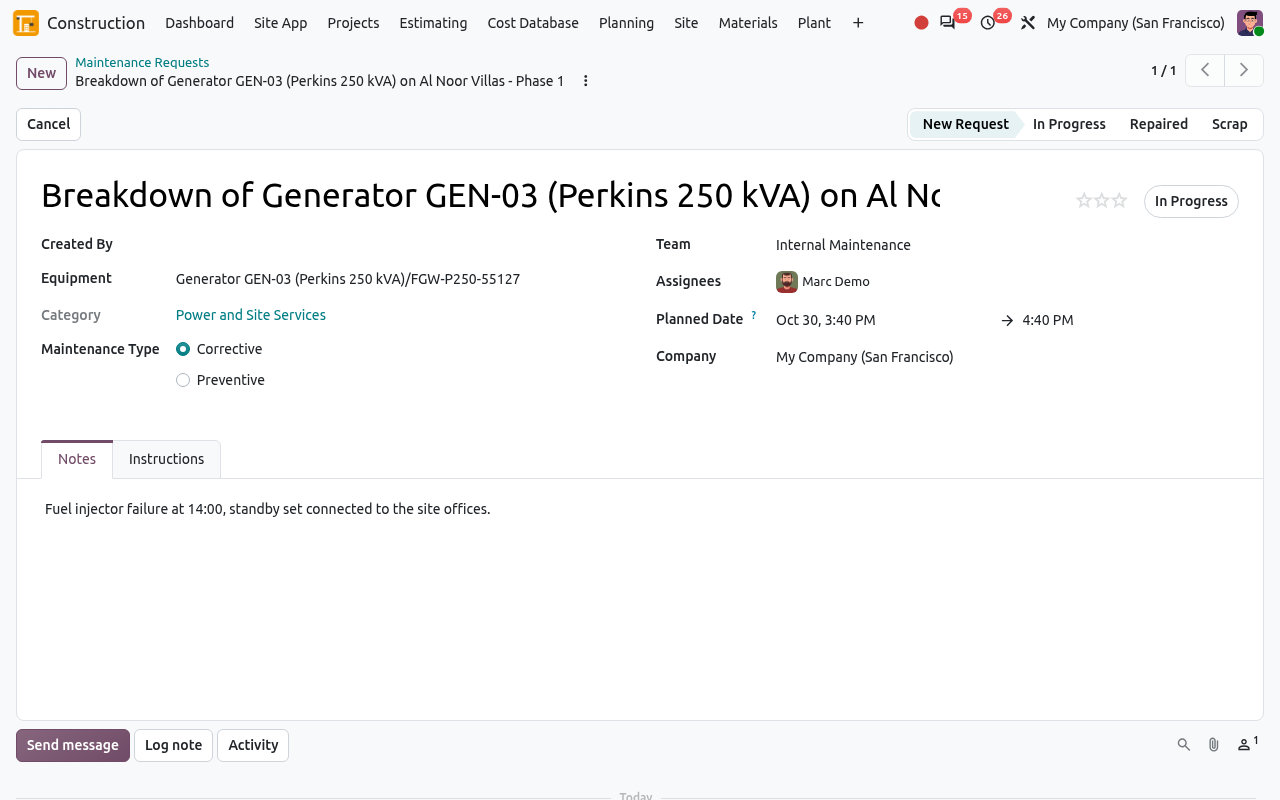
The breakdown request of the generator. When the work is finished, move the request to the Repaired stage, and set its state to Done with the round state button next to the title (it shows In Progress). When a preventive request of construction plant is marked Done, the machine's Last Service at (hours) is set to its current hour meter, so the next service is counted from now.