
Appearance
Site: Daily Reports, Delays and Crews
The Site menu is the site diary of your projects. Every working day, the site team writes a Daily Site Report: who was on site, what work was done, which plant was used, the weather and anything that happened (delays, visits, inspections). Once a manager approves the report, Odoo updates the progress of the schedule, records the labour hours as timesheets and logs the plant hours.
WHERE AND WHO
Menu: , with three sub-menus: Daily Site Reports, Delay and Event Log and Crews.
Users: the Site Supervisor / Foreman and the Site Engineer write the reports; the Site Manager or the Project Manager approves them. On a phone or tablet, the same report can be written in the Site App.
Daily Site Reports
A daily site report (also called a site diary or daily log) is one record per project and per day. If a big project has several work fronts, you can write one report per Area (for example Tower B or Villas 19 to 24).
A report goes through three stages:
Draft→Submitted→Approved
- Draft: the site team fills in the report. It can be changed freely.
- Submitted: the report is finished and waits for approval. It can no longer be changed.
- Approved: the manager checked it. The work done, labour hours and plant hours are now taken into account by the rest of the system.
Create a daily report
Go to . The list shows the latest reports first, with the manpower, man-hours, hours lost and the stage. Click New.
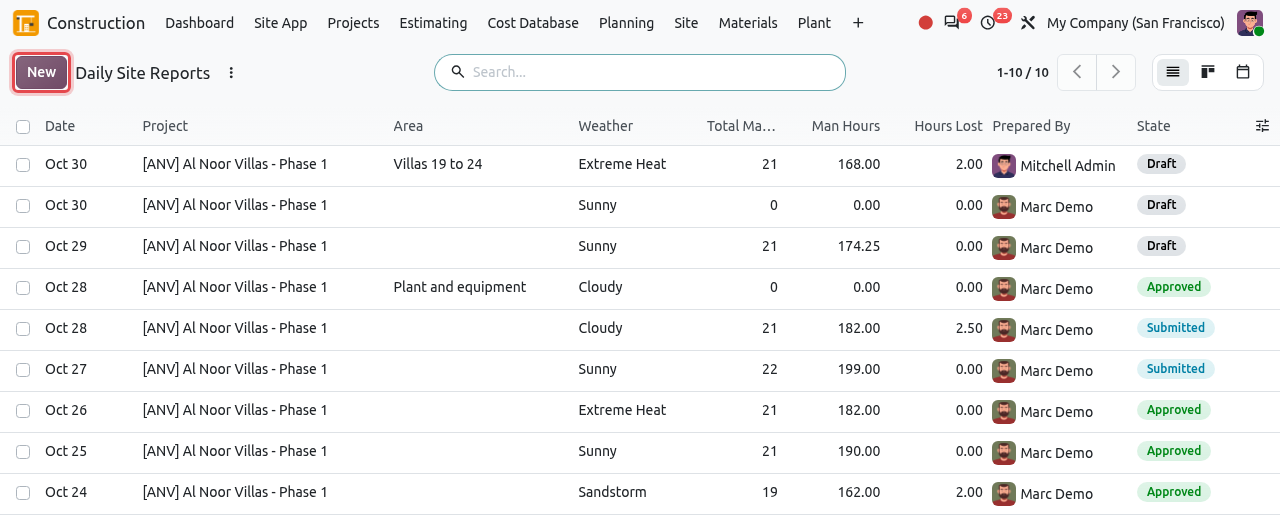
The list of daily site reports. The New button is framed. Choose the Project in the big field at the top. The Date is today by default; change it if you write the report of another day. If the project has several work fronts, type the Area.
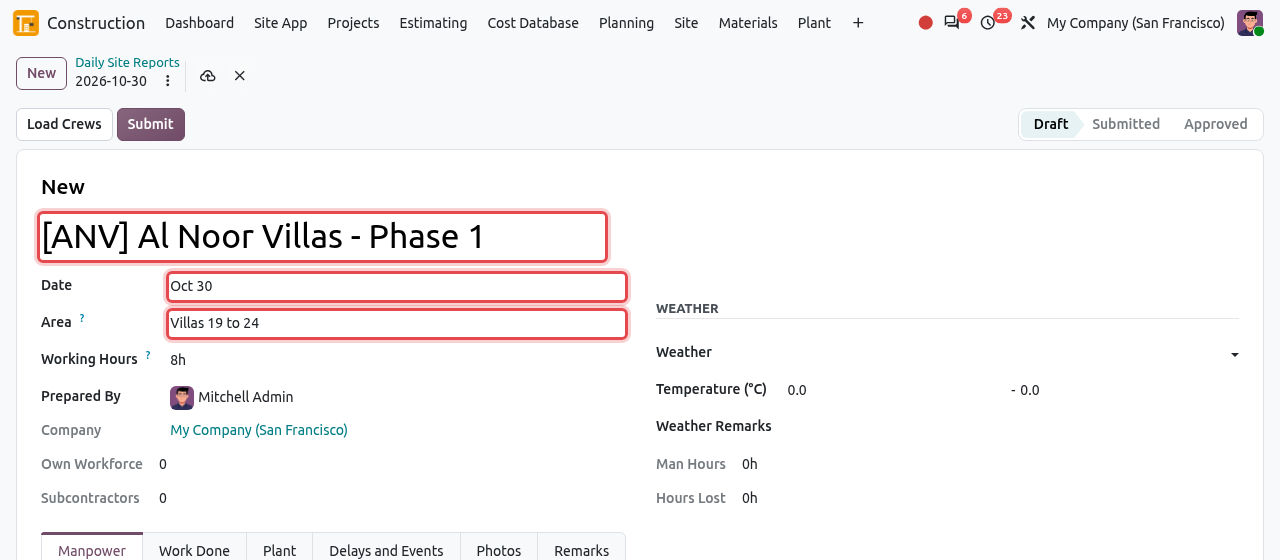
A new report: project, date and area are filled in. Field What to enter Project The construction project. Only construction projects are listed. Date The day the report is about (default: today). Area Optional. Building, zone or work front, when the project has several reports a day. Working Hours The normal hours of the day (default 8:00). Odoo proposes them for each worker. Prepared By You, by default. Weather, Temperature (°C), Weather Remarks Sunny, Rain, Sandstorm, Extreme Heat... the minimum and maximum temperatures, and any remark (for example a midday break in summer). Fill in the tabs in the lower half of the form, as explained below: Manpower, Work Done, Plant, Delays and Events, Photos and Remarks. The totals above the tabs (Own Workforce, Subcontractors, Man Hours, Hours Lost) are calculated automatically.
ONE REPORT PER DAY AND AREA
A project can have only one report per day for the same area. If you try to create a second one, Odoo shows the message "... already has a report on ... for this area." Open the existing report instead, or type a different Area.
Manpower tab
The Manpower tab lists who worked on site: your own workers one by one, and the subcontractor crews by headcount.
Click Load Crews. Odoo adds every member of the project's crews: your own workers with their usual activity and the normal working hours, and each subcontractor crew with its usual headcount. If a worker checked in that day (for example with Crew Attendance in the Site App), the Attendance hours are filled in and used as the hours worked.
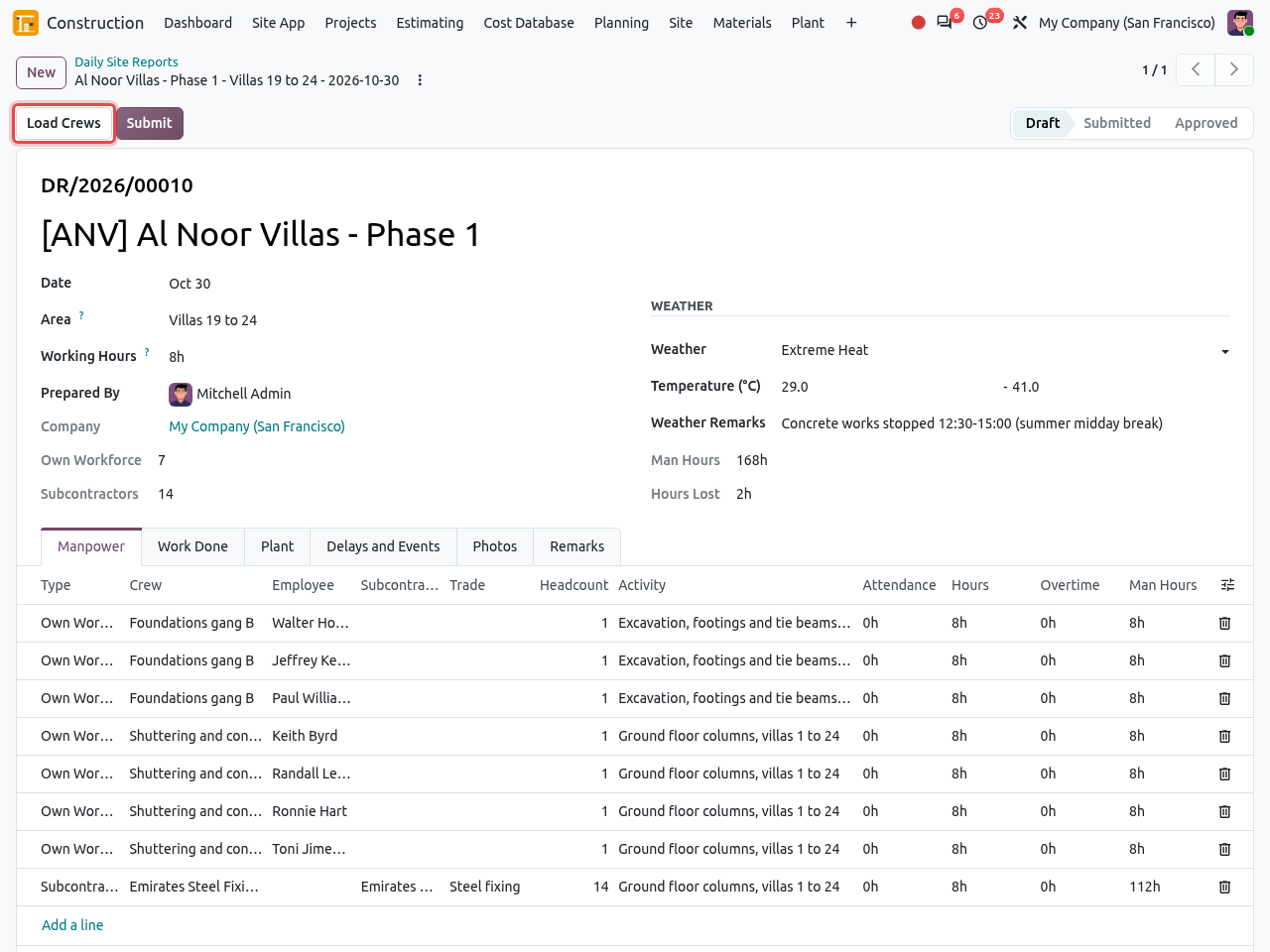
The Manpower tab after clicking Load Crews (framed): seven own workers and one subcontractor crew of 14. Correct the lines if needed: change the Activity a worker was on, the Hours and the Overtime. Click the bin icon to remove a worker who was absent. Click Add a line to add a worker or a subcontractor who is not in a crew.
Column What it means Type Own Workforce (choose the Employee) or Subcontractor (choose the Subcontractor company and type the Headcount). Activity The schedule activity (task) the people worked on. Hours / Overtime Normal and overtime hours of the day. Man Hours = headcount × (hours + overtime). Cost Code (hidden column) Optional. The cost code of the hours; by default the labour cost code.
Work Done tab
Here you record the progress of each activity of the schedule. This is what moves the progress bar of the Planning.
Open the Work Done tab and click Add a line. Choose the Activity and type the Location (level, zone, grid).
Enter the progress:
- if the activity has a Planned Quantity (for example 12 t of steel), type the quantity Done Today;
- if it has no planned quantity, type the Progress to Date (%): the total progress of the activity after today, not the progress of the day.

0.8 t done today on the first floor slabs (planned 12 t), and 90% reached on the excavation of villas 13 to 24.
Plant tab
Open the Plant tab and add one line per machine. For your registered plant, choose it in Registered Plant: its name is filled in for you. For any other machine (for example a hired water tanker), leave Registered Plant empty and type its name in Plant.
Type the Hours Worked, Hours Idle (on site but not working) and Breakdown Hours, and optionally the Activity and a Note.

Two registered machines and one hired water tanker.
TIP
Always choose the Registered Plant when the machine is in the Plant Register: when the report is approved, Odoo creates and confirms a Plant Log for it, which moves its hour meter and charges its hire to the project.
Delays and Events tab
Open the Delays and Events tab and add one line per event. Choose the Type (Delay, Site Instruction, Inspection, Visitor, Delivery, Safety, Other) and describe what happened.
For a delay, choose the Responsible Party (Client / Engineer, Contractor, Subcontractor, Weather, Authority / Utility, Other), the Activity affected and the Hours Lost.

A delay caused by the consultant (2 hours lost) and a client visit.
WHY IT MATTERS
Delays recorded day by day, with the party responsible, are your evidence for an extension of time claim. They are all listed in the Delay and Event Log.
Photos and Remarks tabs
In the Photos tab, click Photos to upload pictures of the day. In the Remarks tab, write general remarks, instructions received, or the plan for tomorrow.

Submit and approve the report
When the report is complete, click Submit. The stage becomes Submitted and the report can no longer be changed.
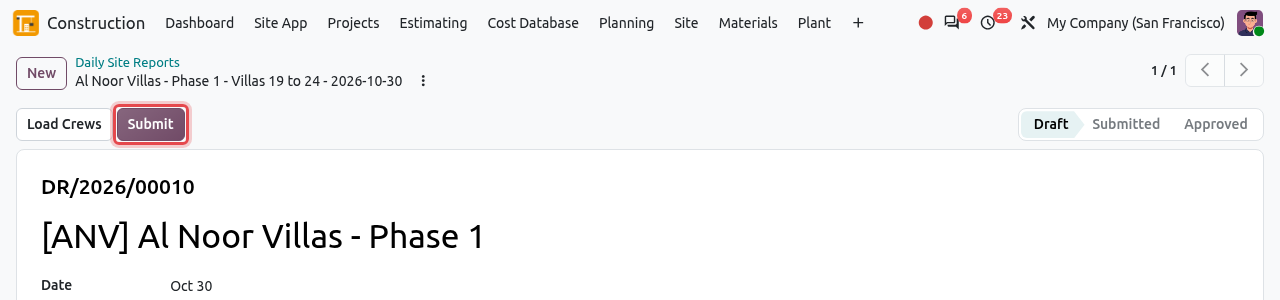
A draft report: the Submit button is framed. The site manager or project manager finds the reports waiting for approval with the To Approve filter of the search bar.
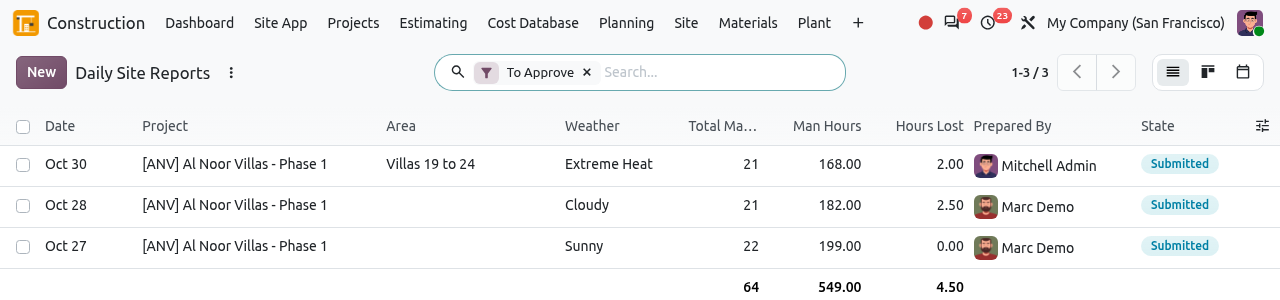
The To Approve filter lists the submitted reports. The manager opens the report, checks it and clicks Approve.
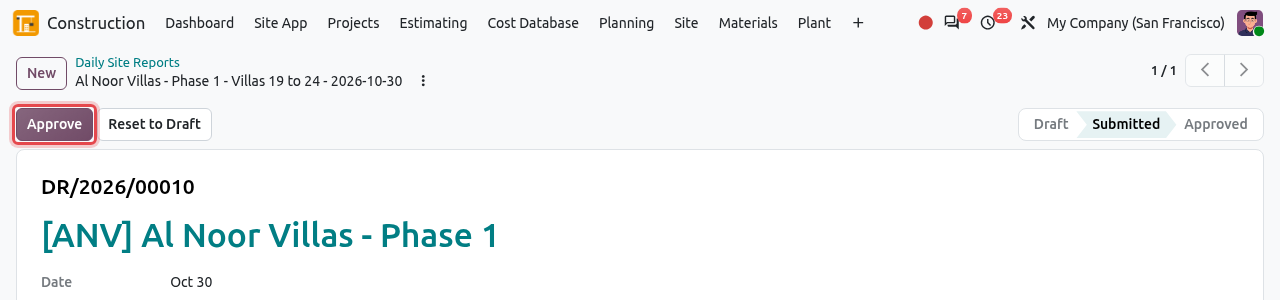
A submitted report: the Approve button is framed. The stage becomes Approved and Approved By shows the manager. A new Timesheets tab lists the hours of your own workers.
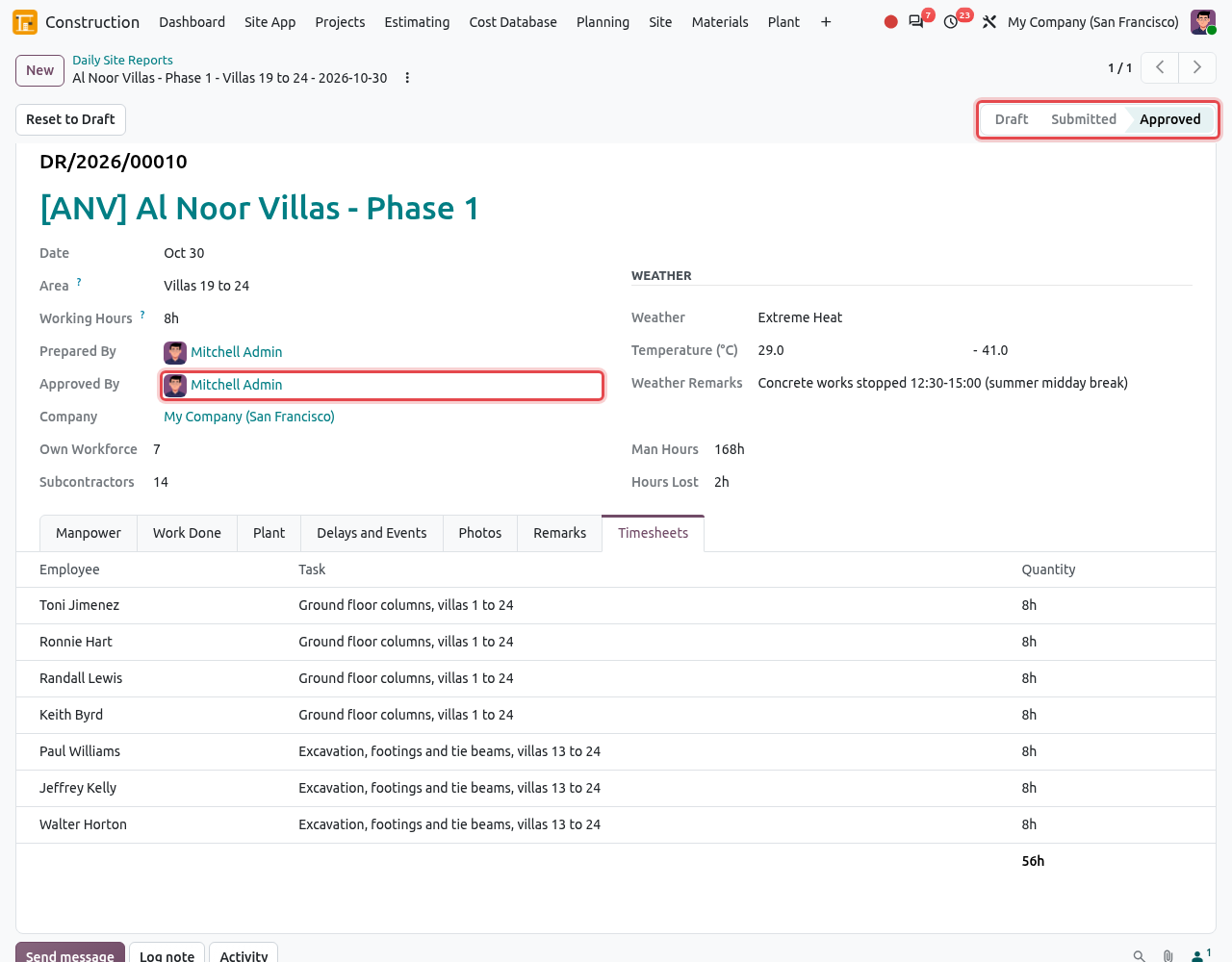
The approved report and its timesheets.
What the approval does
| Part of the report | Effect of the approval | Where to see it |
|---|---|---|
| Work Done | The Progress (%) of each activity is recalculated from all its approved reports: quantity done ÷ planned quantity, or the last percentage reported. | The activity in , tab Planning |
| Manpower (own workers) | One timesheet per worker, on the project and the labour cost code. Their cost becomes an actual cost of the project. | The Timesheets tab of the report; Cost Control |
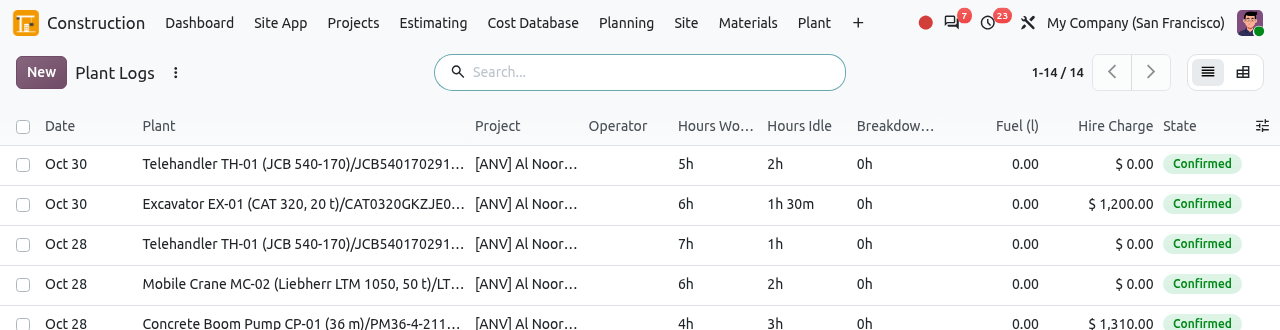
| Plant (registered) | One confirmed plant log per machine: the hour meter moves and the internal hire is charged to the project. |
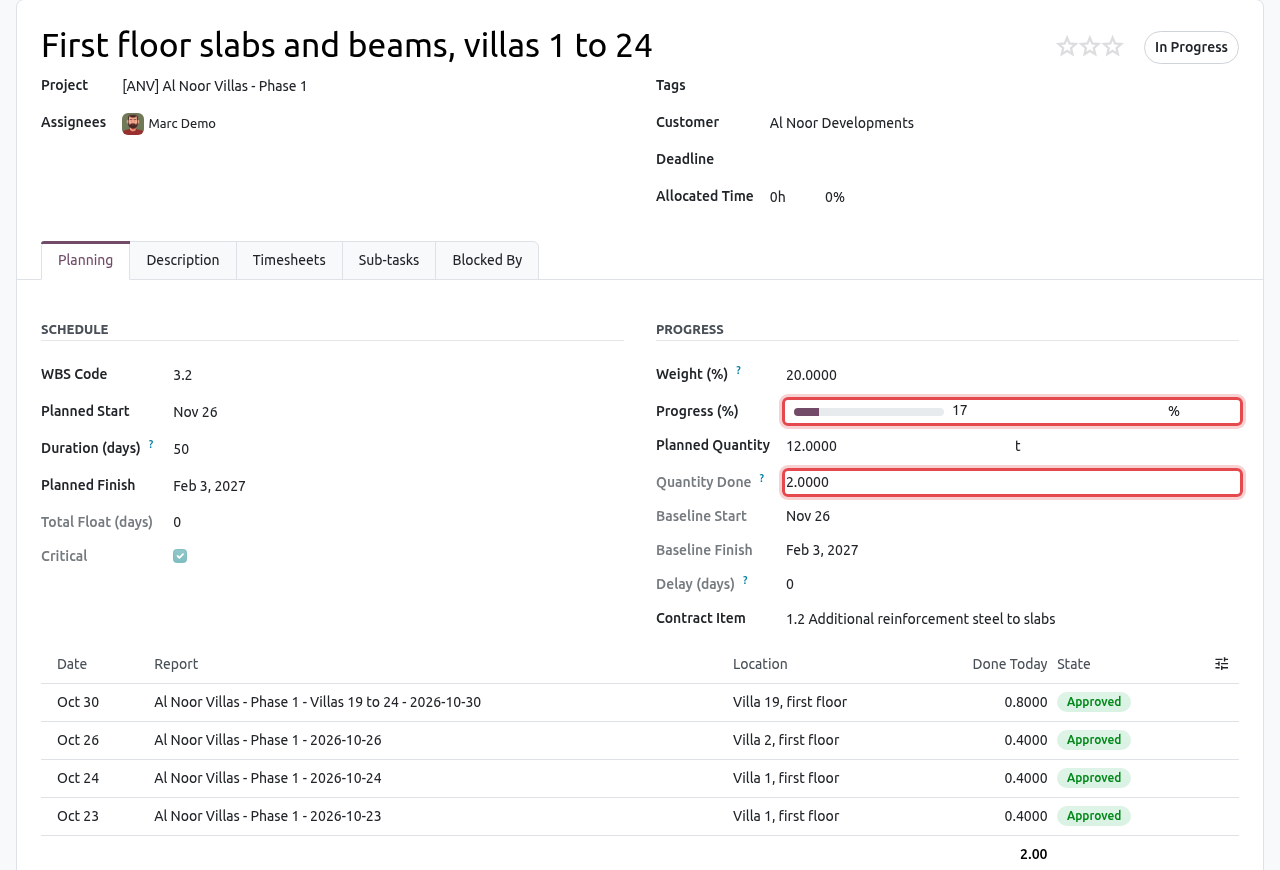
CORRECTING AN APPROVED REPORT
Click Reset to Draft to reopen a submitted or approved report. For an approved report, Odoo removes its timesheets and plant logs, and the progress of its activities goes back to the previous reports. Correct the report, then submit and approve it again. An approved report cannot be deleted: reset it to draft first.
Calendar and reminders
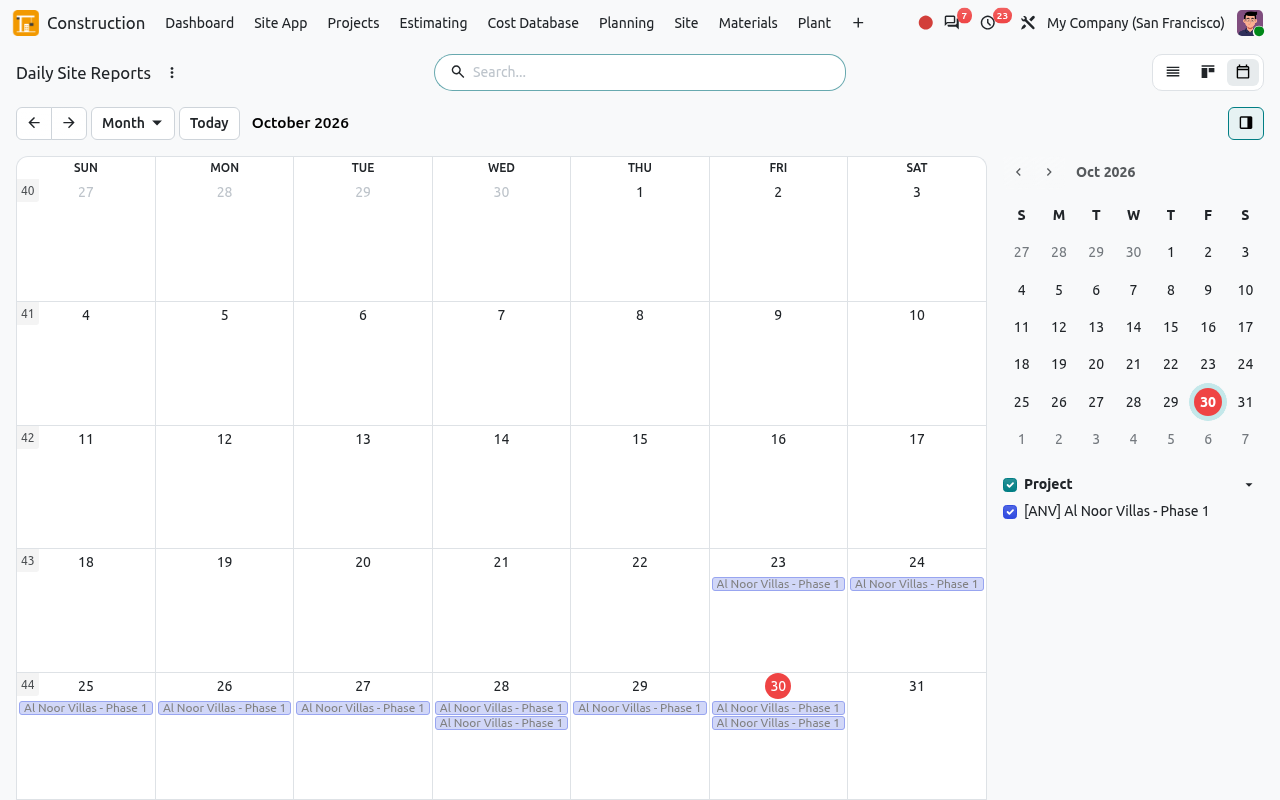
Use the view buttons at the top right of the list to switch to the Kanban or the Calendar view. The calendar shows at a glance the days without a report.
MISSING REPORTS
Every morning, Odoo checks the projects in construction. If yesterday was a working day and no report was written, the project manager receives a to-do activity "Daily site report of ... missing". The project form also has a Daily Reports smart button that lists the reports of that project.
Delay and Event Log
This menu lists all the events recorded in the daily reports of all projects, in one place. You cannot create events here: they always come from a daily report.
Go to . By default the Delays filter is on. Remove it (click ×) to see all the events: visits, inspections, deliveries...
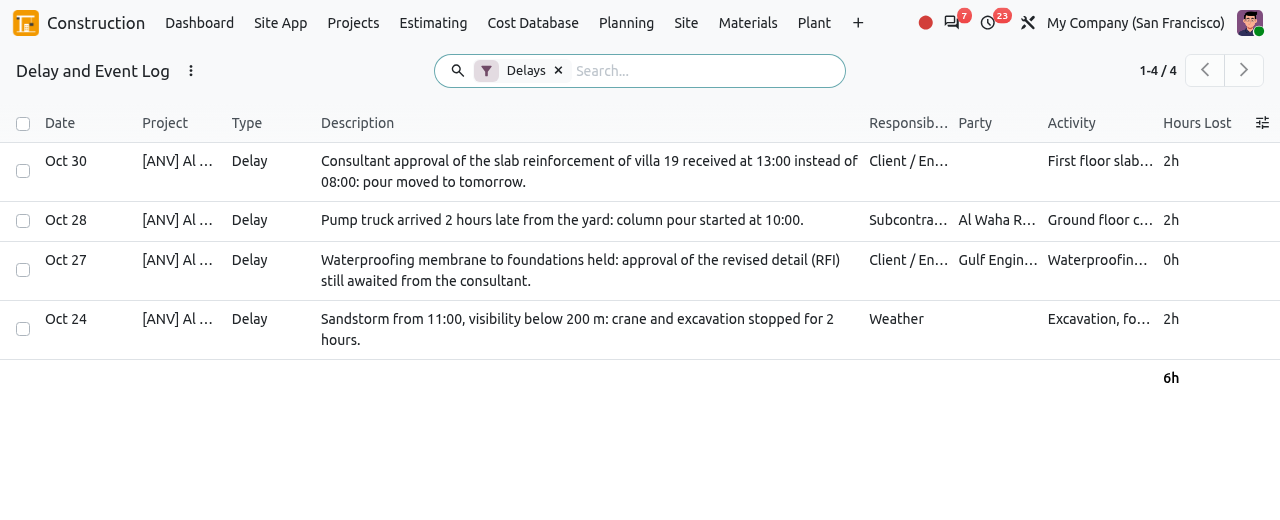
The delays of all the daily reports, with the hours lost. To prepare an extension of time claim, open the search options and choose Group By > Responsible Party. The total hours lost appear for each party. You can also filter on Client / Engineer, or group by Project or Type.
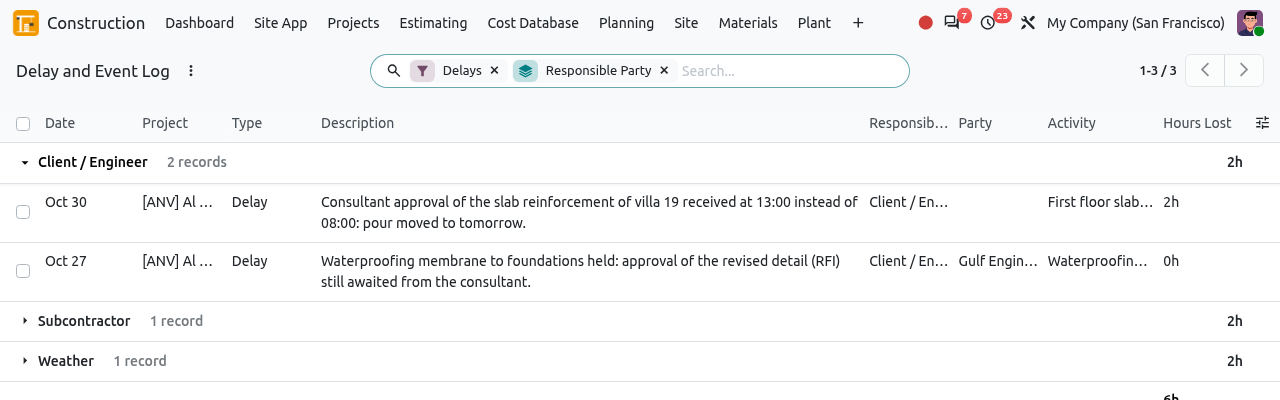
Delays grouped by responsible party.
Crews
A crew (or gang) is a team that works together on a project: your own workers led by a foreman, or a subcontractor's team counted by headcount. Crews make the daily report fast: Load Crews adds all their members at once, and the Site App uses them for attendance.
Go to and click New.
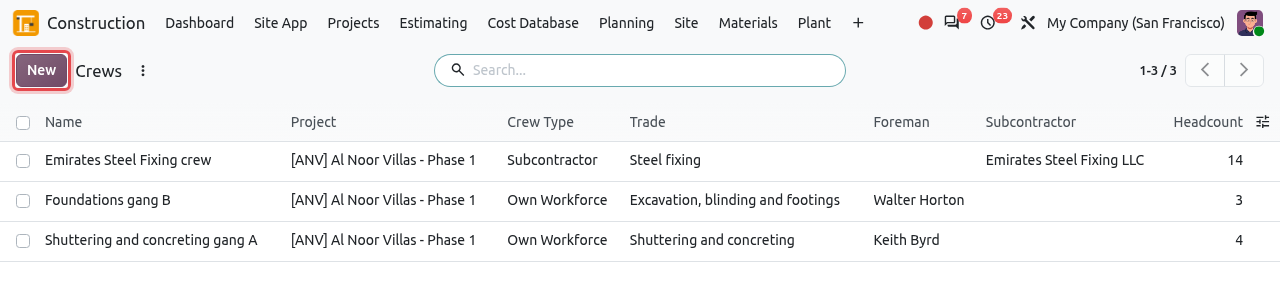
The list of crews, with their type and headcount. For a crew of your own workers: type the name, keep Crew Type = Own Workforce, choose the Project, the Usual Activity, the Trade and the Foreman. Then add the members (employees) in the field under the form. The Headcount is counted for you: the foreman plus the members.
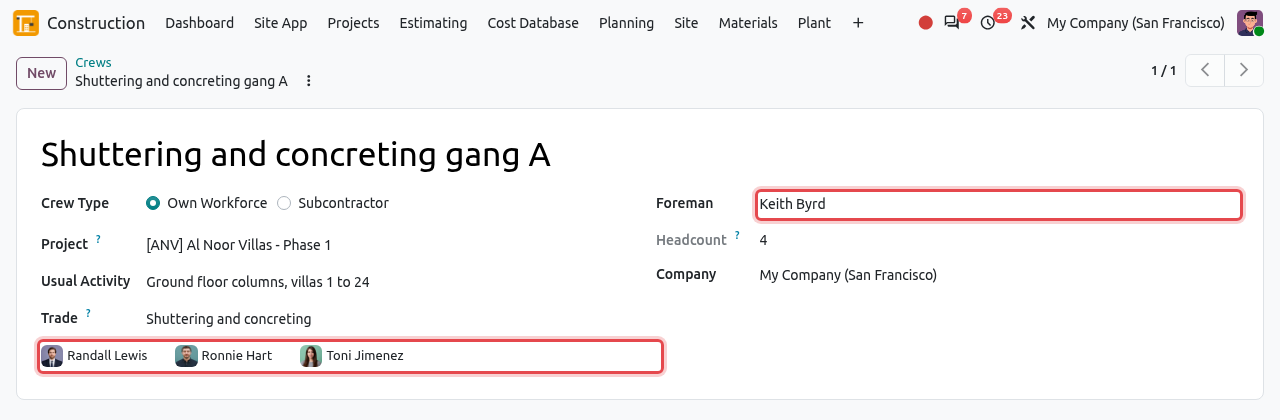
An own-workforce crew: foreman Keith Byrd and three members, so a headcount of 4. For a subcontractor's crew: choose Crew Type = Subcontractor, then the Subcontractor company, and type the usual Headcount. You do not list the people one by one.
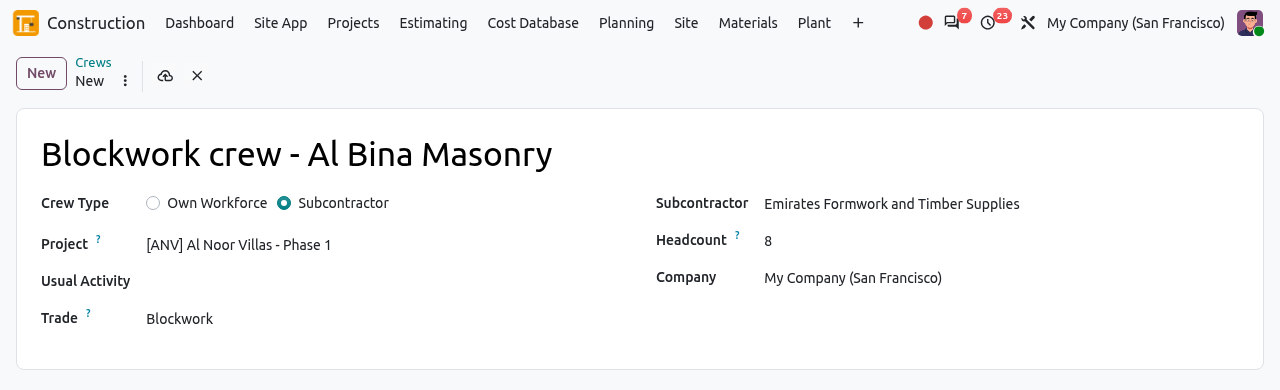
A subcontractor crew of 8 masons. Save. When a crew moves to another project, change its Project. When a crew is disbanded, archive it: click the ⋮ icon next to its name, then Archive.
TIP
The workers must exist as employees (Employees app) before you can add them to a crew. Their hourly cost, set on the employee, is used to cost their timesheets.
Common messages
| Message | Why and what to do |
|---|---|
| ... is submitted: reset it to draft to change it. | You tried to change a submitted or approved report. Click Reset to Draft first. |
| All the crews of ... are already in the report. | Load Crews found nothing new to add. |
| Only site managers and project managers approve daily reports. | Your role does not allow approving. Ask your site manager. |
| Progress is between 0 and 100%. | The Progress to Date of a Work Done line must be a percentage. |
| The quantity done on ... cannot be negative | To correct a quantity reported too high, reset the earlier report to draft and correct it. |