Appearance
Subcontracting
Most of the work on a construction site is done by subcontractors: specialist companies (steel fixers, waterproofers, masons, MEP firms...) that you hire for one part of the job. The Subcontracting menu helps you choose them, tender the work to them, compare their prices, award the work and then follow them on site with work orders and back-charges.
WHO USES THIS MENU
Quantity surveyors (QS), commercial managers and procurement staff. Project managers and site engineers use Work Orders and Back-charges. The menu is . On a narrow screen it is under the + button of the top bar.
How subcontracting works
A subcontract starts as a package: a group of BOQ items (BOQ = bill of quantities, the priced list of work items of your client contract) that you want one subcontractor to carry out. The life of a package is:
Draft→Tendering→Awarded
- Draft: you create the package and add the BOQ items. Each item gets a budget rate (the cost rate of your estimate), so you know what the work should cost.
- Tendering: you invite prequalified subcontractors to bid. Each bidder gets a bid with the same items. You type the rates they send you, then compare the bids.
- Awarded: you recommend the best bid and award the package. Odoo creates the subcontract (a cost contract) with the rates of the winning bid.
After the award, the subcontract is managed like any contract (see Contracts and Payment Certificates). Two extra tools follow the subcontractor on site: Work Orders and Back-charges.
BEFORE YOU START
Only subcontractors who are prequalified and whose compliance documents are valid can be invited. Set them up first: see Subcontractors and Compliance Documents.
Subcontract Packages: from creation to award
In this example we let the concrete works of the columns and slabs of the [ANV] Al Noor Villas - Phase 1 project to a subcontractor.
1. Create the package
Open . The list shows all packages with their budget, the subcontract created and the status. Click New.
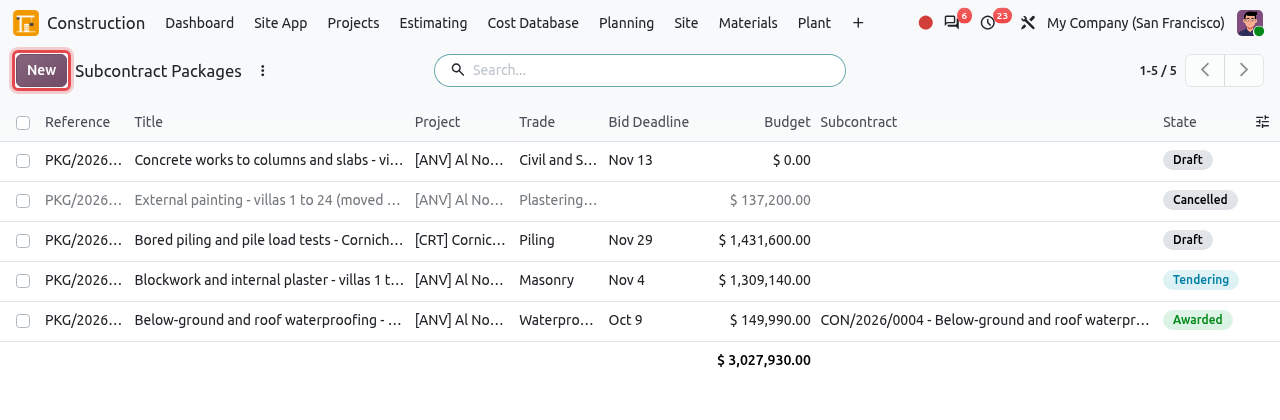
The list of subcontract packages. The New button is framed. Type the title of the package, then fill in the fields below.
Field What to enter Title (large text at the top) A short name for the work, for example Concrete works to columns and slabs - villas 1 to 24. Project The construction project. It cannot be changed once tendering starts. Trade The kind of work (Masonry, Waterproofing, Piling...). It helps you find the right subcontractors. Cost Code The budget line the subcontract will be charged to. 40 Subcontract is proposed. Responsible The person in charge of the tender (you by default). Bid Deadline The last day for the subcontractors to send their prices. Scope tab The scope of works, inclusions, exclusions and tender instructions. 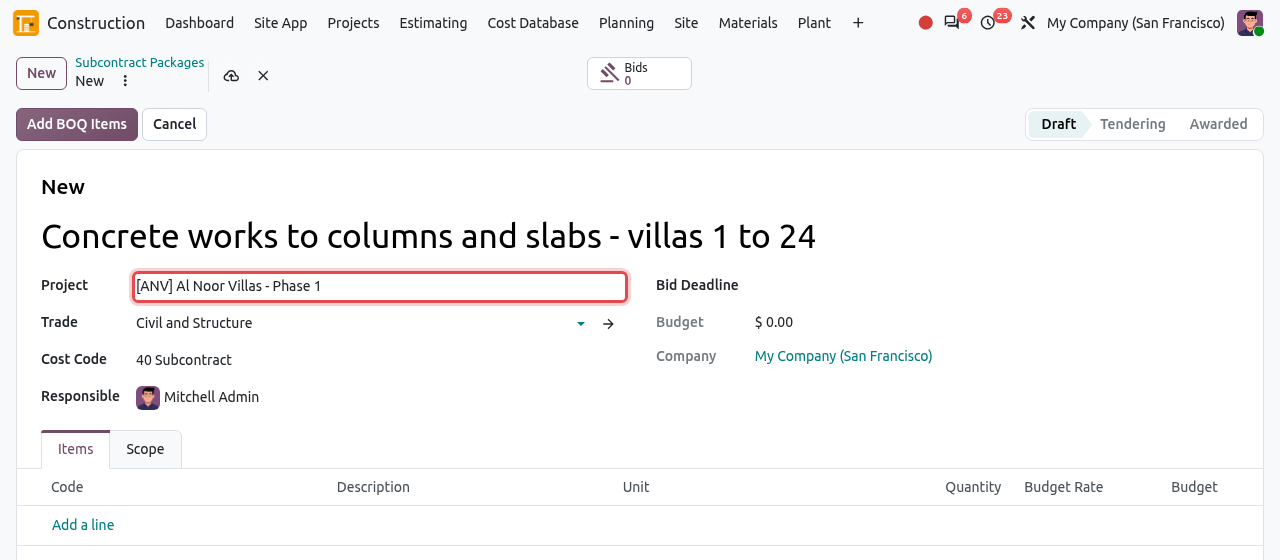
A new package being filled in. Save (cloud icon). Odoo gives the package a reference such as PKG/2026/0005. Its status is Draft. The Budget is still 0 because there are no items yet.
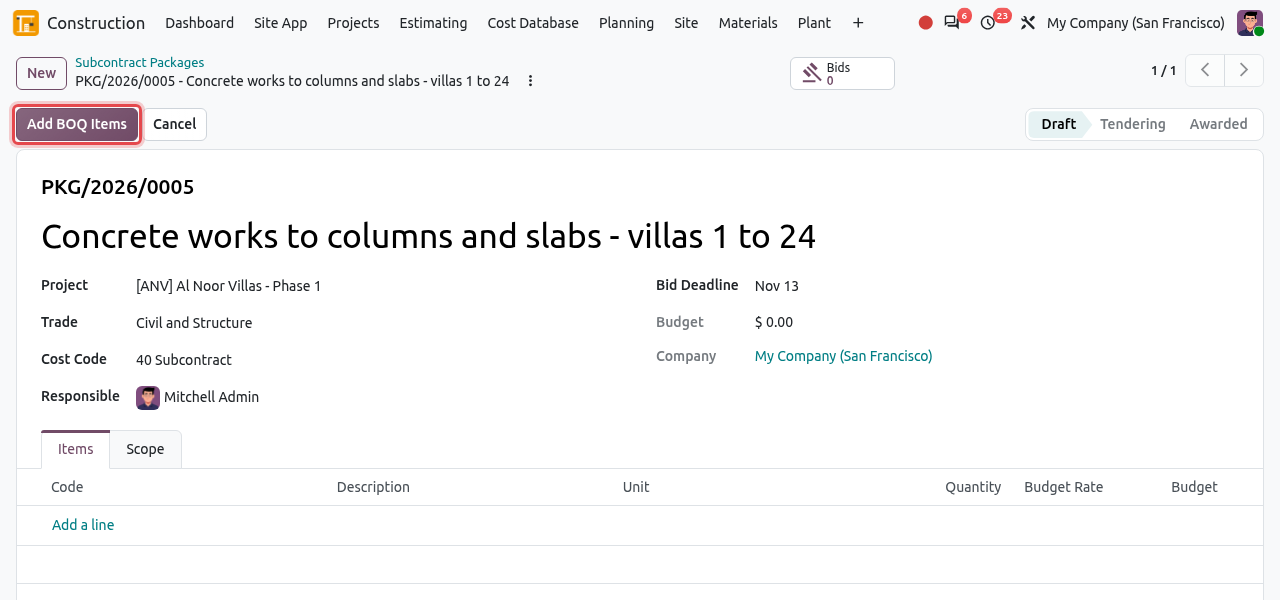
The saved package. Click Add BOQ Items to bring in the work items.
2. Add the BOQ items
Click Add BOQ Items. A window opens. Click Add a line to choose items from the client contract of the project. When the project has no client contract yet, the window shows the items of the won estimate instead.
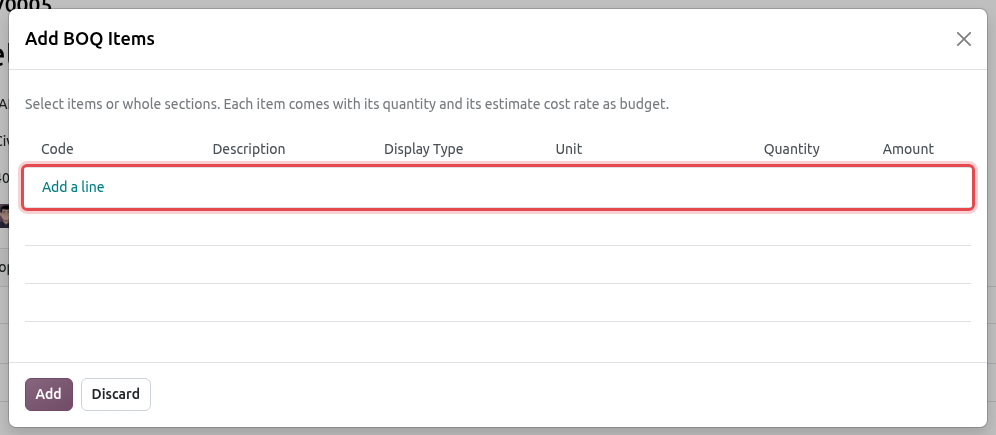
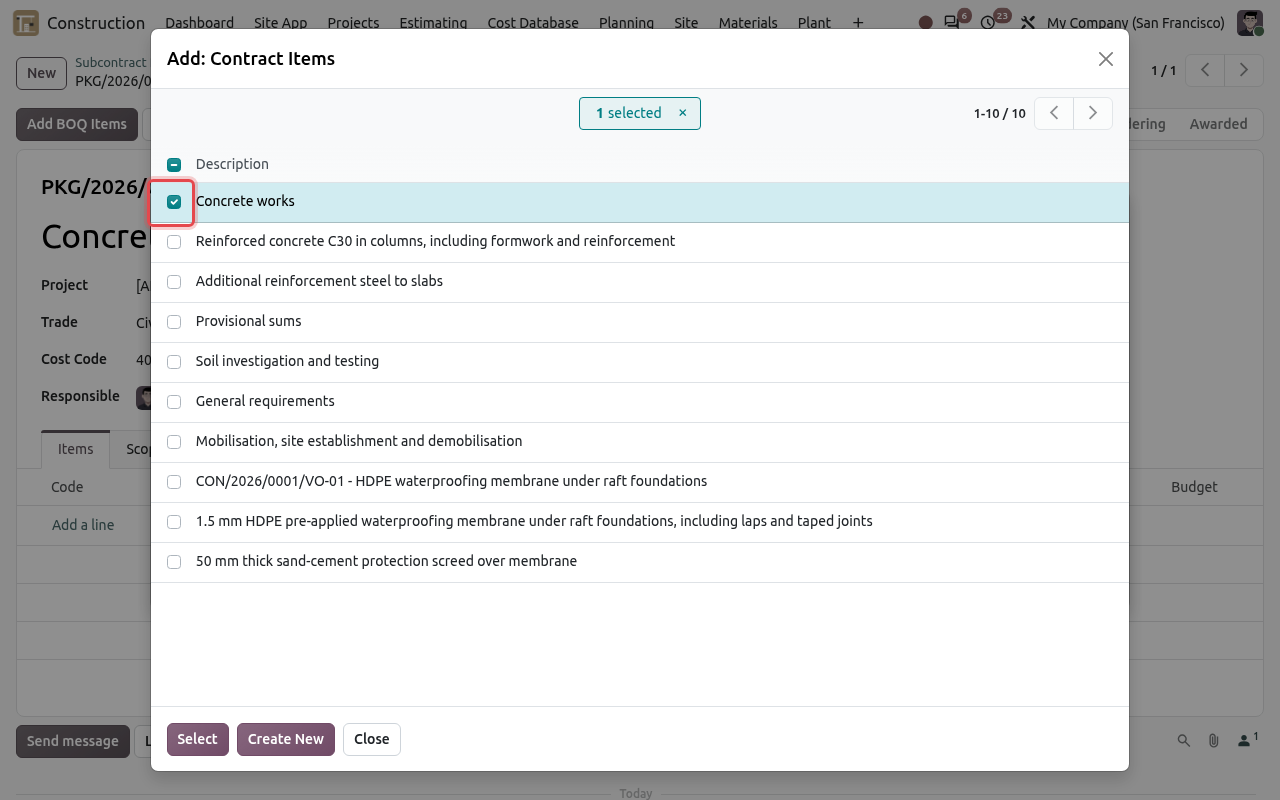
The Add BOQ Items window. Tick the items you want. You can tick a whole section (here Concrete works): all the items of the section come with it. Then click Select.
The section Concrete works is ticked. Check the selection and click Add.
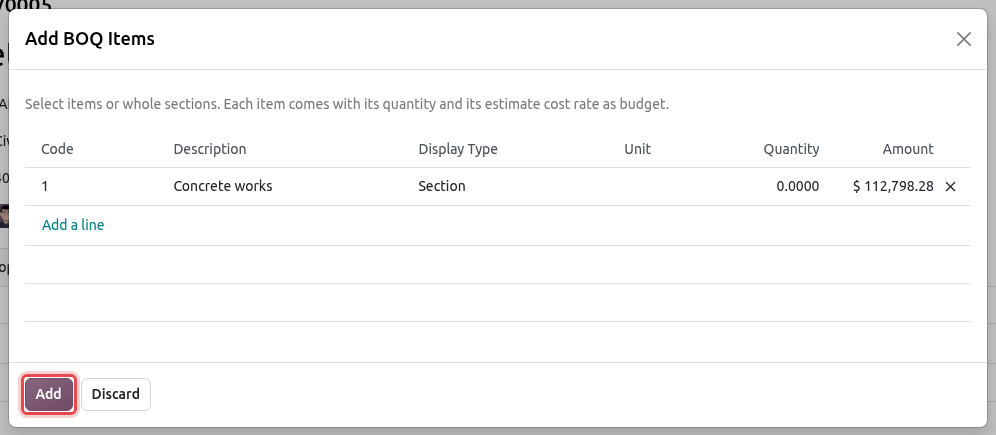
The selected section, ready to be added. The items appear in the Items tab with their code, unit and quantity. The Budget Rate is the cost rate of the estimate, and the Budget of the package is the total. You can still edit, add or delete lines while the package is in draft.
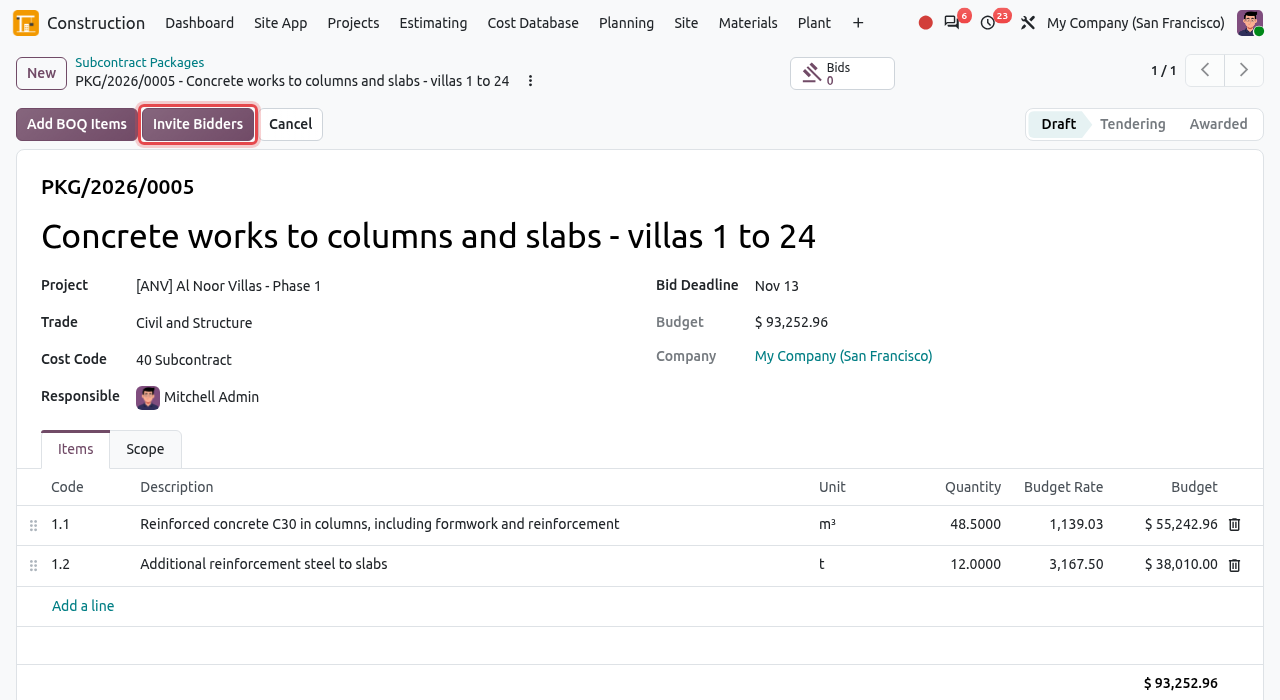
The package now has two items and a budget of $ 93,252.96.
3. Invite the bidders
Click Invite Bidders. In the Bidders field, type and pick the subcontractors you want to invite. Only subcontractors can be chosen, and blacklisted ones are hidden. Click Invite.
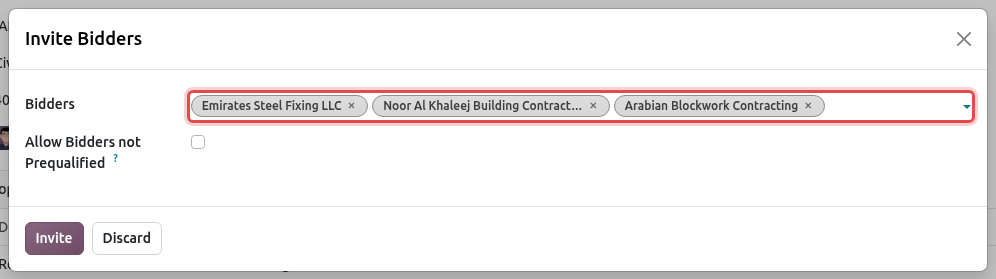
Three prequalified subcontractors are invited. If you choose a subcontractor that is not prequalified or has an expired document, Odoo stops you with a message. Either remove that bidder, or tick Allow Bidders not Prequalified if your manager accepts the risk.
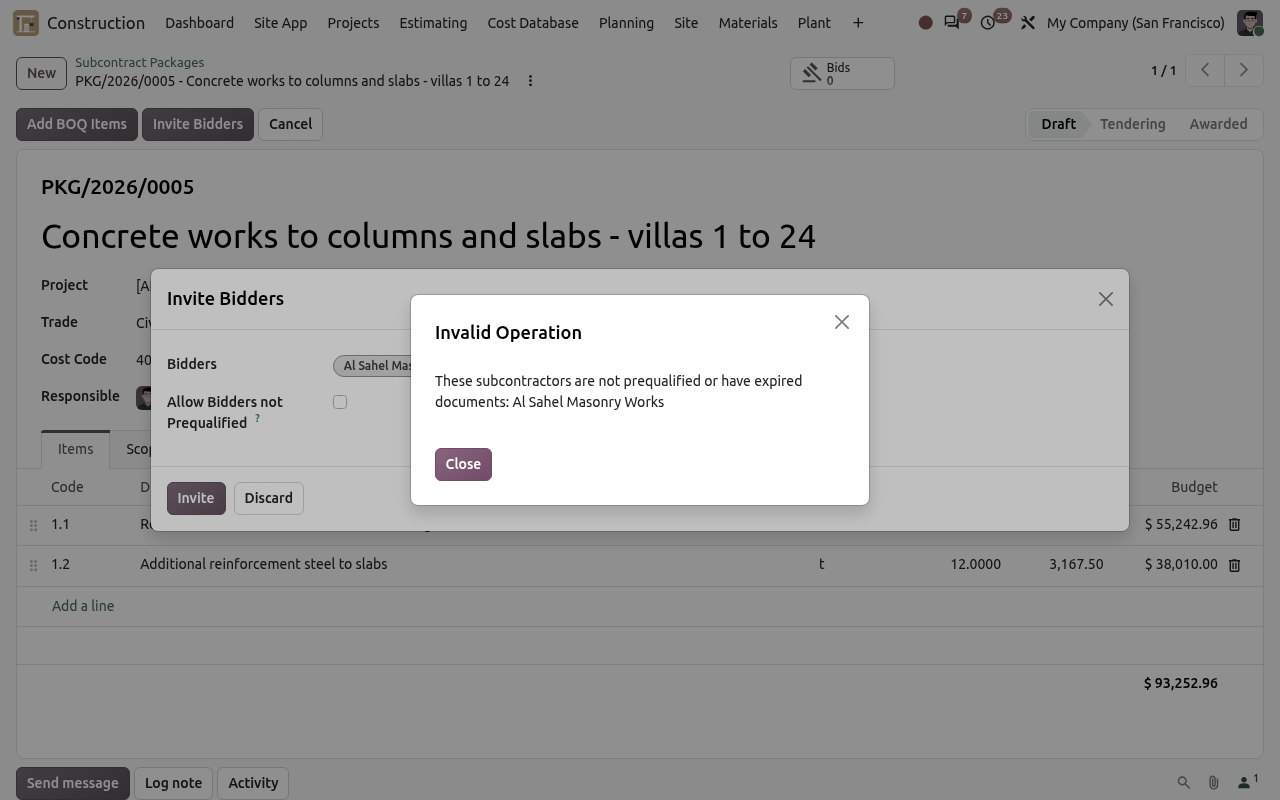
Al Sahel Masonry Works is still under review and its trade licence has expired: it cannot be invited. The package moves to Tendering. A Bids tab appears with one bid per bidder, in the status Invited. The Bids smart button at the top opens the same bids. The chatter logs who was invited. You can invite more bidders later with the same button.
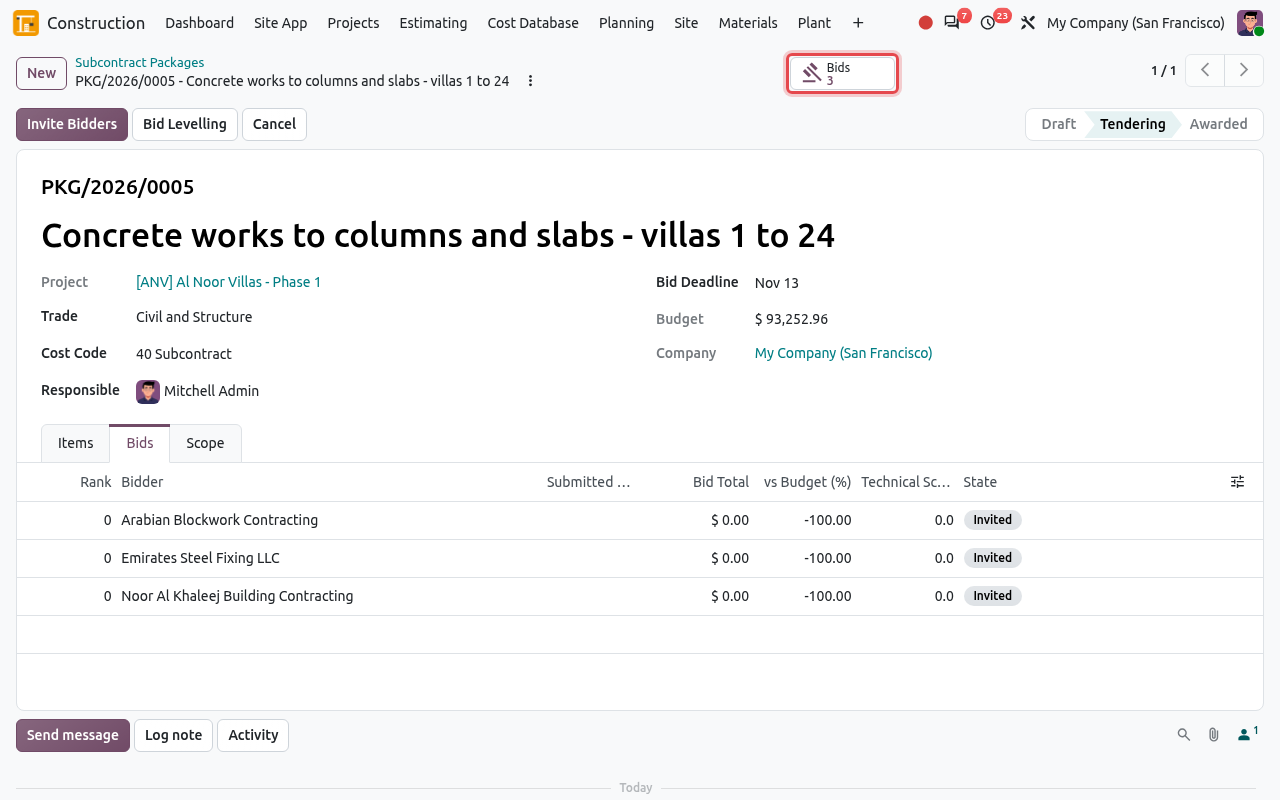
The package in Tendering, with three invited bids.
4. Enter the prices of each bid
The subcontractors send their prices by e-mail or on paper. You type them into their bid.
Click the Bids smart button. The list shows all the bids of the package. Click a bid to open it.
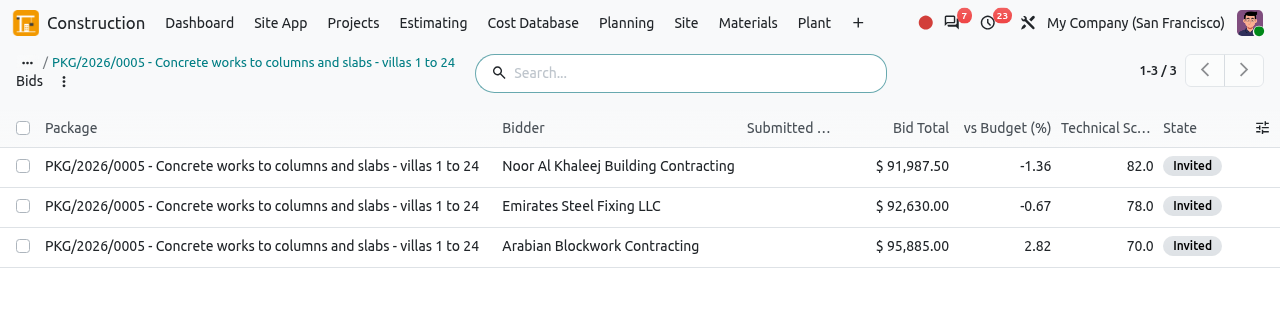
The bids of the package. In the Prices tab, type the Rate of each item. Odoo computes the Amount, the Bid Total and the difference with your budget (vs Budget (%); a negative figure means the bid is below budget). Also fill in:
- Valid Until: the validity date of the offer;
- Technical Score: your mark out of 100 for the technical offer (experience, method, resources);
- the Qualifications tab: the exclusions and conditions the bidder wrote in its offer.
Then click Bid Received. The bid moves to Submitted with today's date, and its prices are locked. If a subcontractor does not want to price, click Declined to Bid instead.
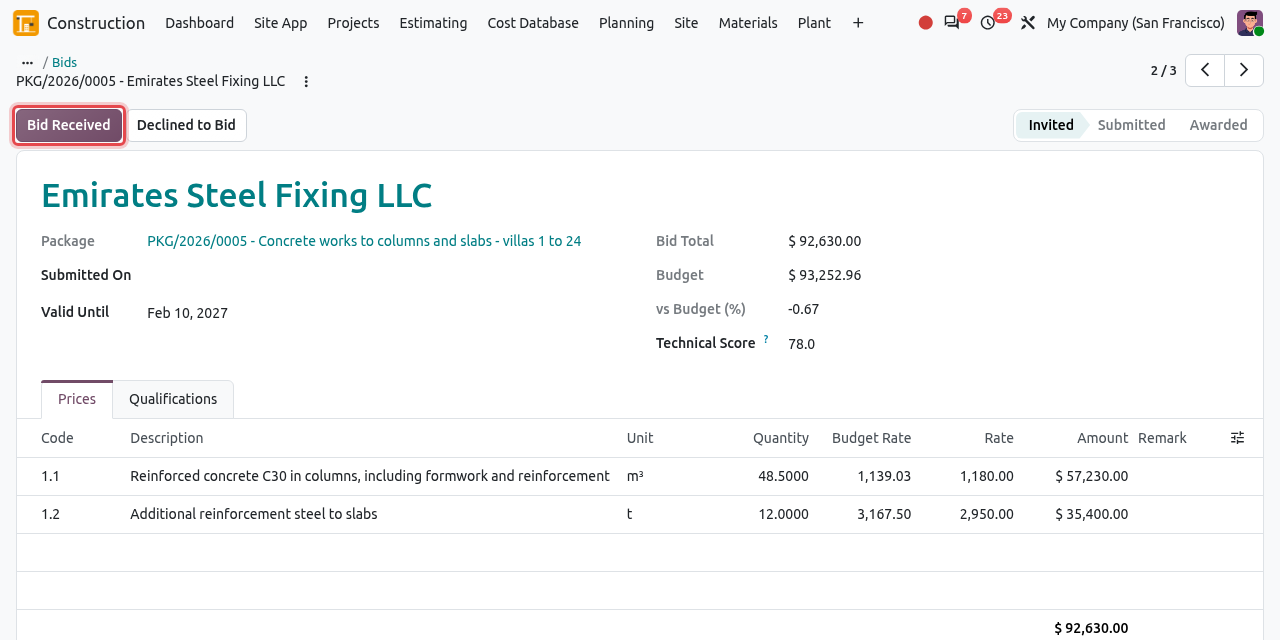
The bid of Emirates Steel Fixing LLC with its rates, ready to be marked as received.
WARNING
Odoo refuses Bid Received when no rate is entered ("Enter the prices of ... first."). A subcontractor can bid only once per package.
Invited→Submitted→Awarded
Bids that lose become Rejected; bidders who do not price are Declined.
5. Compare the bids (bid levelling)
Back on the package, open the Bids tab. Submitted bids get a Rank: 1 is the cheapest. You see each total, the difference with the budget and the technical score side by side.
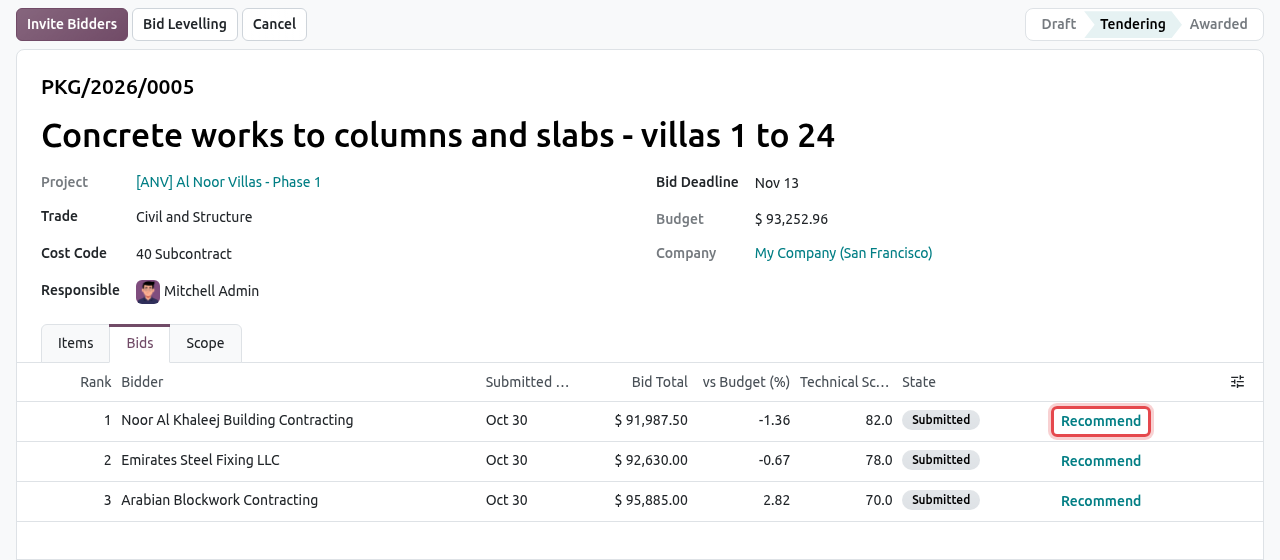
The three bids ranked by total. Each submitted bid has a Recommend button. Click Bid Levelling to compare the bids item by item. The table shows, for each item (rows), the amount and the rate of each bidder (columns). Use it to find unbalanced rates or missing items before you choose.
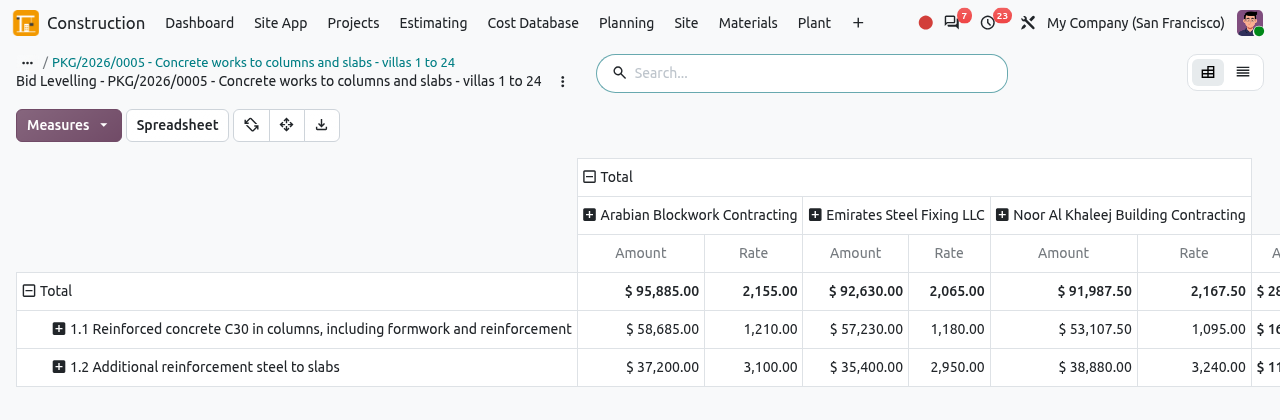
Bid levelling: amounts and rates per item and per bidder.
TIP
The bid levelling table is a pivot view: click Measures to add the budget, or the download icon to export it to a spreadsheet for your tender report.
6. Recommend and award
In the Bids tab, click Recommend on the line of the bid you choose (usually rank 1, unless the technical score or the qualifications say otherwise). The Recommended Bid field is filled in.
Two buttons appear:
- Request Award Approval: when your company has an approval rule for subcontract packages, send the award to the approvers first (see Teams, Roles & Approvals). Award is hidden while the request is waiting.
- Award: award the package now.
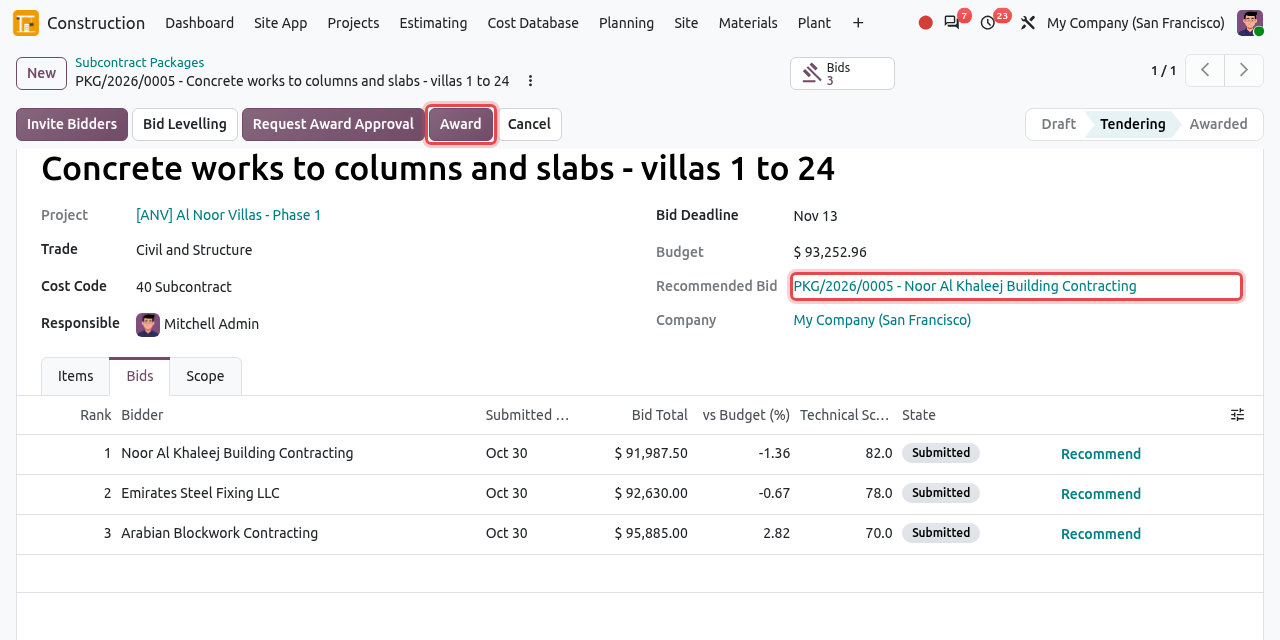
Noor Al Khaleej Building Contracting is recommended. The Award button is framed. Click Award and confirm with Ok.
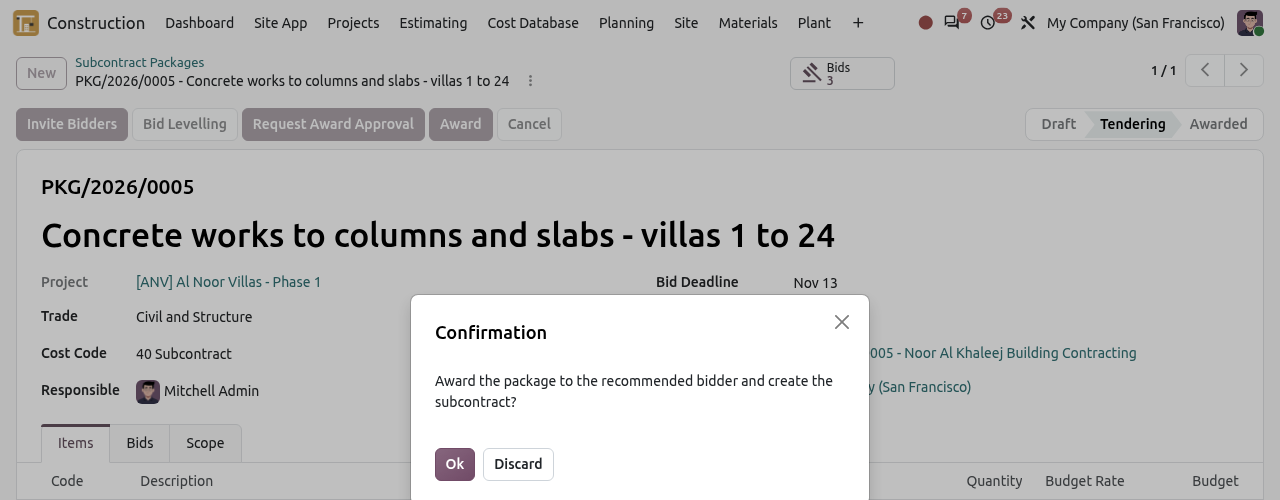
Odoo asks you to confirm the award. Odoo creates the subcontract and opens it: a Cost Contract with the winning subcontractor, the same project, a Unit Rate / Remeasurement type and every item at the rate of the winning bid. It is in Draft: complete the dates, the retention and the payment terms, then click Activate (or Request Approval first if your company requires it). See Contracts.
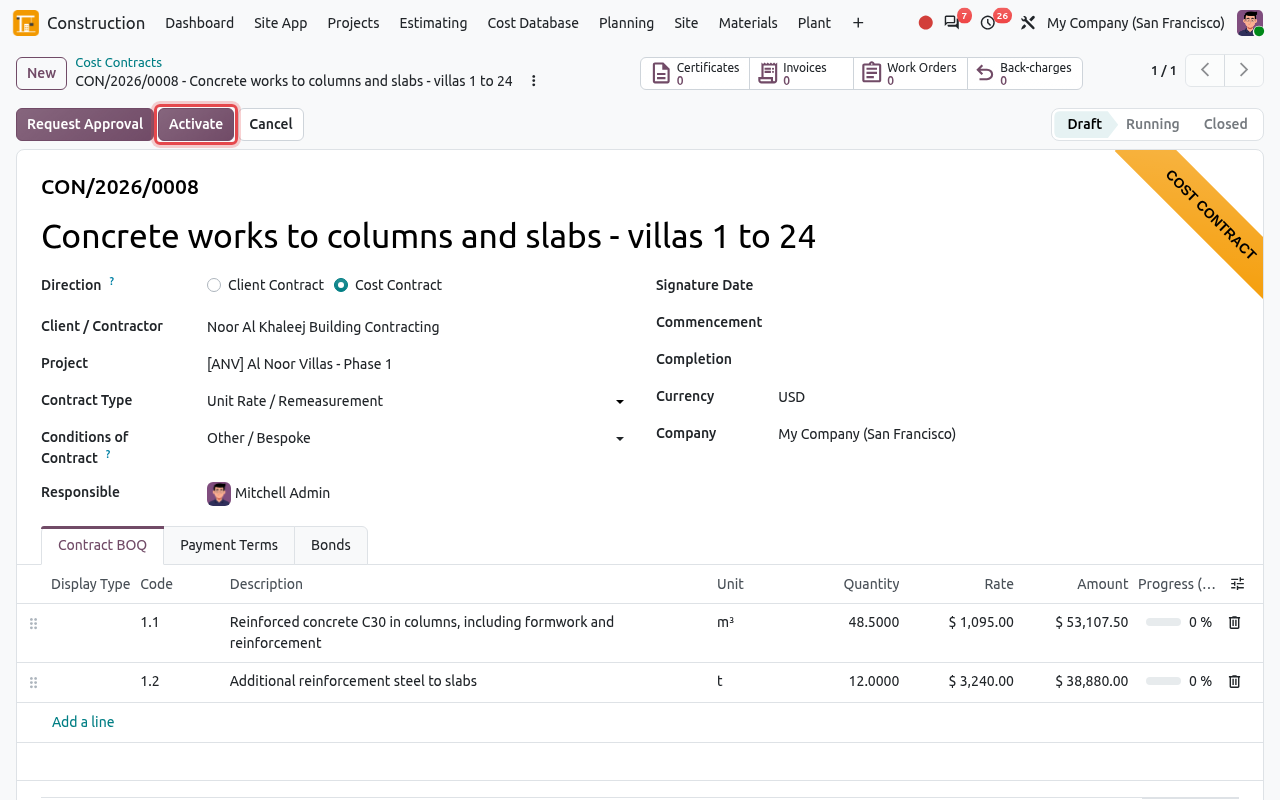
The subcontract CON/2026/0008 with the rates of the winning bid. The smart buttons Work Orders and Back-charges appear on cost contracts. The package is now Awarded and shows the link to the Subcontract. The winning bid is Awarded; the other bids are Rejected automatically.
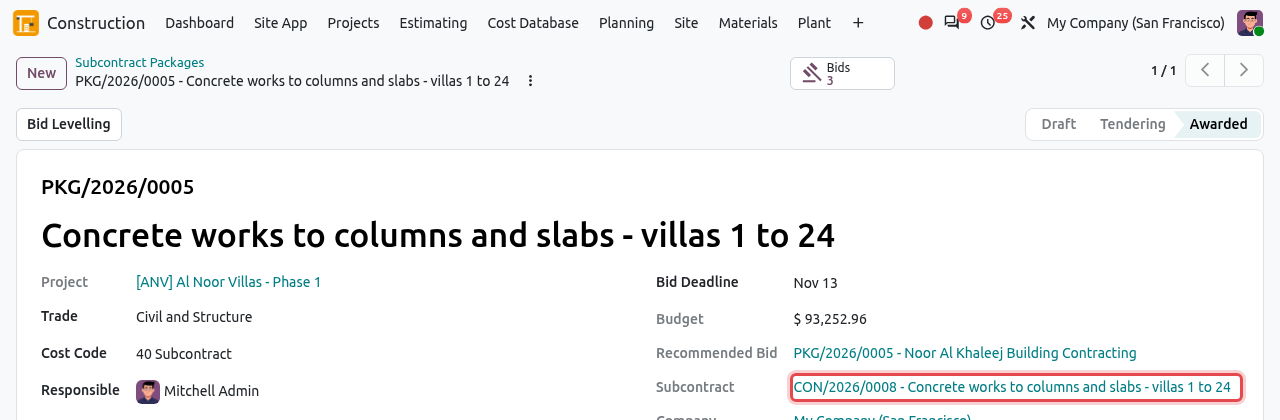
The awarded package and its subcontract.
GOOD TO KNOW
- Items can only be added while the package is in Draft, and Invite Bidders needs at least one item.
- Recommending another bid resets a pending award approval.
- An awarded package cannot be cancelled: cancel its contract instead. Cancel on a draft or tendering package rejects its open bids; Reset to Draft brings a cancelled package back.
- Use the filters Tendering and Awarded, and group the list by Project or Trade, to follow your tenders.
Work Orders
A work order is a written instruction to a subcontractor to carry out part of its subcontract: which work, where and when. It replaces the paper "site instruction" and keeps a trace of what was asked. Subcontractors with portal access see their work orders on the portal (see Portal).
Draft→Issued→Done
Open and click New. You can also open the subcontract and click its Work Orders smart button: the subcontract is then filled in for you.
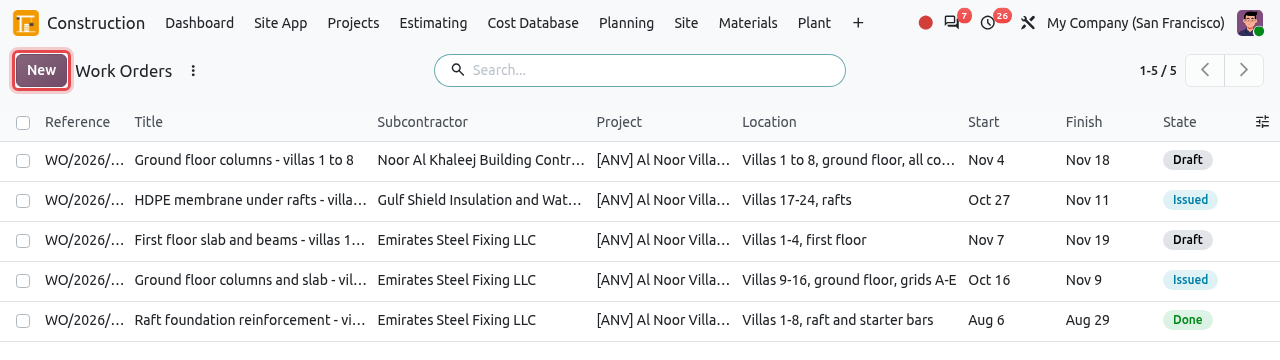
The list of work orders, with their subcontractor, dates and status. Fill in the form and save:
Field What to enter Title What must be done, for example Ground floor columns - villas 1 to 8. Subcontract A running cost contract. The subcontractor and the project come from it. Location Building, level, zone or grid. Start / Finish The planned dates. Instructions (text below) Drawing references, access, constraints, inspections to request. Click Issue when the instruction is given to the subcontractor. When the work is finished, click Mark as Done. Cancel withdraws a work order that is not done.
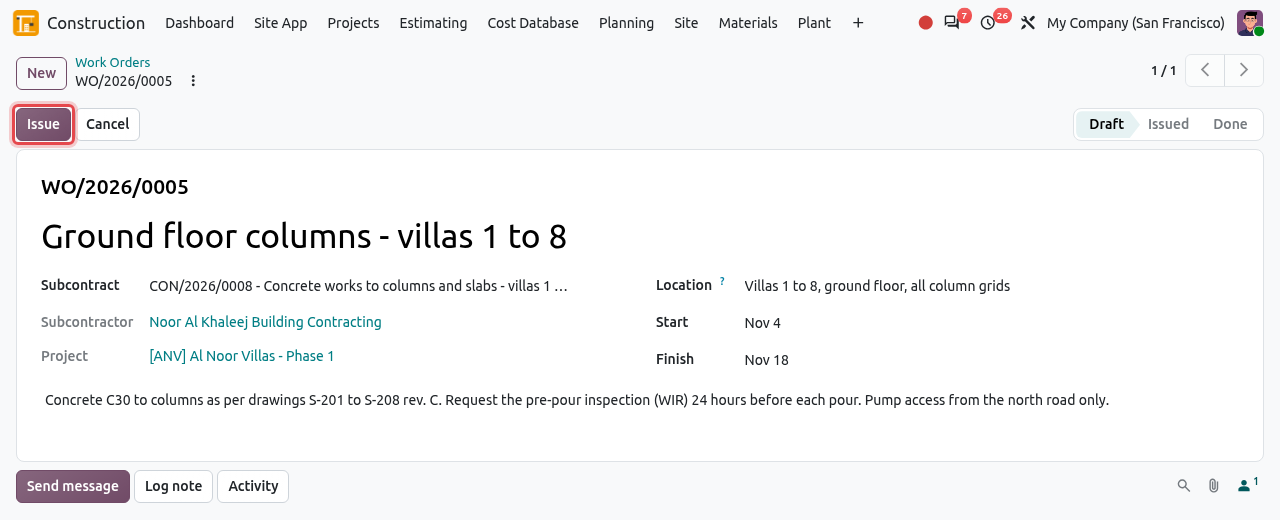
A draft work order for Noor Al Khaleej Building Contracting. Click Issue to send it.
Back-charges
A back-charge is a cost you recover from a subcontractor: damage it caused, cleaning you had to do for it, materials or plant you supplied to it... Odoo deducts confirmed back-charges from the subcontractor's next payment certificate.
Draft→Confirmed→Deducted
Open (or the Back-charges smart button of the subcontract). The list shows each back-charge with the certificate it was deducted on.
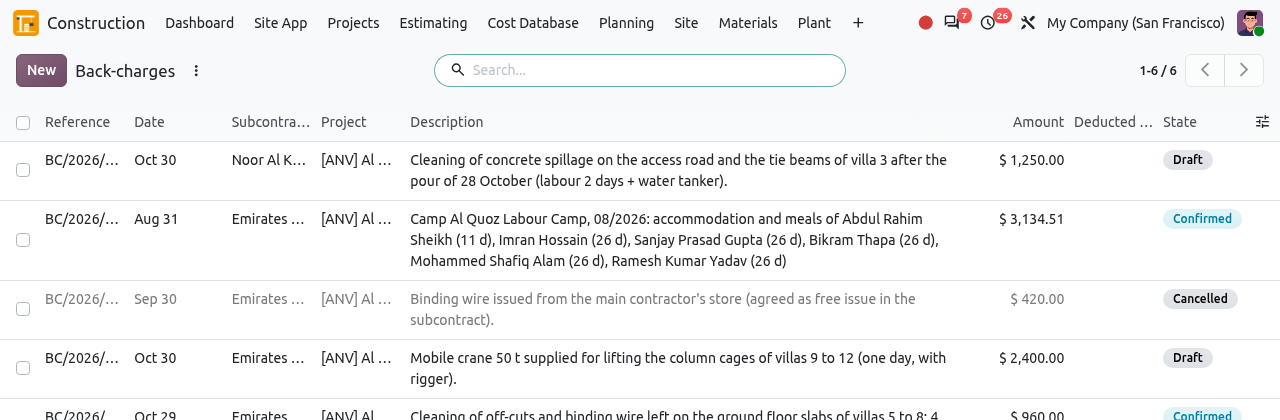
The list of back-charges and their status. Click New, choose the Subcontract (a running cost contract), the Date, the Amount (must be positive) and describe what is charged and why. Save. Attach photos or the cost breakdown in the chatter.
Tell the subcontractor, then click Confirm (Quantity Surveyor role needed). The back-charge is linked to the draft payment certificate of the subcontract, or to the next one you create.
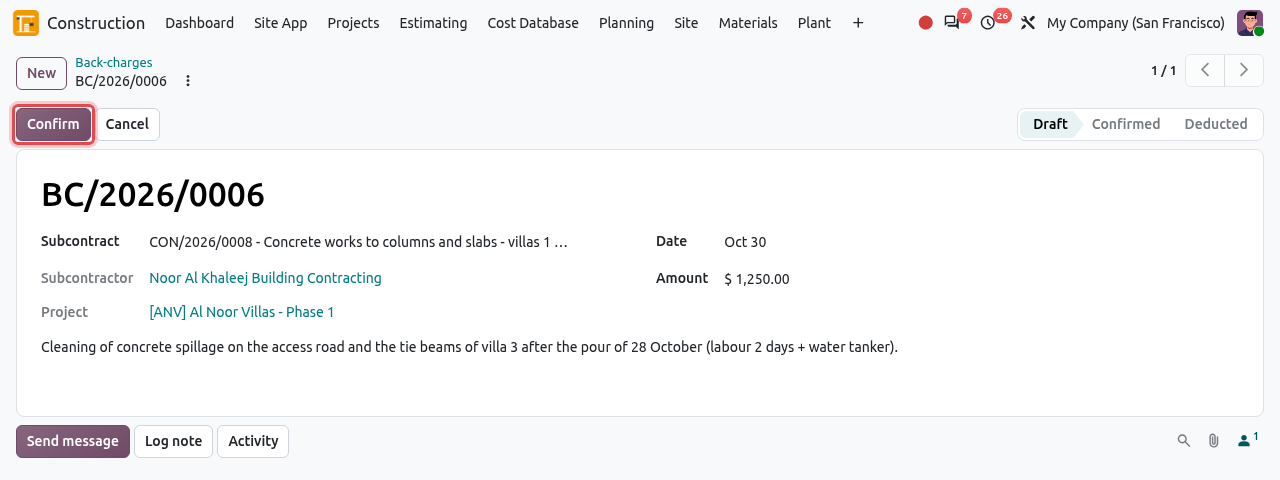
A draft back-charge of $ 1,250.00 for cleaning concrete spillage. On the payment certificate, the line Back-charges This Period reduces the Net Amount Due, and the bill has a deduction line for each back-charge. When the certificate is certified, the back-charge becomes Deducted.
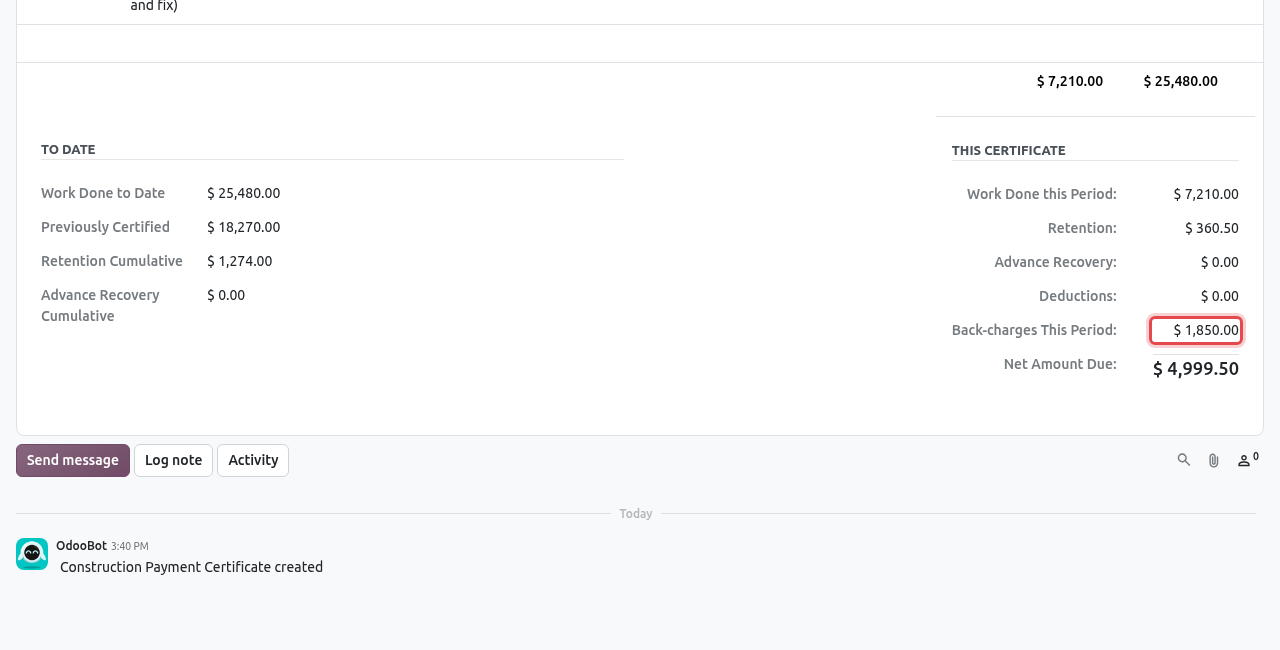
A back-charge of $ 1,850.00 deducted on certificate CON/2026/0002/PC-02.
WARNING
A deducted back-charge cannot be cancelled. If the certificate is reset to draft or cancelled, its back-charges go back to Confirmed and are taken by the next certificate.
Subcontractors
is your register of subcontractors: ordinary contacts with the Subcontractor box ticked. The list shows their trades, prequalification and rating. Lines in red have an expired compliance document. Use the filters Prequalified and Compliance Issue.
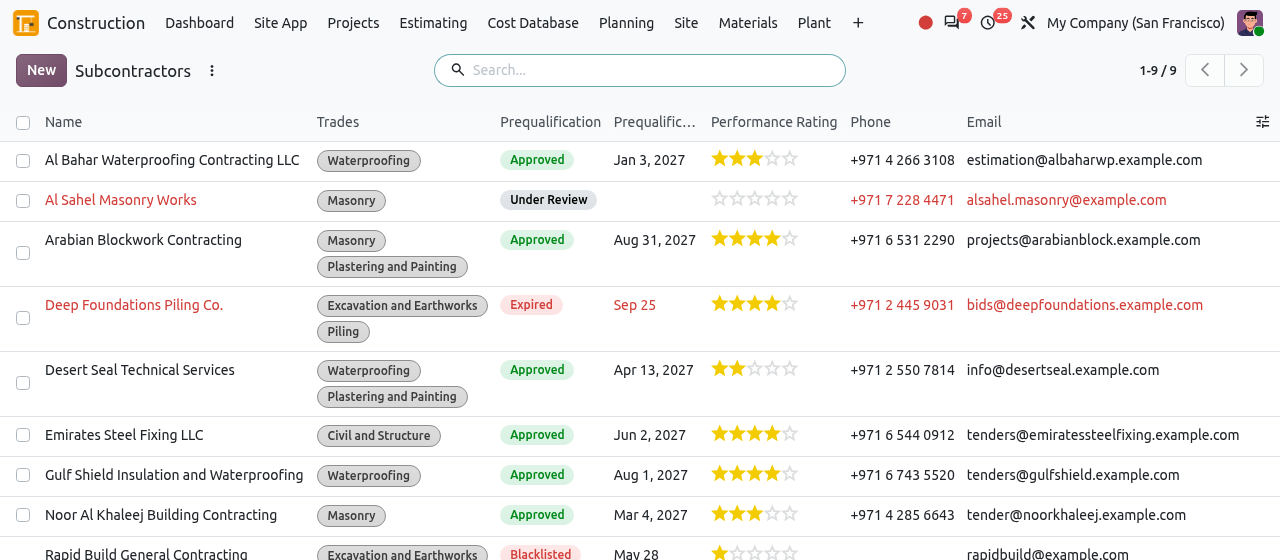
Click New (or open an existing contact). Fill in the company name, address, phone and e-mail as for any contact.
Open the Subcontractor tab and fill in:
Field What to enter Subcontractor Ticked: the contact appears in this menu and can be invited to tenders. Trades The trades it works in (see Trades). Performance Rating Your rating, from 1 star (Poor) to 5 stars (Excellent), based on past jobs. Prequalification Not Prequalified, Under Review, Approved, Expired or Blacklisted. Only Approved subcontractors can be invited; blacklisted ones are hidden from the invitation. Prequalified On / Prequalification Expiry The approval date and the date it must be renewed. After the expiry date the subcontractor can no longer be invited. Documents table One line per compliance document: type, number, issue and expiry dates, scanned copies. 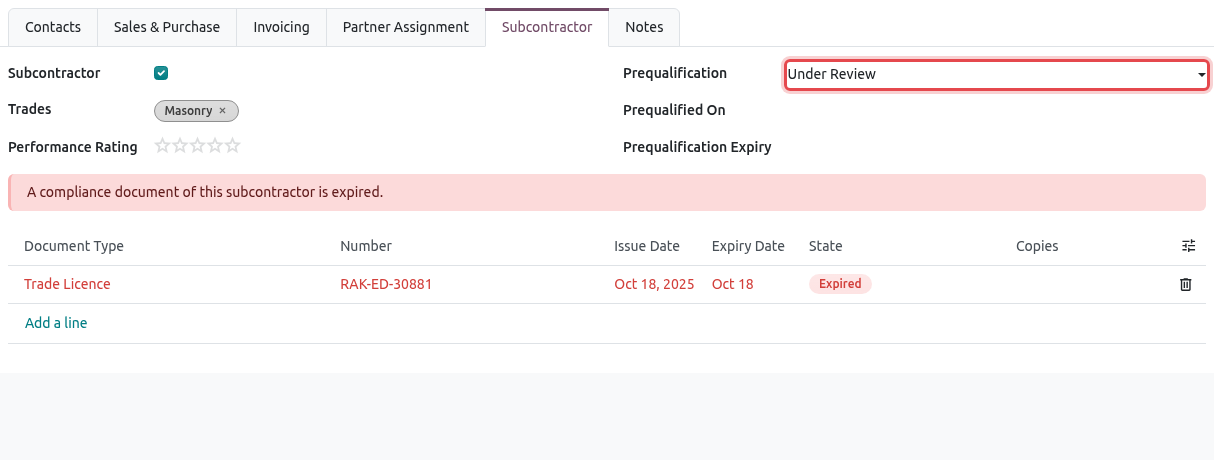
The Subcontractor tab of Al Sahel Masonry Works: under review, with an expired trade licence (red banner).
Compliance Documents
lists all the licences, registrations, insurances and certificates of your subcontractors, sorted by expiry date. Use it to chase renewals.
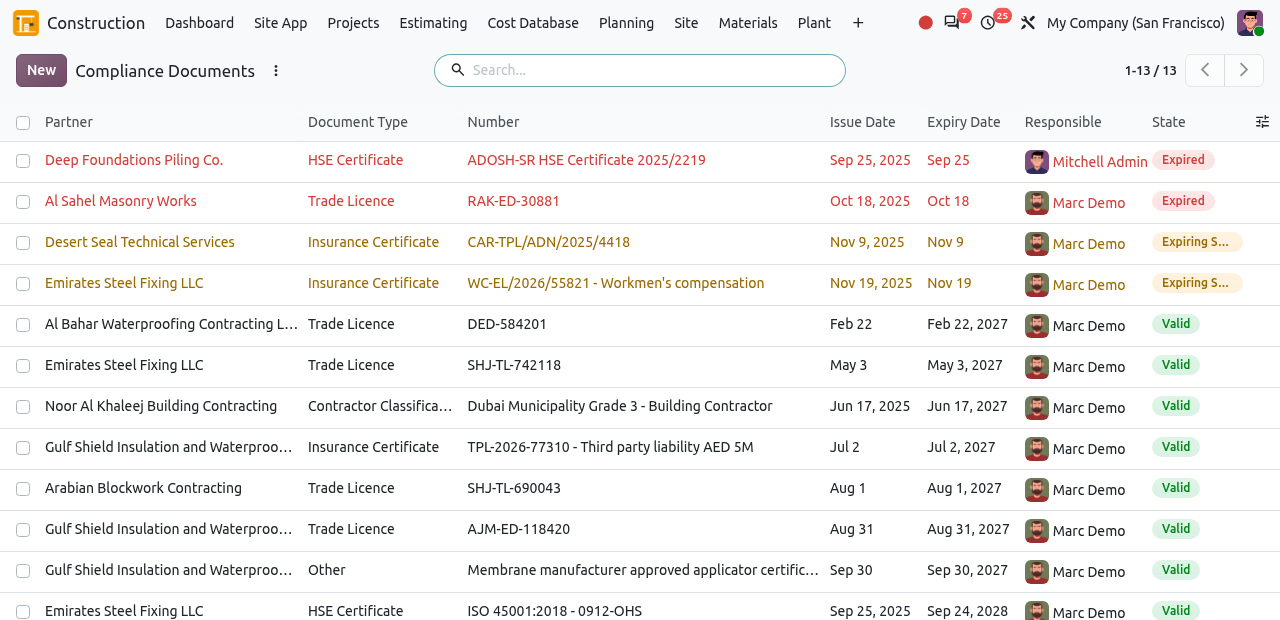
- The State is computed from the expiry date: Valid, Expiring Soon (within 30 days) or Expired. A document without an expiry date (for example a tax registration) is always valid.
- The document types are: Commercial Registration, Trade Licence, Contractor Classification, Tax Registration, Insurance Certificate, HSE Certificate and Other.
- To add a document, click New and fill in the line directly in the list (the list is editable), or add it in the Subcontractor tab of the contact.
- Every day, Odoo creates a to-do activity for the Responsible of each document that expires soon, due on the expiry date.
BLOCKING
As soon as one document of a subcontractor is expired, the subcontractor gets a Compliance Issue and can no longer be invited to a tender (unless Allow Bidders not Prequalified is ticked). Renew the document (enter the new number and expiry date) to lift the block.
Trades (configuration)
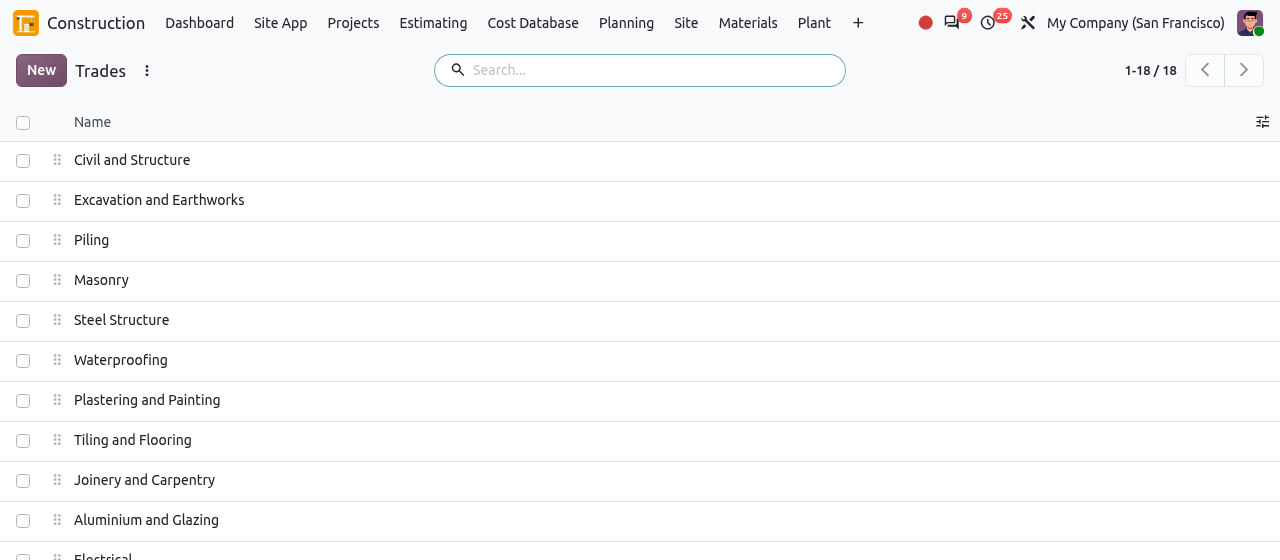
holds the list of trades used on subcontractors and packages (Civil and Structure, Piling, Masonry, Waterproofing, HVAC...). The list is editable: click New to add a trade, drag the handle to change the order, and archive the trades you do not use. Two trades cannot have the same name.