
Appearance
Labour Camps
In the Gulf and in India, contractors often house their workers in a labour camp: a building with rooms and beds, sometimes with a canteen (the mess). The Labour Camps menu manages the camps, their rooms and beds, who sleeps where (residents), and every month it charges the cost of the bed and the meals to the project that uses the worker, or to the subcontractor whose workers stay in your camp.
WHO USES THIS MENU
The camp manager and the site administration. All project team members can see the menu; the Compute Monthly Charges menu is only shown to the Site Manager role and above. The menu is ; on a narrow screen it is under the + button of the top bar.
How it works
Camp→Rooms & beds→Residents→Monthly charges→Project cost / back-charge
- Camp: you create the camp once, with its housing rules and its monthly rates (bed and meals).
- Rooms and beds: each room gets the number of beds that the housing rules allow for its floor area.
- Residents: each employee or subcontractor worker is allocated to a bed, from a check-in date to a check-out date, and charged to a project.
- Monthly charges: at the end of the month, Odoo calculates for each resident the accommodation and meals pro rata of the days spent in the camp.
- Posting: the charge of an employee becomes a cost of his project; the charge of a subcontractor's worker becomes a back-charge, deducted from the subcontractor's next payment certificate.
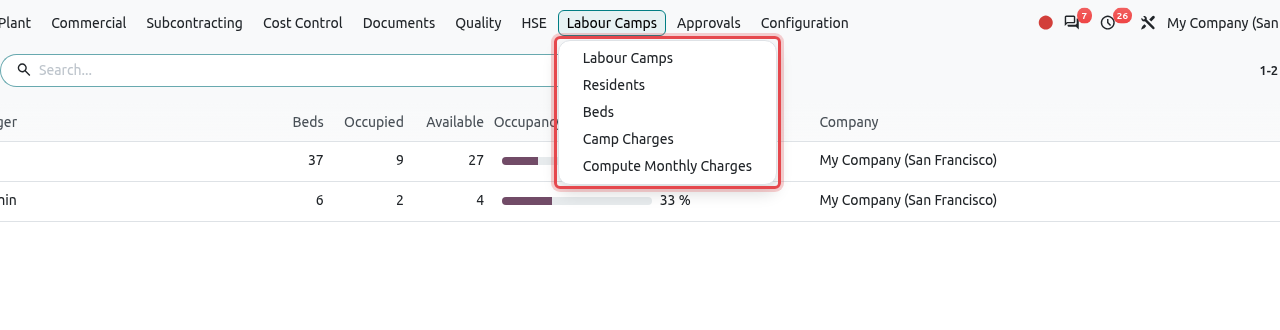
Labour Camps
Open . The list shows each camp with its beds, occupied and available beds and the occupancy rate.
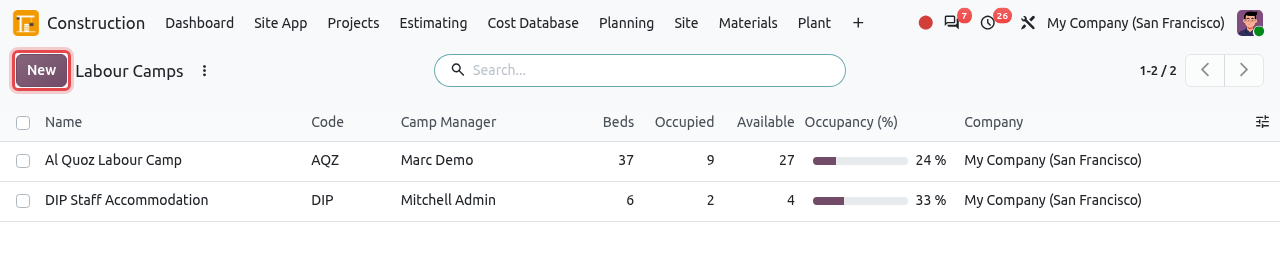
Create a camp
Click New, type the camp name (for example Al Quoz Labour Camp) and fill in the top of the form:
Field What to enter Code A short code, used in the bed names (for example AQZ gives AQZ / A-101 / A). Address The contact holding the camp address. Camp Manager The user in charge of the camp. Projects Served The projects whose workers stay in this camp (for information). 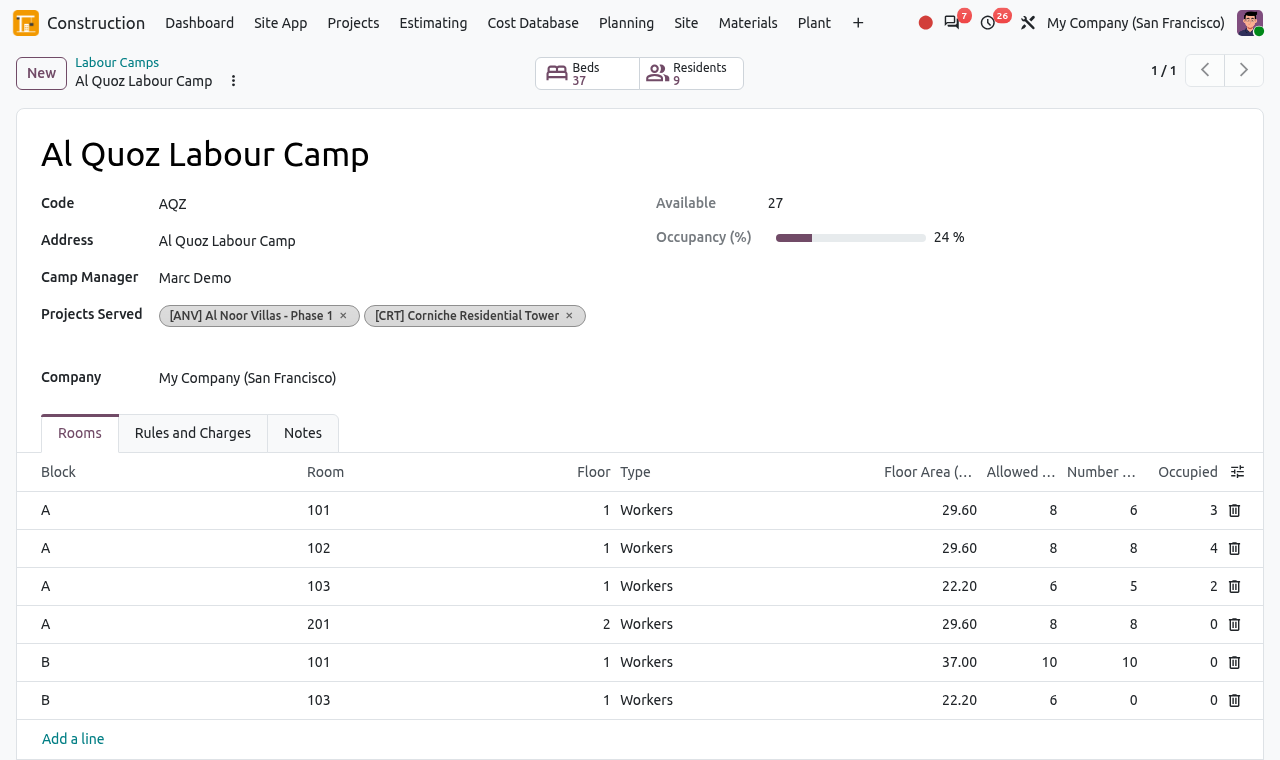
The Al Quoz Labour Camp. The smart buttons Beds and Residents are framed; the Rooms tab lists the rooms. Open the Rules and Charges tab and fill in the housing rules and the monthly rates:
Field What to enter Minimum Area per Resident (m²) The floor area each worker must have. Odoo proposes the value of the company's country (Saudi Arabia 4 m², UAE 3 m²); Dubai asks 3.7 m². Check it with your local authority. Maximum Residents per Room The most beds a room may hold, whatever its size (10 by default in Saudi Arabia and the UAE). Accommodation per Month The price of one bed for a full month, charged to the project. Mess per Month The price of full-board meals for a month. Cost Code The cost code of the project budget where the camp cost is booked (for example 50 Site Overheads). Camp Analytic Account The account that collects the running costs of the camp (rent, utilities, catering). The charges to the projects are credited to it, so the camp cost is not counted twice. 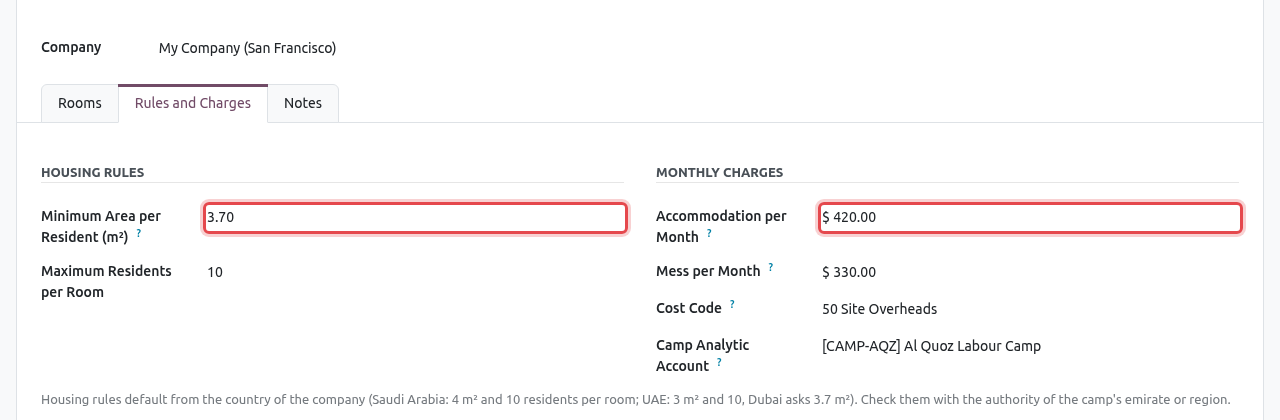
The Rules and Charges tab: 3.7 m² per resident, 10 residents per room, $420 per bed and $330 of meals per month. Save. The Beds smart button opens the rooms of the camp; the Residents smart button opens the people now in the camp.
Add rooms and beds
In the camp, click the Beds smart button, then New (or use Add a line in the Rooms tab). Type the room number (for example 103), the Block (B), the Floor, the Type (Workers or Staff) and the Floor Area (m²), then save.
Odoo calculates the Allowed Beds: the floor area divided by the minimum area per resident, within the maximum per room. Here 22.20 m² ÷ 3.7 m² = 6 beds. Click Add the Allowed Beds.
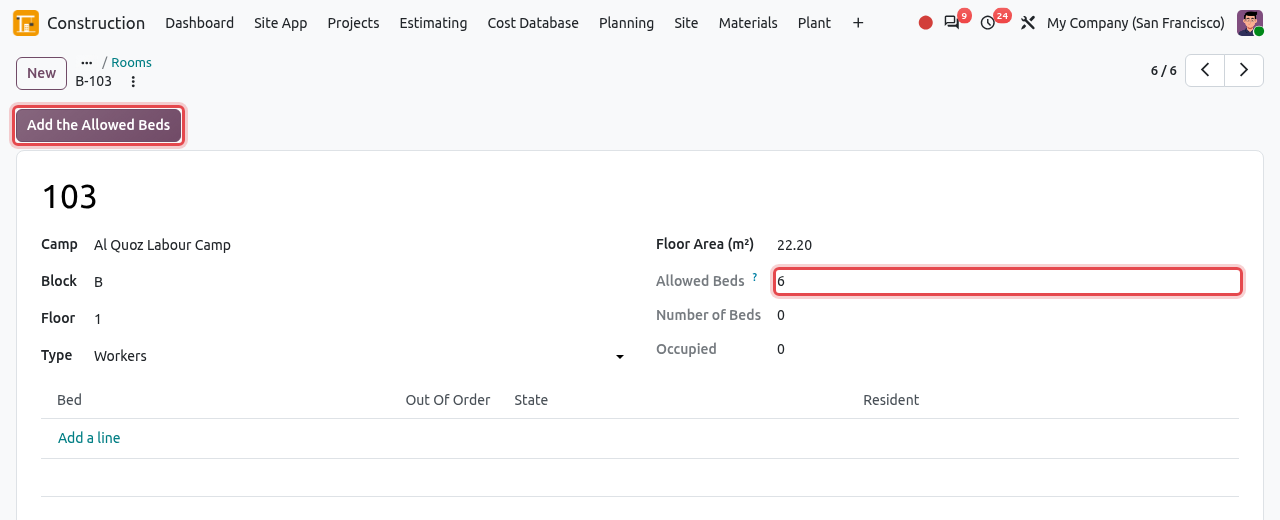
Room B-103: 6 beds allowed, none created yet. Odoo creates the beds A, B, C... up to the number allowed. Each bed shows its state (Available, Occupied or Out of Order) and its current resident. Tick Out Of Order on a bed that cannot be used (repair, quarantine): it cannot be allocated.
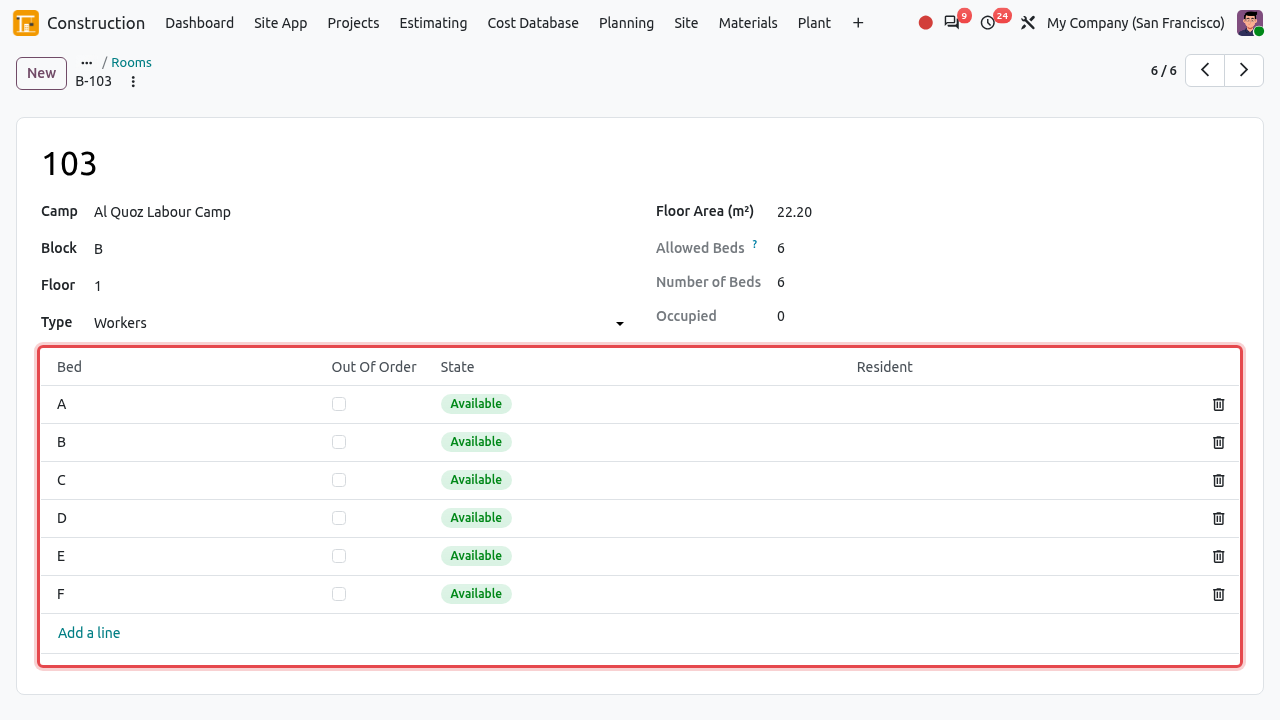
The six beds of room B-103, all available.
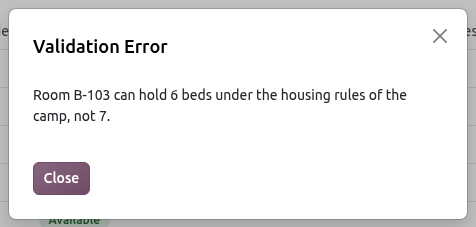
THE HOUSING RULES ARE ENFORCED
You cannot put more beds in a room than the rules allow. Adding a seventh bed to room B-103 gives the message Room B-103 can hold 6 beds under the housing rules of the camp, not 7.
TIP
Room numbers must be unique within a block of a camp, and bed names unique within a room. A room you no longer use can be archived (gear menu ⋮ → Archive) instead of deleted.
Residents
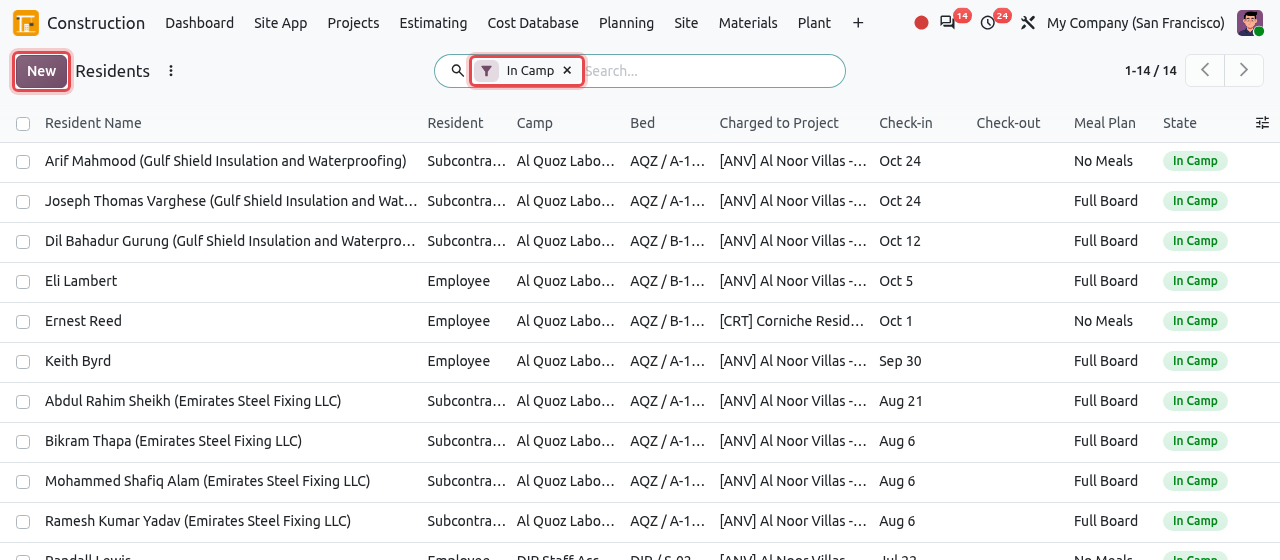
A resident is one person on one bed for a period. Open . By default the list shows only the people In Camp today; remove the filter to see everyone. The other filters are Planned (arriving later), Checked Out, Employees and Subcontractor Workers.
A resident has three states, calculated from the dates:
Planned→In Camp→Checked Out
Allocate a bed to an employee
Click New. Keep Resident on Employee.
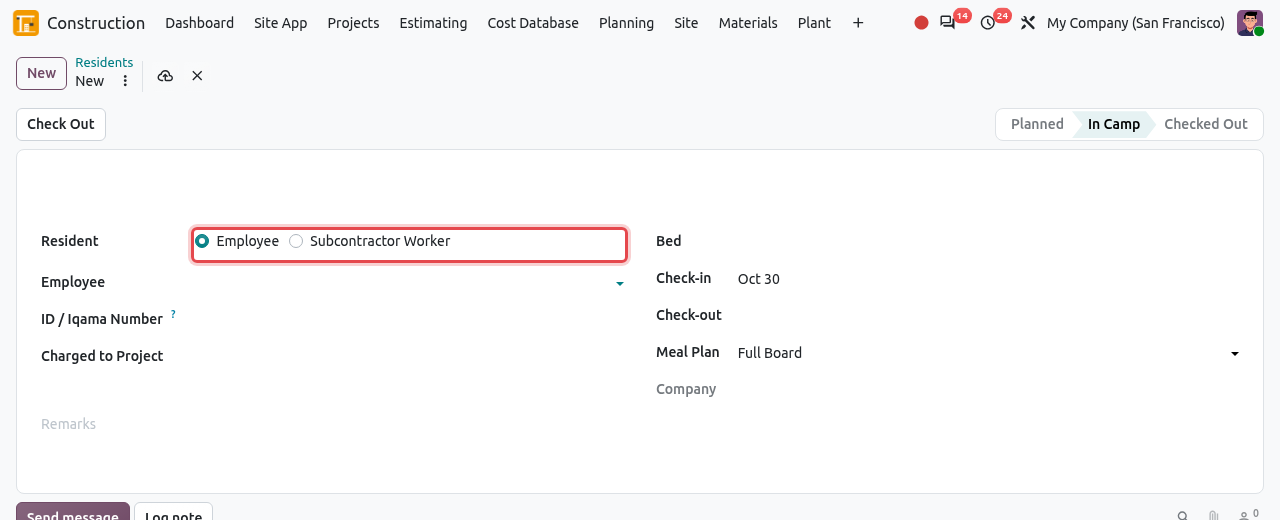
A new resident. Choose Employee or Subcontractor Worker first. Fill in the form, then save:
Field What to enter Employee The employee who stays in the camp. ID / Iqama Number The residence permit (Iqama, Emirates ID) or passport number. Charged to Project The project that pays for the bed and meals. Bed The bed, shown as camp code / block-room / bed, for example AQZ / B-103 / A. Out-of-order beds are not proposed. Type the bed letter, or click Search More... to choose in a list. Check-in The arrival date (today by default). A date in the future makes the resident Planned. Check-out Leave empty while the person stays. Meal Plan Full Board (the mess rate is charged) or No Meals. 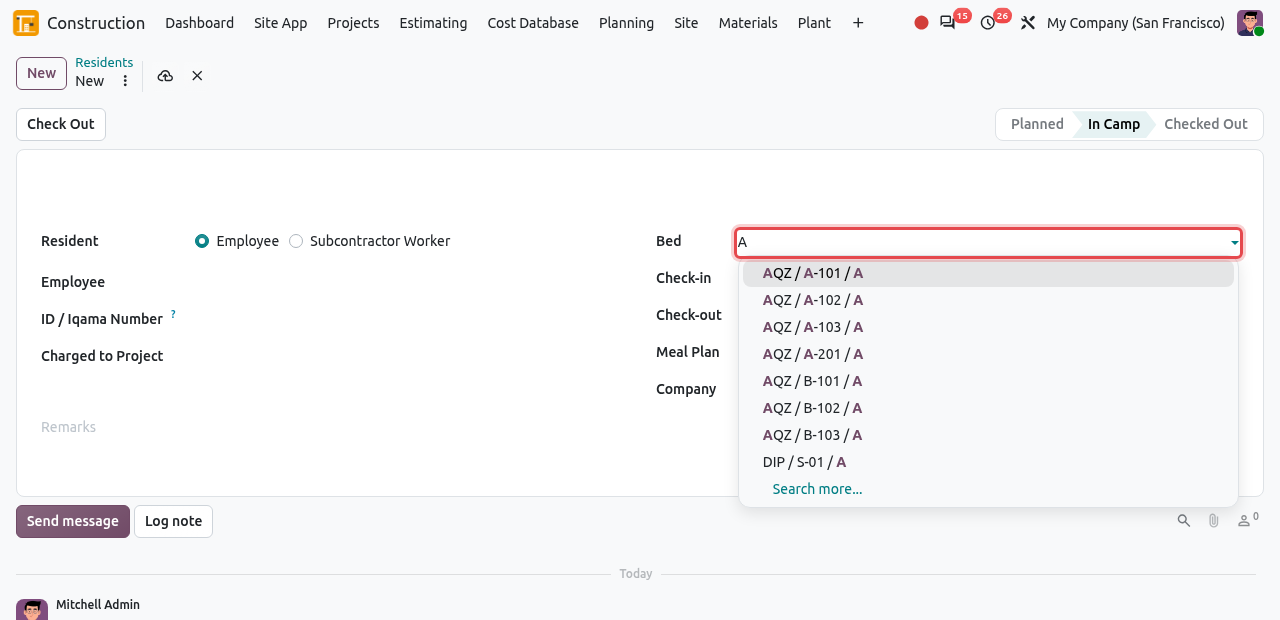
Choosing the bed: typing A lists the free beds A of every camp, shown as camp / room / bed. The resident is In Camp. The bed is now Occupied and the occupancy of the camp is updated.
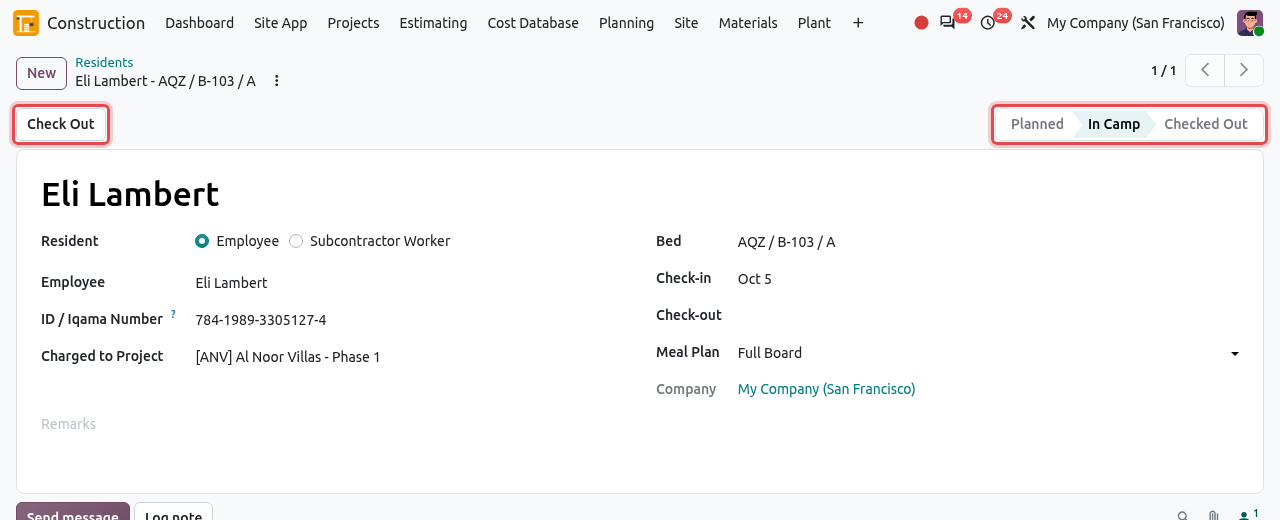
Eli Lambert on bed AQZ / B-103 / A since 5 October, charged to the ANV project.
Allocate a bed to a subcontractor's worker
Workers of a subcontractor can stay in your camp; their camp costs are charged back to the subcontractor.
In a new resident, choose Resident = Subcontractor Worker.
Choose the Subcontract (only running subcontracts are proposed) and type the Worker Name and his ID / Iqama Number. The Charged to Project is taken from the subcontract. Choose the bed, the check-in date and the meal plan, then save.
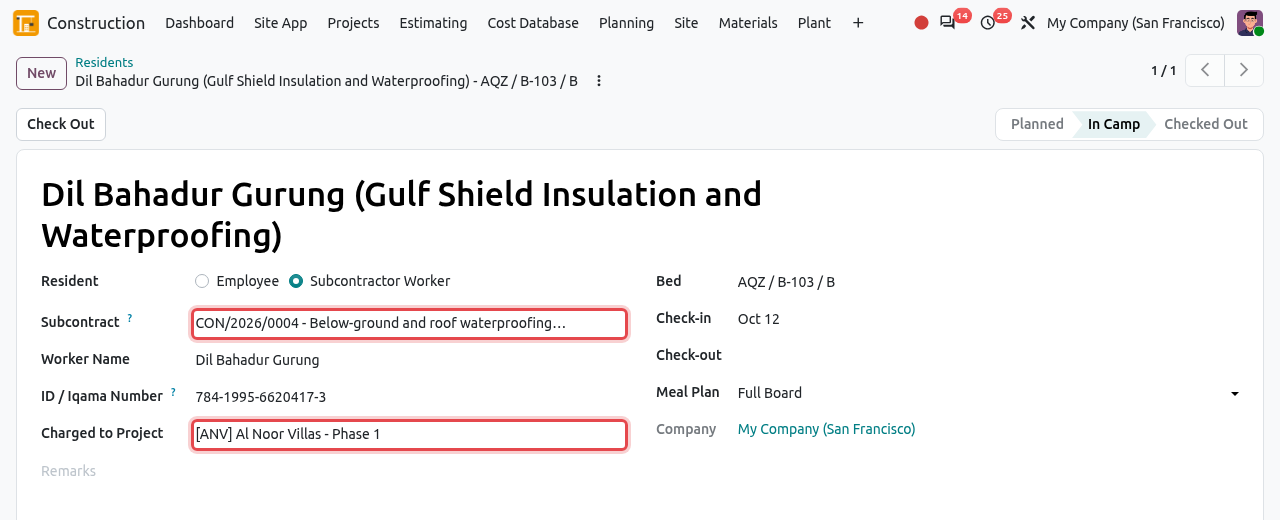
A worker of Gulf Shield Insulation and Waterproofing. The project comes from subcontract CON/2026/0004.
ONE PERSON PER BED
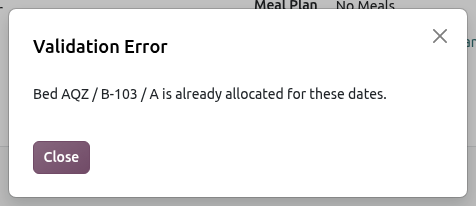
A bed cannot be given to two residents for overlapping dates (message Bed AQZ / B-103 / A is already allocated for these dates.), and an employee cannot have two beds at the same time. The check-out date cannot be before the check-in date.
Check out a resident
When the person leaves the camp, open the resident and click Check Out. Odoo puts today's date in Check-out. You can also type a past or planned check-out date yourself.
The resident stays In Camp until the end of the check-out day, then becomes Checked Out and the bed is Available again. The last month is charged up to the check-out date.
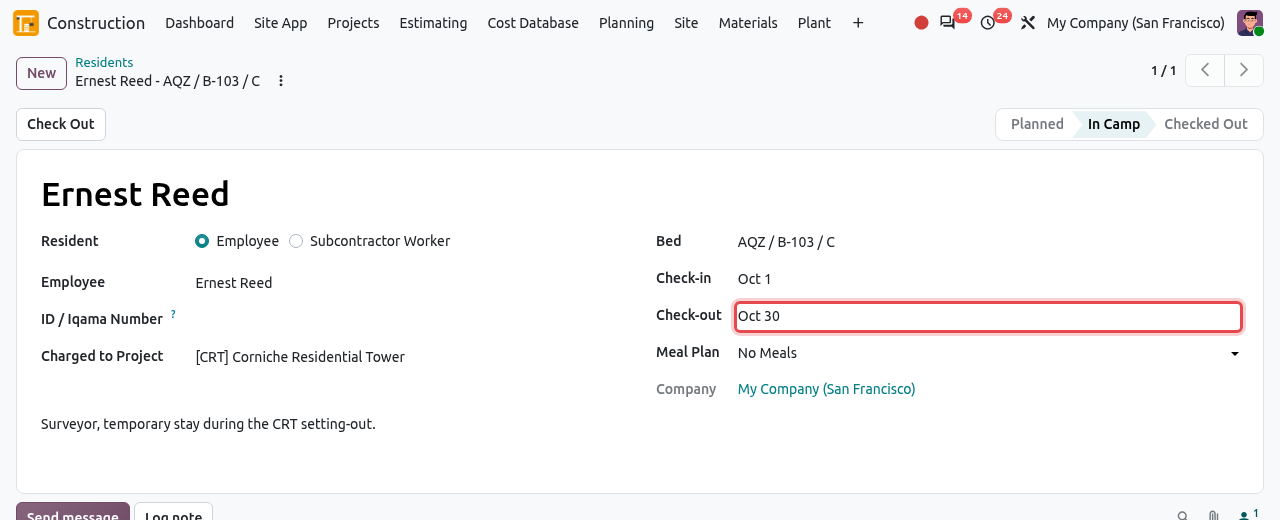
Ernest Reed checked out on 30 October.
Beds
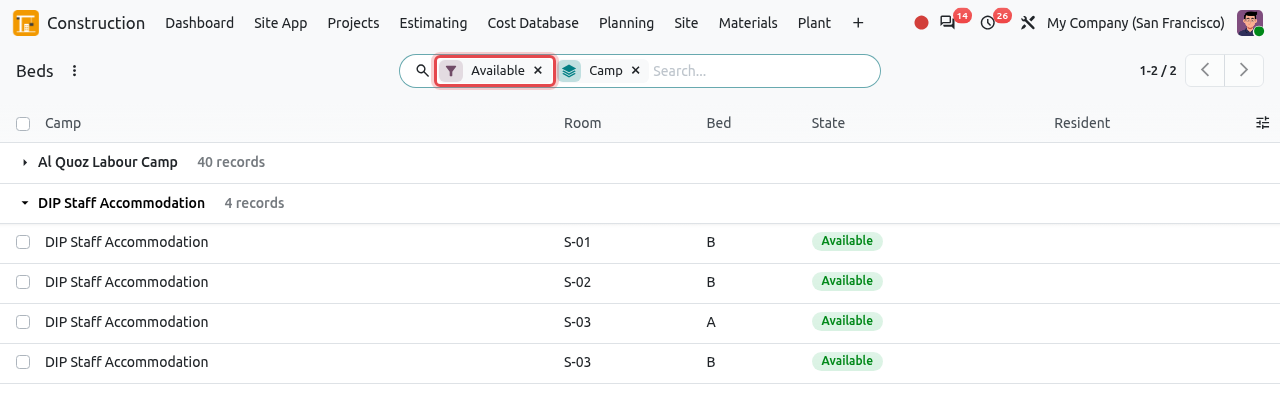
Open to find a free bed quickly. The list opens with the Available filter, grouped by camp; click a camp to see its free beds. Use the filters Occupied and Out of Order, or group by Room. Beds are created from the rooms, not from this list.
Compute the monthly charges
Once a month, after the month has ended, the camp manager calculates the charges of all residents. Each charge is pro rata of the days in camp during the month:
- Accommodation = Accommodation per Month × days in camp ÷ days of the month;
- Mess = Mess per Month × days in camp ÷ days of the month (zero for No Meals).
For example, Eli Lambert arrived on 5 October: 27 days out of 31, so $420 × 27/31 = $365.81 of accommodation and $330 × 27/31 = $287.42 of meals.
Open . A window opens:
Field What to enter Camps The camps to charge (all camps by default). Month Any day of the month to charge. By default the first day of last month. Post at Once Tick it to post the charges immediately. Leave it empty to check the charges first (recommended). 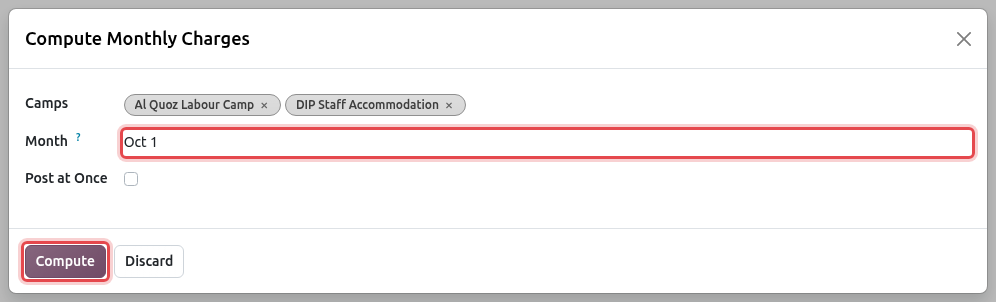
Compute the charges of October for both camps. Click Compute. Odoo creates one Draft charge per resident present during the month, and shows them. Residents already charged for that month are skipped, so running the window twice does not charge anyone twice.
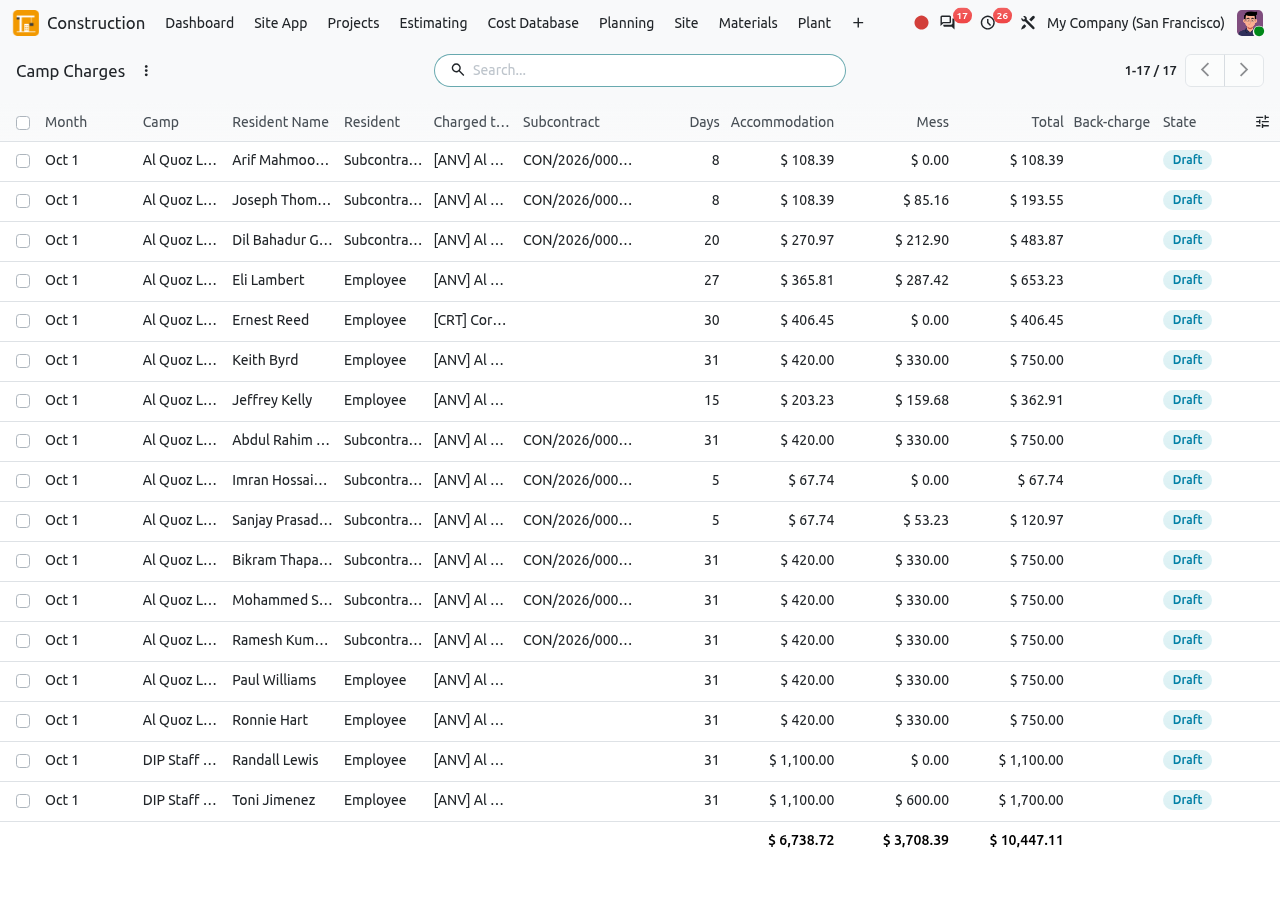
The draft charges of October: days in camp, accommodation, mess and total of each resident.
Camp Charges: check and post
Open . The charges are grouped by month; click a month to open it. The states are:
Draft→Posted
Check the draft charges. Then tick the charges to post (tick the box of the column header to select them all) and click Post at the top of the list.
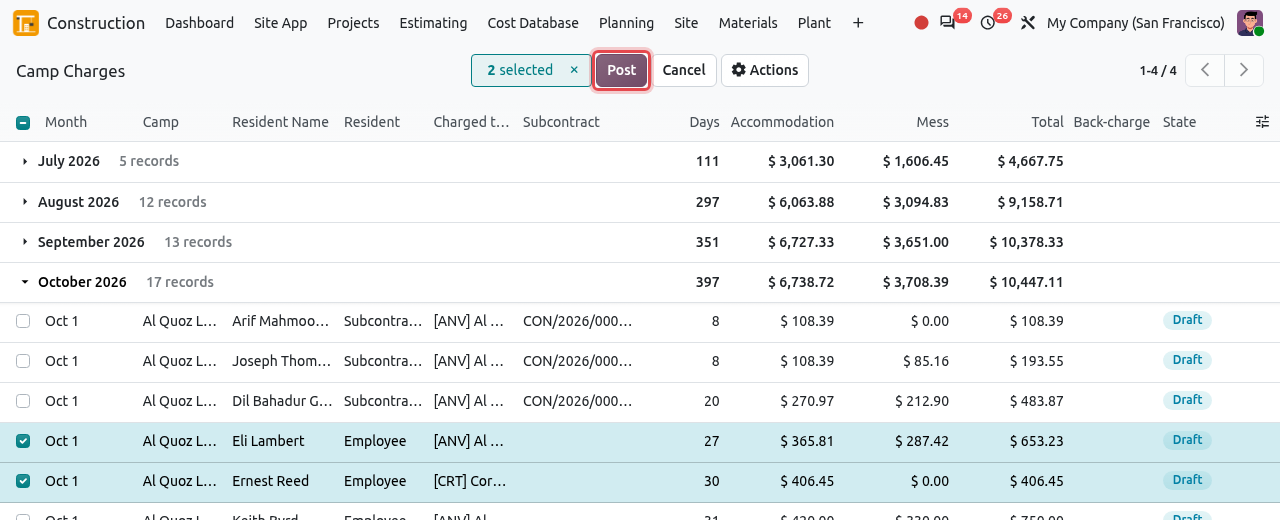
Two charges of October selected. Click Post. The charges become Posted. What happens depends on the resident:
- Employee: the total is booked as a cost of the project charged, on the cost code of the camp (an analytic line named Camp Al Quoz Labour Camp: Eli Lambert, 10/2026). It appears in the actual cost of the project budget (see Cost Control). The same amount is credited to the camp analytic account.
- Subcontractor worker: Odoo creates one back-charge per subcontract, camp and month, already confirmed, listing the workers and their days. It is deducted from the subcontractor's next payment certificate.
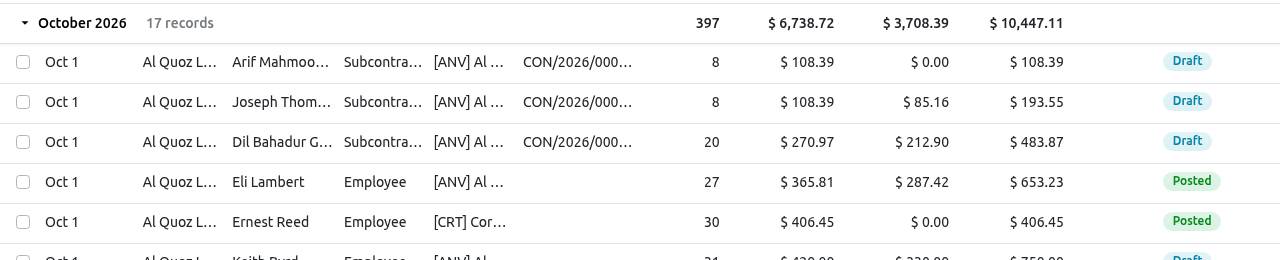
The two employee charges are posted. For subcontractor workers, the Back-charge column shows the back-charge created. In August, the six workers of Emirates Steel Fixing LLC produced back-charge BC/2026/0005.
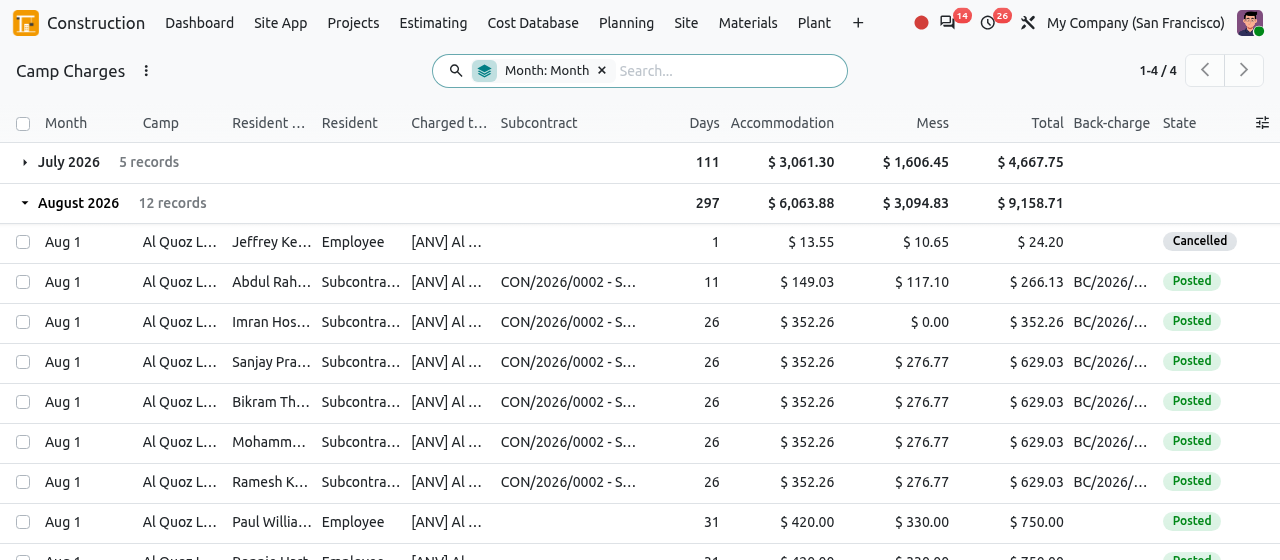
August: the subcontractor workers' charges are linked to back-charge BC/2026/0005. Open the back-charge in . It is Confirmed and becomes Deducted when a payment certificate of the subcontract deducts it.
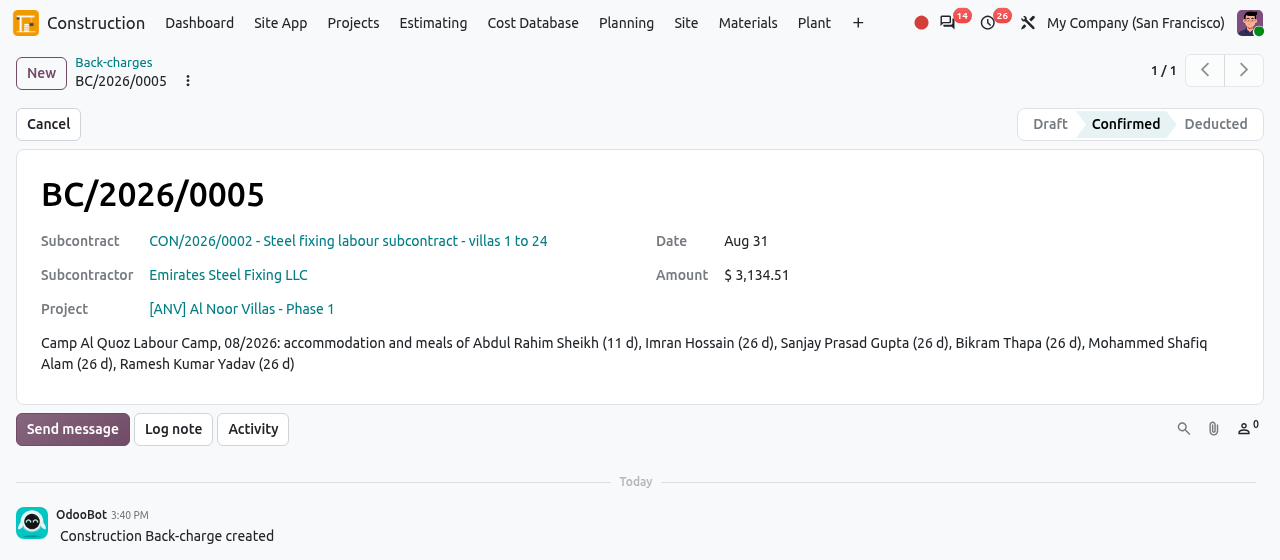
The back-charge: the camp, the month and the days of each worker.
CANCELLING CHARGES
Select charges and click Cancel to undo them: the project cost is removed and the back-charge is cancelled. All the charges of the same back-charge must be cancelled together, and once the back-charge has been deducted on a certificate it can no longer be cancelled. A charge with a total of zero is cancelled automatically when posted. A resident is charged only once per month (cancelled charges excepted), so after cancelling you can compute the month again.
TIP
Subcontractor charges can only be posted while the subcontract is running. Group the charges by Project or Camp in the search options to see the camp cost of each project.